

Business projects must be properly managed so that information does not get lost in the maze. Task management tools can be a useful tool to manage multiple projects without missing anything.
For example, one of the most popular task management tools is Trello. However, there are many people who are considering the use of Trello but are not sure if it is the right tool for their company.
In this issue, we will provide a complete guide of Trello, including usage, fees, and reviews for below people.
- “I want to use Trello, but I do not know how to use it in detail.”
- “I want to use word-of-mouth and reputation as a factor in deciding whether or not to implement Trello.”
- “We are looking for a task management tool that can be easily operated by our company.”
If so, this article will help you understand how to use Trello, what users are saying about it, and help you decide if it is the right tool for your company.
Contents
- 1 What is Trello?
- 2 Basic and extended features of Trello
- 3 How to get started with Trello
- 4 Trello basic screenshot
- 5 How to use Trello
- 6 How to use Trello
- 7 4 steps to manage tasks with Trello
- 8 Trello price plans
- 9 Trello reviews from users
- 10 [Note] What is the Trello personal information leak?
- 11 How to manage tasks of your team safely and easily?
- 12 Summary of Trello usage, reviews, and fees
What is Trello?
This section provides an overview of Trello, its functions and benefits. Read the following to get an idea of how Trello can be used in your company.
Trello Overview

Refer to: Trello Official website
Trello is a tool that allows you to manage tasks in a Kanban style.
In Trello, “cards” with tasks on them are moved around like sticky notes on a “list” with work statuses (e.g., not started, completed, etc.). This makes it possible to keep track of work progress at a glance.
In addition, Trello allows users to set access privileges, reducing the risk of information leakage to outside parties. Trello is also compatible with PCs such as Mac and Windows, and smartphones such as iPhone and Android, so it can be used regardless of time and location.
What you can do with Trello
Trello can streamline the following 3 main tasks.
- Task Management
- Project Management
- Schedule Management
By managing tasks in a kanban style, you can see the progress of your work at a glance. Tasks can also be displayed in a list format, so choose the one that is easiest to read.
Even if you have multiple projects going on at the same time, having a board (a work space) in place will help you avoid confusion. In addition, the timeline view allows you to keep track of progress in a Gantt chart format.
Task and project due dates can be viewed in a calendar format. There is also a function that syncs with Google Calendar to automatically reflect appointments.
As described above, Trello allows you to switch not only to the “Kanban method” but also to the “Timeline View” and “Calendar View,” which change the way information is viewed.
Merits of Trello
Trello offers the following 3 merits
- Visual Task Management
- Integration with external tools
- Extended functionality
Trello is designed to manage tasks in a kanban style, so you can see progress at a glance, solving the need to check in with members of the team.
Trello can be integrated with external tools such as Teams, Gmail, and Todoist, so you can make up for missing functions as needed.
There are extensions that allow you to freely customize Trello’s functionality. You can set up repeating tasks, calculate man-hours, and more.
In this way, Trello is specialized for task management and is customizable, making it an ideal tool for companies that want to tailor the tool to their own needs.
On the other hand, if you want to keep track of internal knowledge in addition to tasks and do not require complex customization, we recommend a simple task management tool like Stock.
Basic and extended features of Trello
The following is a list of “Basic Features” and “Extended Features” that you should be aware of when using Trello.
<Basic features of Trello>
| Function Name | Details |
|---|---|
Labels | This function allows you to set task attributes such as classification and priority. |
Due Date | This function allows you to set a deadline for a task. |
Detailed Description | A function to describe detailed information about the Task. |
Attached File | Attach files related to the Task. |
Checklist | This function is useful when you want to manage Tasks by subdividing them. |
Comment | You can send messages to Tasks. |
<Extended features of Trello>
| Function name | Details |
|---|---|
Export for Trello | An extension that allows you to export data in Trello in CVS format. |
Next Step for Trello | This extension allows you to arrange tasks in Trello in order of due date. |
Trello Birds Eye | An extension that allows you to view your Trello lists in a simple way. |
Add this page to Trello | This extension allows you to immediately save a web page as a card on Trello. |
List Layouts for Trello | This extension allows you to customize the layout of Trello. |
In addition to the above, Trello has a wide variety of other features that make it a popular extension for a wide range of companies.
How to get started with Trello
Below is an explanation of how to register Trello and invite members. All instructions are accompanied by images, so check them against the actual screen.
(1) Register with Trello
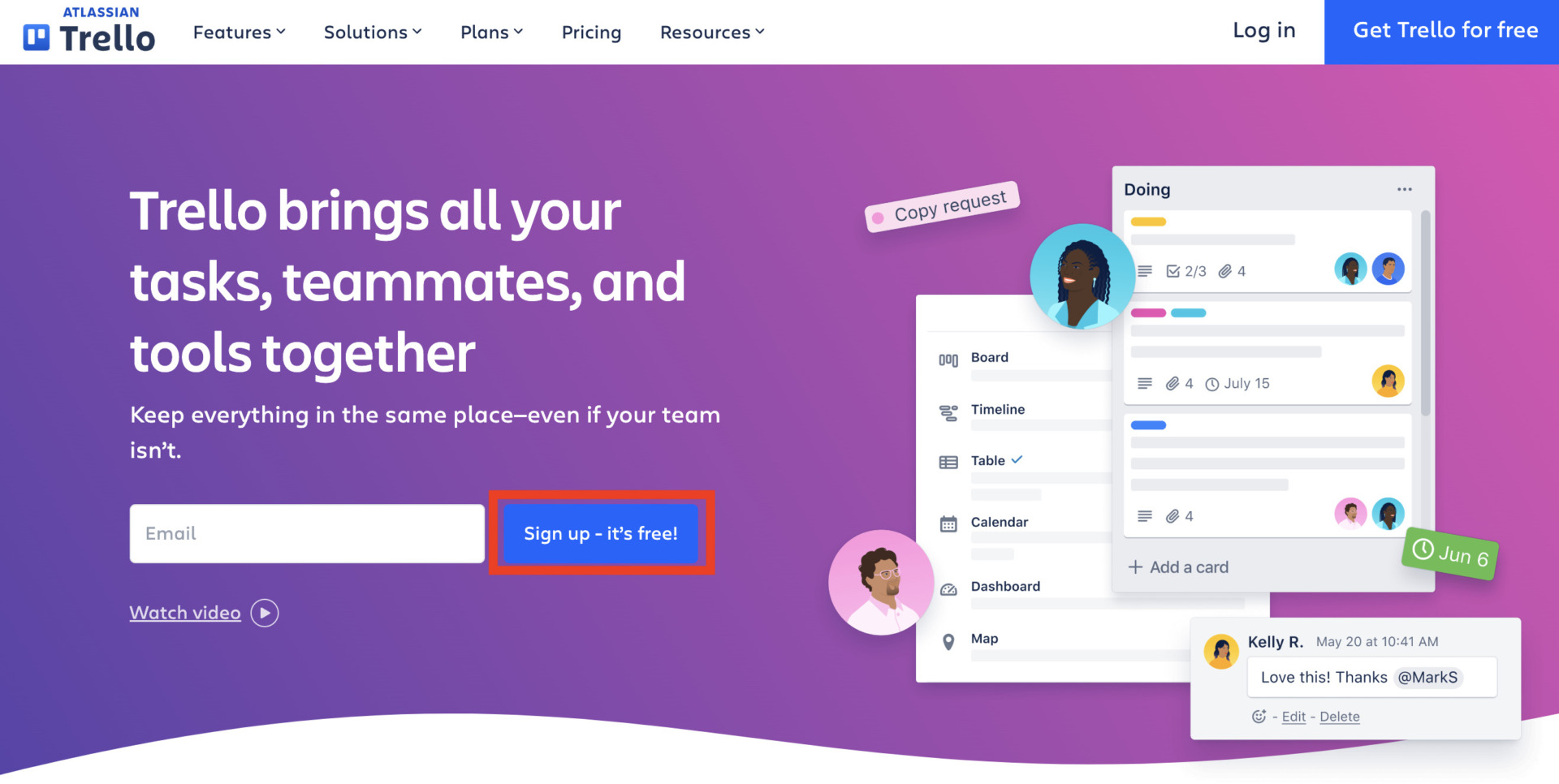
First, you should create account on official site of Trello. And
click the [Sign up – it’s free!].
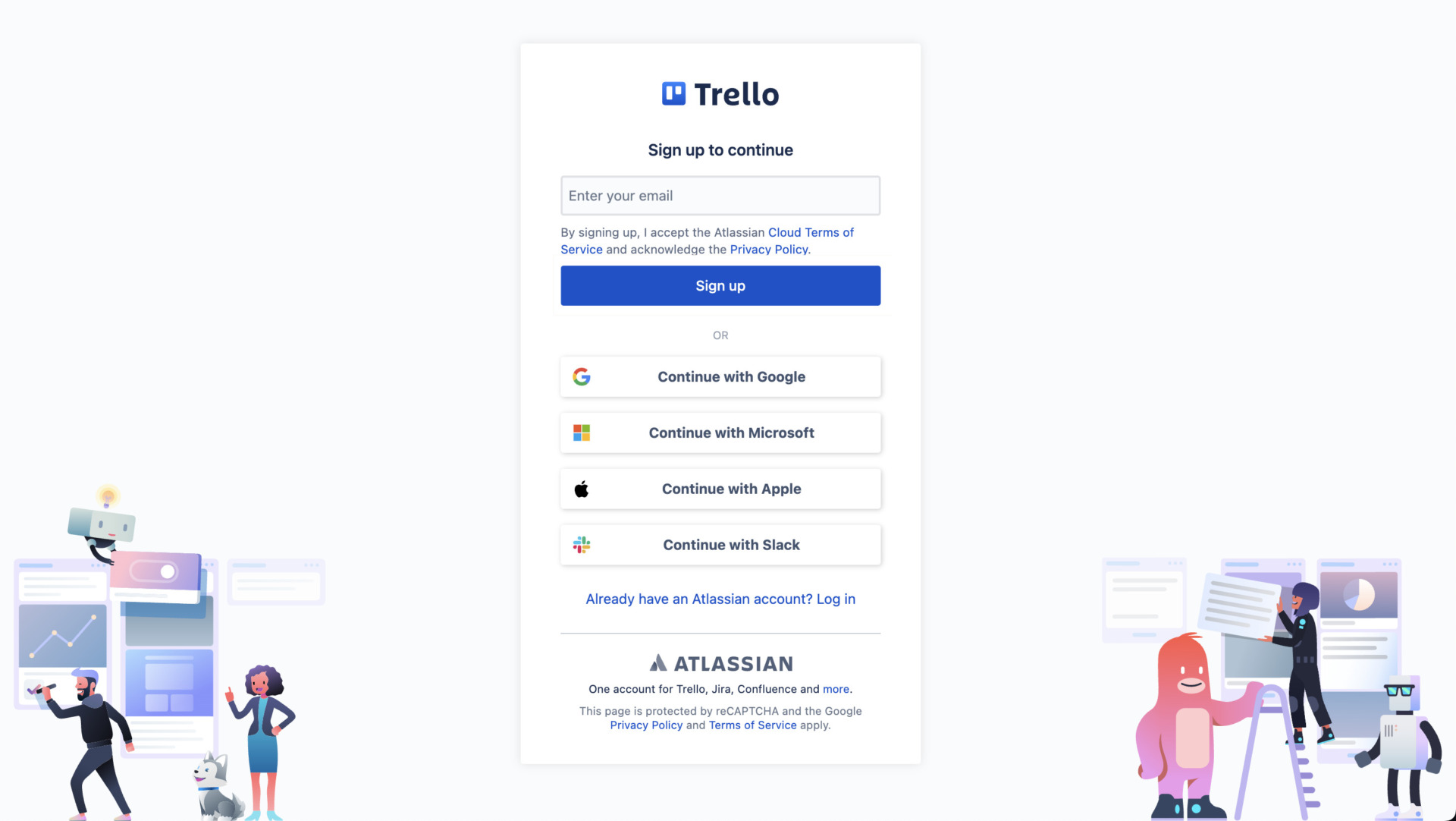
Then, a screen for creating an account will appear as shown in the figure above, so register with an “email address and password” or “various email accounts”.
Finally, enter the name of your workspace (or company name if you are using it for a company) to register your Trello account.
(2) Install the Trello app
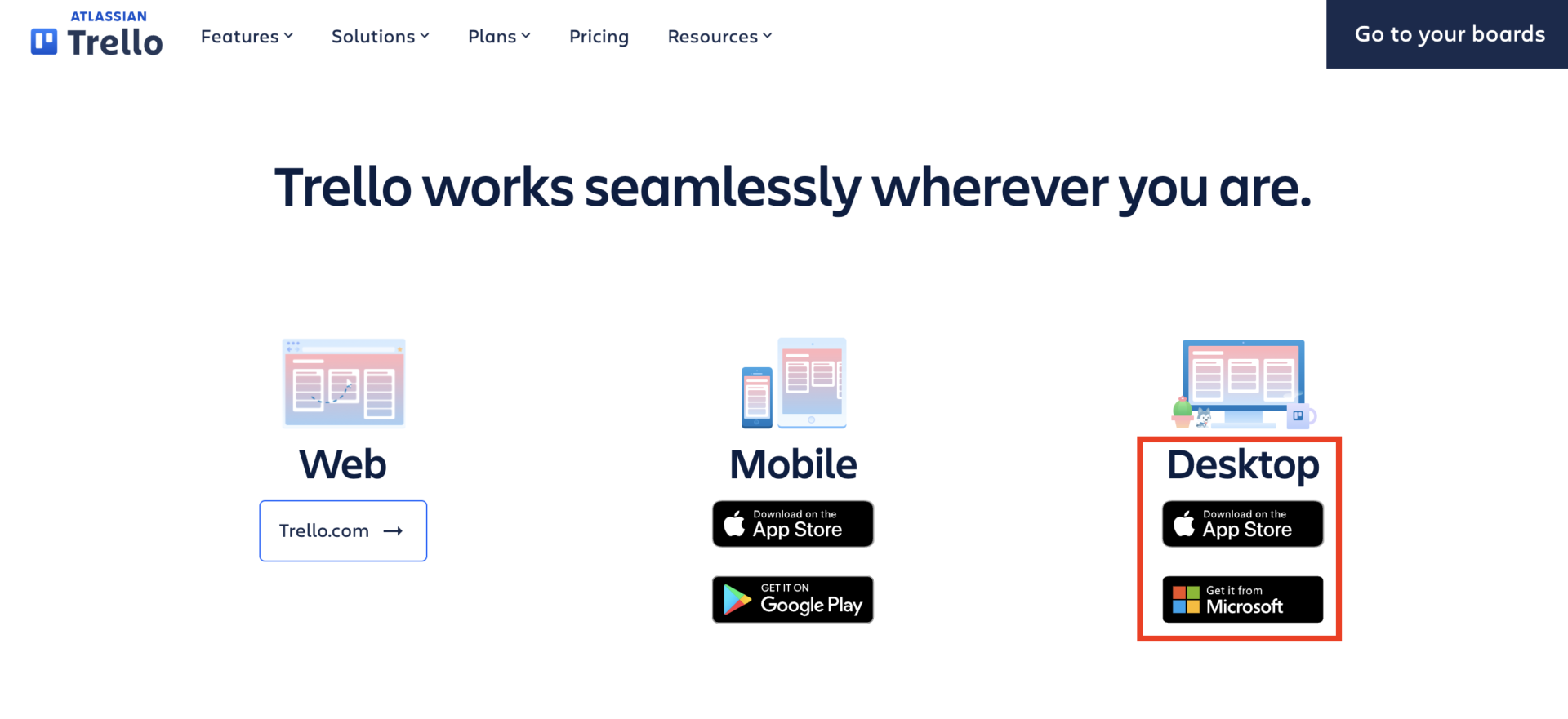
Next, install the Trello app. You can use the Trello app from a web browser on your computer, but it is more convenient to use the Trello desktop app as it runs more smoothly.
First, you can choose app by OS, if you use Mac, choose upper icon, otherwise you use Windows, you can download it from lower icon from Download page of Trello.
After the download is complete, launch the Trello app and select [Continue].

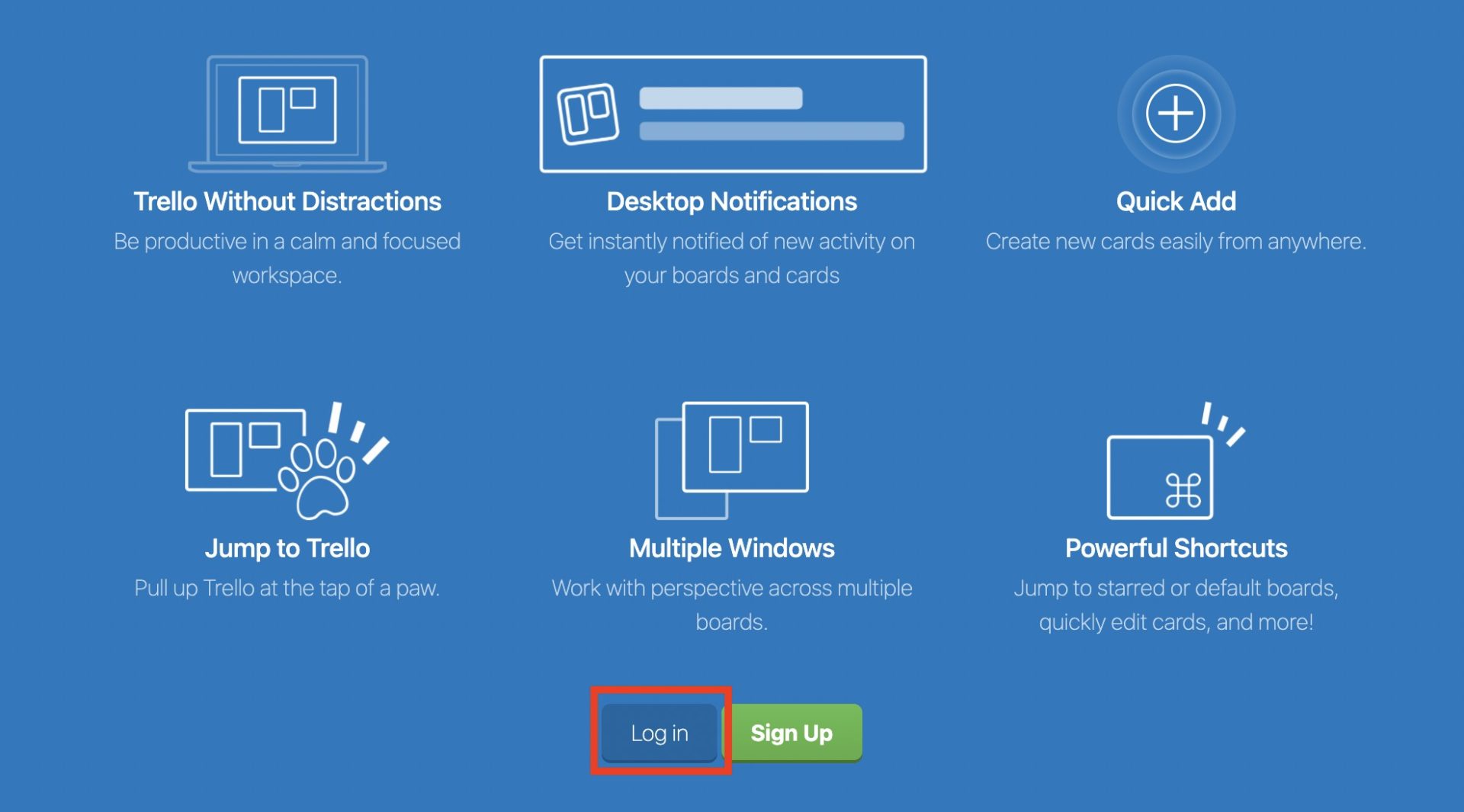
Click [Log in] and log in to Trello with your registered account.
If you successfully log in to Trello, a dashboard will open. The above steps complete the installation and login of the Trello desktop app.
(3) Create a workspace and invite members
Finally, create a workspace and invite members to use Trello with your team.
Creating a workspace
First, set up a “workspace” as the area for sharing information with your team members by clicking on the [+] sign under [Workspaces] on the left side of the Trello screen.
![Image of clicking the [+] button of Trello's workspace](http://stock-app.info/en/media/wp-content/uploads/2023/09/スクリーンショット-2023-09-21-10.13.46.jpg)
The “Create Workspace” screen will appear. Enter the necessary information, including the workspace name, and click [Continue] to complete the process.
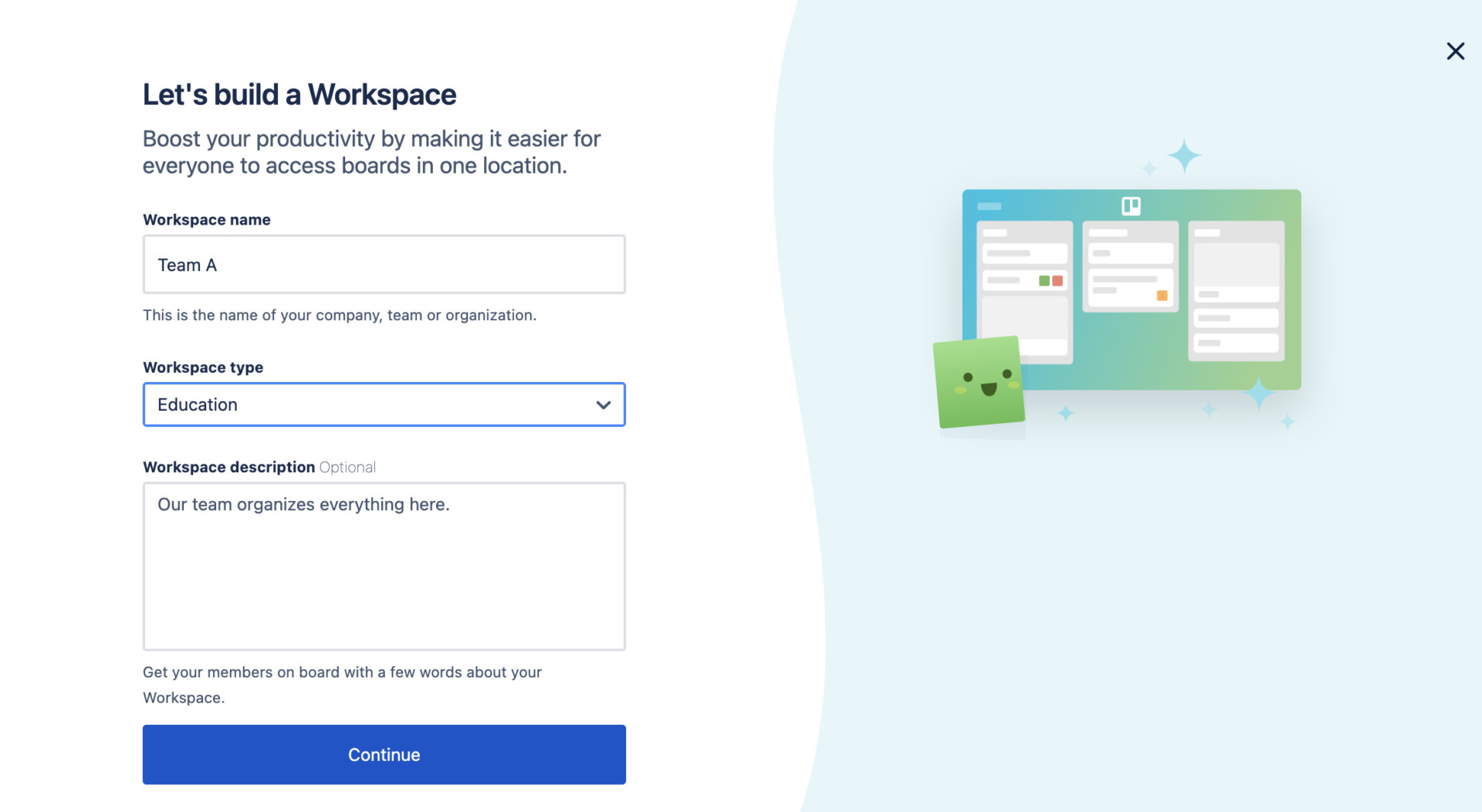
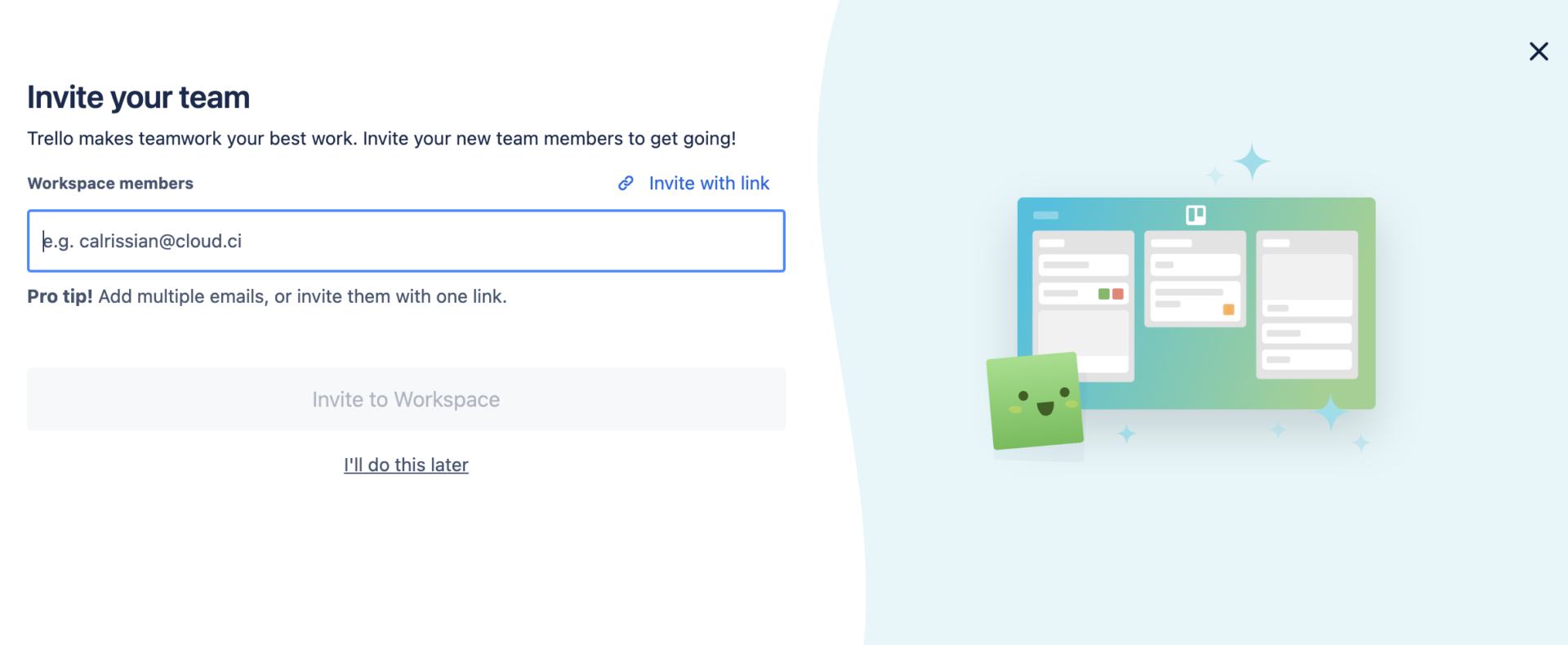
After clicking [Continue], the following invitation screen will appear, allowing you to create a workspace and invite members in succession. You can also skip inviting members by clicking [I’ll do this later].
Invite members to a workspace
To invite members to a workspace you have already created, click the [+] button under [Members] on the left side of the Trello screen.
![Image of clicking the [+] button under Member of Trello](http://stock-app.info/en/media/wp-content/uploads/2023/09/スクリーンショット-2023-09-20-17.42.32.jpg)
When the following screen appears, enter the email address and send an invitation message, or search for a Trello account and send the invitation directly to the member.
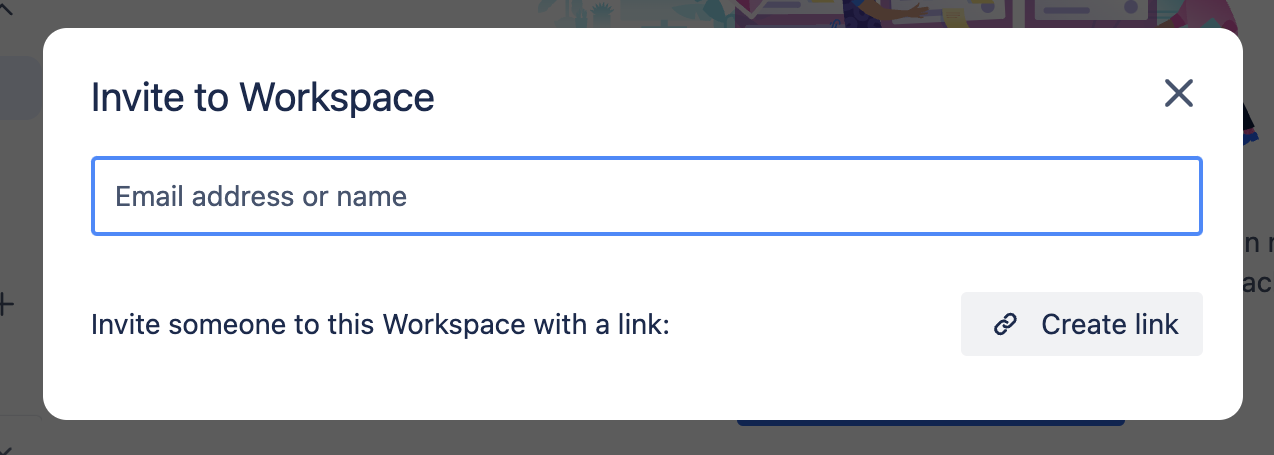
The invitation will then be sent to the member, who must approve it to be added as a member.
Trello basic screenshot
The following is the basic screen structure of Trello.
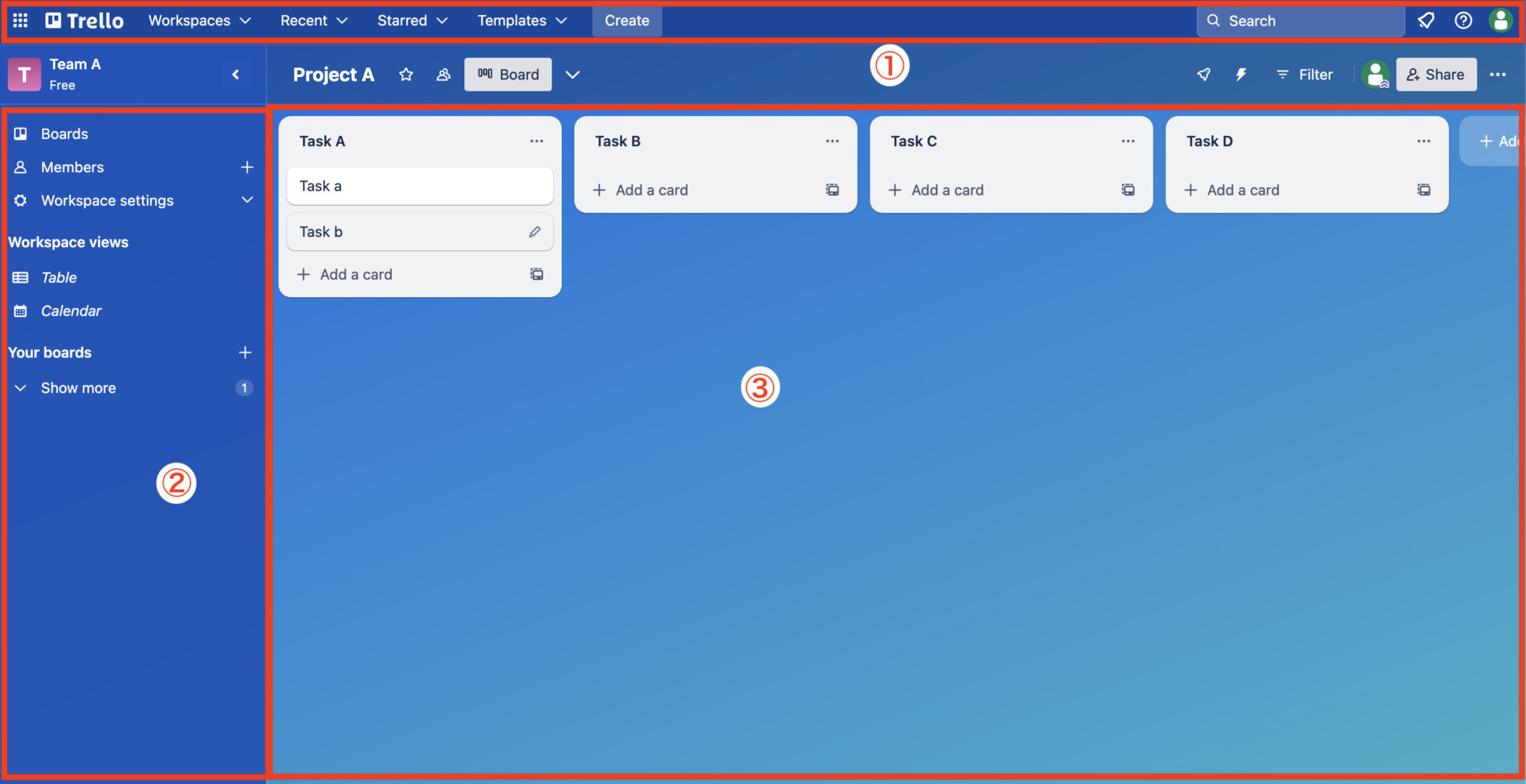
- Top Bar
- Sidebar
- Boards
The top bar contains a “search function” to find the information you need and a “template function” to start using Trello immediately.
The sidebar contains the “Administration” function, which allows you to set up members, and the “View” function, which allows you to change the appearance of the information you have entered.
Boards are workspaces where you can manage tasks and schedules. Boards allow you to work on multiple projects at the same time without having information get mixed up.

A board is a workspace that consists of the following 2 elements like bwelow.
- Lists
- Cards
A list is a space where information in the same category is kept together. There is no limit to the number of lists you can add to a board, and you can arrange them as you wish.
Cards are notes for writing down ideas, tasks, and other information. You can change the color of the card to make it stand out, attach files to it, and more.
How to use Trello
Below are 3 basic ways to use Trello, the most important feature of Trello being the use of “Boards”, “Lists”, and “Cards”.
Usage 1|Add a Board
First, add a board to Trello. The specific steps for adding a board are as follows.
- Click [Create New Board].
- Select a background image for the board.
- Enter a title for the board.
- Set the public scope of the board.
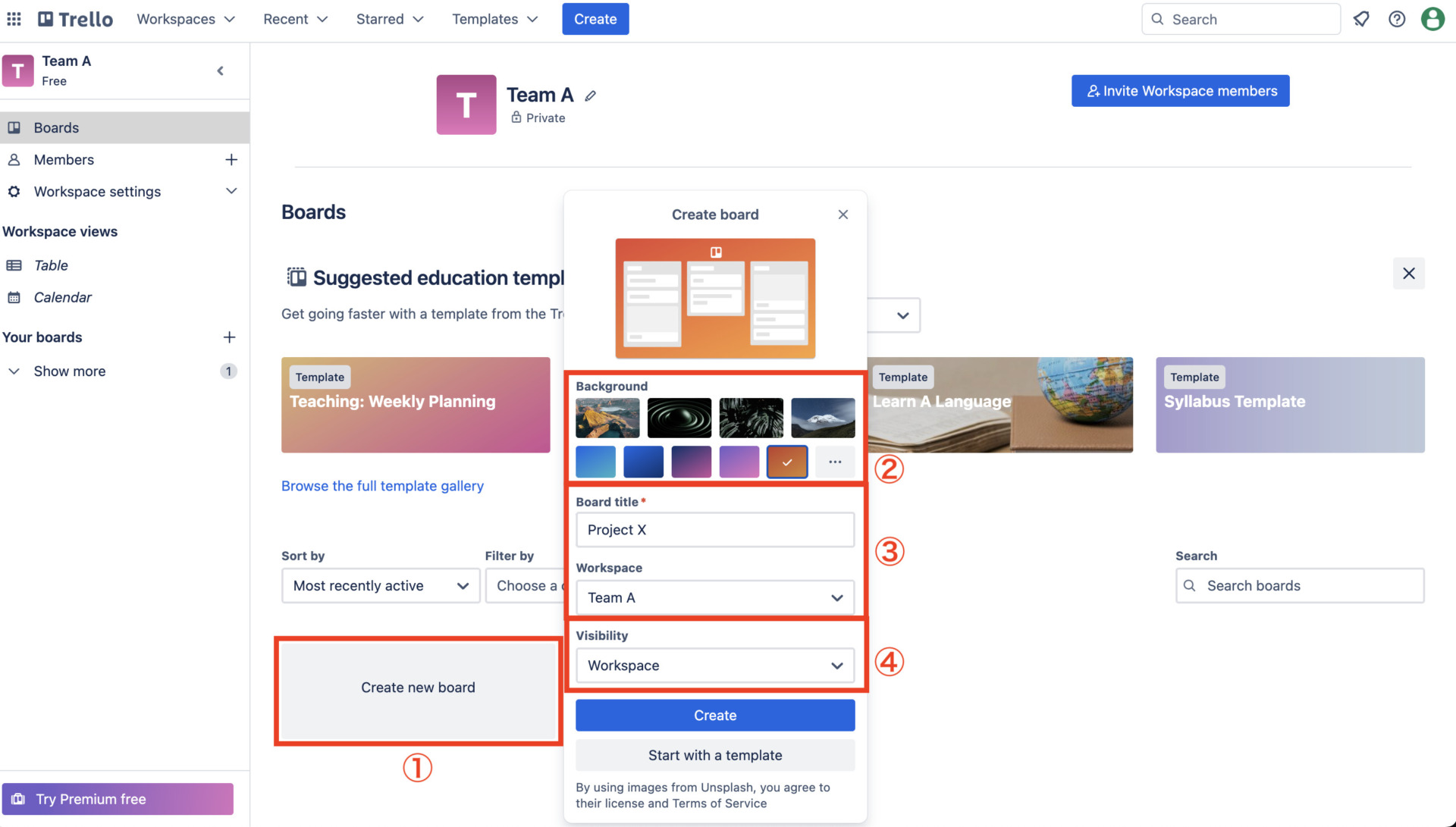
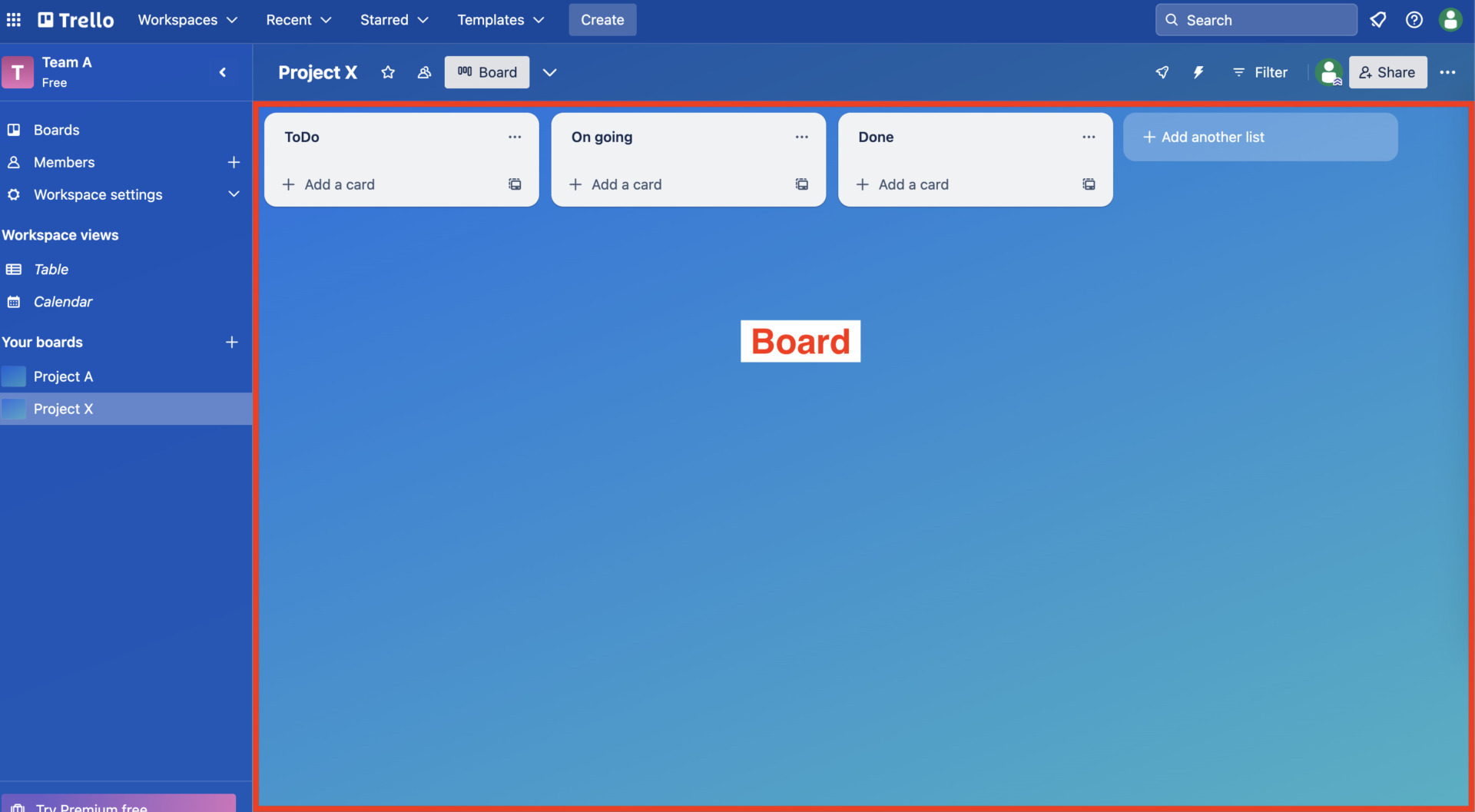
Now that the board has been created, you can use Trello to manage it in various ways.
Usage 2|Add a list
Next, create a list in the board. A list is a space to organize information in the same category.
To create a list, click [Add another list] in the board.

Now you have created a list on the board. You can create an unlimited number of lists and arrange them as you wish.
Usage 3|Add a card
Finally, you can add cards to your list. A card is a memo to write down ideas, tasks, and other information.
To add a card, simply click [Add a card] in the list and enter a title.
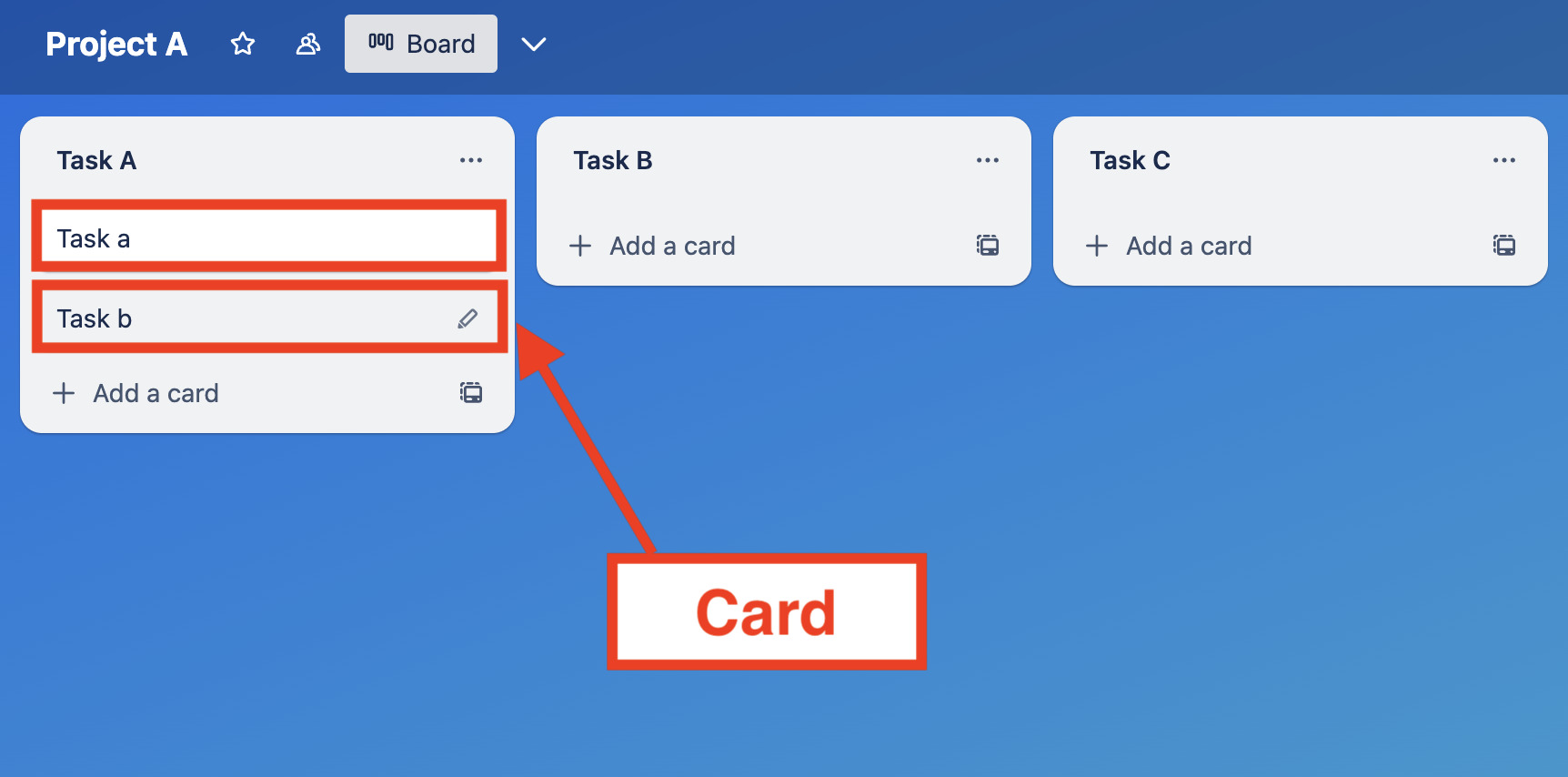
With these operations, cards are added to the list and can be moved between lists by drag and drop. Each card can also have a due date, a contact person, and a file attached to it.
How to use Trello
This section describes 2 apps of Trello. However, note that if you are not familiar with IT, you may make mistakes.
Usage 1|Automate tasks with Butler

By linking Butler and Trello, you can automate tasks managed by Trello.
For example, you can automatically save a specific task when it is completed, or set a repeating task in your calendar. This solves tedious work and reduces the likelihood of missing tasks.
When work is streamlined as described above, the time freed up can be used for other tasks, which can be expected to increase productivity.
Usage 2|Integrate tools with Power-Up
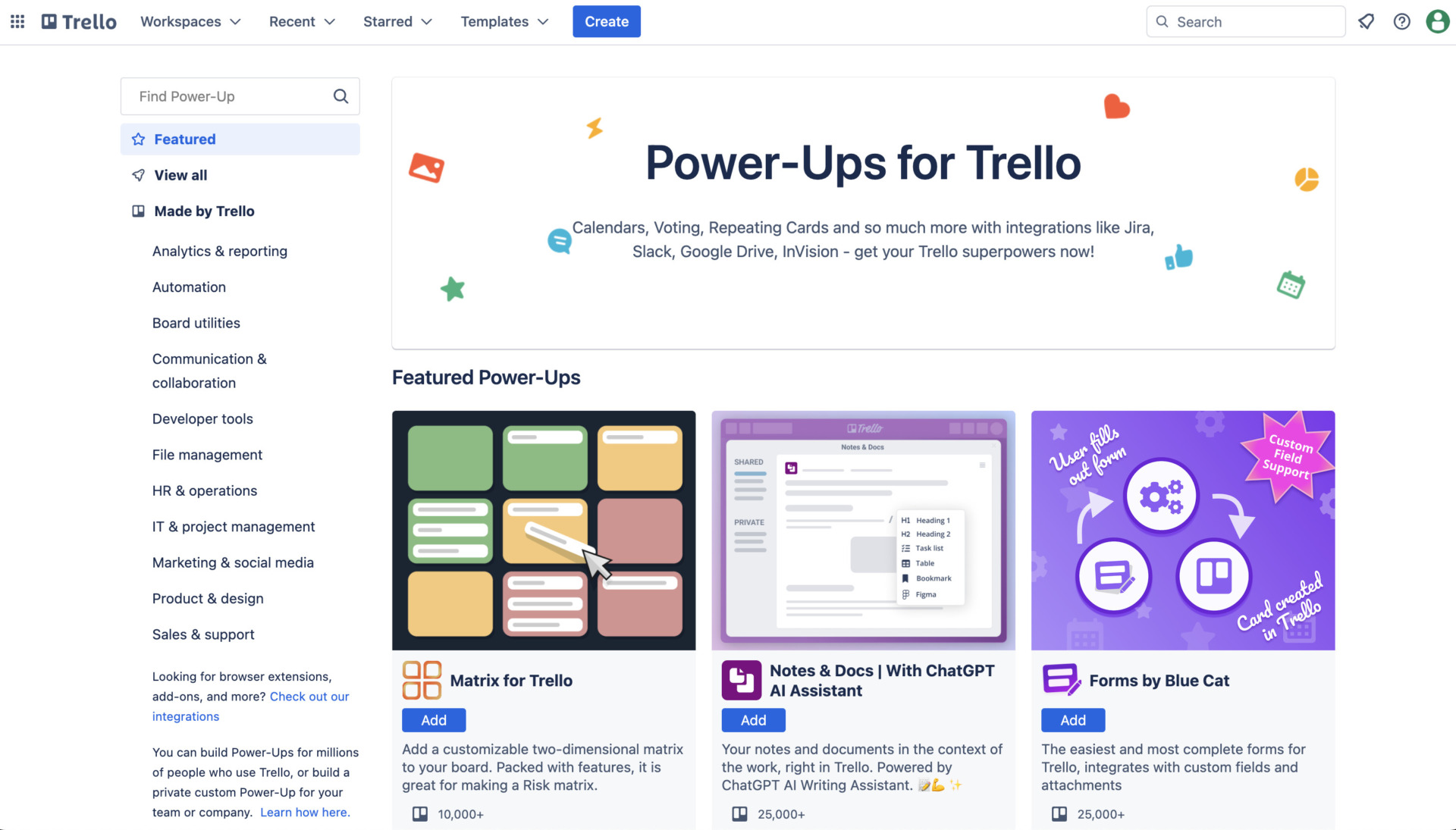
Using the Power-Up function, you can link Trello with external apps (by API) to use even more useful functions.
Slack, Evernote, Google Drive, etc. are examples of external tools that can be linked. This function is useful when multiple tools are used together for the client’s convenience.
4 steps to manage tasks with Trello
This section explains how to manage tasks in Trello in 4 steps. By following the steps below, anyone can manage tasks without mistakes.
(1) Set up Boards/Lists/Cards
First, set up Boards, Lists, and Cards as shown in the figure below.
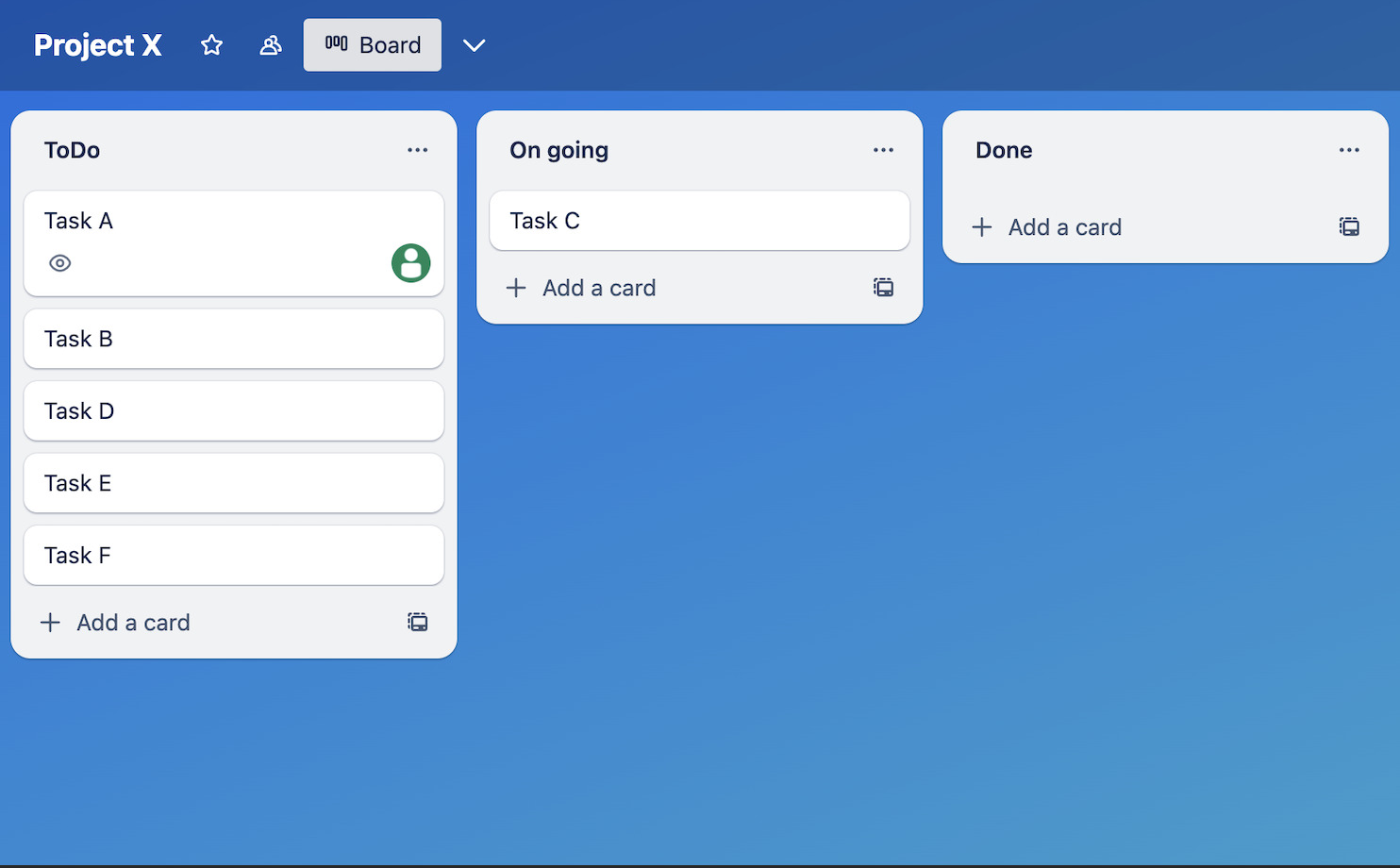
If you want to manage tasks, put the project name on the board, the progress status on the list, and the task name on the card.
(2) Register the person in charge on the card
Next, register the person in charge of the task on the card. By simply registering the person in charge of the task, you can assign the task and also receive notifications to prevent missing tasks.
First, click on the card containing the task to open its details.
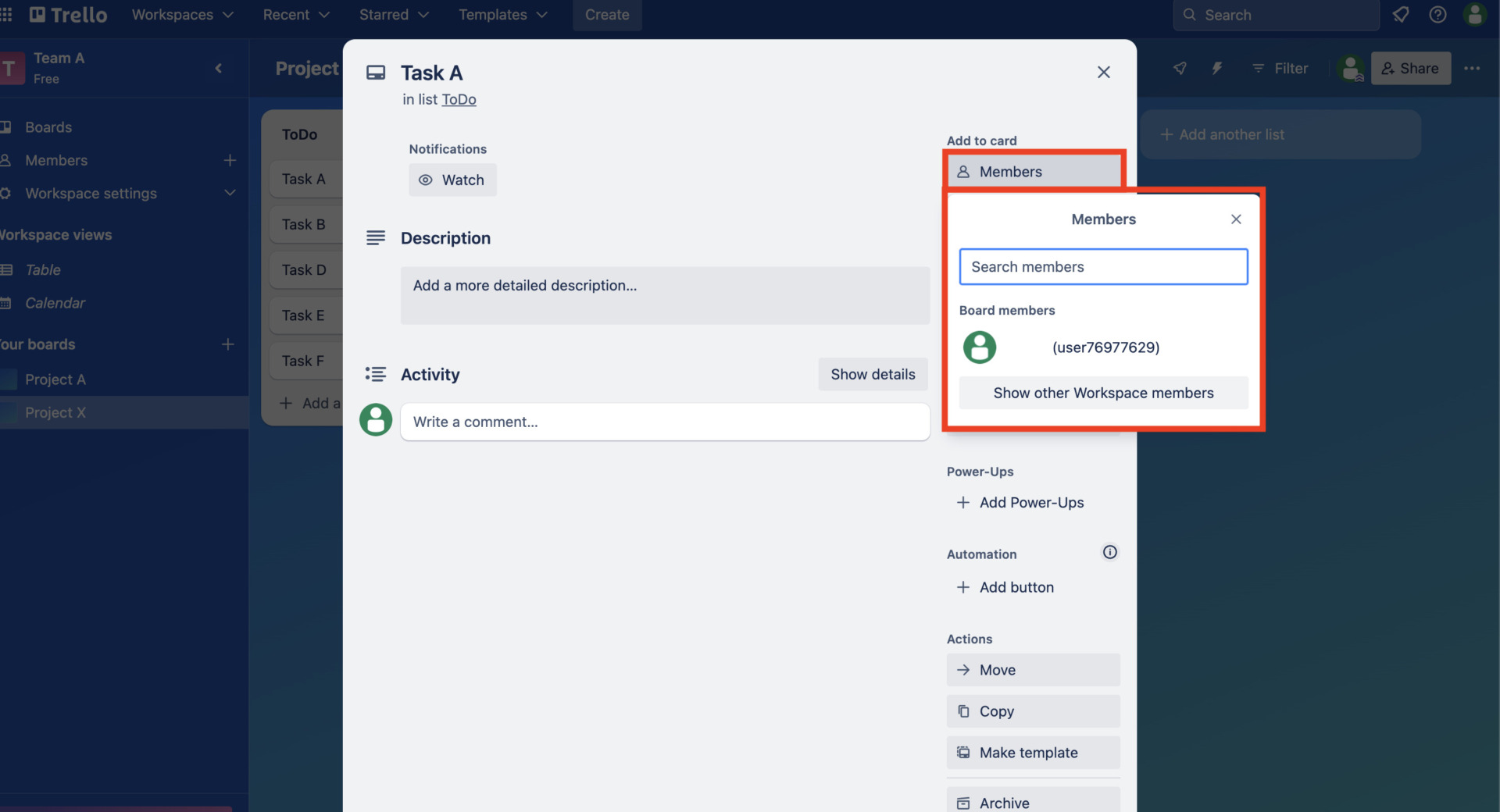
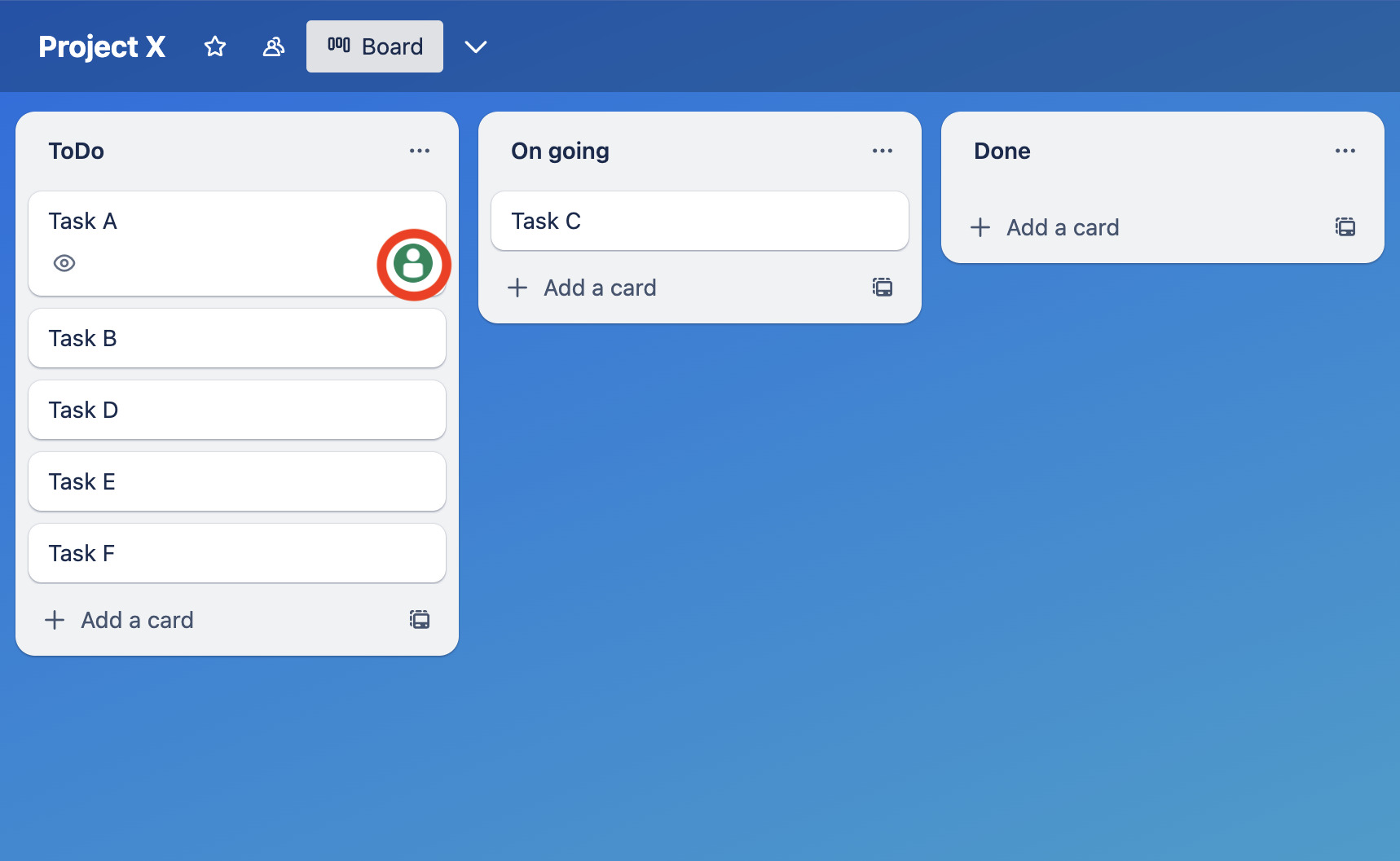
Next, click on [Members] and select the employee you want to assign the task to. The above operation is complete when the icon of the person in charge appears on the card as shown in the figure below.
(3) Attach detailed information and files
Next, attach detailed information and files to the card. By putting all the information about a task on a card, you do not have to search for the information in other tools.
Simply enter detailed information in [Description] under Card Details, and upload the file in [Attachment].
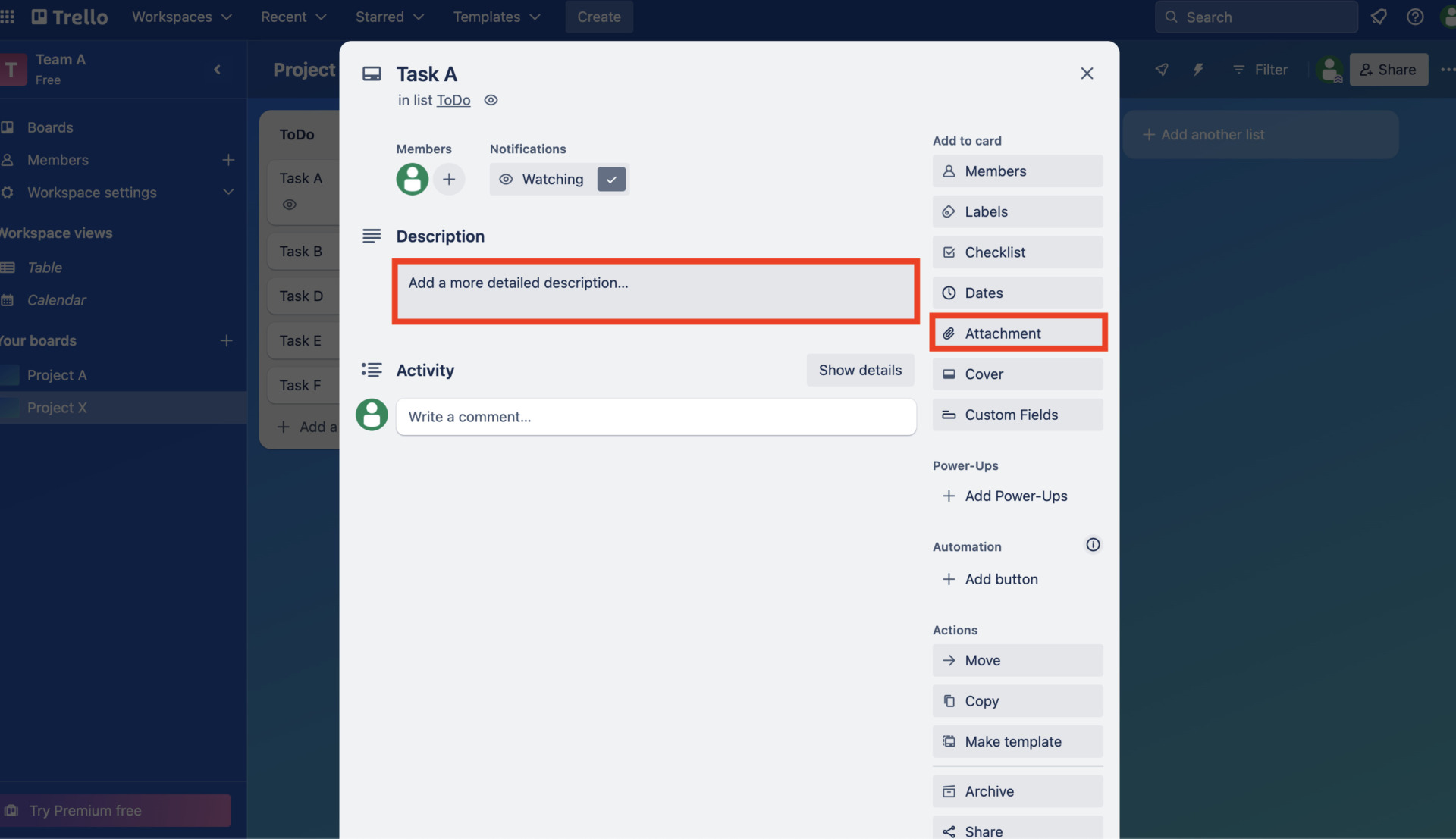
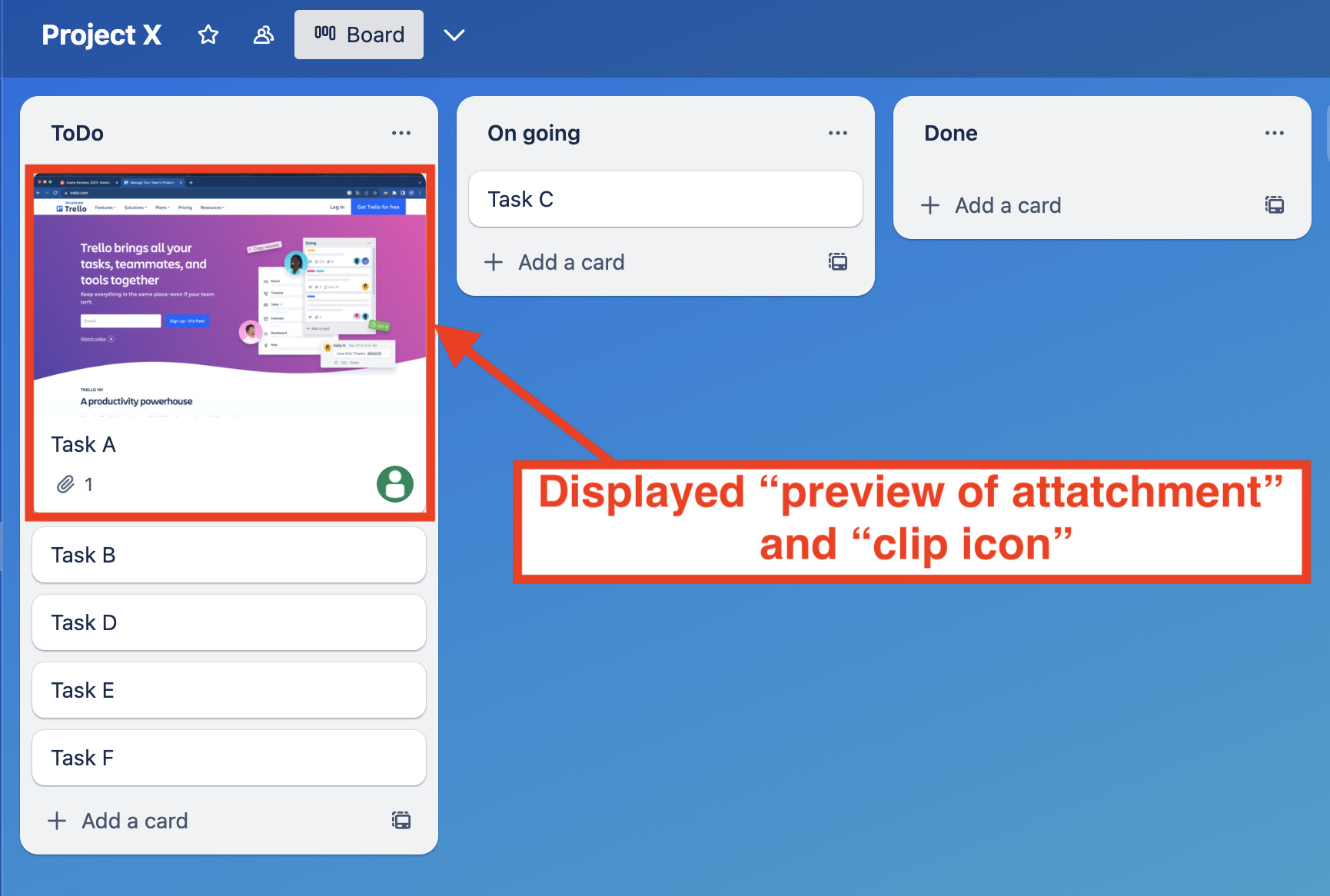
When the icon and preview of image that you attached appears on the card as shown above, the process is complete.
(4) Drag and drop as you progress
Finally, manage tasks in a Kanban style by moving the list of cards according to their progress. As shown in the figure below, to start a task that is [ToDo], drag and drop the card to [On going].
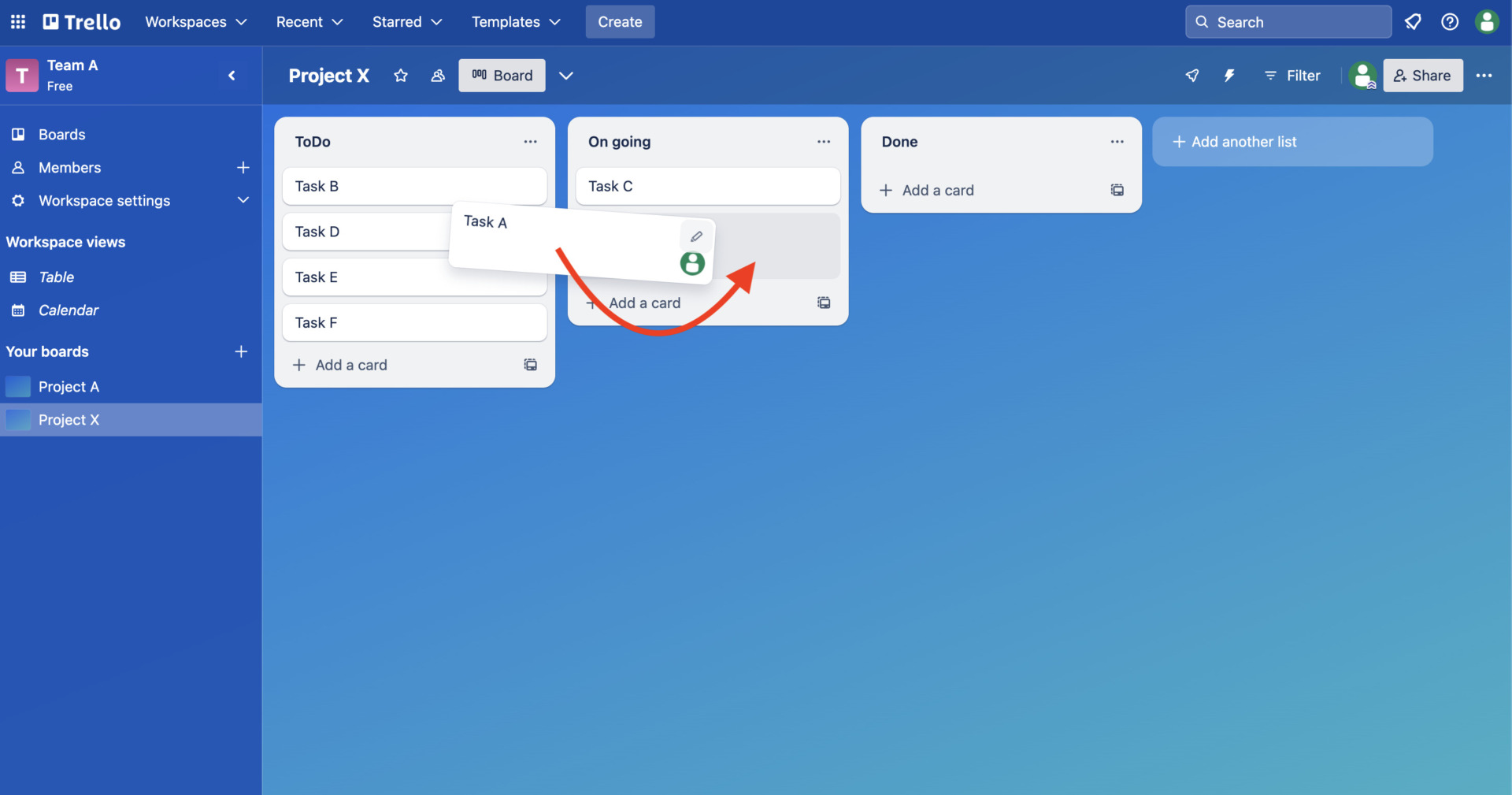
As described above, Trello allows you to manage tasks in a Kanban style, which is easy to grasp the progress and visually understandable.
Trello price plans
The differences between pricing plans of Trello are as follows. (scroll left to right)
| FREE | STANDARD | PREMIUM | ENTERPRISE | |
|---|---|---|---|---|
| 料金 | Fees | $5 /user/month (annually payment) | $10 /user/month (annually payment) | 〜Up to $17.50 /user/month (annually payment) |
| Scale of use | For individuals or small teams | For small teams planning to expand functionality | For teams of up to 100 users | For large teams looking to enhance security |
| Unlimited cards | ✔️ | ✔️ | ✔️ | ✔️ |
| Use of Boards | Up to 10 per workspace | Unlimited | Unlimited | Unlimited |
| Dashboard View | – | – | ✔️ | ✔️ |
| Timeline view | – | – | ✔️ | ✔️ |
| Table view | – | – | ✔️ | ✔️ |
| Calendar view | – | – | ✔️ | ✔️ |
| Two-factor authentication | ✔️ | ✔️ | ✔️ | ✔️ |
| Priority Support | – | – | ✔️ | ✔️ |
Among the above, be sure to check “full support”. In particular, if you use a tool like Trello or Stock, where you will receive a reply from support within 1 business day, you will be able to resume work immediately in the event of a problem.
Trello reviews from users
Below are the “good” and “bad” reviews of Trello. The following are answers from users who have actually used Trello, so if you are considering adopting Trello, this is a must-see.
*All reviews are taken fromG2>Trello.
Trello good reviews and reputations
Below are some of the good reviews and reputation of Trello. Users have said that the tasks are easy to understand visually and the extensions are useful.
Richard C.(Posted on: 8/25/2023)I love how I can create a virtual Kanban board to share with my team and keep everyone up to speed on our projects. This is especially helpful with a remote workforce. Wouldn’t have been able to be as successful during the pandemic without this! You can also pick it up pretty easy without any training.
Sarah R.(Posted on: 9/18/2023)The thing that I like the best about Trello is how easy and organized it is for someone to do something very visually appealing. I’ve used it not only for Business and Digital Marketing but also to plan and organize my wedding visually. Great for Workflow and team management
Peter C.(Posted on: 7/8/2023)One of the standout features of Trello is its flexibility. The platform utilizes a simple yet powerful card-based system that allows users to create, customize, and track tasks effortlessly. Whether you’re a seasoned project manager or someone new to task management, Trello’s drag-and-drop functionality makes it incredibly easy to organize and prioritize tasks in a way that suits your workflow.
Pirkko A.(Posted on: 7/4/2023)Trello is accessible via app and browsers.In our office computers, we can save internal memory storage space because there’s no need to download any other program to access Trello.For our employees outside of the office, they can easily access Trello via the app on their phone, and we can easily upload and download files on the platform.
Dave B.(Posted on: 8/29/2023)Trello was a go-to at a prior company – it was how we managed our daily / weekly projects and broke the work down into smaller, manageable tasks. I loved that Atlassian acquired Trello.
Reviews on Trello improvements
Next, here are some reviews of Trello’s improvements. Users have said that “they cannot find the cards they are looking for when searching”, and that “it is difficult to find the due dates and priorities of the cards”.
Private user(Posted on: 5/19/2023)The main interface is clear but not overly intuitive to use and its difficult to customise in a way that works efficiently across groups of people who are new to the product
Nikki P.(Posted on: 11/29/2022)It is very cluttered and confusing. Our organization has too much data to keep here, and JIRA is better at consolidating this.
Nicholas d.(Posted on: 2/15/2022)It was clunky to use, deleting a card was a pain and often I would get spammed by the Taco from Trello on a daily/hourly basis which was hugely frustrating. I would ideally like the app to be made easier to operate, its not entirely intuitive
Private user(Posted on: 8/9/2022)The interface and the complexity of the software. We’ve switched to monday.com and life’s been easier since.
Private user(Posted on: 1/20/2021)There are way too many functions. I don’t find Trello intuitive in any way. Instead, it actually slows down my productivity. My process pre trello would be to email a colleague a google drive link. To do the same on trello, I have to navigate to the correct board, create a card on that board with an explanation of what is going on, import the google drive document to the card, and then add my teammate. Why make more work in the name of productivity?
[Note] What is the Trello personal information leak?
There was an incident in which personal information stored in Trello was leaked from April 5 to 6, 2021 in Japan. It is said that there was a “mistake in the setting of the disclosure range on the user side” in the background.
Normally, only members can view the workspace, but if the workspace is set to “public”, the board is made public on the Internet. It is anticipated that the reason for this is that the user felt that “inviting members to the workspace is a hassle” and set it to “Public”.
Since Trello’s public setting can be easily changed, it is necessary to take measures to prevent employees from changing it without permission. Therefore, when using cloud tools such as Trello, be sure to check whether “publication range” and “permissions” can be set.
How to manage tasks of your team safely and easily?
Below we introduce a method to manage your company’s tasks safely and easily.
“Trello” is a task management tool that can be used by companies large and small. On the other hand, there is a risk of personal information leakage due to public settings, and some users have actually unintentionally published their information on the Internet.
In addition, Trello allows users to provide detailed information in the “description” section of cards, but this information cannot be summarized in an easy-to-read format without mastering markdown notation. Also, you can attach files to cards, but this is a hassle because you have to reattach the file after updating it.
Therefore, the best way to manage tasks without complicated operations is to use Stock, a tool that can be easily used by people over 65 years old in non-IT companies.
“Note” of Stock allows you to store information and set access privileges, so you do not have to worry about unintentional disclosure of information. In addition, “Task” and “Message” are also associated with the “Note”, so you can easily manage related information without having to use multiple tools.
Stock|A easiest tool that manages documents and tasks

The simplest tool to stock information "Stock"
https://www.stock-app.info/en/
Stock is the simplest tool to stock information. Stock solves the problem, "there is no easy way to stock information within the company".
With Stock, anyone can easily store all kinds of information, including text information such as requirements, images, and files, using the Note feature.
In addition, by using the "Task" and "Message" functions, you can communicate with each topic described in the Note, so that information is not dispersed here and there and work can always be carried out in an organized manner.
<Why do we recommend Stock?>
- A tool for companies that are not familiar with ITYou don't need to have any IT expertise to get started.
- Simple and usable by anyoneStock is so simple that anyone can use it without any unnecessary features.
- Amazingly easy information storing and task managementIt is amazingly easy to store information such as shared information within a company, and intuitive task management is also possible.
<Stock's pricing>

- Free plan :Free
- Business plan :$5 / User / Month
- Enterprise plan :$10 / User / Month
*Minimum number of users: 5 users
Summary of Trello usage, reviews, and fees
We have provided a comprehensive overview of Trello’s usage, reviews, and fees.
Trello uses “board” and “list” to manage tasks in a visually clear manner. However, there are some merits, such as the trouble of describing detailed task information and the risk of unintentionally disclosing information to unspecified parties.
For this reason, task management in business requires “a tool that allows easy and safe task exchange”. In particular, if access privileges can be assigned to tasks and recorded data, unauthorized access by third parties can be prevented, making it possible to use the tool with peace of mind.
In conclusion, the best alternative to Trello is “Stock”, which allows you to easily keep information in “Note” and each note is associated with a “Task”.
It only takes 1 minute to register for free, so using Stock and realize a comfortable and leak-free task management.
