

More and more companies are adopting cloud tools to create a remote work environment. Since cloud tools can manage internal information over the Internet, there are no restrictions on where work can be done and there is no risk of losing documents.
And one of the widely used cloud tools is “Microsoft Teams”. This tool has all the features necessary for remote work and is highly compatible with Word and Excel, but many people may wonder if their company needs Microsoft Teams.
In this article, we will provide a comprehensive introduction to Microsoft Teams, including its features, reputation, and usage for below people.
- “I know about Microsoft Teams, but I am not sure if it matches my company”.
- “I want to know what people who actually use Microsoft Teams think about it”.
- “We are looking for a tool that we will be able to share information easily?”
If you are looking for a tool to share information easily, this article will give you an idea of how to operate Microsoft Teams and help you decide which tool is best for your company.
Contents
- 1 What is Microsoft Teams?
- 2 4 things you can do with Microsoft Teams
- 3 Merits of Microsoft Teams
- 4 Differences from other web conferencing tools
- 5 How to start using Microsoft Teams
- 6 How to use Microsoft Teams
- 7 What is the difference between the paid and free versions? (Comparison chart)
- 8 Reputation from people who have used Microsoft Teams
- 9 A best tool for enhancing work efficiency in non-IT companies
- 10 Summary of Microsoft Teams features and reputation
What is Microsoft Teams?
First, we will introduce an overview of Microsoft Teams through the differences from email and examples of use, and formulate an image of how to operate the tool.
Overview of Microsoft Teams
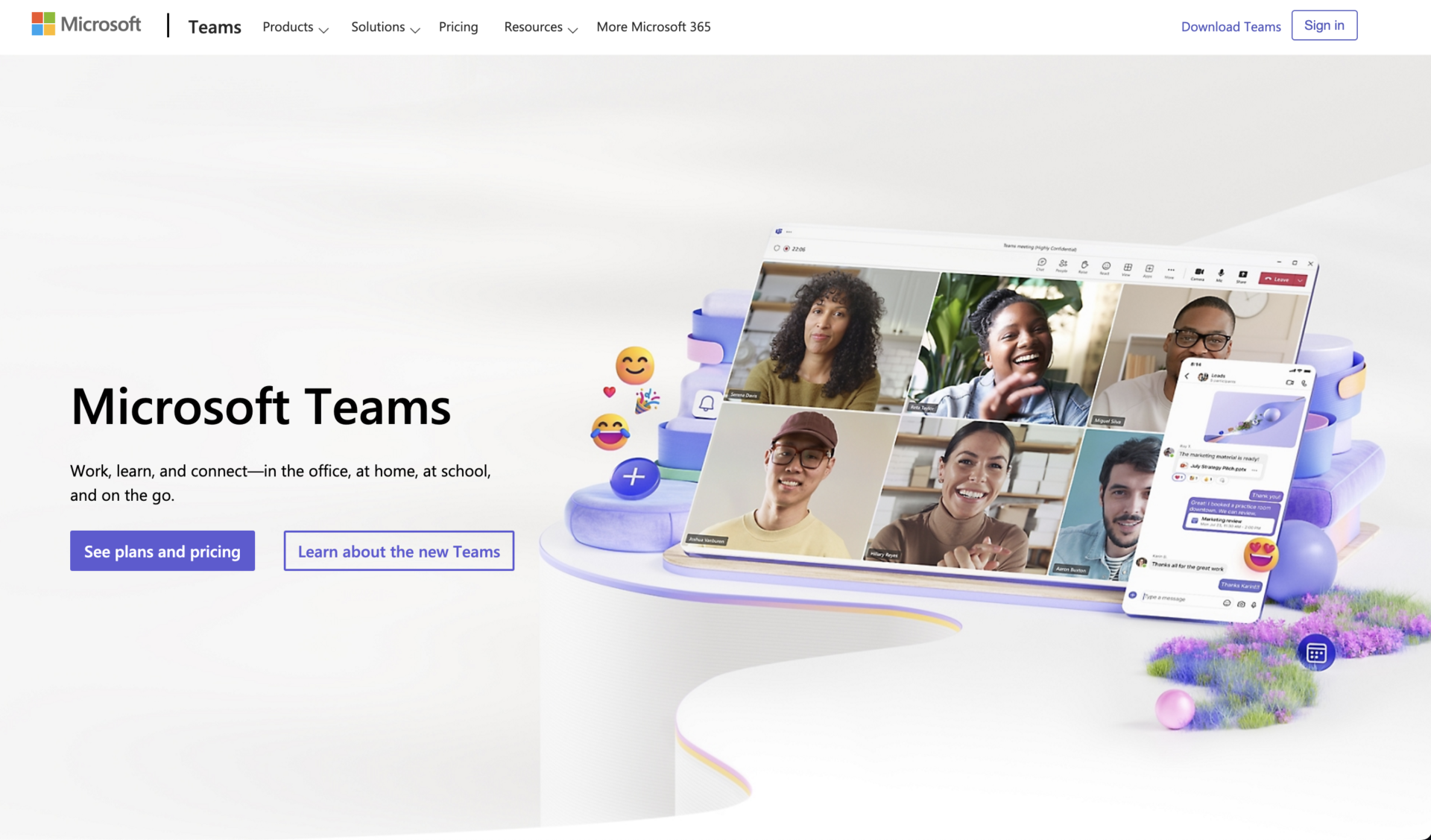
Refer to: Microsoft Teams
Microsoft Teams is a communication app provided by Microsoft Corporation. Microsoft Teams is a “multi-functional app” that allows users to perform remote working tasks such as video conferencing and file sharing as well as chatting.
In addition, Word, Excel, and PowerPoint are difficult to edit collaboratively in real time, but if they are linked with Microsoft Teams, collaborative editing is possible. There are 2 pricing plans, one for home users and the other for general corporate users.
While highly convenient, Microsoft Teams is multifunctional, and requires a certain level of IT literacy within the company in order to fully utilize it. It is important to note that training costs may be required, especially if a non-IT company introduces Microsoft Teams.
Differences from Email
Microsoft Teams can replace the internal communication and document sharing traditionally done by email. Compared to email, it has the following features
- No need to select addresses when sending to multiple people
- There is a “read” function to confirm that a message has been read
- Able to indicate reactions to messages
- Large files can be sent
In this way, the inconvenience of email communication can be solved with the introduction of Microsoft Teams.
Typical uses for Microsoft Teams in the enterprise
Below are some of the ways Microsoft Teams can be used in the company: Microsoft Teams is feature-rich and can be useful for all kinds of tasks, including
- Web conferencing during remote work
- Recording daily and minute reports within the company
- Chat
- Document collaboration
Web conferencing can be easily set up, which is useful when you want to share your screen while remote work
Chat makes it easy to share daily reports within a team. Chat can also be used as a “minute report” to report progress by the minute, as it displays the time messages are posted.
Not only can messages be sent to each other in a conversational style, but “reactions” to messages are also provided, allowing for casual chats even in remote work.
Microsoft Teams allows not only file sharing, but also simultaneous viewing and collaborative editing of files. This makes it effective for teams to manage files.
In this way, Microsoft Teams can be used as a means of sharing information in business, making it easier to carry out daily tasks.
4 things you can do with Microsoft Teams
Microsoft Teams has the following 4 major functions.
- Chat functions
- Video conference function
- Integration with Microsoft 365 apps (Word, Excel, PowerPoint)
- File sharing functionality
You can communicate with any team member via messages, and you can also use group chats to communicate with multiple people. In group chats, you can send message notifications to specific members, so there is no need to worry about the other party missing the message.
In addition to one-on-one video conferencing with any member, some plans allow you to hold meetings with hundreds of people. In addition, conference calls allow users to participate in meetings from a phone line, even where there is no Internet access. Translation functions are also available for communication in other languages.
With Microsoft Teams, Microsoft 365 files can be edited collaboratively in real time. Also, file information is shared on Microsoft Teams, so there is no need to use file management tools together.
Microsoft Teams allows you to share files with third parties. For example, files created in the Microsoft 365 app can be linked to files in other apps such as Dropbox.
Refer to:Official site of Microsoft Teams
In addition to the above, there is a voting feature that can be used for video conferencing, a whiteboard, and updates to fix bugs and add features as needed.
Merits of Microsoft Teams
There are several tools similar to Microsoft Teams, but the merits of implementing Microsoft Teams are as follows
- Can be integrated with Microsoft 365 apps
- More detailed needs can be met
- No special license is required
If you integrate with Microsoft 365 apps such as Word, Excel, and PowerPoint, you can collaborate and edit in real time. In addition, files shared on Microsoft Teams are stored in SharePoint.
Microsoft Teams comes with a wide variety of features to meet a wide range of needs. For example, it offers translation in more than 30 languages and an “immersive reader feature” that changes text size and fonts for better readability.
Microsoft Teams can be used immediately as long as you are registered for a Mincrosoft 365 subscription. Since many companies use Microsoft 365, the hurdle to start using the service is low.
Refer to: Microsoft support
Among the above merits, the high compatibility with Microsoft 365 apps is an merit unique to Microsoft Teams. However, Microsoft Teams is a multifunctional tool, so there are some disadvantages, such as the fact that employees who are not familiar with IT may find it difficult to master its use.
Differences from other web conferencing tools
Here are the differences between Microsoft Teams and other web conferencing tools.
Microsoft Teams is often used as a web conferencing tool, but when comparing its typical features and price with other companies’ web conferencing tools such as Zoom and Google Meet, there are some differences as follows.
| Microsoft Teams | Zoom | Google Meet | |
|---|---|---|---|
| Maximum number of participants | 300 participants | 1,000 participants | 1,000 participants |
| Consecutive Hours | 30 hours | 30 hours | 24 hours |
| Account registration for meeting invitation users | Available without account | Available without account | Available without account |
| Free Plan | ✔️ | ✔️ | ✔️ |
| Chat function during meeting | ✔️ | ✔️ | ✔️ |
| Background setting | *Not available in the browser | ✔️ | ✔️ |
| Fee for paid plans | From $4/use/month〜 | From $15.99/use/month〜 | From $6/use/month〜 |
| Other features | Meeting recording and transcription functions. | “Whiteboard” function allows users to write and share information during meetings. | More storage capacity than other companies, allowing large amounts of data to be stored. |
As shown above, there are differences in terms of implementation time, number of participants, and monthly fees. Since each tool offers different services, it is important to make sure that the functions and support required by your company are included before considering the introduction of the tool.
Refer to 1:Microsoft Teams – Pricing
Refer to 2:Zoom-Pricing
Refer to 3:Choose your Google Workspace pricing plan
How to start using Microsoft Teams
To start using Microsoft Teams, follow the 3 steps below to register.
- Create a Microsoft account
- Download the desktop app and sign in
- Invite members to join Microsoft Teams
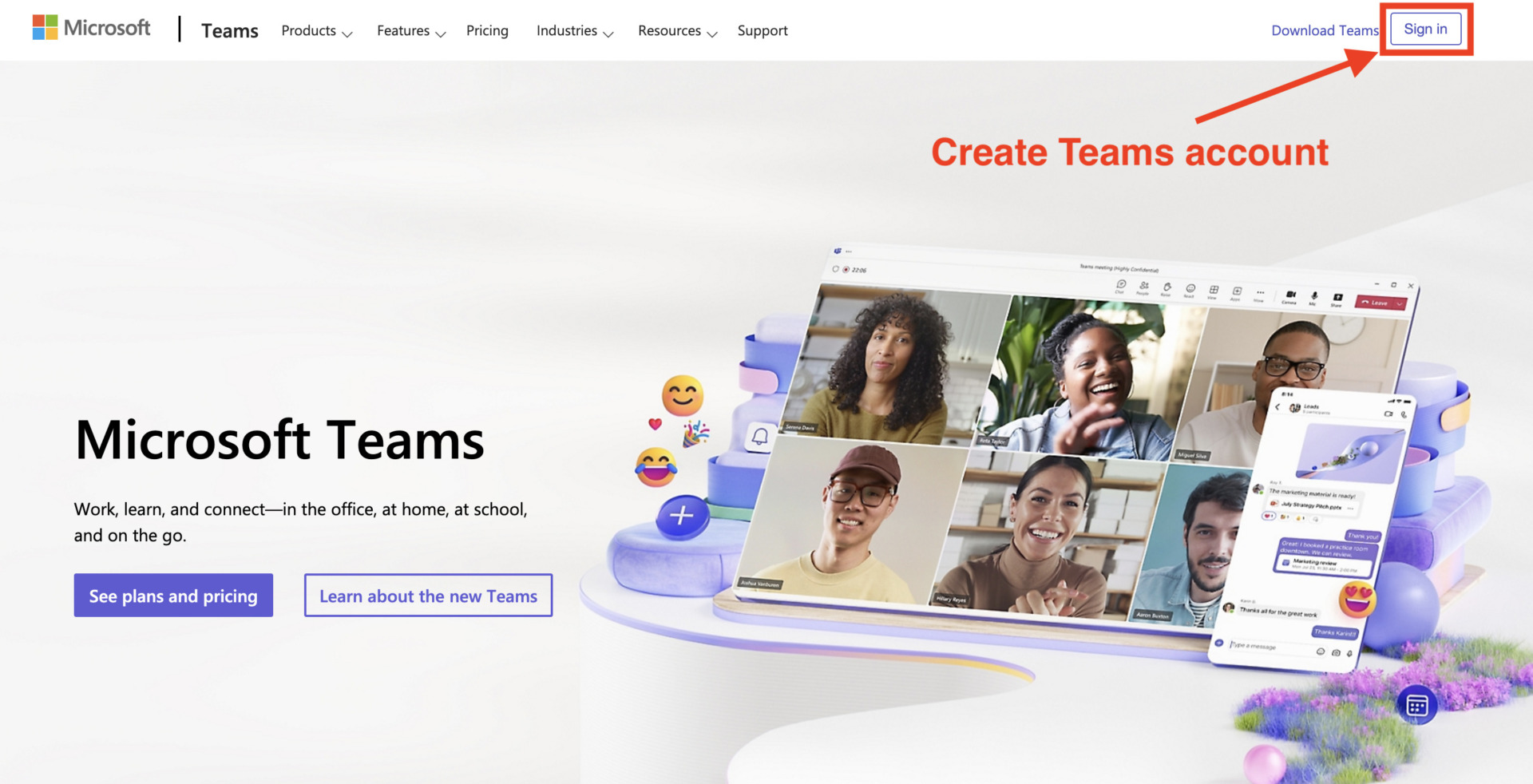
If you do not have Microsoft account, you should create it to use Teams, and open Microsoft Teams Official site by browser, click [Sign up].
Next, register your email address and password, and enter the verification code that will be sent to your email address. And finally, register your company name and name that you will use with Microsoft Teams to complete the creation of your Microsoft account.
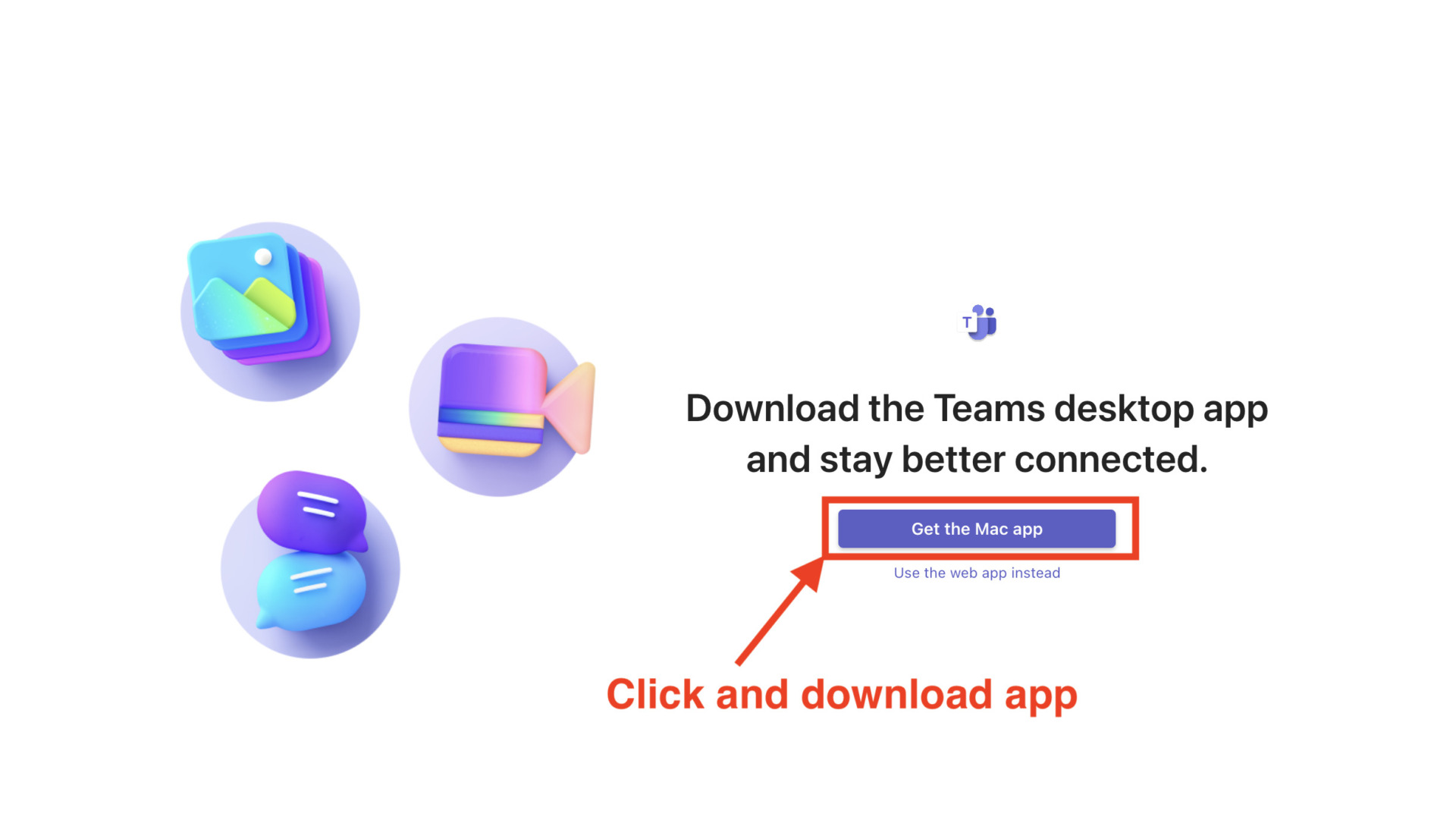
After you have created your Microsoft account, you will see the above screen and click on “Get App”.
After downloading the app, enter your email address and password to sign in to Microsoft Teams.
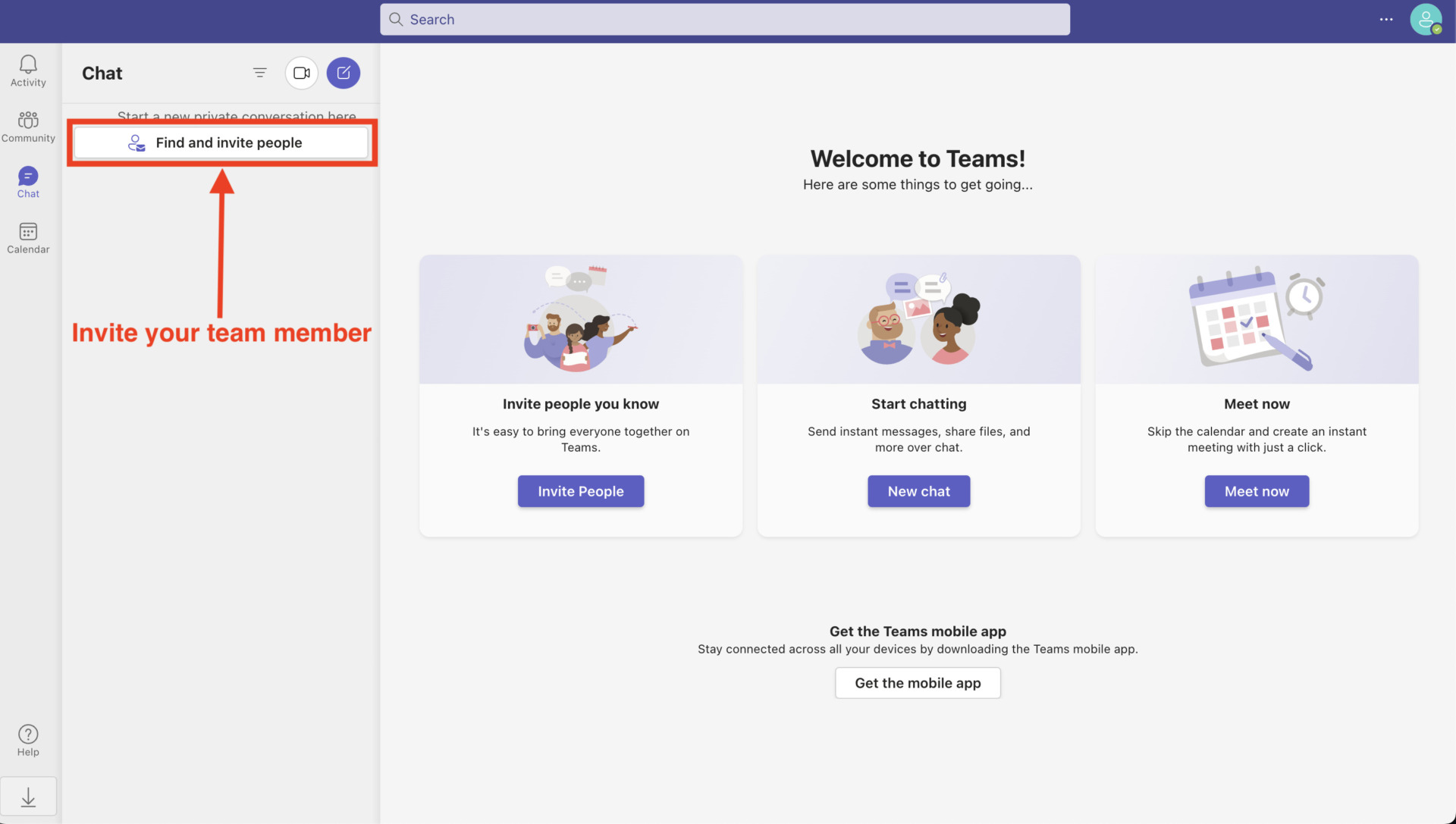
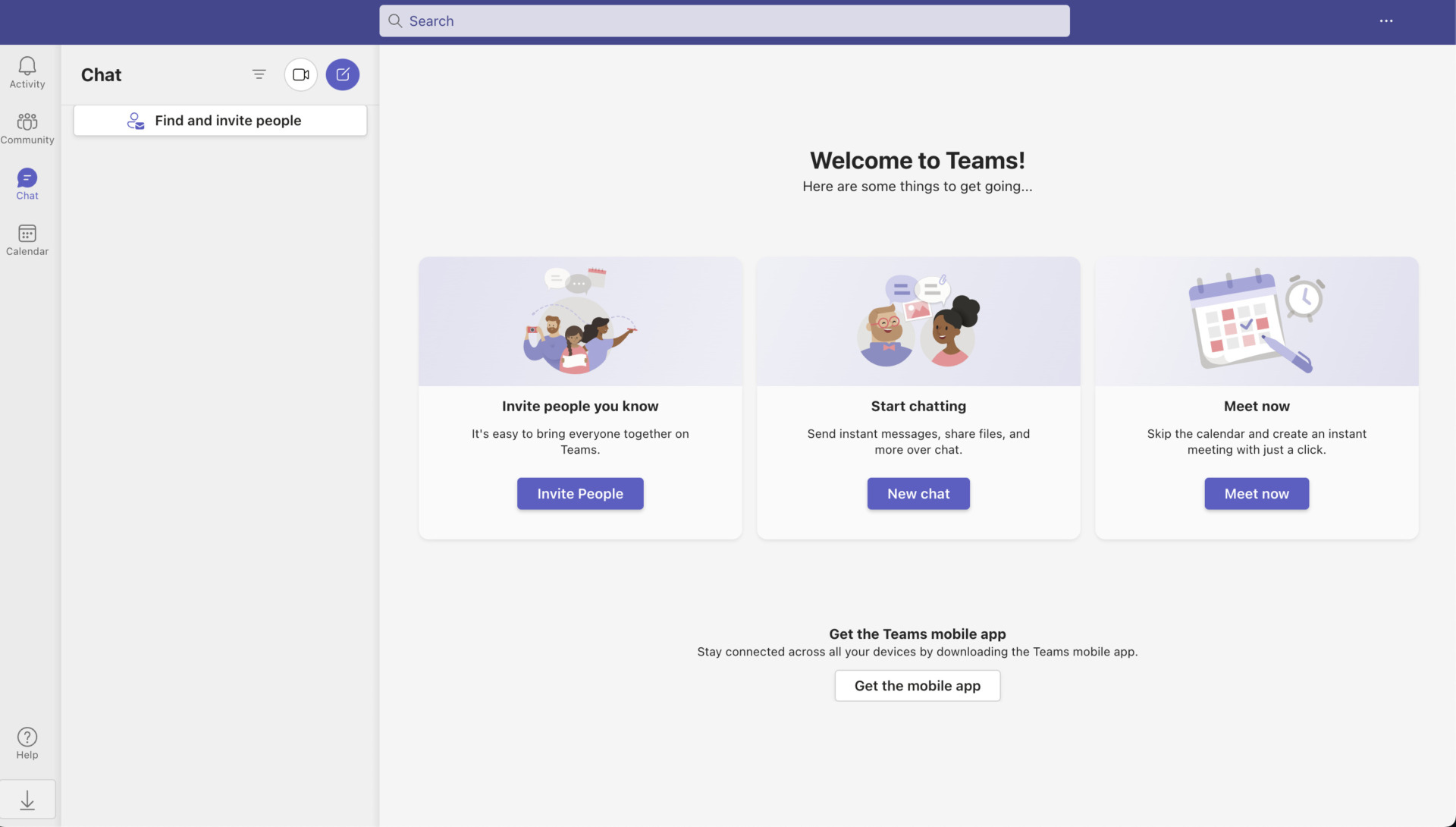
After signing in to the Microsoft Teams app, you will see the screen above, and the next step is to explain how to invite members to join. To invite members, click [Find and invite people] in the upper left corner of the screen and add them by sending them an invitation link, for example.
With these operations, you are now ready to start using Microsoft Teams. If you want to log-in from browser, select [Get started] on the Log-in screen
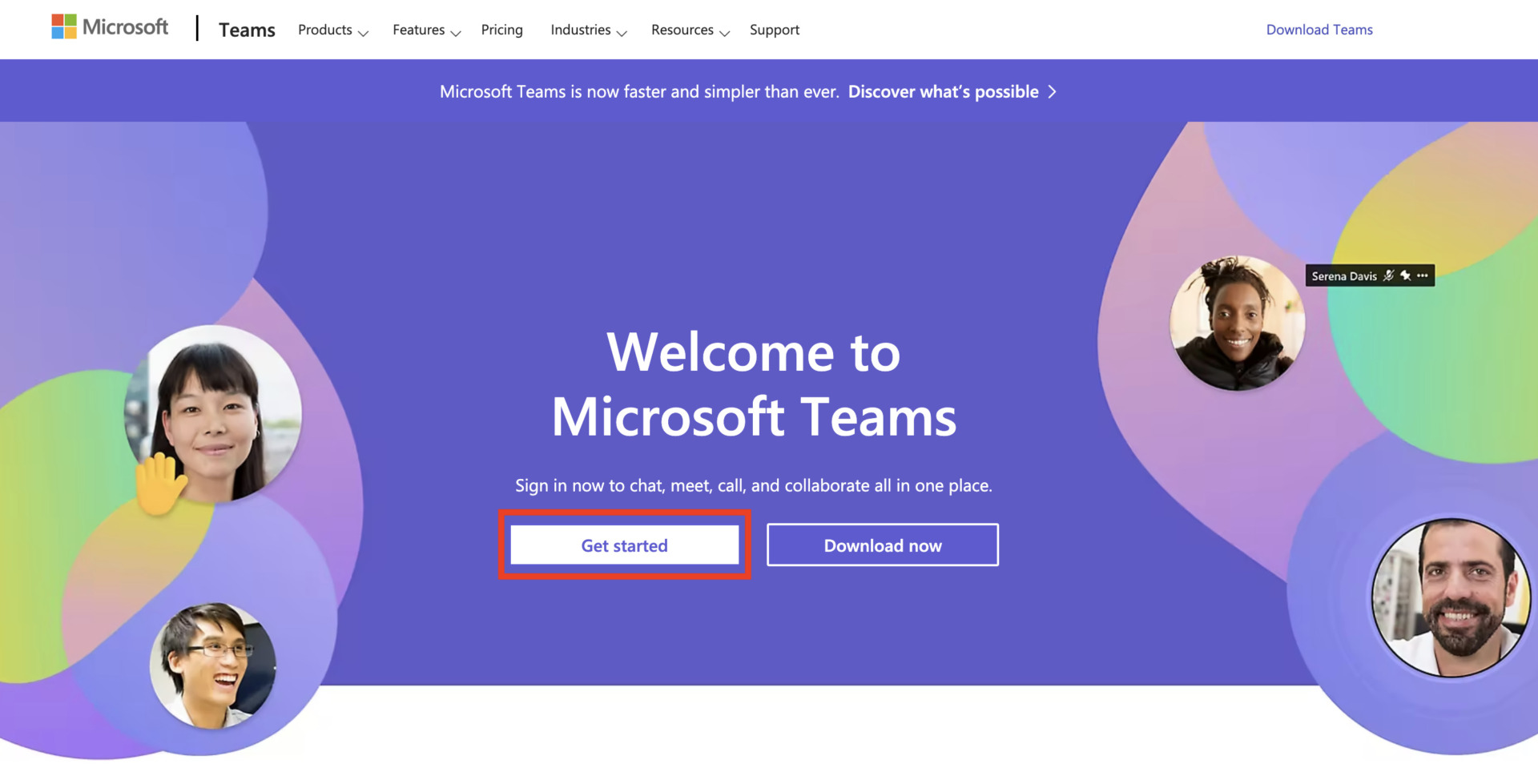
When you click “Get Started”, you will be asked to enter your email address.
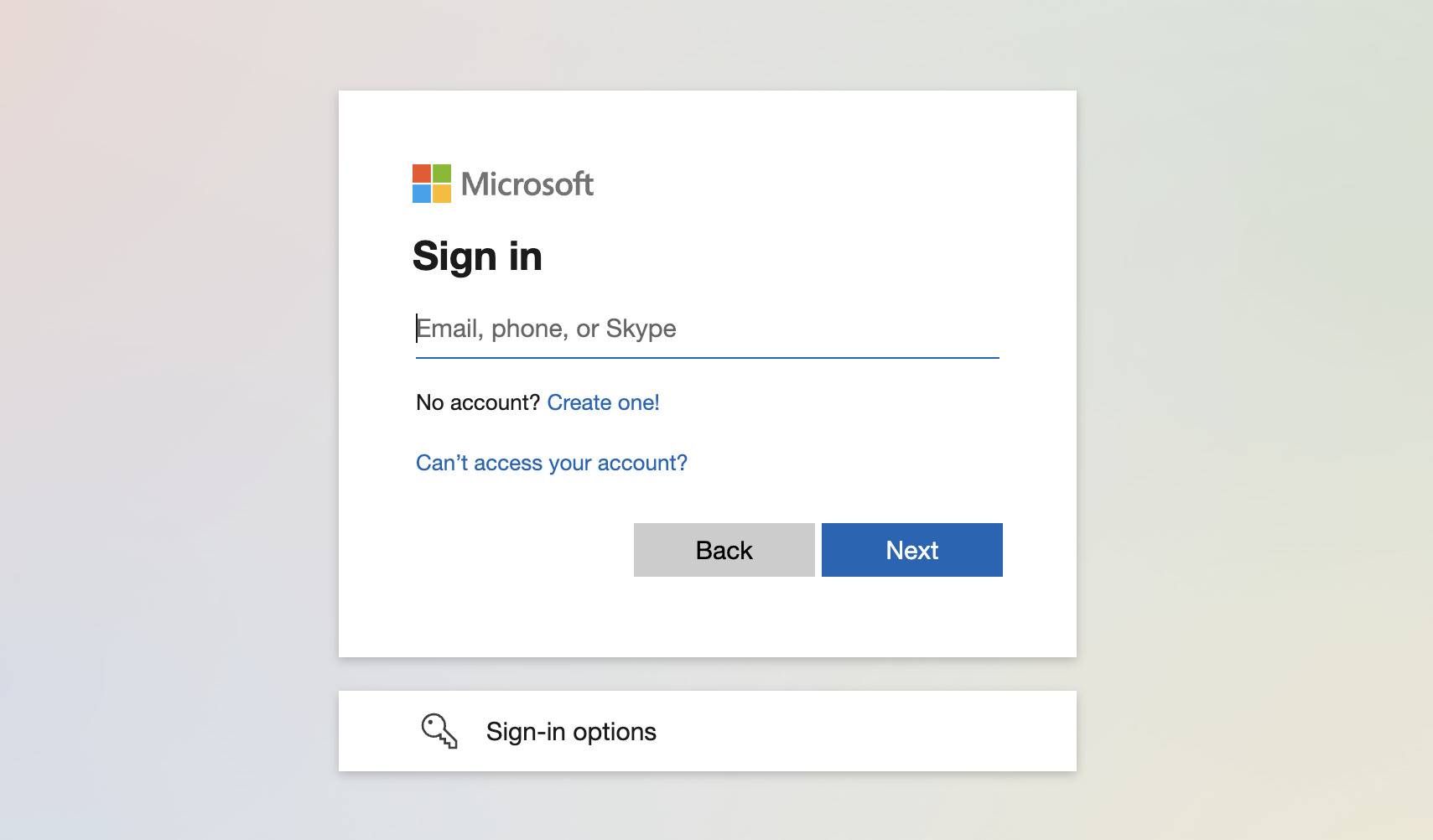
Next, enter your password.
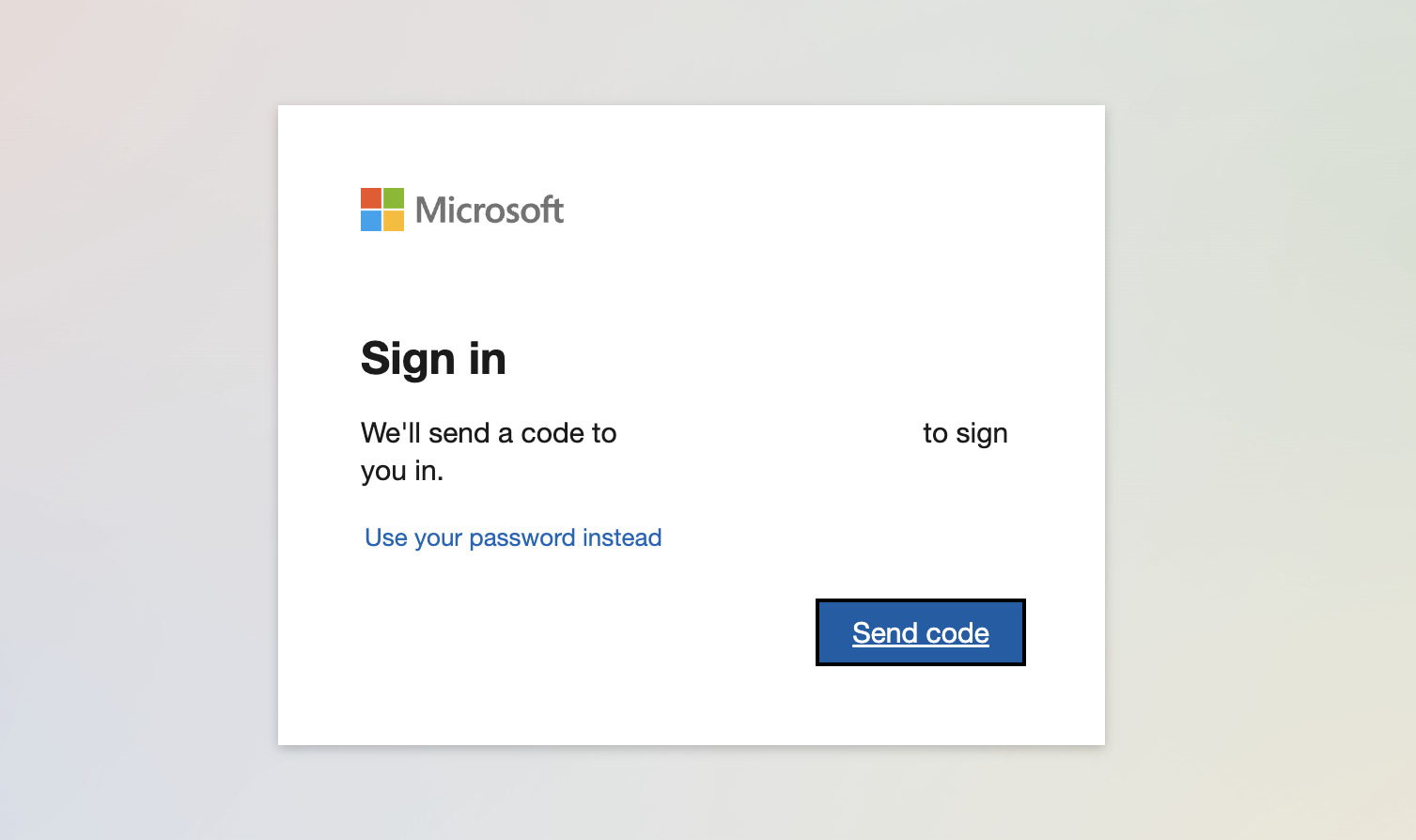
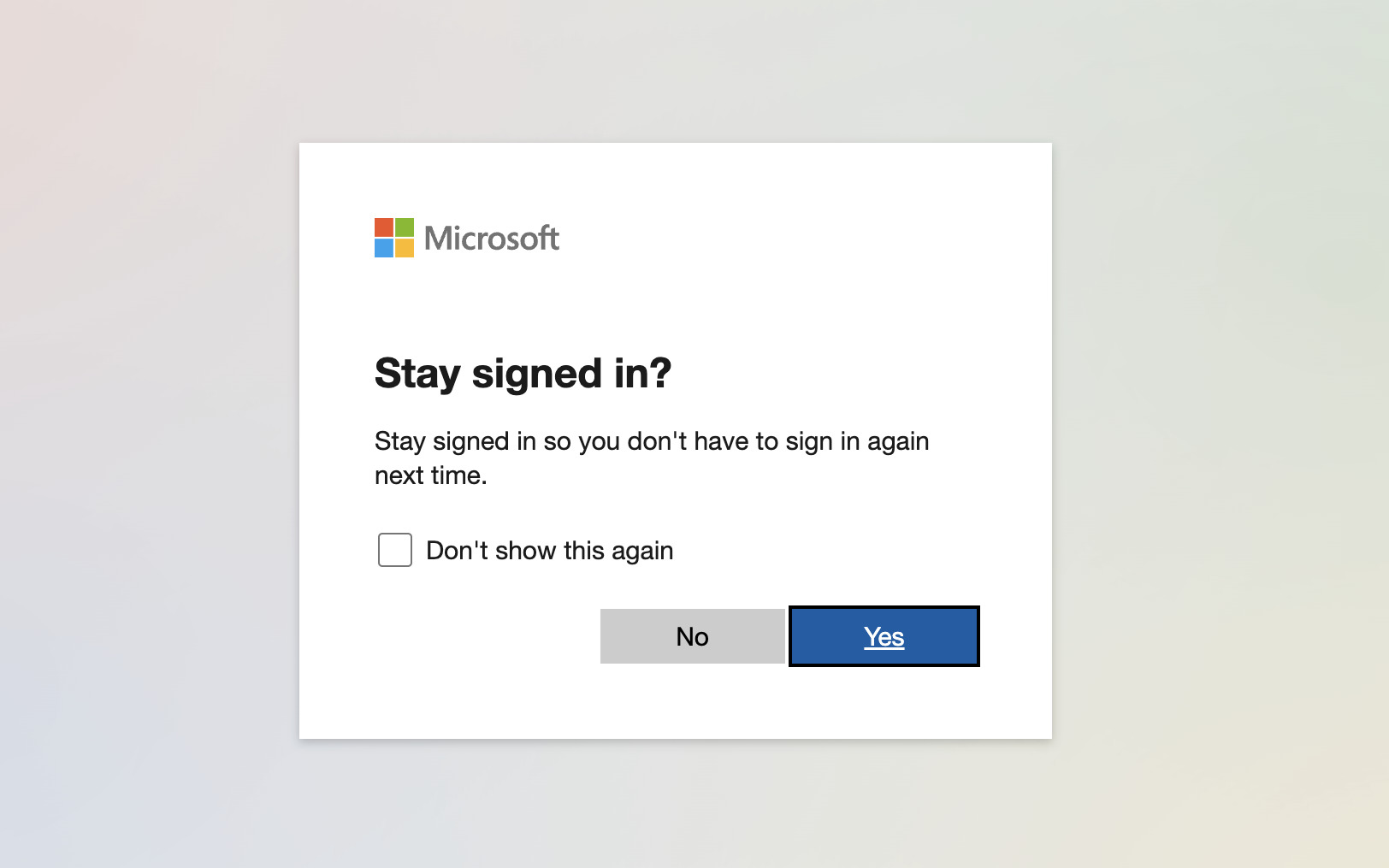
After you have entered your password, a confirmation screen will appear asking if you wish to keep your sign-in status, select “Yes” or “No” as appropriate.
Once your login is approved, the following screen will appear and you can begin using the site in your browser.
How to use Microsoft Teams
Below is an explanation with images of the “chat function,” “video conference function,” and “collaboration function” that are frequently used in Microsoft Teams.
Chat function
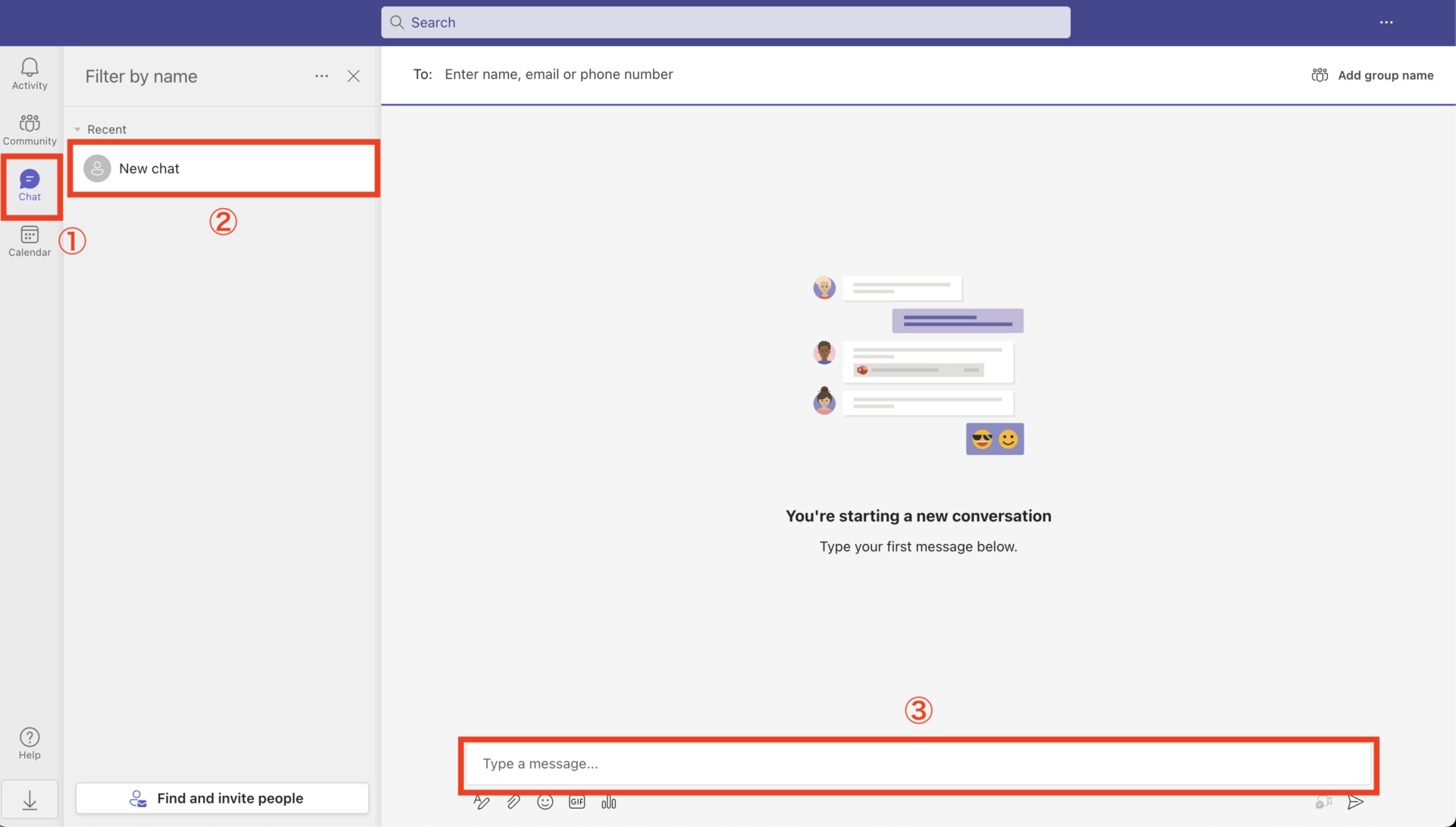
Microsoft Teams has a chat function that allows users to communicate with each other via text. To use the chat function, follow the steps below.
- First, click on [Chat] in the upper left corner of the screen.
- Select the person you wish to send a message to from the recent chats.
- Send a message from the bottom of the screen. You can also send stamps and files.
In addition to one-to-one messages, Microsoft Teams also allows you to communicate with a group of people.
Video conferencing capabilities
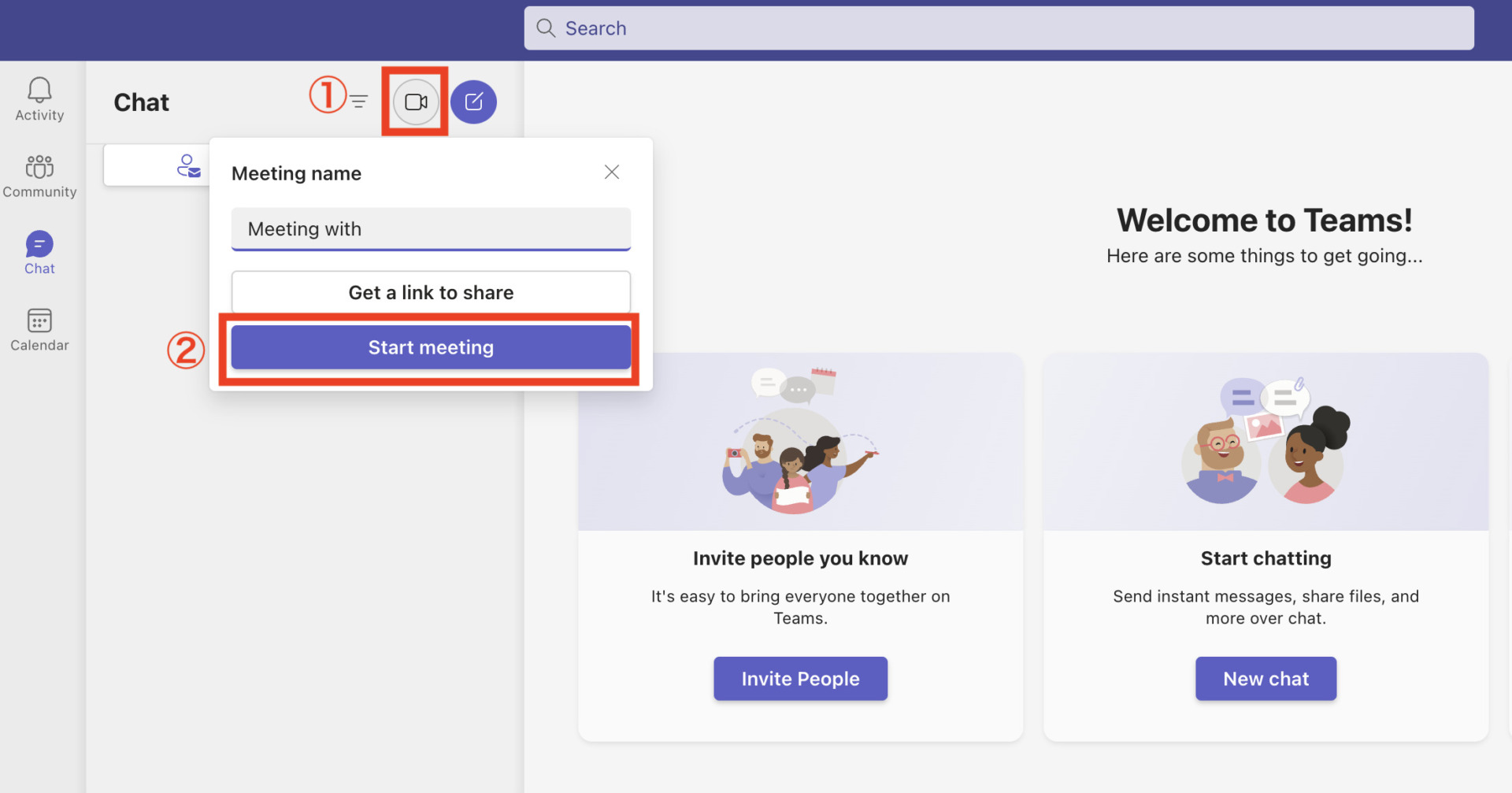
Microsoft Teams has a video conferencing feature that allows face-to-face meetings. To use the video conferencing feature, follow the steps below.
- First, click on the in the upper left corner of the chat screen.
- A Start Meeting button will appear, and you can start the video conference right away.
When you join the video conference, you will see the following screen after clicking the invited conference link.
If you do not have a Microsoft Teams account or have not downloaded the app, select [Continue on this browser]. If you have Microsoft account and desktop app, choose [Join on the Teams app].
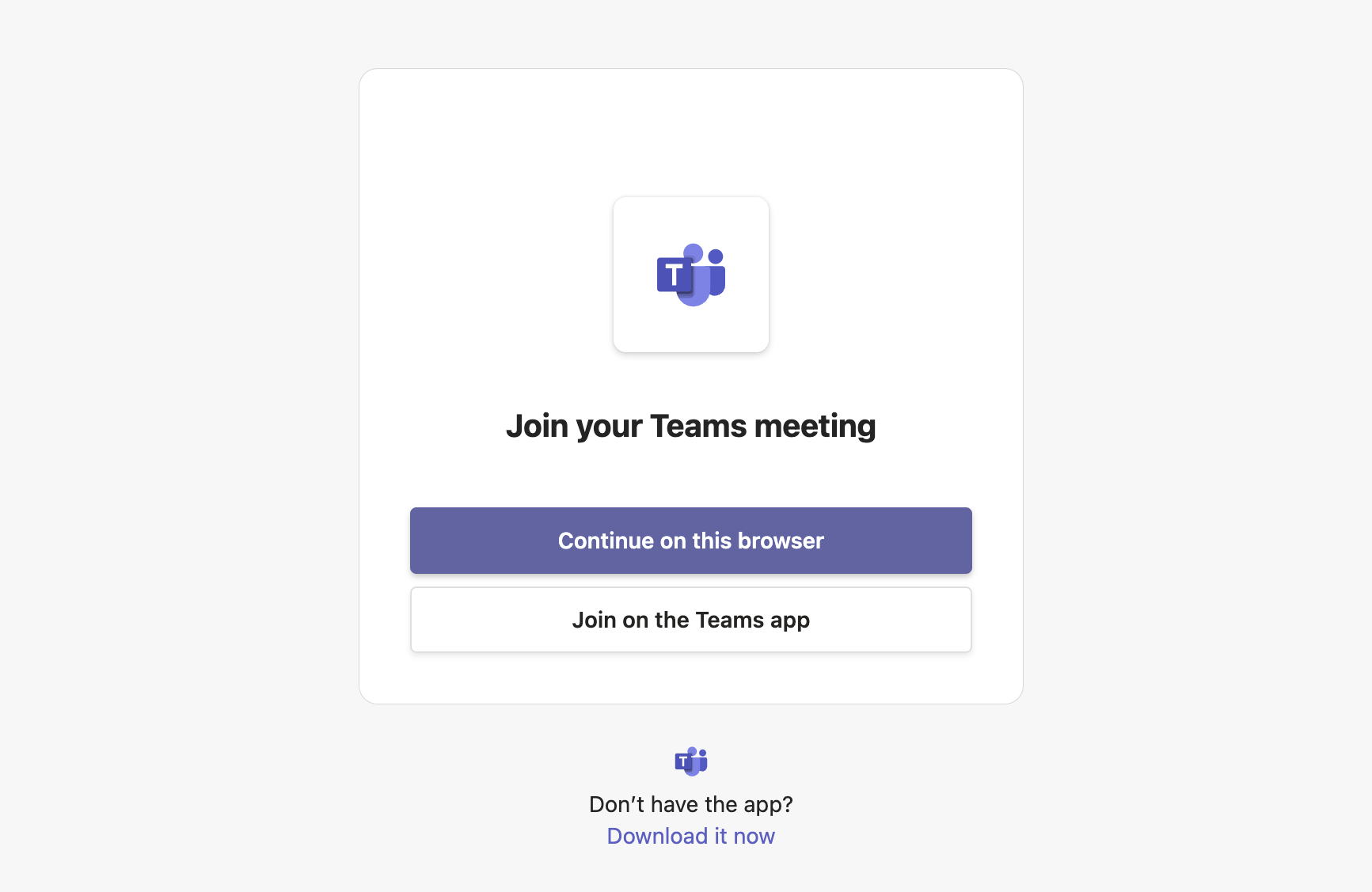
<If you are joining from a browser>
Click [Continue on this browser], and you will see the screen before joining the meeting as shown below. Turn on/off the camera and microphone, and select [Join Now] to standby to join the meeting.
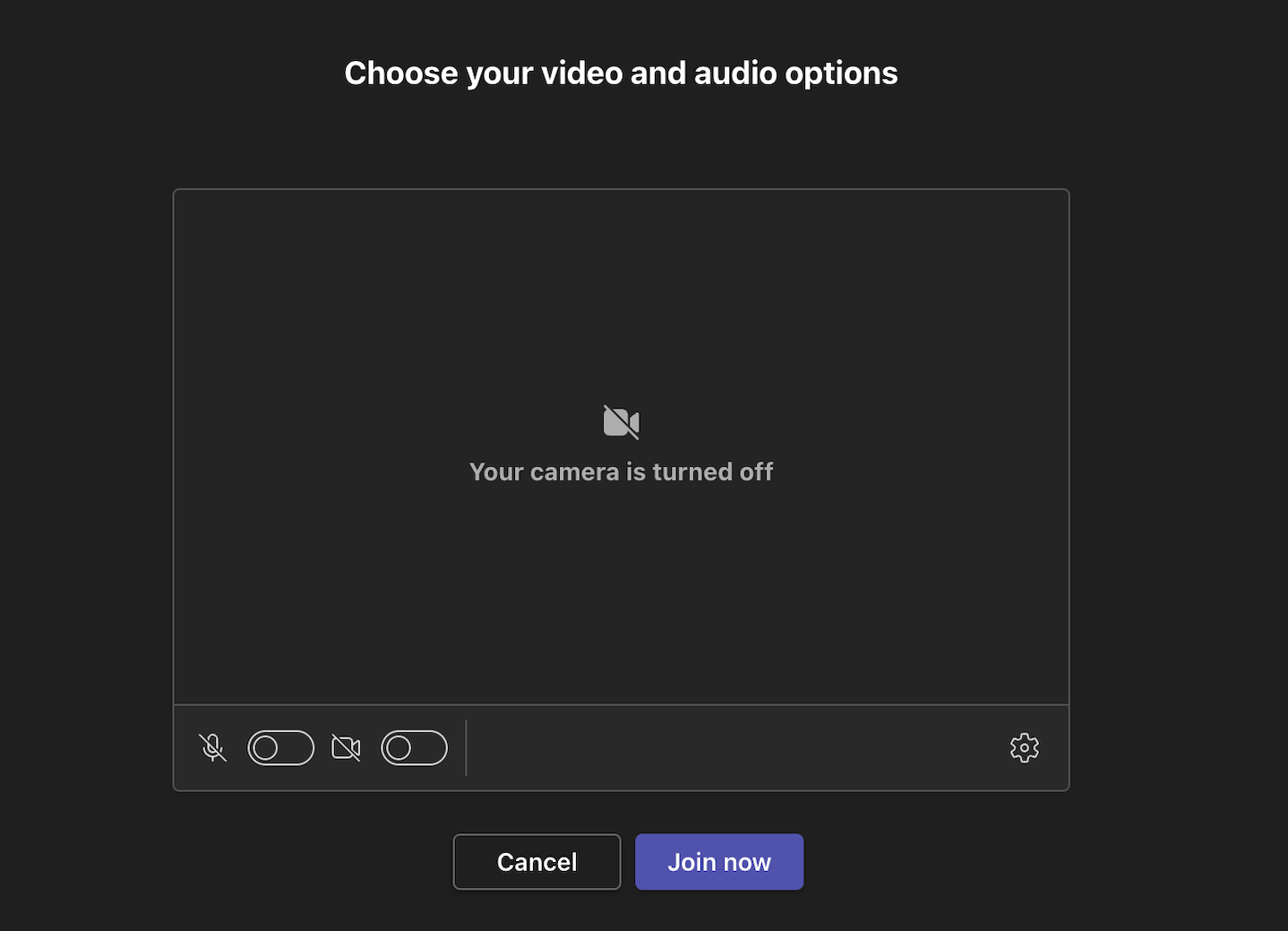
However, if you join from a browser, you cannot customize the background setting. To change the background, you need to use the desktop app.
<To join from the app>
Click [Join on the Teams app], and a pop-up will appear, and select “Open Microsoft Teams”.
The app will launch and the join screen will appear. Set the camera and microphone on or off and select “Join Now”. Once the organizer approves you, you can enter the meeting room.
As described above, Microsoft Teams allows you to communicate not only through text, but also by seeing the faces of the members.
Collaboration features
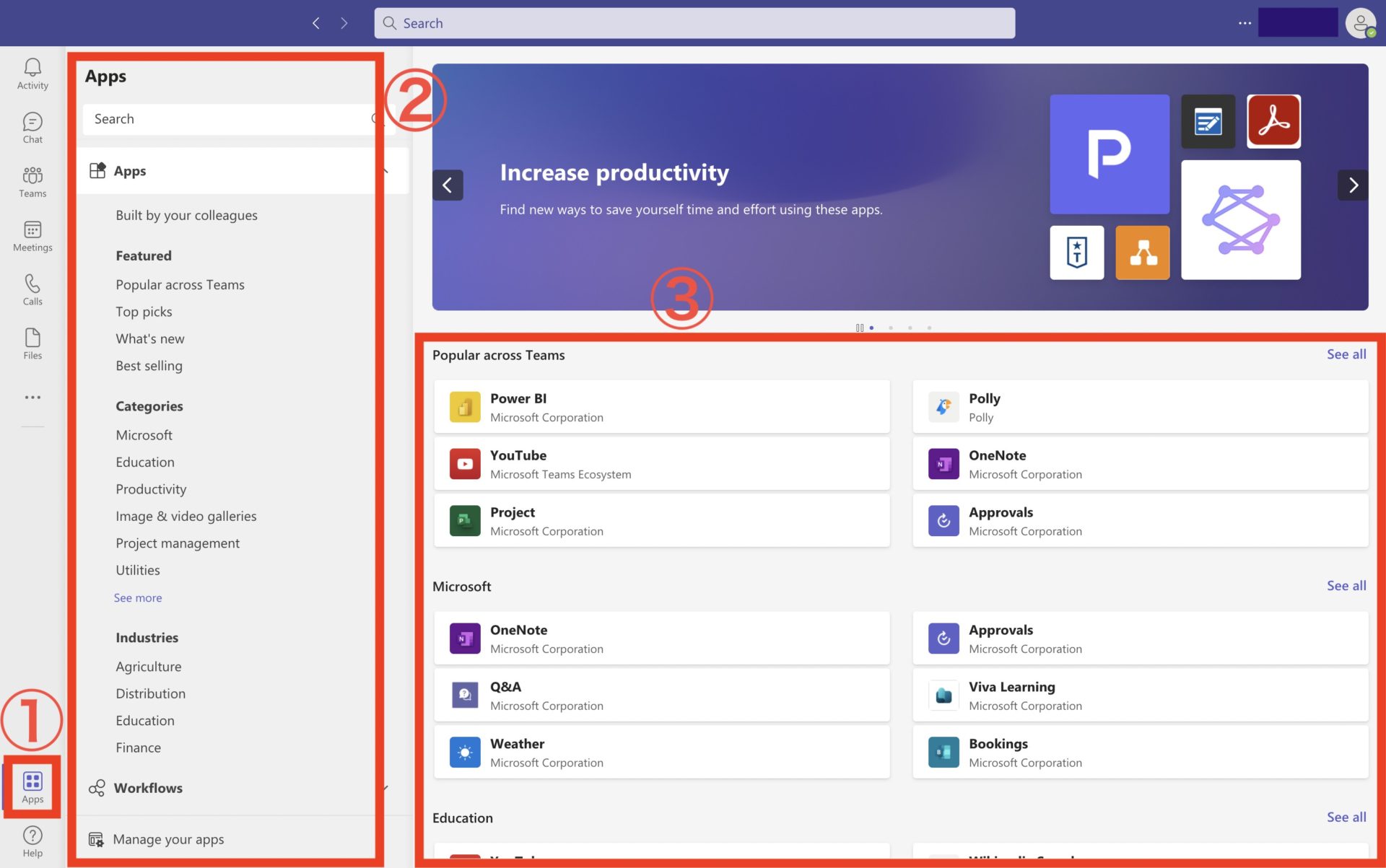
Microsoft Teams has the ability to integrate with various tools. To use the collaboration feature, follow the steps below. (Only paid plan available)
- First, click on [Apps] in the lower left corner of the screen.
- Next, select the features and categories of the tools.
- Candidates for tools to be linked will be displayed on the right side of the screen.
By integrating tools with Microsoft Teams, you may be able to solve your company’s business issues and improve business efficiency.
What is the difference between the paid and free versions? (Comparison chart)
Below is a chart comparing Microsoft Teams pricing plans. Each plan offers different features, so if you are considering adopting a plan, check if the features you need are available. (Scroll left and right)
| Microsoft Teams (Free) | Microsoft Teams Essentials | Microsoft 365 Business Basic | Microsoft 365 Business Standard | |
|---|---|---|---|---|
| Monthly Fee | Free | $4/user/month | $6/user/month | $12.50/user/month |
| Number of Online Conference Participants | Up to 100 participants | Up to 300 participants | Up to 300 participants | Up to 300 participants |
| Meeting time limit | 60 minutes | 30 hours | 30 hours | 30 hours |
| Recording and transcription of meetings | – | – | ✔️ | ✔️ |
| File attachments in chat | 2GB/user | 2GB/user | 1TB/user | 1TB/user |
| Maximum number of users in chat | 100 users | 300 users | 300 users | 300 users |
| File Storage | 5GB for all teams | 10GB | 1TB | 1TB |
| Guest Access | – | ✔️ | ✔️ | ✔️ |
| Additional Microsoft 365 services | – | – | ✔️ | ✔️ |
| Various desktop apps | – | – | – | ✔️ |
| Single sign-on | – | ✔️ | ✔️ | ✔️ |
| Phone/Web support | – | ✔️ | ✔️ | ✔️ |
Microsoft 365 Business Premium($22/user/month): is another plan that includes all the contents of Microsoft 365 Business Standard plus “advanced security,” “access and data control,” and “protection against cyber threats” is available.
As mentioned above, there is a definite difference in functions and support between the paid version and the free version, so the paid version is recommended for business use.
Reputation from people who have used Microsoft Teams
Below are the reputation of Microsoft Teams. Referring to the actual users’ voices helps you to decide whether you should use Microsoft Teams or not.
*All of reputations are quoted from G2>Microsoft Teams.
Good reputations to Microsoft Teams
First, here are some good reviews of Microsoft Teams. In particular, many people say that the chat function is useful and that team communication has become more active.
Krati B. (Posted on 08/24/2023)The tool has been a boon to all the corporate employees in Covid. It is very elaborative and consists of all the features thriugh which colleagues can interact easily. The UI is quite easy to understand and there are proper bifurcations for all the functionalities, be it calls, calender, files etc. It also allows us to easily connect to other apps of Microsoft suite like Power BI, Word, Excel, Power Apps. Also, company specific apps can also be integrated with it to give it a more personalised touch.
Jaydeepsinh V. (Posted on 9/7/2023)MS Teams is an efficent collaration and communication tool. Microsoft Teams not only faciliate smooth meeting organization, collabrative experience but also provides Teams Chat, Teams Room, File sharing, secure remote access facilities. Which is where MS Teams stands out with useful and better overall user expereience.
utkarsh j. (Posted on 8/13/2023)First and foremost importan thing is that it’s user interface is very friendly.along with that all the data shared in conversations are safe and easily accessible,with huge cloud storage.Also other microsoft app are integrated with teams in an absloute great way.Let’s say that your microsoft word app isn’t working then you have an alternate option to use words in teams itself,that save effort and time for many people.And as far as it is concerned with its basic communications part it is probably one of the best in the business.
Youssef K. (Posted on 9/1/2023)Teams app is simple to use. You can schedule meetings from within outlook or from the Teams app. You can install plenty of apps from the marketplace to add more features. You can create multiple channels and multiple tabs inside each team. Microsoft has also planned to upgrade Teams and XBOX for the metaverse.
Madoka Ozawa (Posted on July 16, 2023)It is easy to use and a light client. It is very easy to share and collaborate on Microsoft Office files (Excel, PowerPoint). It is a much more central platform for collaboration than other/newer alternatives.
Reputation and comments on improvements
Next, here are some reviews about improvements of Microsoft Teams. In particular, many users say that “it runs too slow” and “it is difficult to use because of its multiple functions”.
Harry S. (Posted on 8/17/2023)Overall, I’d say Teams works for socialization, but isn’t good in a business setting, and that things that should be simple like adding a person to a conversation are counterintuitive and/or change so often you never get a chance to get used to it. It can also be wonky, as it sometimes fills the screen for no reason and freezes my computer.
Mohammad F. (Posted on 8/28/2023)The quality of stream is bad. It makes device laggy.I personally use it to attend webinars and online classes.It is not compatible with smartphones as when you recieve a phone call or leave this MS Teams window and then go back it will take about 2 minutes to show the content like ppt shared by the lecturer.
Private User (Posted on 6/27/2023)Difficult to use for people outside of your organization. Individuals must register with Microsoft rather than using with just a web browser.
Eveli P.(Posted on 6/27/2023)User Interface is not intuitive and Microsoft Teams is missing a critical functionality that has been implemented in Slack – combining chat with threads. Teams functionality is focusing solely on threads and is not supporting organic chat.
Private User (Submitted on 1/26/2023)Basically what I wrote before: “It ain’t fully there yet. I like the Planner but I can’t drag tasks items from Outlook to it. It’s difficult copying a chat conversation – I’ve had to take screenshots. There are a few other niggles which is disappointing because Microsoft is, or was, known for its usability. I hope it gets better.” Well, it hasn’t. In fact some of it is a bit unstable (e.g. OneNote pages doesn’t always appear).
A best tool for enhancing work efficiency in non-IT companies
Below is the best tool that can be easily used by people who are not familiar with IT.
Microsoft Teams is a multifunctional tool, but its stress-free use depends on the IT literacy within the company; even though it is compatible with Word and Excel, if a company with low IT literacy uses a multifunctional tool, they will not be able to master it, and as a result, it will not take root within the company.
In the case of Microsoft Teams, some users have said that “it takes time to find information” and “it is slow,” which may make it difficult to operate even if the tool is introduced.
Therefore, to manage information easily with lightweight operation, the only alternative is Stock, an information sharing tool so simple that even non-IT company employees over 65 years old can use it without manuals.
Stock allows users to leave text and files directly in “Note” of Stock, and to categorize them in “Folder” so that they can quickly find the information they need when they want it. In addition, “Message” and “Task” are associated with Notes, so that related information can be exchanged without mixing with other content.
Stock|A tool for sharing and managing information more easily than Teams

The simplest tool to stock information "Stock"
https://www.stock-app.info/en/
Stock is the simplest tool to stock information. Stock solves the problem, "there is no easy way to stock information within the company".
With Stock, anyone can easily store all kinds of information, including text information such as requirements, images, and files, using the Note feature.
In addition, by using the "Task" and "Message" functions, you can communicate with each topic described in the Note, so that information is not dispersed here and there and work can always be carried out in an organized manner.
<Why do we recommend Stock?>
- A tool for companies that are not familiar with ITYou don't need to have any IT expertise to get started.
- Simple and usable by anyoneStock is so simple that anyone can use it without any unnecessary features.
- Amazingly easy information storing and task managementIt is amazingly easy to store information such as shared information within a company, and intuitive task management is also possible.
<Stock's pricing>

- Free plan :Free
- Business plan :$5 / User / Month
- Enterprise plan :$10 / User / Month
*Minimum number of users: 5 users
Summary of Microsoft Teams features and reputation
We have provided a comprehensive overview of Microsoft Teams’ features, reviews, and usage.
Microsoft Teams is a tool that many companies have adopted, and its compatibility with Word and Excel makes it a low hurdle to use. On the other hand, the abundance of features means that if you introduce Microsoft Teams too easily, there is a risk that employees will not be able to use it to its full potential and productivity will decline.
In particular, non-IT companies that are introducing cloud tools for the first time must select tools that match their IT literacy. Selecting a service with simple functions that anyone can easily use will minimize the operational burden.
Therefore, it can be said that non-IT companies should use Stock, an information sharing tool that even employees not familiar with IT can use from day one, to simply manage information while protecting internal information with strict security.
It only takes 1 minute to sign up for free, so get started with Stock and simplify your information management, internal communication, and task management.
