

Today, more and more companies are using “cloud storage” to manage much of their information online. Another representative service is “Dropbox,” which is useful for secure management of files.
However, there are many people who are considering using Dropbox but are not sure if they can actually use it in their company.
In this issue, we will provide a comprehensive introduction to Dropbox for beginners, including how to use it, points to keep in mind, and reviews for below people.
- “Files are scattered all over my PC, so I want to centralize them with cloud storage.”
- “I am considering Dropbox for cloud storage, but I don’t know how to use it.”
- “I want to decide whether or not to use Dropbox based on its actual reputation.”
If you are a beginner, this article will help you understand how to use Dropbox properly and manage your files efficiently.
Contents
What is Dropbox?
Below is an overview of Dropbox. First, review the features and functions of Dropbox.
Differences between Dropbox and other cloud storage services
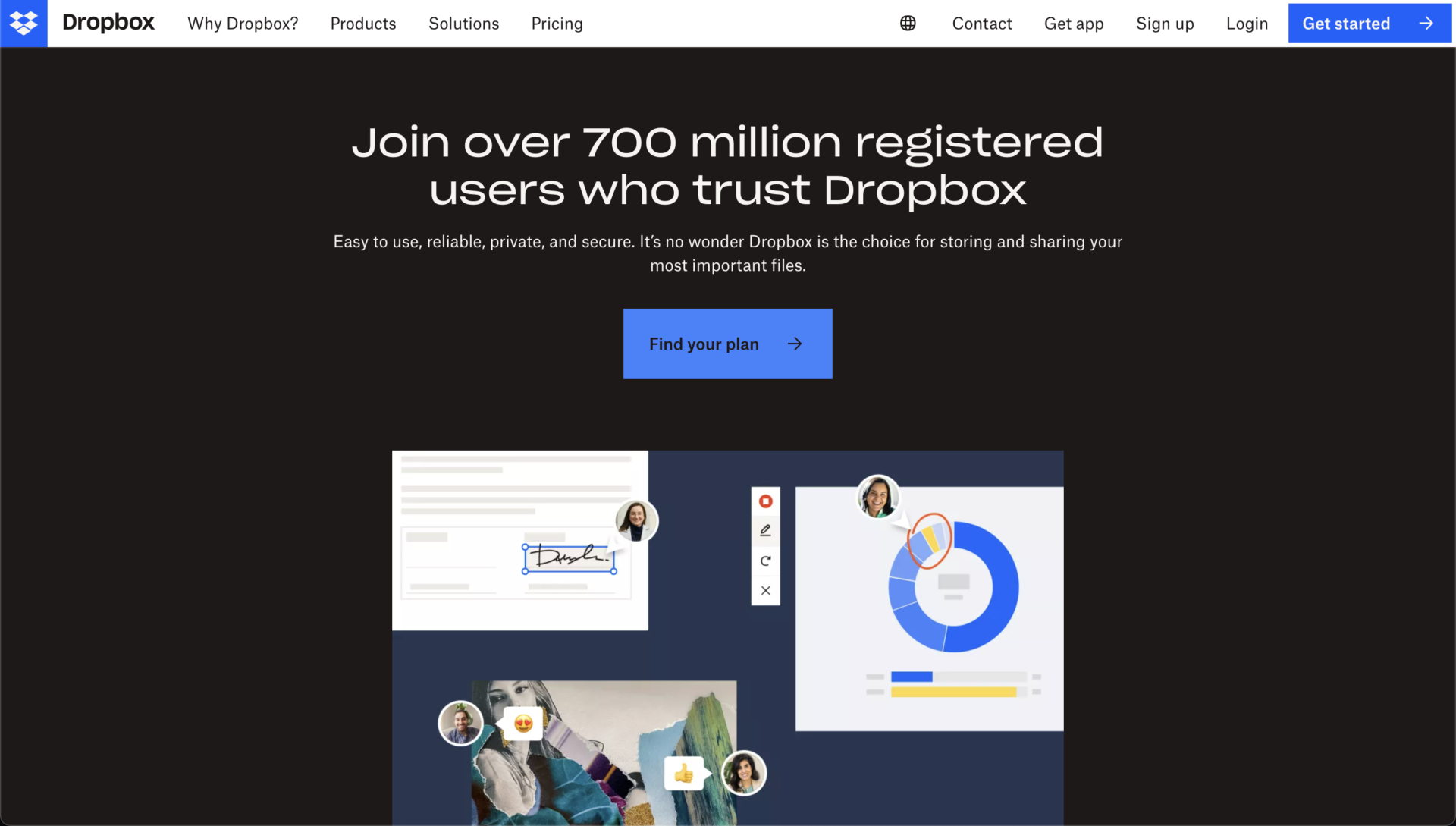
Reference: Dropbox website
Dropbox is a cloud storage service that allows you to share files securely and easily.
A notable feature of Dropbox is its convenience in sharing files across multiple devices. Data synchronization is fast, so files can be shared among personal devices such as PCs and smartphones without burden.
There are many people whose the purpose of using Dropbox for business is what synchronizing folders across multiple devices to work from anywhere.
Main features of Dropbox
The main features of Dropbox are as follows.
| Functions | Contents |
|---|---|
Folder sharing function | You can share folders with people who do not have an account by simply issuing a link. |
Password protection | The person with whom you share the link cannot open the file without the password. |
File Permissions | You can restrict the members who can share files, which helps prevent information leakage. |
Notification function | Receive notifications when new folders are created or tasks are updated. |
Offline Synchronization | Files can be accessed even when there is no Internet connection. |
These features allow you to view and share files efficiently and securely.
How to use Dropbox more useful?
Dropbox is useful for a wide range of tasks through “integration with external tools” and “use of extended functions”.
For example, tools that can be linked include Microsoft 365, Slack, and HubSpot, which allow simultaneous editing of files via Dropbox and importing of files from Dropbox.
You can also use the following official extensions.
| Extensions | Contents |
|---|---|
Dropbox Backup | Automatically backs up your files, which can be useful in unexpected situations such as PC failure or data migration to a new PC. |
Dropbox Sign | A legally binding signature can be embedded in files for sending, requesting, and tracking. |
Dropbox DocSend | Securely share files and analyze how files are viewed. Automatically modify the content of shared files and analyze data on which parts of a file have been read the most for use in business negotiations and other activities. |
Dropbox Capture | This function inserts screen recordings and GIFs into files. You can share procedure manuals not only with textual information but also with screen recordings for easy understanding, and reduce unnecessary meetings by sharing documents with video. |
Dropbox Replay | Workflow for creative tasks such as video editing can be created in collaboration with external tools. This feature is useful when working with a team, such as displaying feedback from collaborators in an easy-to-read format. |
In this way, “Dropbox Extensions” can improve work efficiency in a variety of situations. However, note that Dropbox is so multifunctional that it is difficult for employees who are not familiar with IT to master its use.
Preparation: How to register Dropbox
This section explains the 3 steps of “creating an account,” “downloading,” and “starting” Dropbox as a preliminary step.
The following explanation is given using the app, but the basic operation procedure is the same even if you are using a browser.
Registration 1|Create an account
First, create a free Dropbox account.
Click [Sign in] on the official website, and the account creation screen will appear. To register, you will need a Google account, AppleID, or any e-mail address.
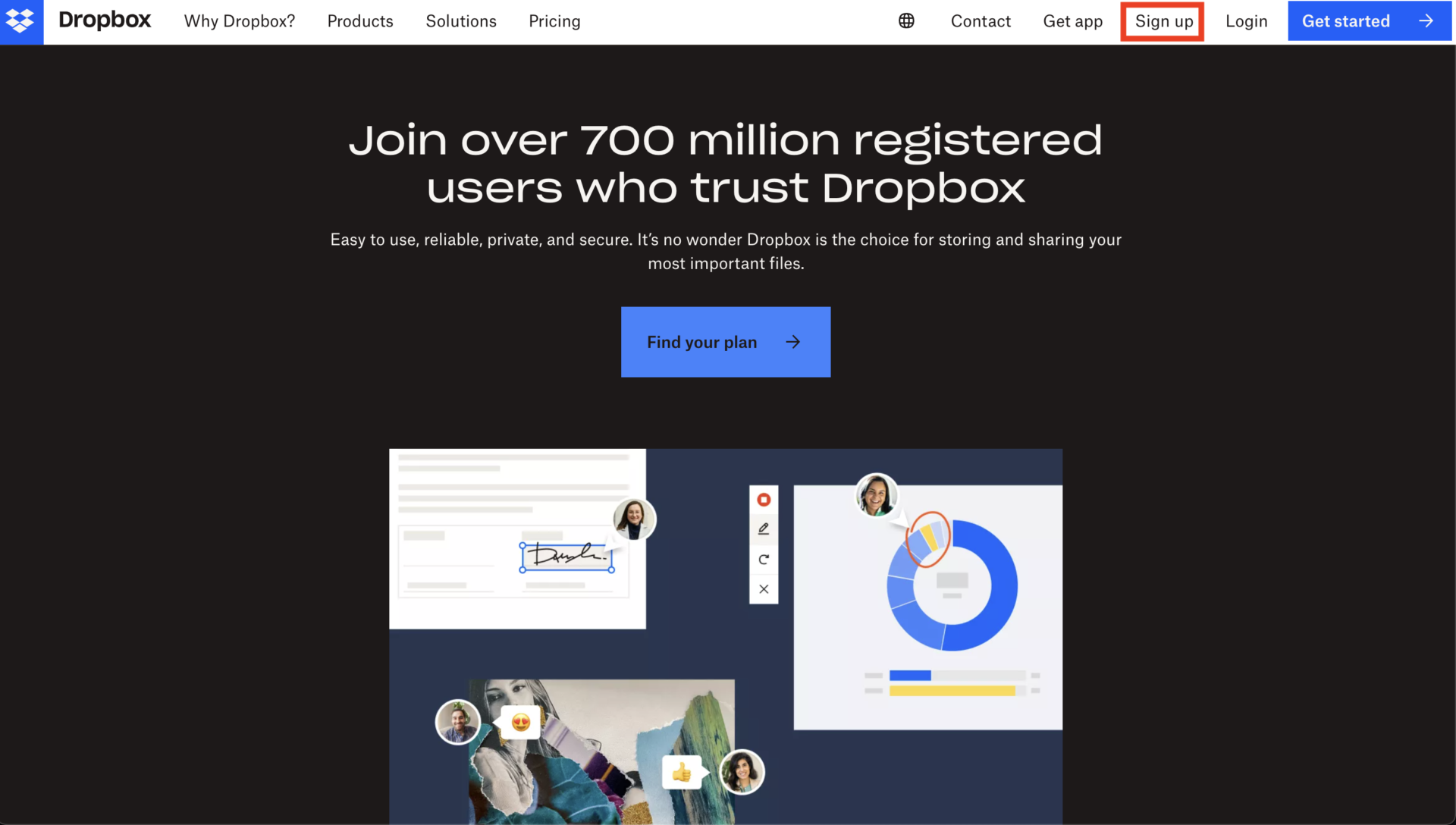

Then, you will see a screen to select a plan as shown in the figure below. If you want to use the free plan, choose [Continue with 2 GB Dropbox Basic plan].


Follow the instructions to authenticate by email, and your registration for the free Dropbox plan is complete. Next, you will be taken to the desktop app download screen.
Registration 2|Downloading the application
After selecting a plan and verifying your email address, you will be prompted to download the app as shown below. Click on [Download Dropbox App].

The app will begin downloading, and you can use Dropbox from browser and app.
Registration 3|Run the app.
After downloading the app, click [Next] on the screen.
And then, the completion screen appears, you will be asked to select the file synchronization method. Since you have selected the free plan this time, select “Local” and click [Continue with Basic].
The above steps complete the startup and setup.
[Basic] How to use Dropbox
This section introduces the following three basic usage tips for those who are new to Dropbox.
- Uploading files
- Restoring files
- Sharing files
If you don’t know how to use Dropbox, or if you want to know what specific features it has, this section is a must-see.
Usage 1|Uploading a file
To upload a file, either drag and drop the file into Dropbox or click the blue “Upload” button.
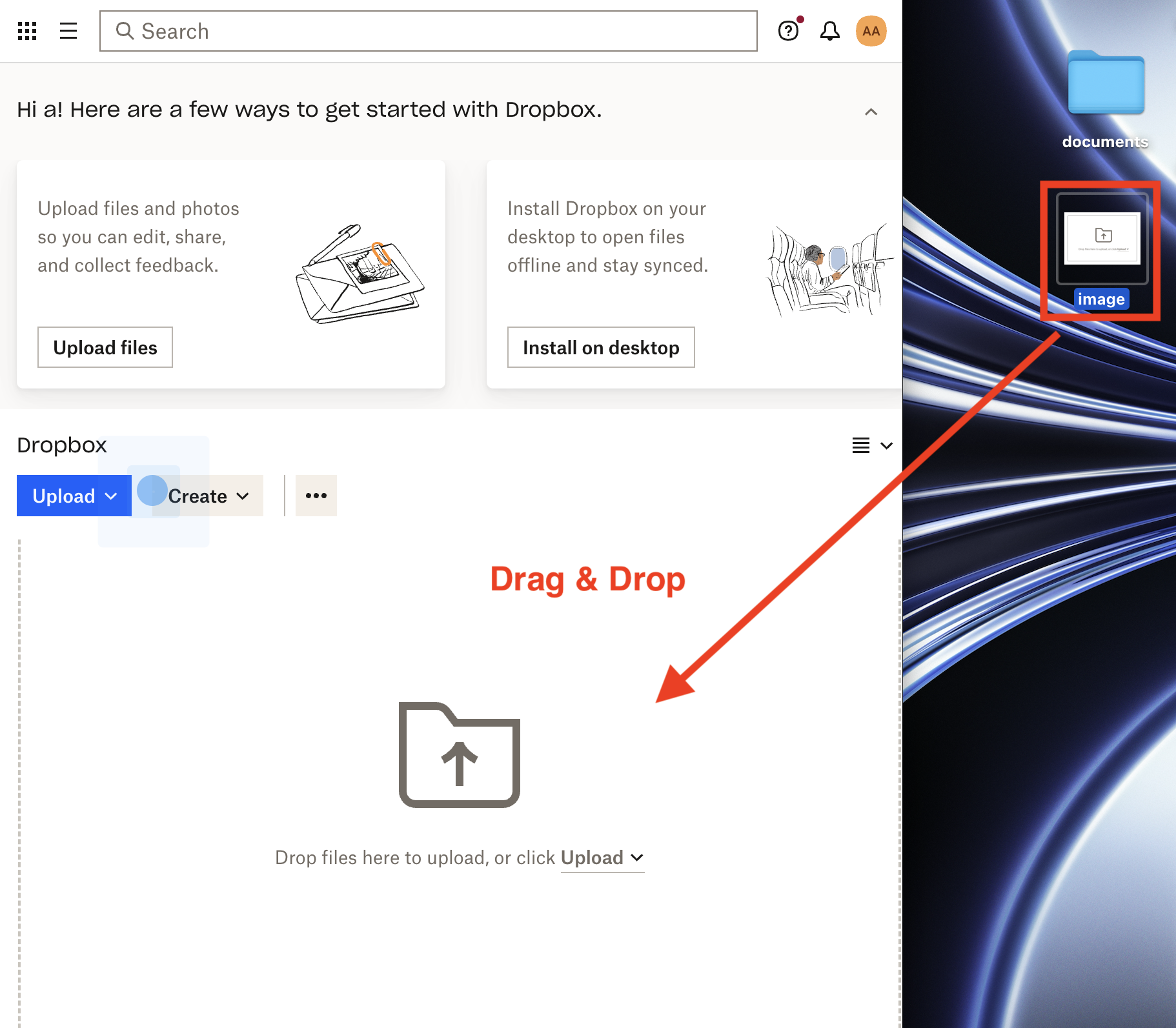
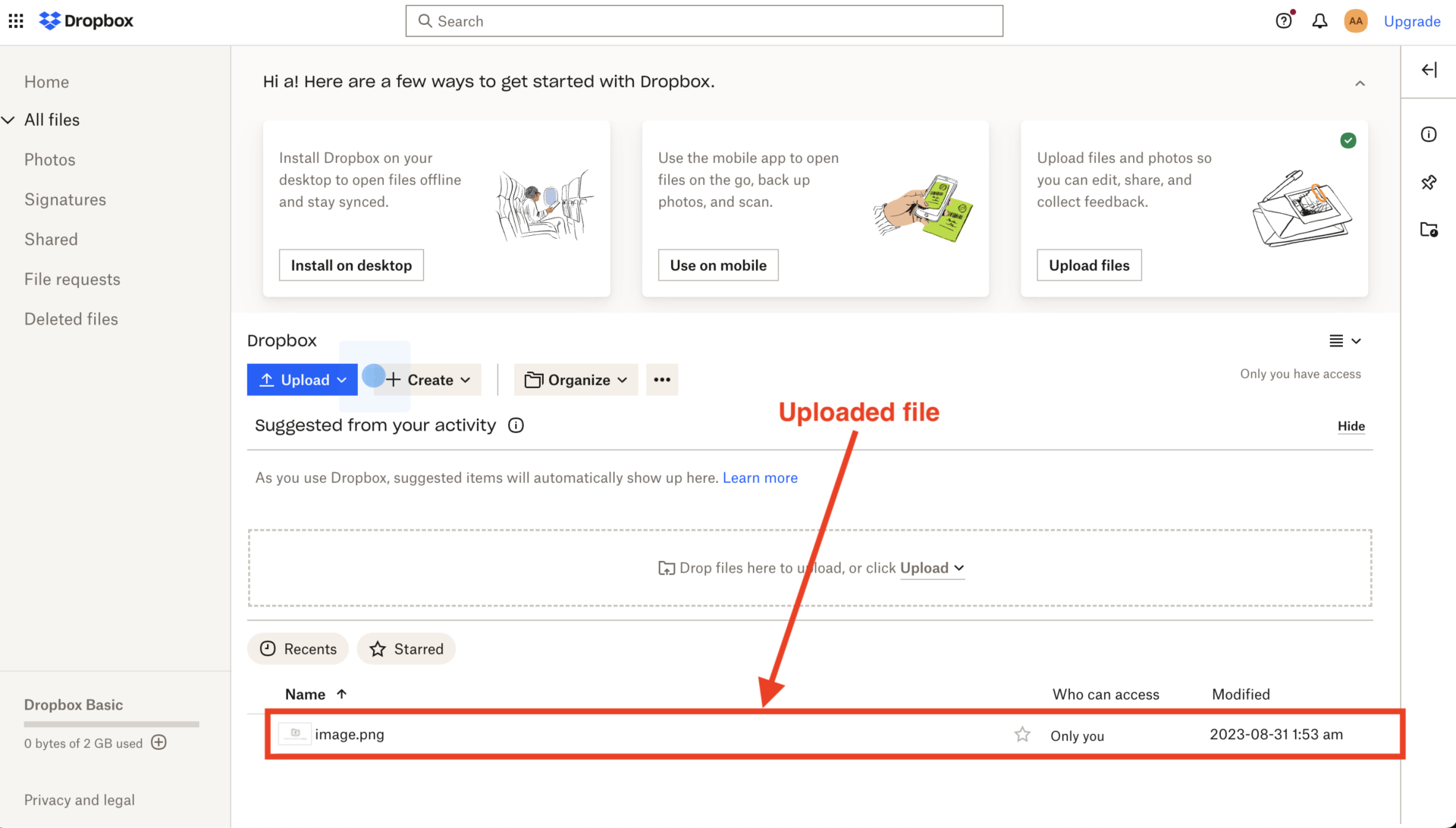
If the file is added as shown above, the upload is complete.
Usage 2|Restoring files
With free plan of Dropbox, you can restore files deleted in the past 30 days.
To restore a file, click [Deleted Files] on the left side of the screen and select the file as shown in the figure below.
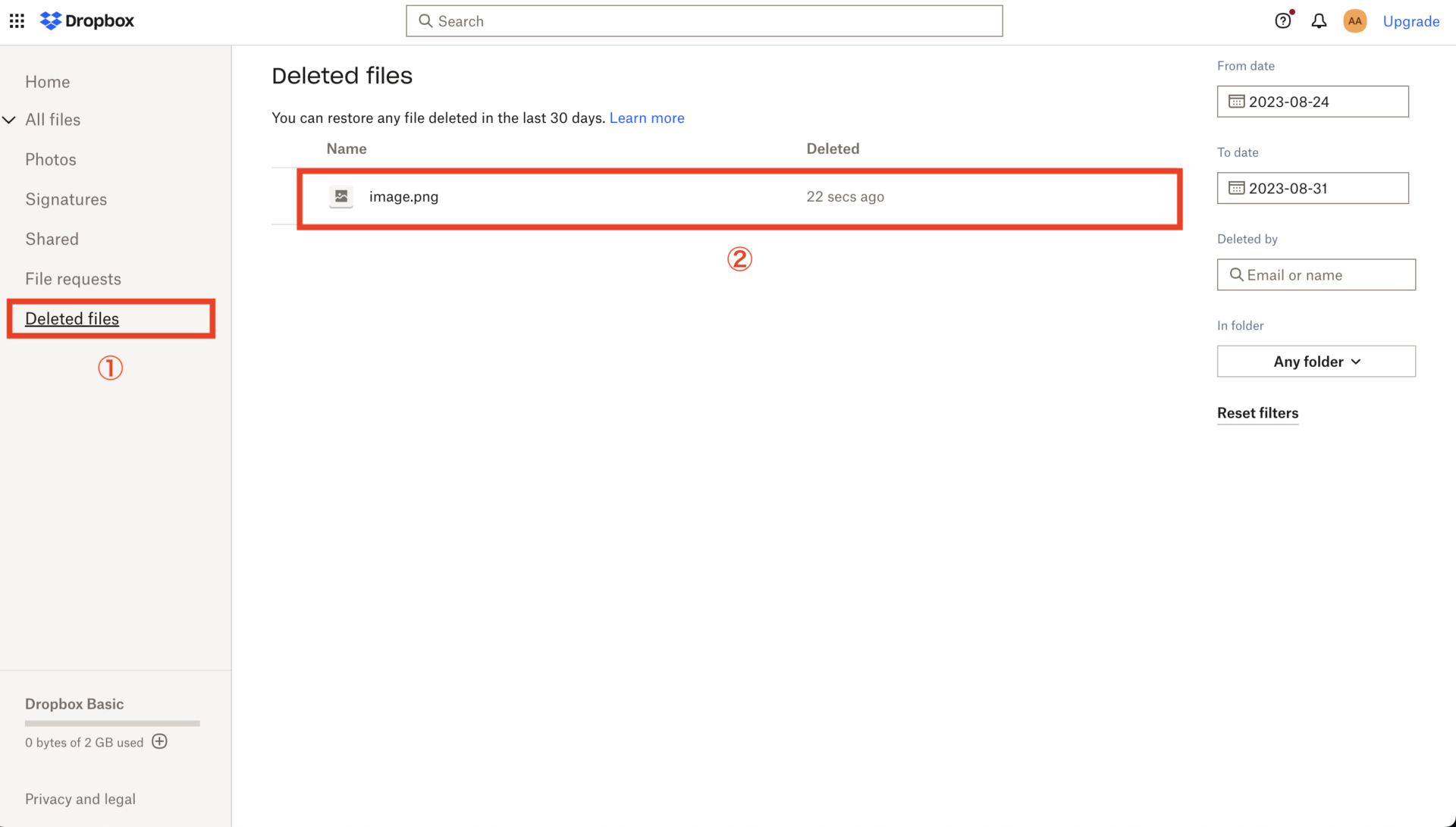

A confirmation screen will appear as shown in the figure above, and then click [Restore] to complete the process.
Usage 3|Sharing files
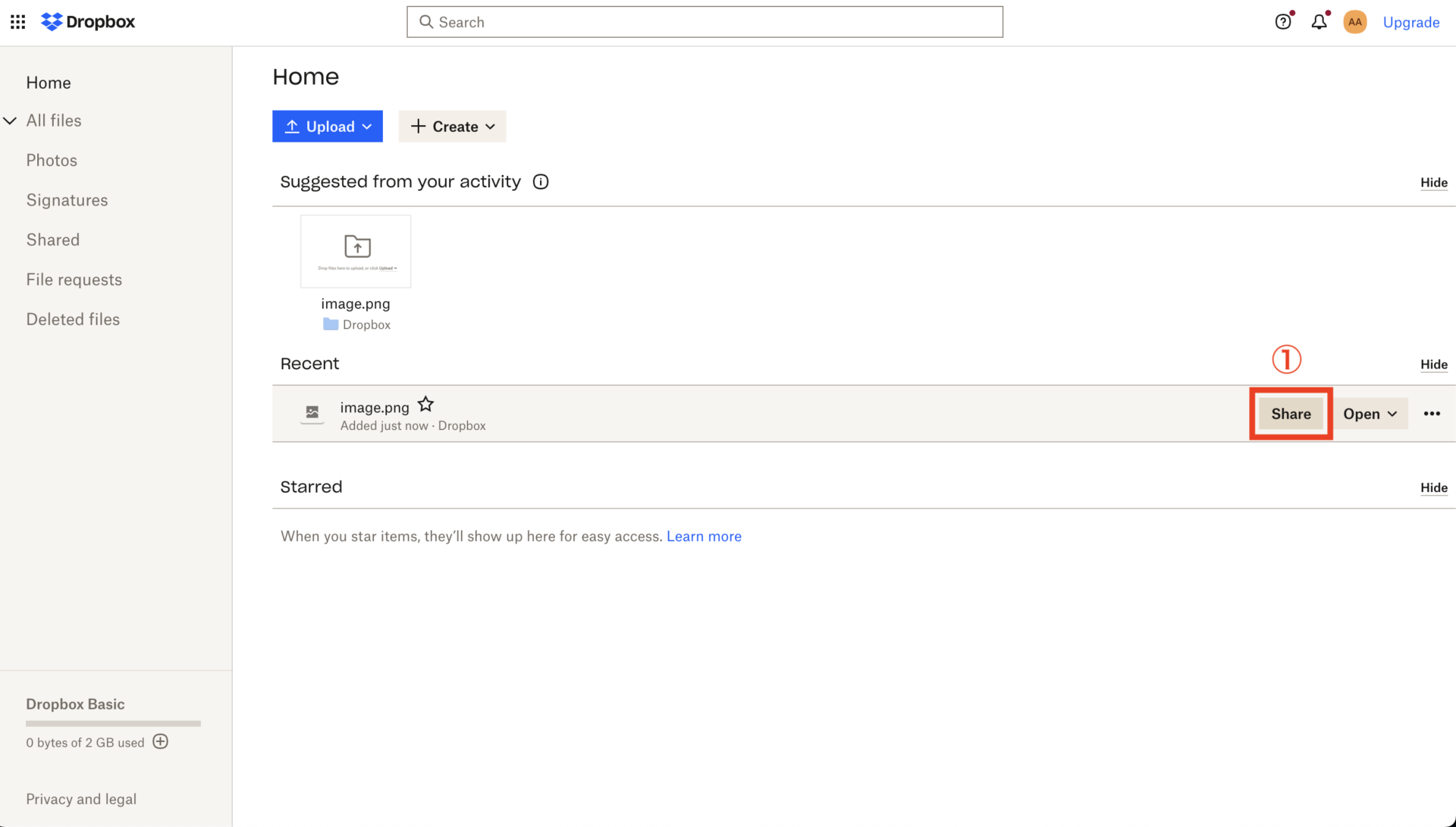
Files can be shared via link or email address.
Place the cursor over the file you wish to share, as shown below, and click [Share].
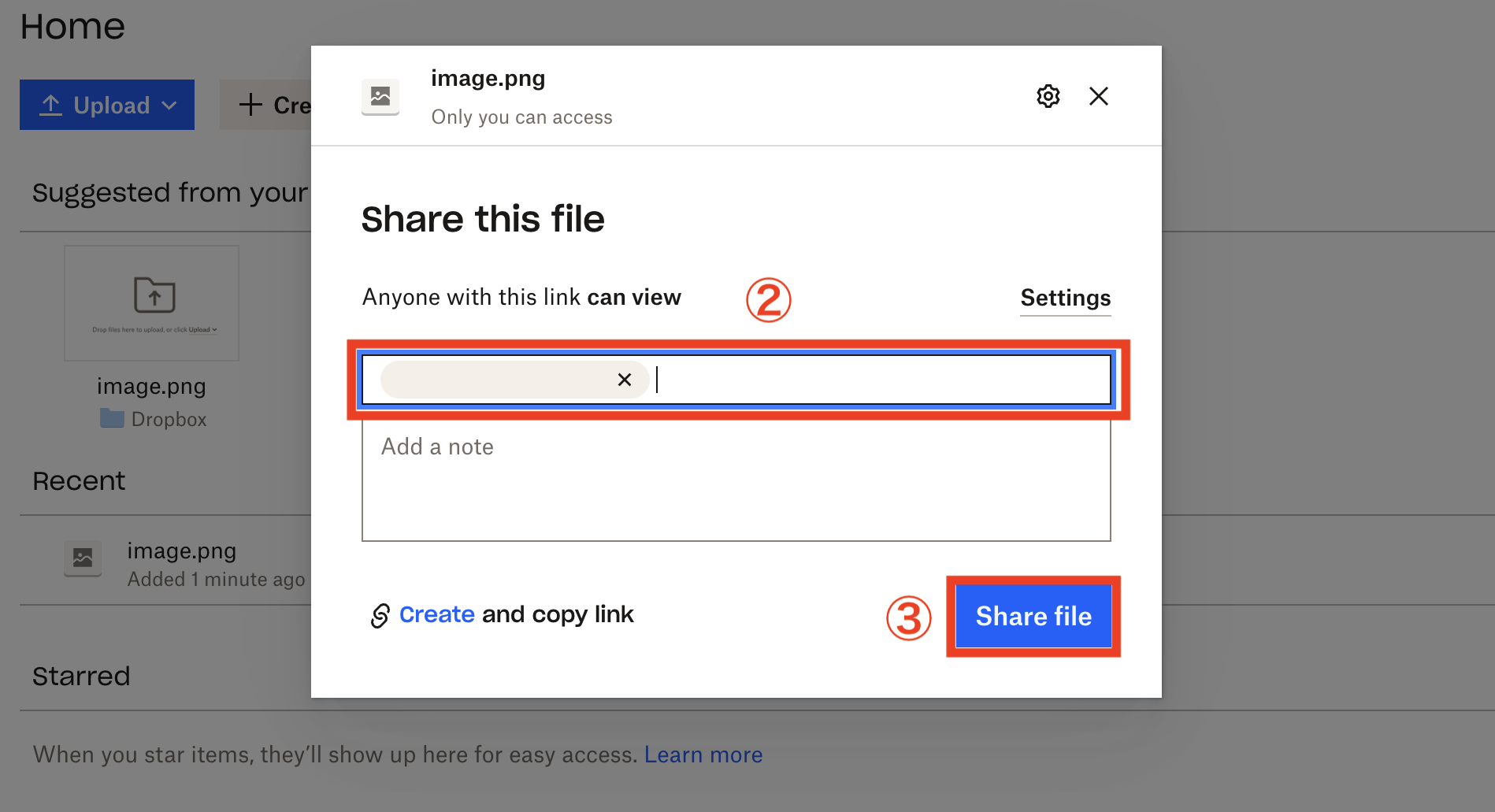
Enter and select the email address and permissions of the other party, and click to complete the process.
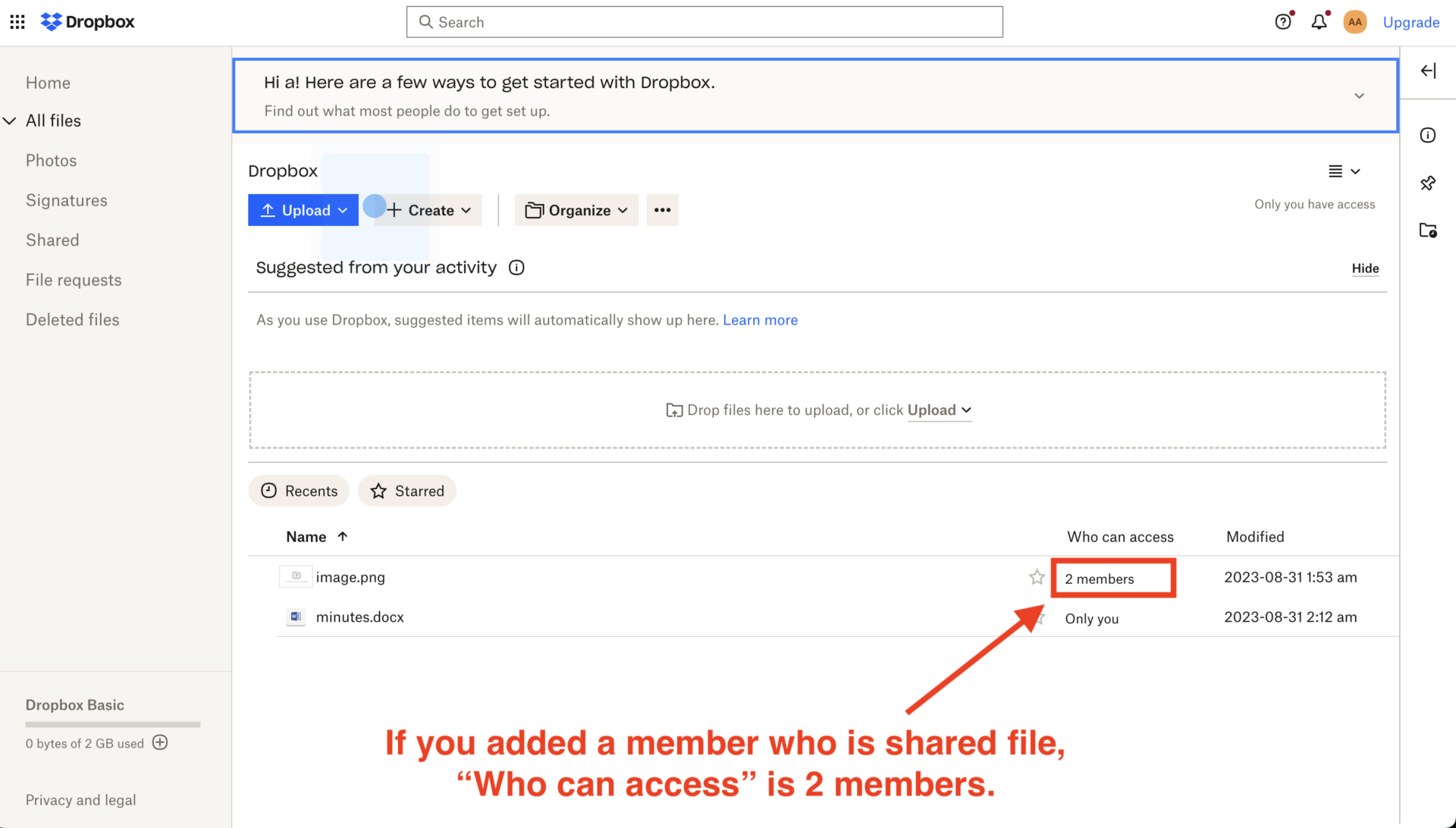
The above operation completes file sharing, and the number of users who can access the file will increase as shown in the figure above.
[Advanced] How to use Dropbox
This section introduces the following four apps of Dropbox.
- Selecting files to sync to your PC
- Operate Microsoft tools
- Enable 2-step verification
- Increase capacity
If you want to operate more comfortably and reduce the risk of information leakage, this is a must see.
Usage 1|Synchronize files to Dropbox
When you download Dropbox and move any file, the file will be stored in both Dropbox and the device you are using. By automatically synchronizing files, edits made on one side will be reflected on both sides.
To do this, drag and drop a file saved on the device to the [Dropbox] on the left side, as shown in the figure below.
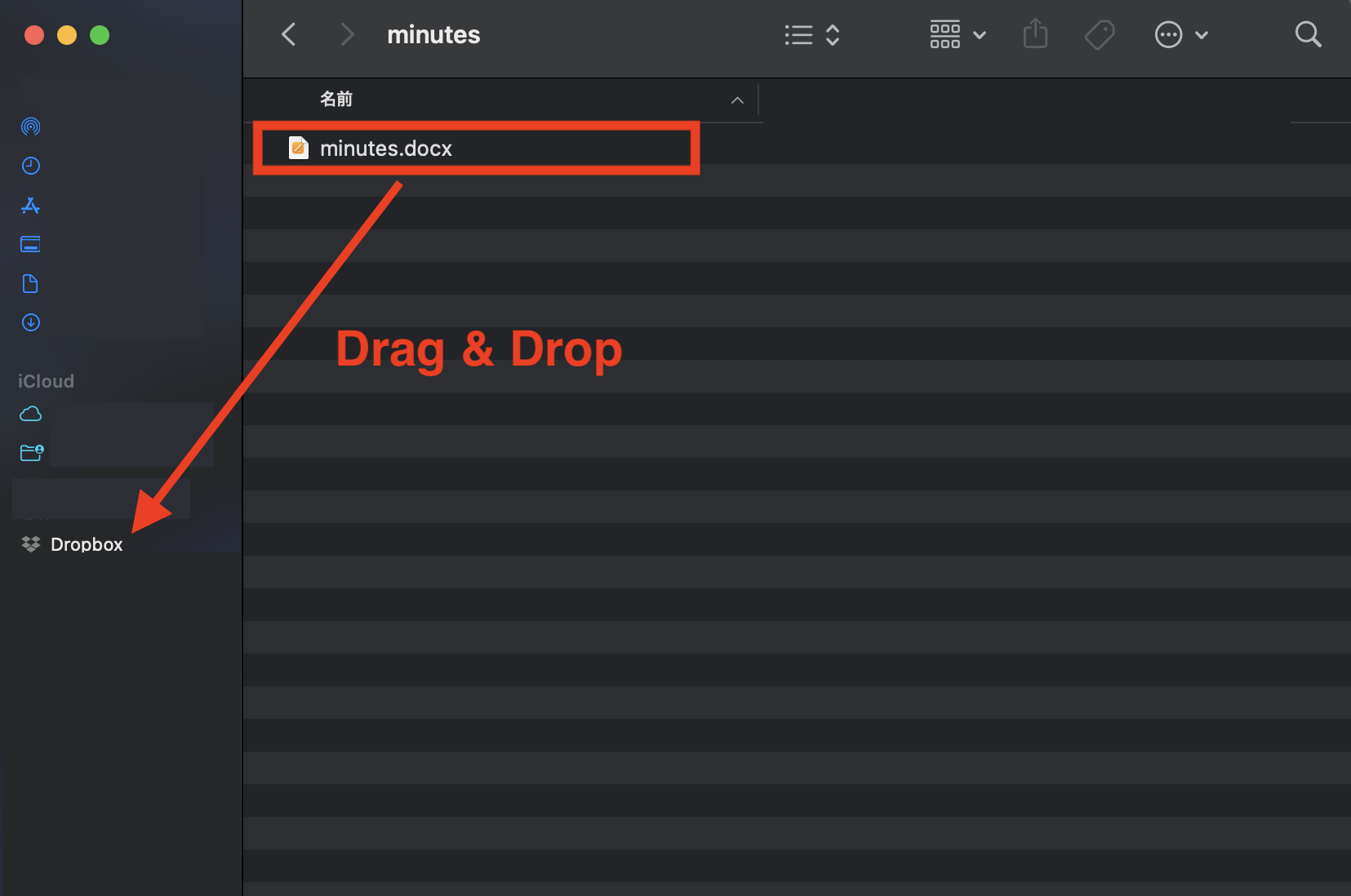
When the file is moved to Dropbox, the synchronization is complete. You can check if the file has been automatically updated to the latest status by looking at the “green check mark on the lower left of the icon” and the “date and time of the update”.
Usage 2|Operating Microsoft Tools
You can edit Microsoft Tools online even if you do not have an “Office 365 license” if you are on a Basic, Plus, Family, or Professional plan of Dropbox, although you can only do so using a web browser.
*Dropbox Business, which is an enterprise plan, requires a “corporate Microsoft account”.
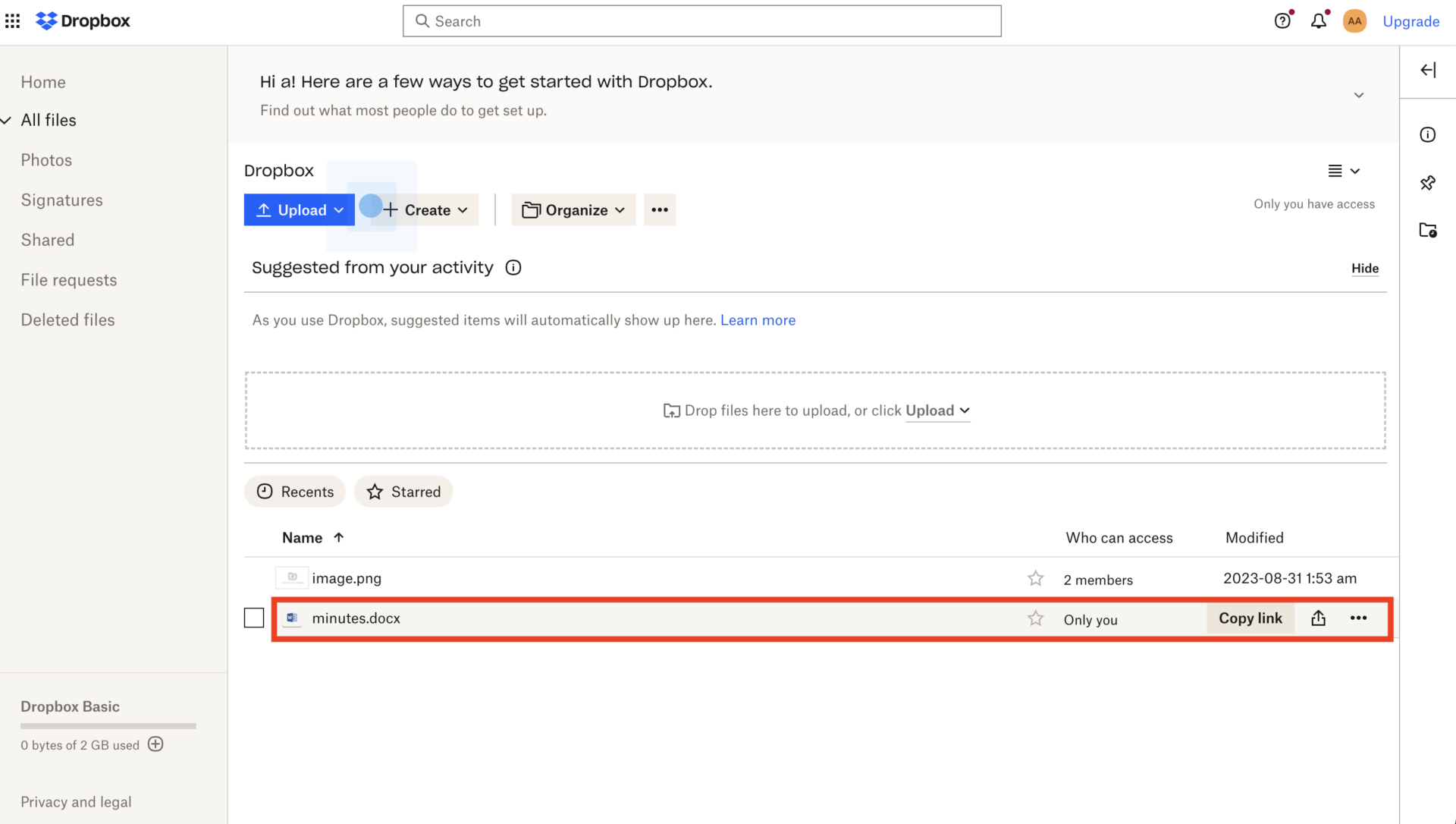
To do so, click [+Create] and move the cursor to [Document] as shown in the figure below to edit a Google Docs. (You can edit PowerPoint under “Presentations” and Excel under “Spreadsheet.”)


The edited Google Docs file will be automatically saved to Dropbox.
Usage 3|Enable 2-step verification
To enhance security, you can enable 2-step verification.
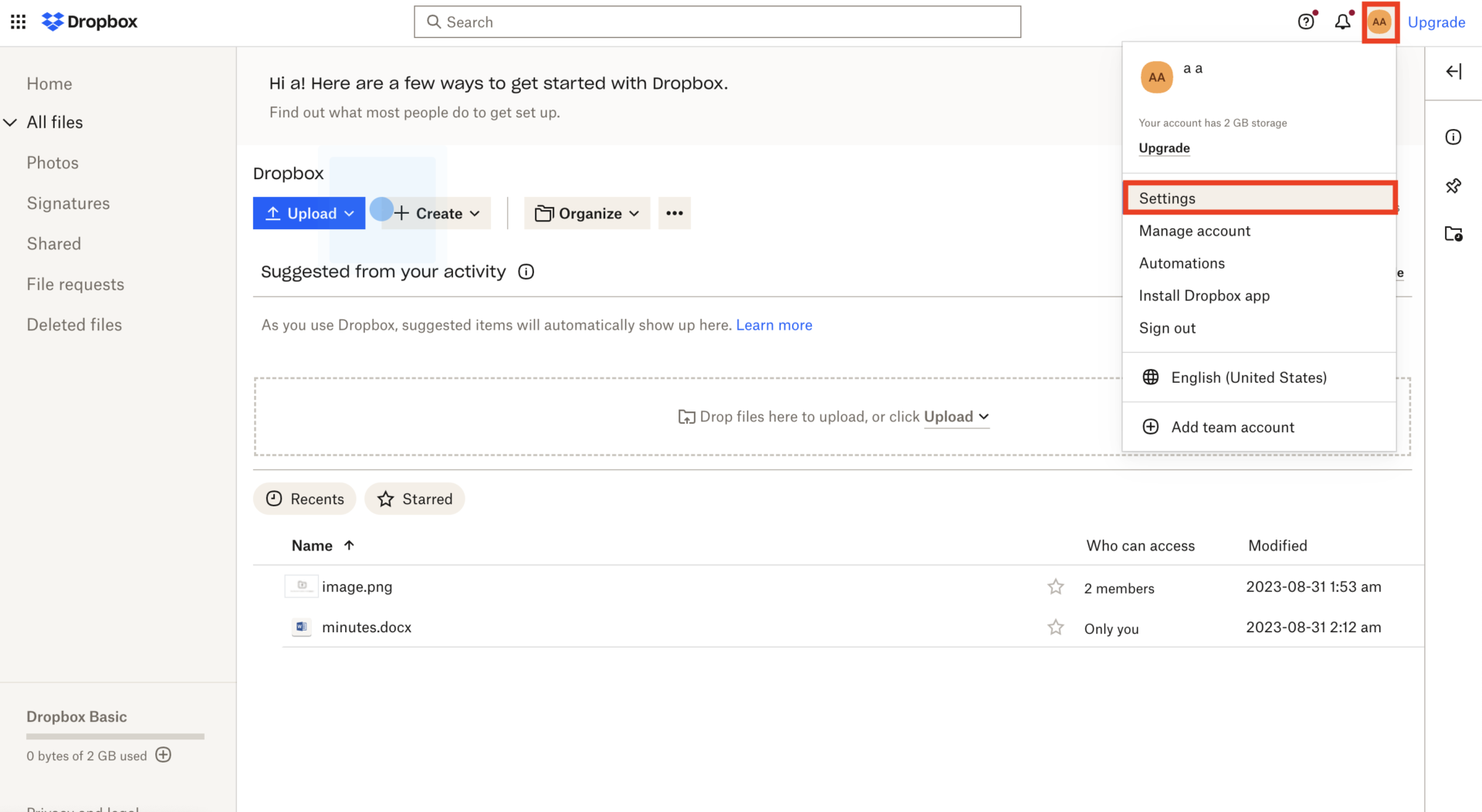
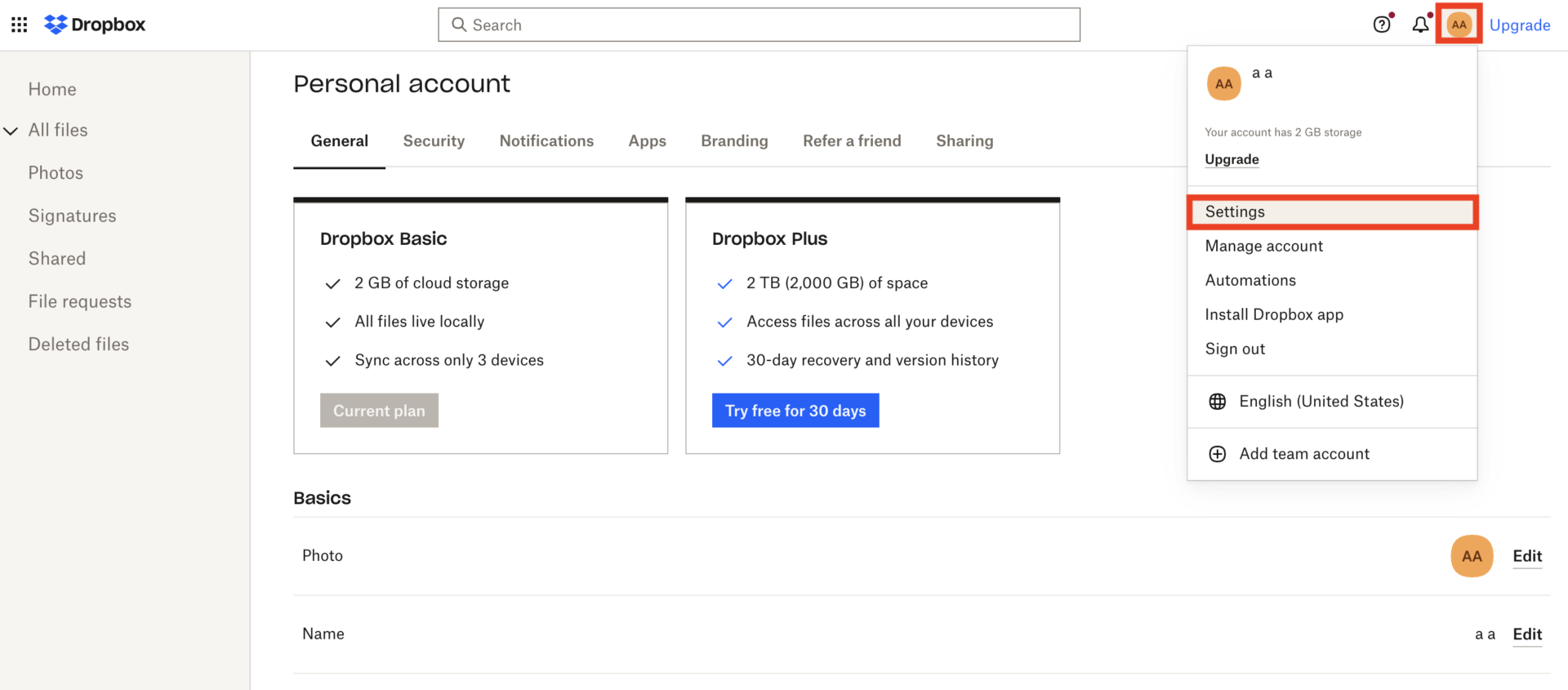
First, open [Settings] by tapping your icon.
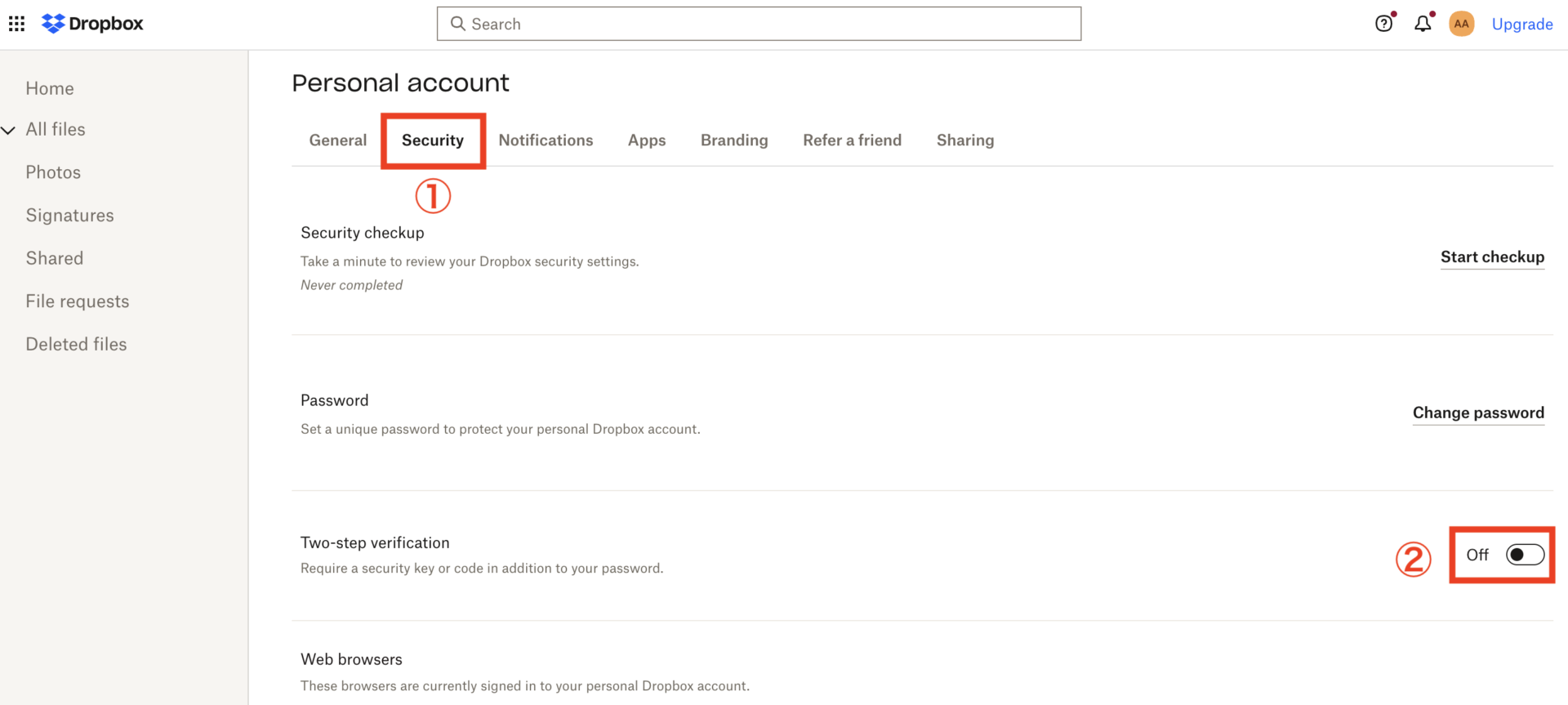
Next, select [Security] tab and turn on 2-step verification to complete the process.
Usage 4|Increase your storage space
In addition to upgrading to a paid plan, another way to increase your Dropbox capacity is to “Refer a friend”.
You can copy the referral link from the settings screen to the referral screen as shown below.
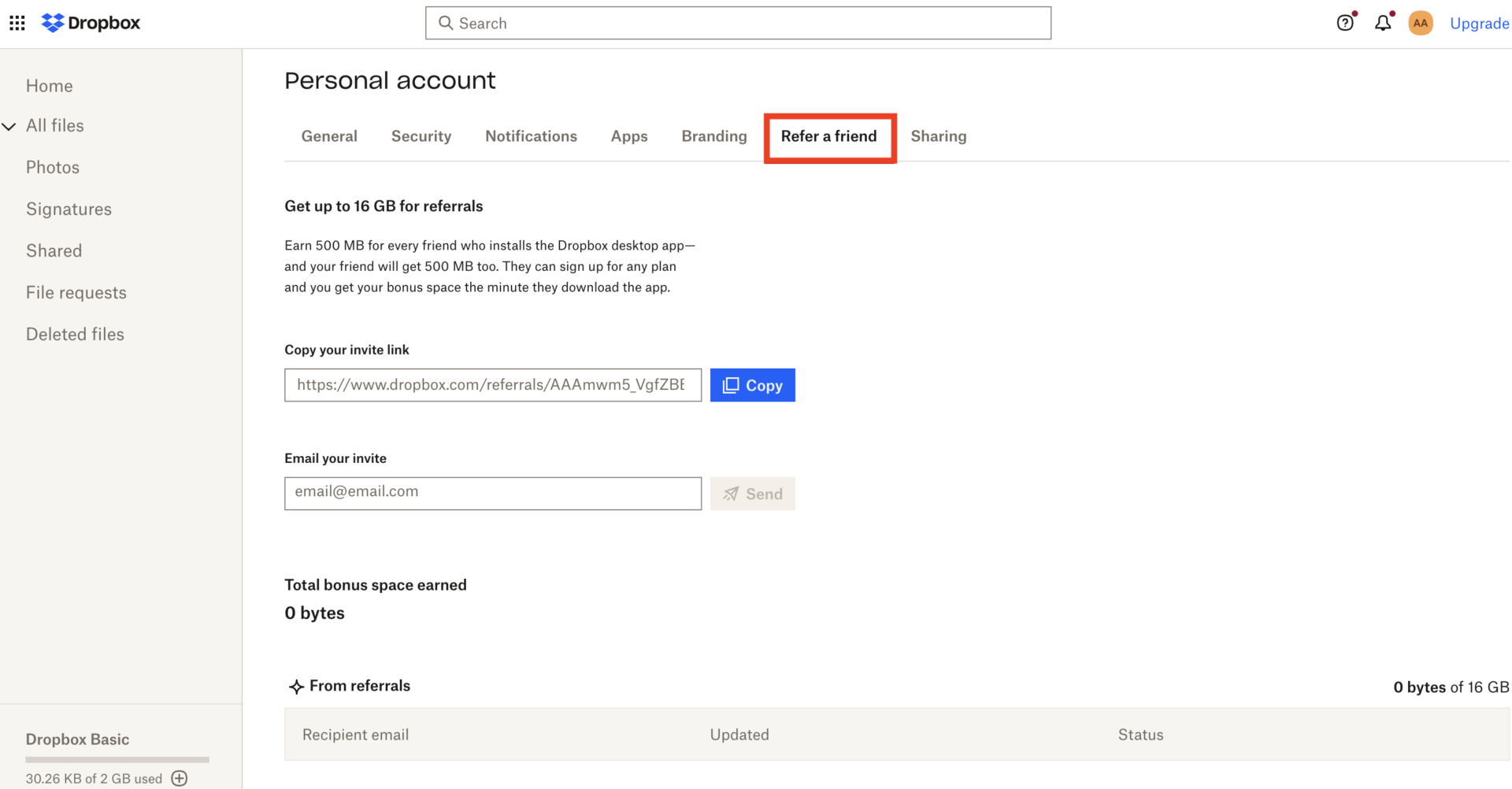
With the above operation, for each time the person you referred installs the app, the referrer will receive 500MB (up to 16GB).The registrant will also receive 500MB.
Notes of Dropbox
Below are three things to note about Dropbox. In some cases, you may find it difficult to use, so be sure to check them beforehand.
(1) Updating files is troublesome
First, it should be noted that updating files is troublesome.
This is because all data stored in Dropbox must be in file format. For example, if a file is shared by more than 10 people, there is a risk that the file will be frequently updated and re-uploaded, making it “impossible to tell who updated where”.
This makes it time-consuming to file every time information is updated.
(2) Poor file accessibility
The next issue with Dropbox is that accessibility to files is poor.
Dropbox can store many files, but as the number of files increases, they must be organized using “folders”. However, Dropbox allows folders to be created many levels deep, making it difficult to know where files are stored.
Therefore, Dropbox requires you to set up rules to organize your files and divide them into appropriate folders.
(3) The capacity of free plan is only 2 GB.
Since free plan of Dropbox can store only 2GB, if you handle the big file such as video and design data, you should use paid plan.
In addition, there is few possibility of full capacity regarding the documents that are minutes and some reports are full, but you will face the problem which is difficult for you to handle the big files.
Therefore, if you have the plan to handle big files for future, you need to subscribe paid plan for more work efficiency.
(4) Not managed efficiently
Finally, it is important to note that some types of files cannot be managed efficiently.
When storing Excel or Word files, without a naming rule, it is impossible to know what the corresponding file refers to. Also, Excel and Word files are difficult to open on a smartphone, so files must be edited on a PC.
Below is a comparison between Dropbox and “Note taking tools” commonly used for information sharing. Compared to “Note taking tools,” which do not require you to open a file to check its contents and allow you to edit it from your smartphone, Dropbox is more difficult to update and manage files.
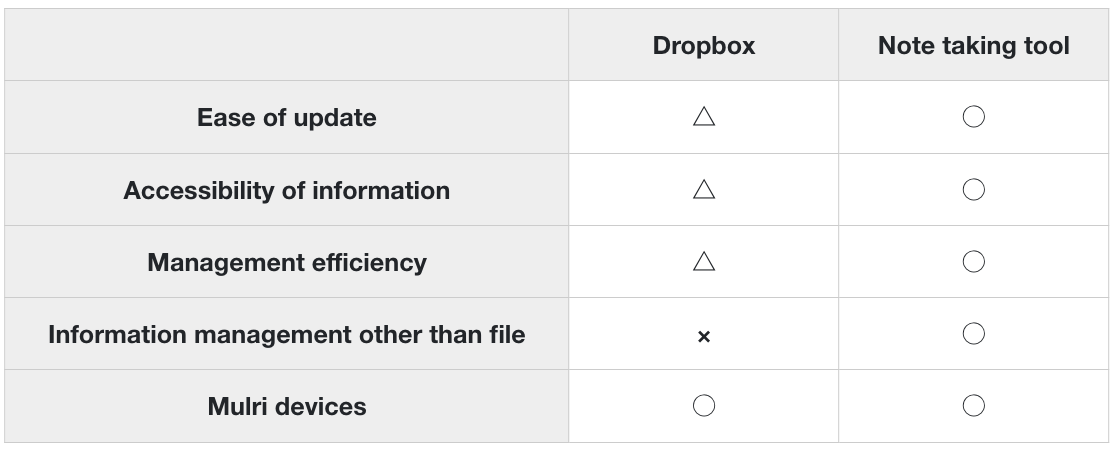
This lack of smooth access to files can cause work to not progress efficiently. However, with Stock, which allows you to easily leave any information in a note format, you can easily edit the file without having to open every single file.
A tool to manage internal information easier than Dropbox
Below is a tool to manage information more easily than Dropbox.
While Dropbox makes it easy to share large files, it also has disadvantages such as the time it takes to update files and the difficulty of finding the desired file. In addition, if you manage information using only files to begin with, you cannot check the contents without opening each file one by one.
Therefore, to solve the disadvantages of Dropbox, choose a app that easily leaves information in a notebook format. A note taking tool allows you to manage text information as well, solving the need to create files.
However, if it is not simple, it will not be used and will not spread throughout the company. The best choice is Stock, which has a “Note” that can store all kinds of information without shedding it, and is simple enough to use on the same day.
“Note” of Stock can leave all kinds of information, including images and PDFs, as well as text. In addition, the ingenious design of the “Folder” to avoid deep hierarchies and the high-performance search function allow you to quickly find the information you need.
Stock|a best tool for organizing information of team easily

The simplest tool to stock information "Stock"
https://www.stock-app.info/en/
Stock is the simplest tool to stock information. Stock solves the problem, "there is no easy way to stock information within the company".
With Stock, anyone can easily store all kinds of information, including text information such as requirements, images, and files, using the Note feature.
In addition, by using the "Task" and "Message" functions, you can communicate with each topic described in the Note, so that information is not dispersed here and there and work can always be carried out in an organized manner.
<Why do we recommend Stock?>
- A tool for companies that are not familiar with ITYou don't need to have any IT expertise to get started.
- Simple and usable by anyoneStock is so simple that anyone can use it without any unnecessary features.
- Amazingly easy information storing and task managementIt is amazingly easy to store information such as shared information within a company, and intuitive task management is also possible.
<Stock's pricing>

- Free plan :Free
- Business plan :$5 / User / Month
- Enterprise plan :$10 / User / Month
*Minimum number of users: 5 users
What are Dropbox fees?
This section describes fees and plans of Dropbox. There are multiple plans for both personal and business use, so this is a must-see because you will be required to select the right plan for your team.
What is a free Dropbox plan?
Dropbox offers a free plan called “Dropbox Basic”. The features of the free plan are as follows.
- Storage capacity is limited to 2GB
- Number of users is limited to 1
- Automatic backup of files stored on your PC
- Ability to restore deleted items from the past 30 days
- Up to 3 devices can be linked
Based on these, a paid plan subscription is required for business use.
Reference: Get a Dropbox free account
What is a Dropbox paid plan?
In addition to the free plans, Dropbox has “paid plans for individuals” and “paid plans for businesses”.
To facilitate comparison, the features of each plan are summarized in the table below.
Dropbox Personal Plans Table
| Plan | Basic | Plus | Professional |
|---|---|---|---|
Monthly Fee | Free of charge | $11.99 /month | $19.99 /month |
Data capacity | 2GB | 2TB(2,000GB) | 3TB(3,000GB) |
Features | Up to 3 devices can be linked | File recovery and version history is 30 days | File recovery and version history is 180 days |
Dropbox Plans for Business
| Plans | Standard | Advanced | Enterprise |
|---|---|---|---|
Monthly Fee | $18 /month | $30 /user/month | Inquiry required |
Data capacity | 3TB(3,000GB) | 5TB(5,000GB) | Add capacity as needed |
Features | All features of individual plans Two-step verification and encryption of information Management of shared links and browsing history 3 users or more | Most features of the Standard plan 3 users or more | All features of the Advanced plan Dedicated Customer Success Manager |
Reference: Secure cloud storage—and so much more
Dropbox reviews
Below are reviews and reputations of Dropbox users. When considering the introduction of Dropbox, please refer to the real voices.
The reviews and opinions introduced here are quoted from G2>reviews
Good reviews of Dropbox
The following are good reviews of Dropbox. You will see reviews/reputations that answer, “File sharing has become easier.”
Ravina M. (Posted on 6/7/2023)Dropbox is an excellent cloud storage solution for storing documents, files and data. It is straightforward to upload files to Dropbox and download them from Dropbox.We can easily synchronize our local system files and folder to the remote Dropbox account.Dropbox Business provides us with many advanced business features, Like ample data storage and bandwidth.
Mark B. (Posted on 7/3/2023)I like Dropbox for its versatility in storing project data; it is efficient and collaborative because it allows sending large files to clients and teams with a simple copy and paste method; It is also useful and practical for creating backup copies on servers.
Shelbie H. (Posted on 8/24/2023)Dropbox is so useful when your entire team is not in the same building. Allows me to share creative material with my team without having a million emails.
Sachin S. (Posted on 6/7/2023)Dropbox is a fast and convenient cloud storage solution that lets you upload all types of files, including documents, photos, and presentations. One of its best features is its easy file-sharing capabilities.
Bad reviews of Dropbox
Next, we will introduce some bad reviews of Dropbox. Many users said, “Pricing is high” and “It takes a long time to upload.”
Rev. Fr. Shane S. (Posted on 5/1/2023)One potential downside of Dropbox is its pricing. While the service offers a free tier with limited storage, users who require more space will need to upgrade to a paid plan. This can become costly for larger organizations or individuals with extensive storage needs.
Aaron T. (Posted on 6/27/2023)CUSTOMER SERVICE is almost non-existent. There is no phone number or chat to get help. You have to figure out how to email them. Then wait….and wait….for days. If you have a problem with Dropbox, plan on not using it until someone gets back to you.
Saxon H. (Posted on 2/2/2023)Dropbox’s file transfer speeds can be slow, especially when uploading large files.No built-in photo management tools – Unlike some other cloud storage services, Dropbox does not have built-in photo management tools, such as the ability to view and organise photos in a gallery.
Amit B. (Posted on 4/6/2023)It’s not easy for me to like how difficult it can be to access files in Dropbox if you’re not using Salesforce. I also find it difficult for customers to view and easily download contracts on the go, as many HelloSign envelopes are missed by spam filters, making it impossible for us to know who our customers are. The problem isn’t with HelloSign, it’s with the email clients that customers use.
Prithvi K. (Posted on 1/12/2023)The search feature to help you find your document/ images /pdf directly is a bit primitive. There are no keywords to fetch the documents immediately.Secondly, it was a tad bit expensive. As compared to several other alternatives, its price is on the higher side.
From the above reviews, Dropbox is “heavy to use” and “complicated with many functions” in some situations. Therefore, there is a risk that it may be difficult to use, especially for those who are not good at IT.
A app will not take root if it cannot be used comfortably in all situations. Therefore, if you use Stock, which allows you to intuitively leave information in a “Note”, you can quickly get rid of burden file management.
Summary of Dropbox usage and notes
We have focused on the usage, precautions, and Price of Dropbox for beginners.
Dropbox is a cloud storage service that allows centralized management of files, and can be used to share files via links or synchronize with other tools. However, since it is only a “file-based information management” system, it has the disadvantage of making it difficult to access the information you need quickly.
Also, if there are too many functions and it is difficult to understand how to use them, all members will not be able to use them successfully. Therefore, it is best to use a “Note taking tool” that allows everyone to easily input information directly and manage and share files intuitively.
In particular, “Stock,” a Note taking tool for non-IT companies with a “Note” that ensures information retention and “Message” linked to the Notebook, can be used to store and share files quickly and completely.
Free registration takes only 1 minute, so using Stock and realize more efficient information management than Dropbox.
