
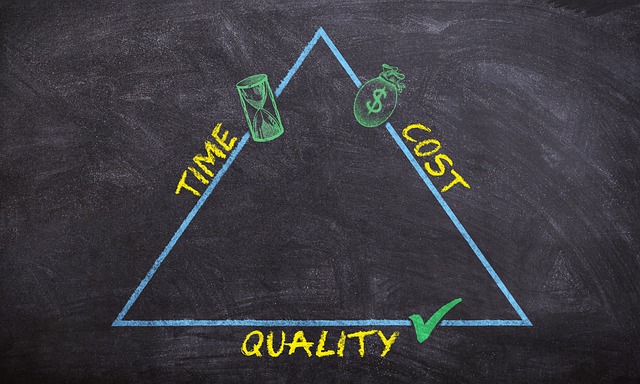
A “project management tool” is necessary to visualize the progress of a project and manage it efficiently. Asana, one of the most popular tools, has many functions and is used by many companies.
However, there may be many people in charge who are considering introducing Asana but are not sure if it matches needs of team.
In this issue, we will focus on Asana’s usage, price, and reviews for below people.
- “It is difficult to see the progress of a project, so we want to improve efficiency with Asana”
- “We would like to introduce Asana, but are having trouble visualizing the outline and usage of Asana.”
- “If there is another easy-to-use tool besides Asana, we would like to introduce it right away.”
This article will help you learn more about how to use Asana and determine whether it is right for your company.
Contents
- 1 What is Asana?
- 2 Asana features and what it can do
- 3 Price comparison chart between free and paid plans
- 4 How to register for Asana
- 5 Useful Usage of Asana
- 6 Difficult to use? Reviews of Asana
- 7 The best alternative app to Asana
- 8 3 tips for getting the most out of Asana
- 9 Summary of Asana’s usage, price, and reviews
What is Asana?

Asana is a project management tool provided by Asana, Inc in San Francisco.
In addition to project management, the progress of members can be monitored through workload and reporting functions. In addition, it has an automation function for routine tasks, which helps reduce the workload.
In addition, Asana can be integrated with a wide variety of external tools such as Miro, Jira, Trello, Slack, and Instagantt, making it even more convenient.
Asana features and what it can do
This section describes Asana’s features and capabilities. If you have not been familiar with detailed features of Asana, this is a must-see.
Lists
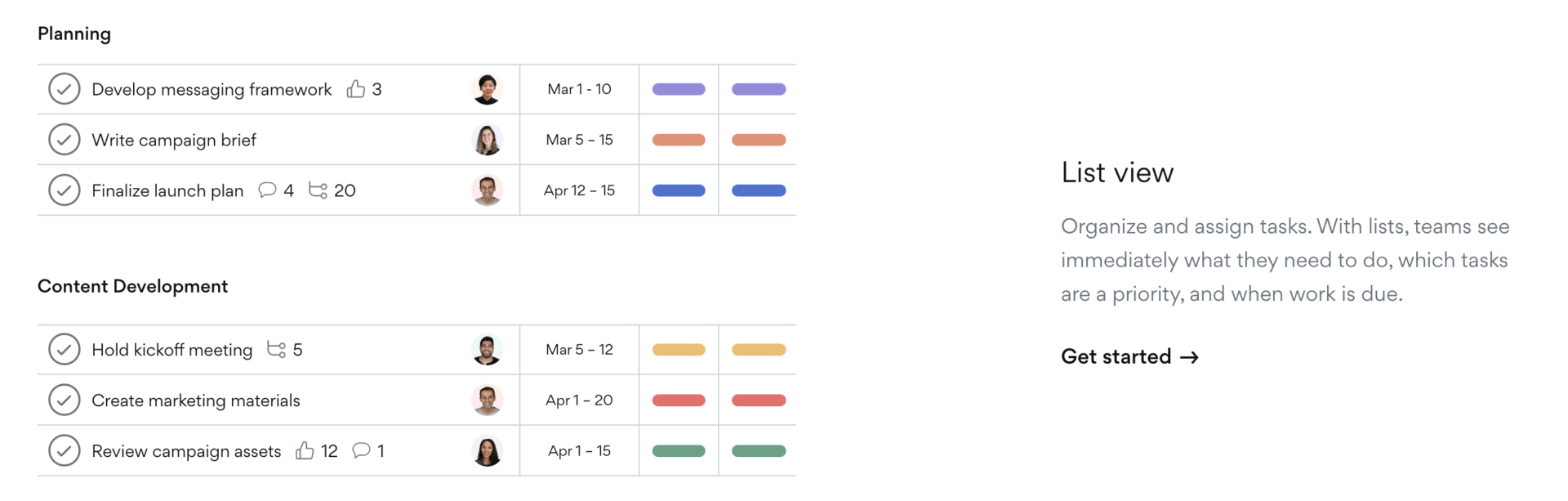
In the list, tasks can be narrowed down by “Person in Charge,” “Due Date,” “Creation Date,” etc., and tasks can also be rearranged manually. This makes it possible to organize tasks in such a way that you can immediately see “what needs to be done by when,” which is useful for preventing missing tasks.
Timeline

Asana’s timeline allows you to manage tasks like a “Gantt chart” format, making it easier to visually understand task schedules.
On the other hand, Asana’s timeline differs from the Gantt chart in that you can connect tasks with arrows. By connecting tasks with arrows, you can see the parent-child relationship of each task, which makes it easier to manage your schedule.
Boards
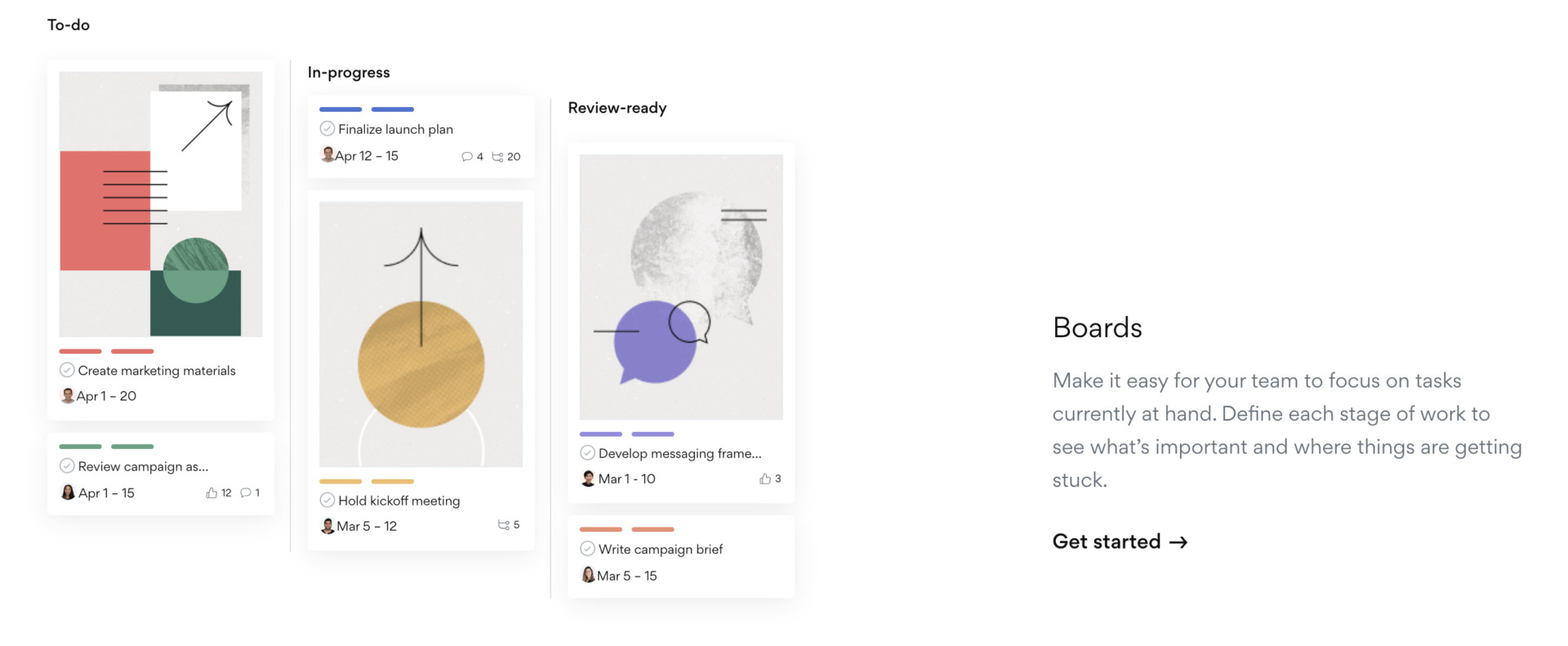
Board of Asana is a feature that allows you to manage your projects using the “Kanban” method, where you move tasks around like sticky notes. Specifically, tasks are grouped by status, such as “not started/working on/completed,” and moved by drag-and-drop according to progress.
By utilizing Asana’s board, you can quickly determine “which task is behind in progress,” which leads to early action.
Calendar
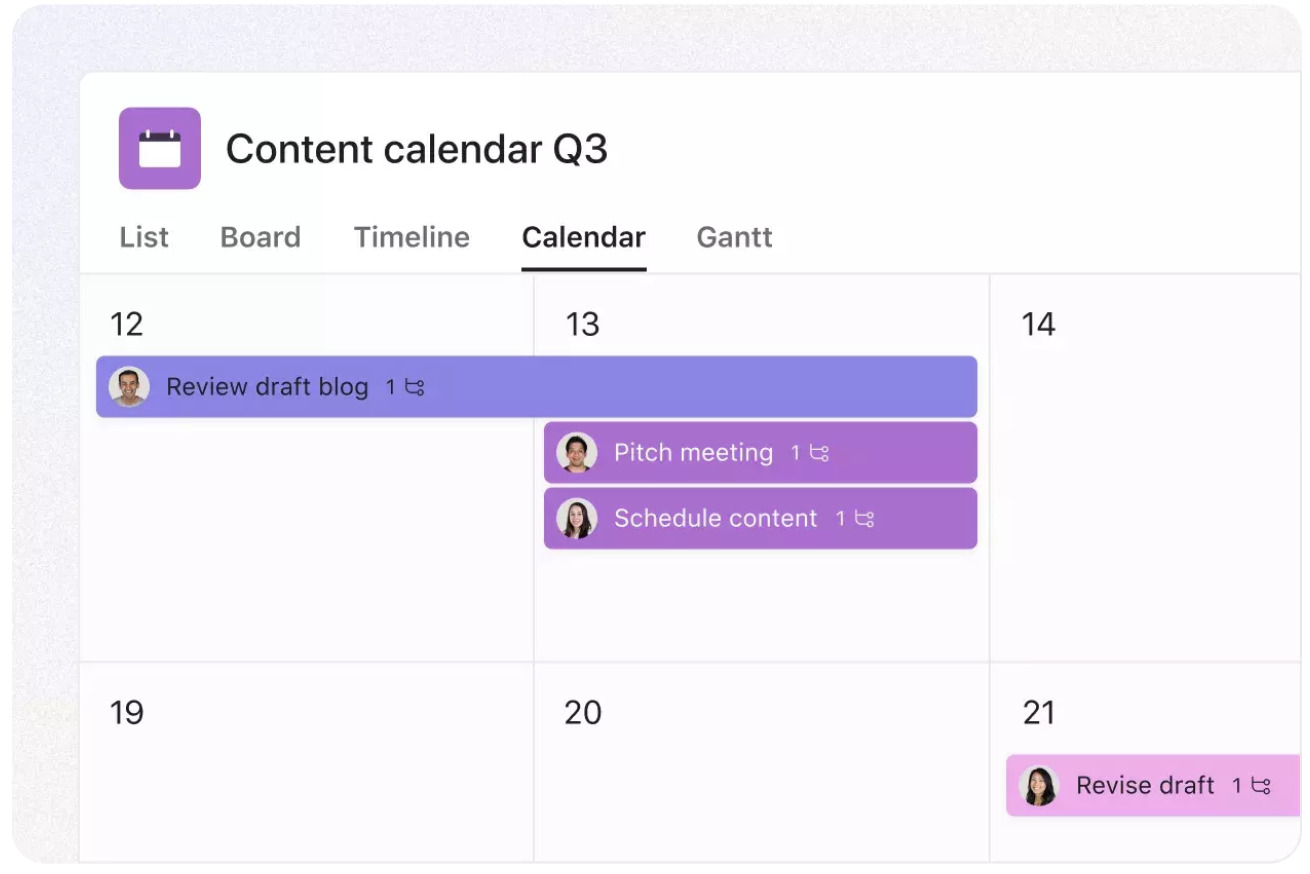
Asana’s calendar is a feature that allows you to display tasks on any day of the week.
The calendar is superior to the timeline in that it gives you a bird’s eye view of the progress of the entire project. In addition, tasks can be moved to a different date by drag-and-drop, allowing for speedy schedule changes.
Other features
In addition to the basic functions, Asana includes the following features.
| Functions | Features |
|---|---|
| Forms | Surveys can be created to collect information from employees. |
| Report function | Gathers real-time information on the status of your team and displays it in an easy-to-understand format. |
| Goals | You can set goals and tie them to any task. |
| Automation | Automate routine tasks on Asana to reduce workload. |
| Workflow builder | Create work processes and automate forms and tasks. |
| Workload | View details of multiple projects and team capacities. |
In addition to the above, Asana offers a wealth of other features. However, teams that are not IT-savvy may find Asana difficult to use due to its many features.
On the other hand, Stock has all the features without excess or insufficiency, and its simplicity of use makes it easy to learn how to use.
Price comparison chart between free and paid plans
This section explains the differences between Asana’s different pricing plans. Check which plan includes the features you want by referring to the comparison chart below.
| Basic | Premium | Business | Asana Enterprise | |
|---|---|---|---|---|
| Price (monthly) | Free of charge | $13.49/user/month | $30.49/user/month | You need inquiry |
| Limit on number of users | 15 users | Unlimited | Unlimited | Unlimited |
| Unlimited storage space (up to 100 MB/file) | ✔️ | ✔️ | ✔️ | ✔️ |
| Unlimited mandatory project features | ✔️ | ✔️ | ✔️ | ✔️ |
| Views | List/Board/Calendar | List/Board/Calendar/Timeline | All Views | All Views |
| Multi-factor authentication | ✔️ | ✔️ | ✔️ | ✔️ |
| Support | Community support | Customer success option | Customer success option | Customer success option and 24/7 support |
Refer to: https://asana.com/pricing
As you can see above, Asana’s paid plans offer more extensive views and support structures than the free plan.
How to register for Asana
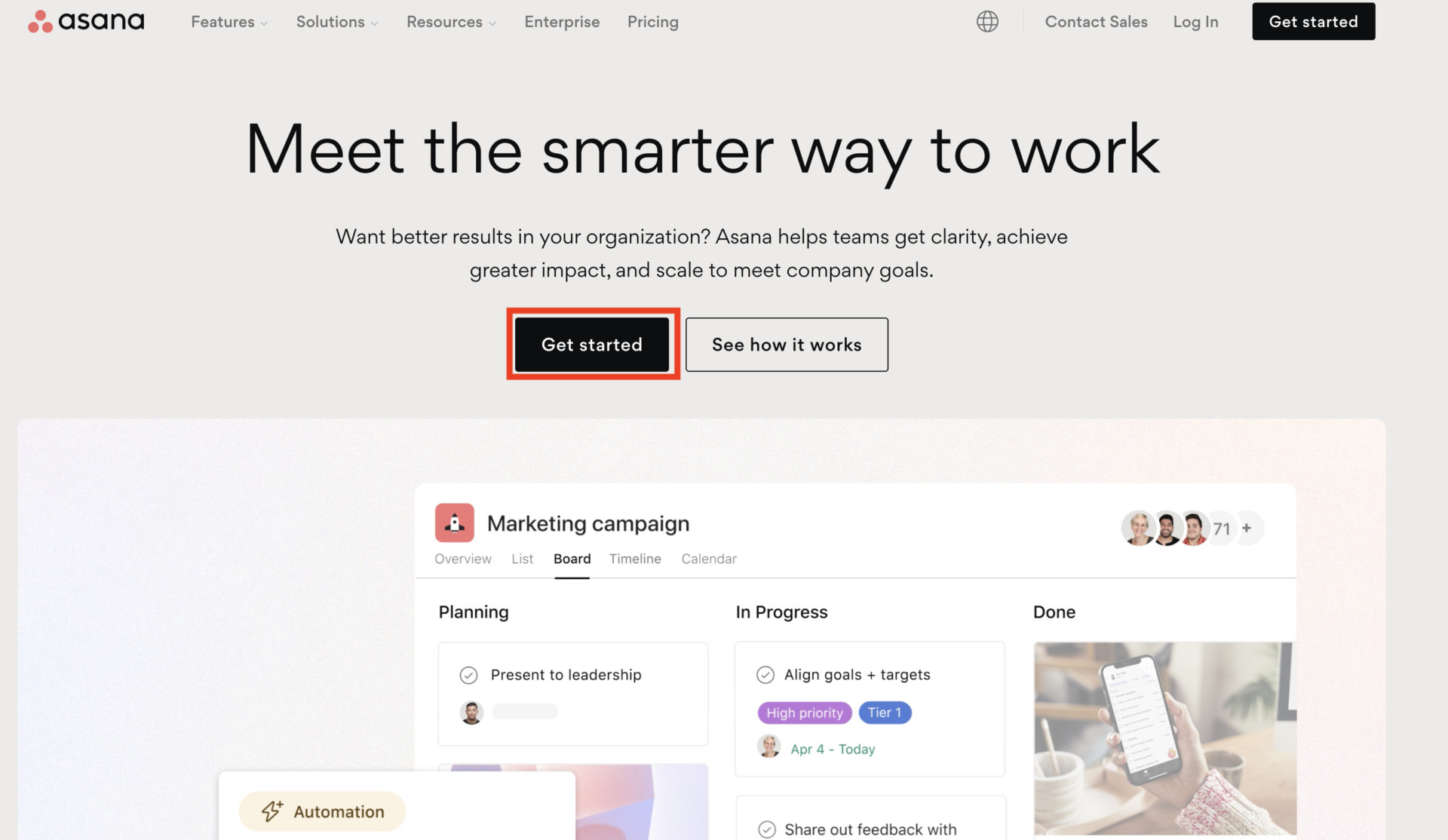
First, you should log in to Asana from Login Screen.
1. Click on [Get started] and enter your email address.
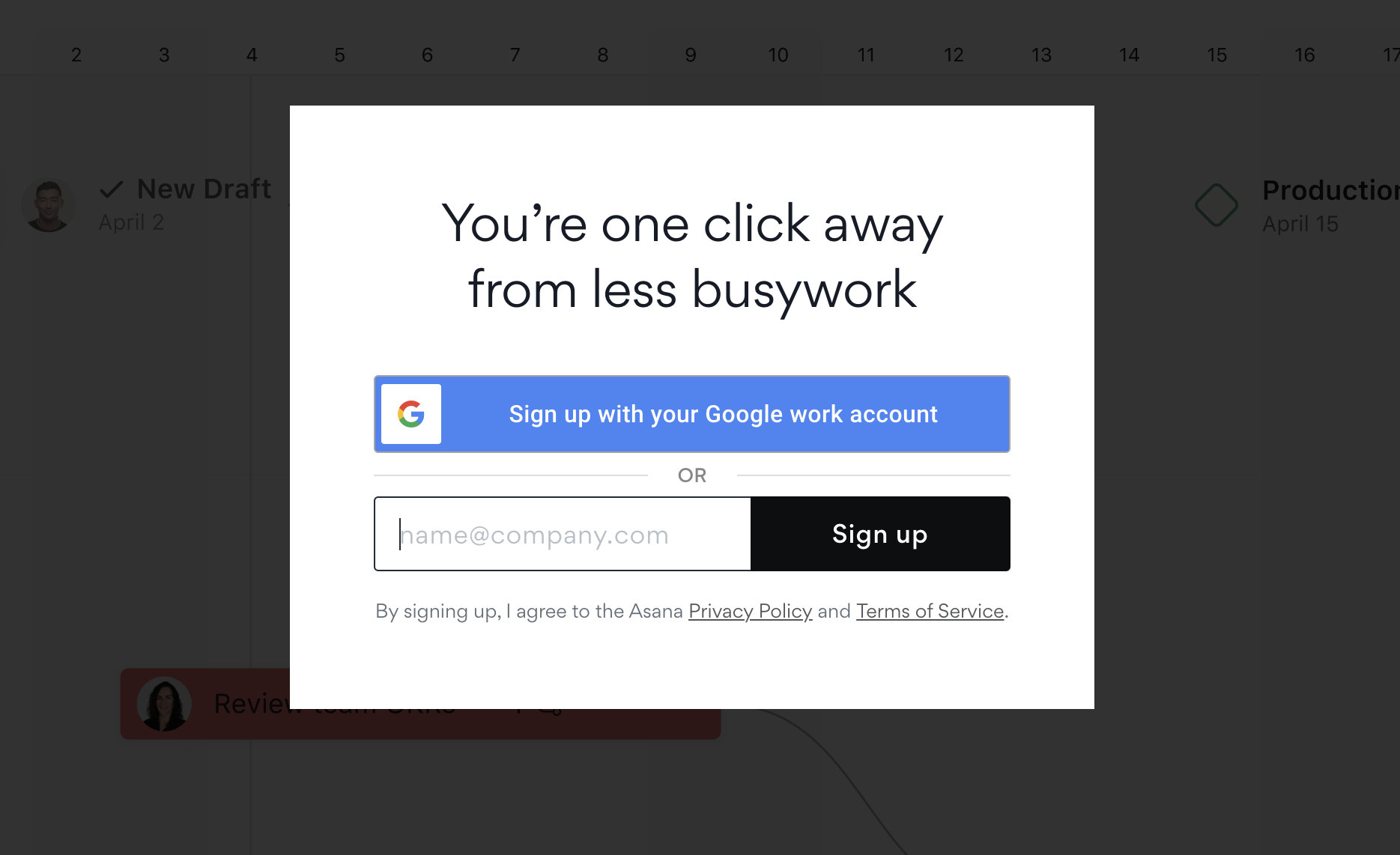
2.If you have a Google account, you can link it to your Google account and register immediately.
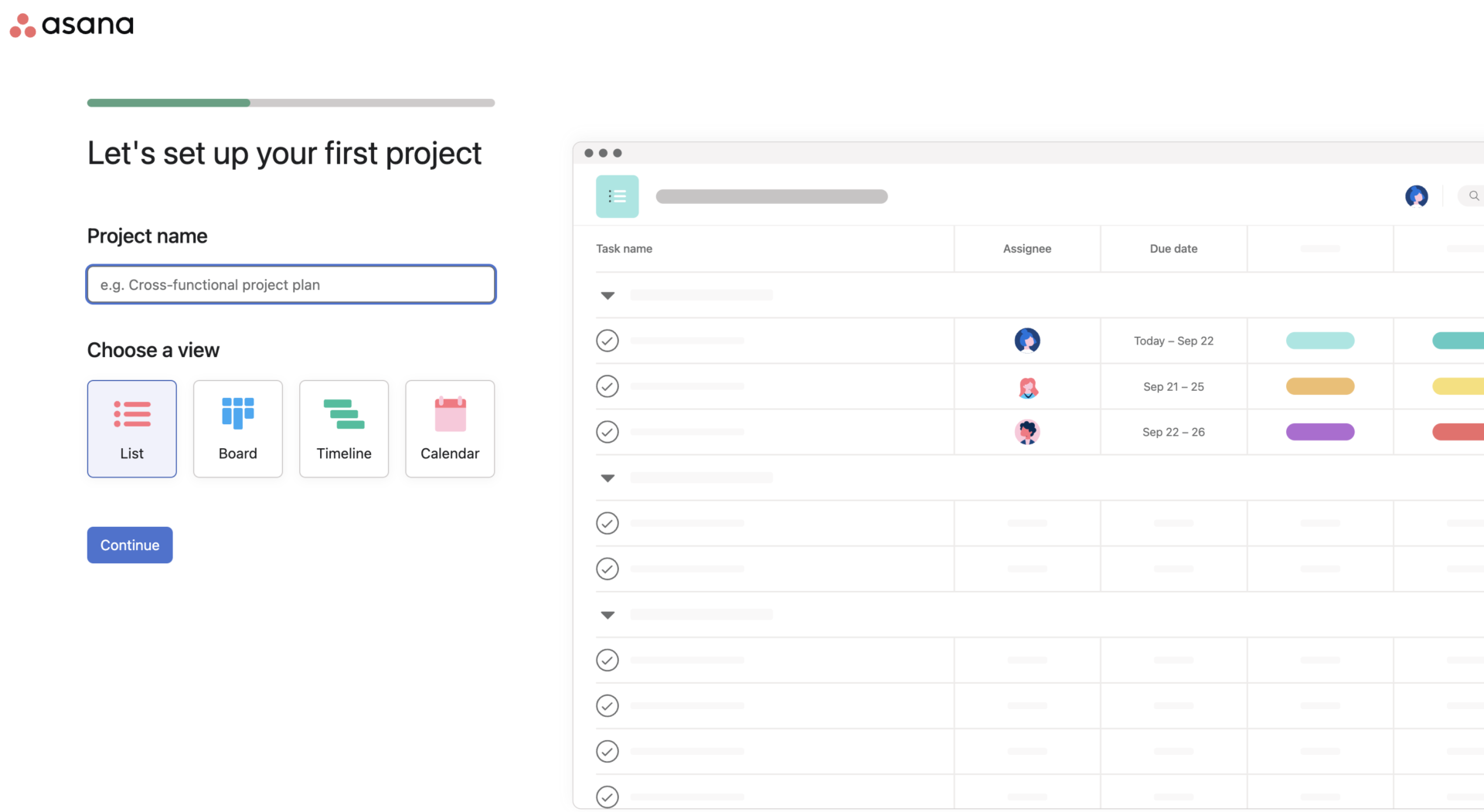
3. Enter the project you are currently working on. (You can change the content after registration.)
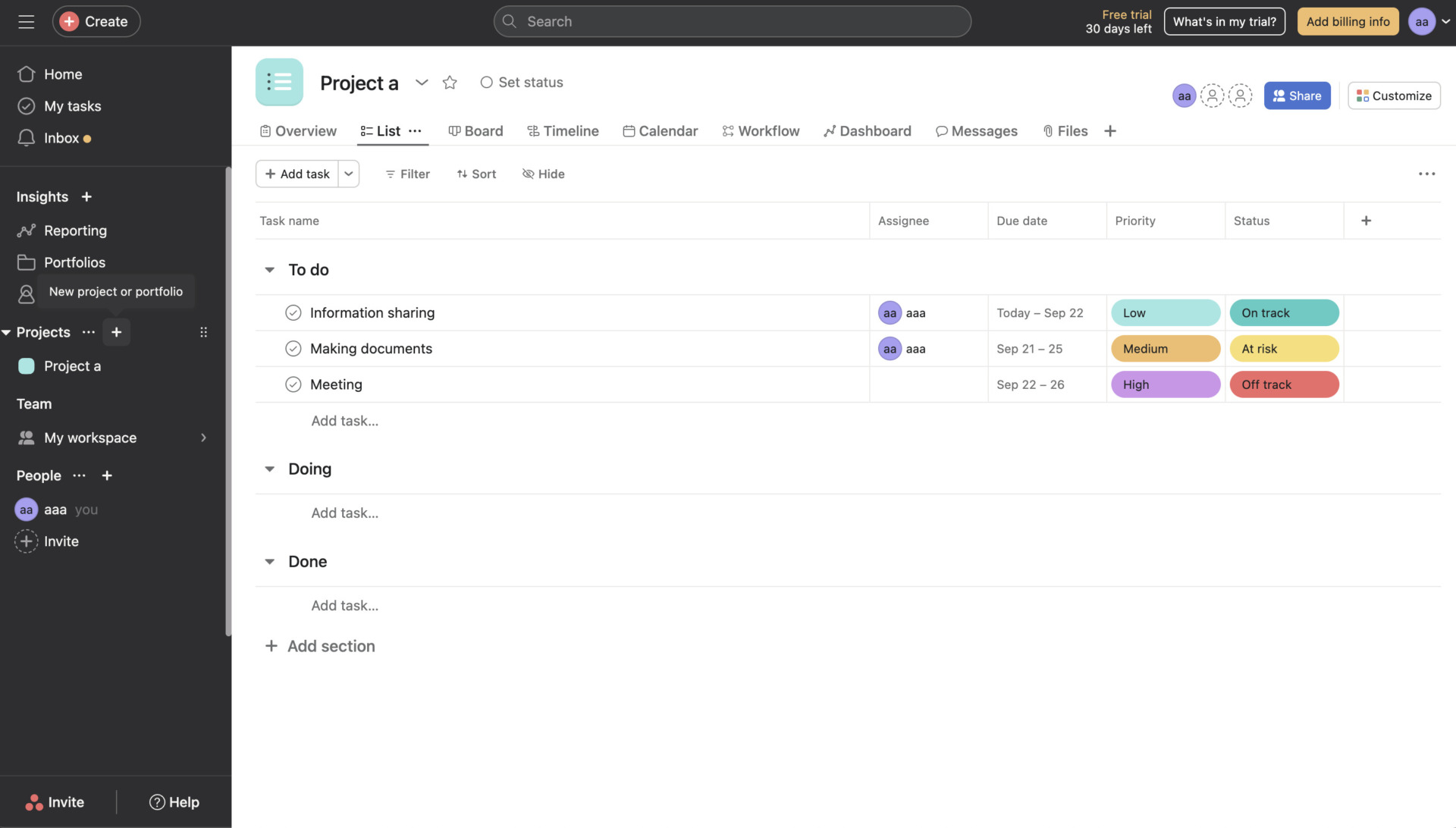
4. After deciding the project management layout and members to invite, the registration is complete when the following screen appears.
Useful Usage of Asana
Asana is equipped with a wide variety of functions, so it is necessary to master the basic usage of Asana first. Therefore, below is a 5-step guide on how to use Asana.
Usage 1|Create a project
First, create a project on Asana.
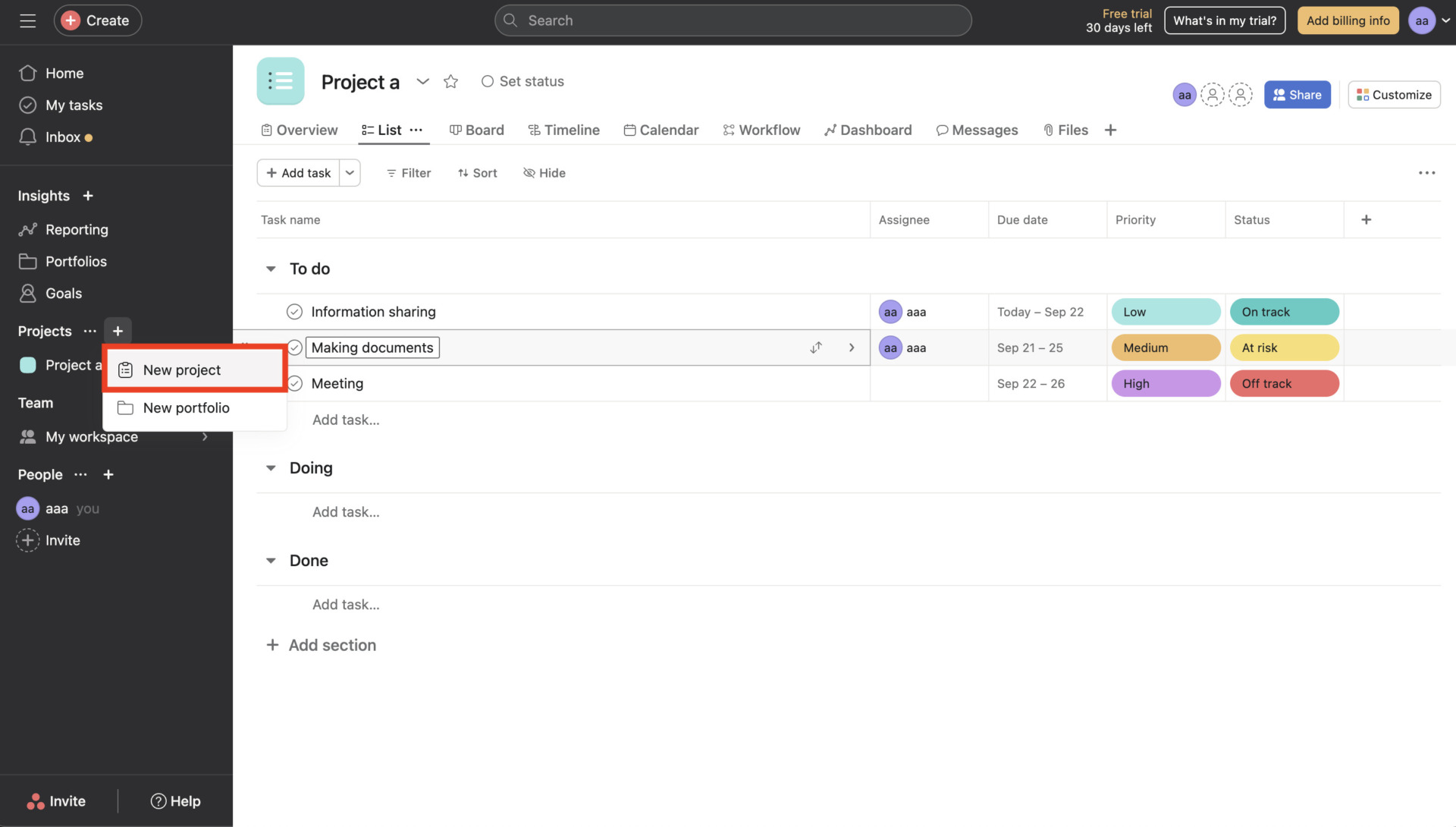
As shown in the figure below, select [+] button in the left side-bar of the screen and then click [New project].
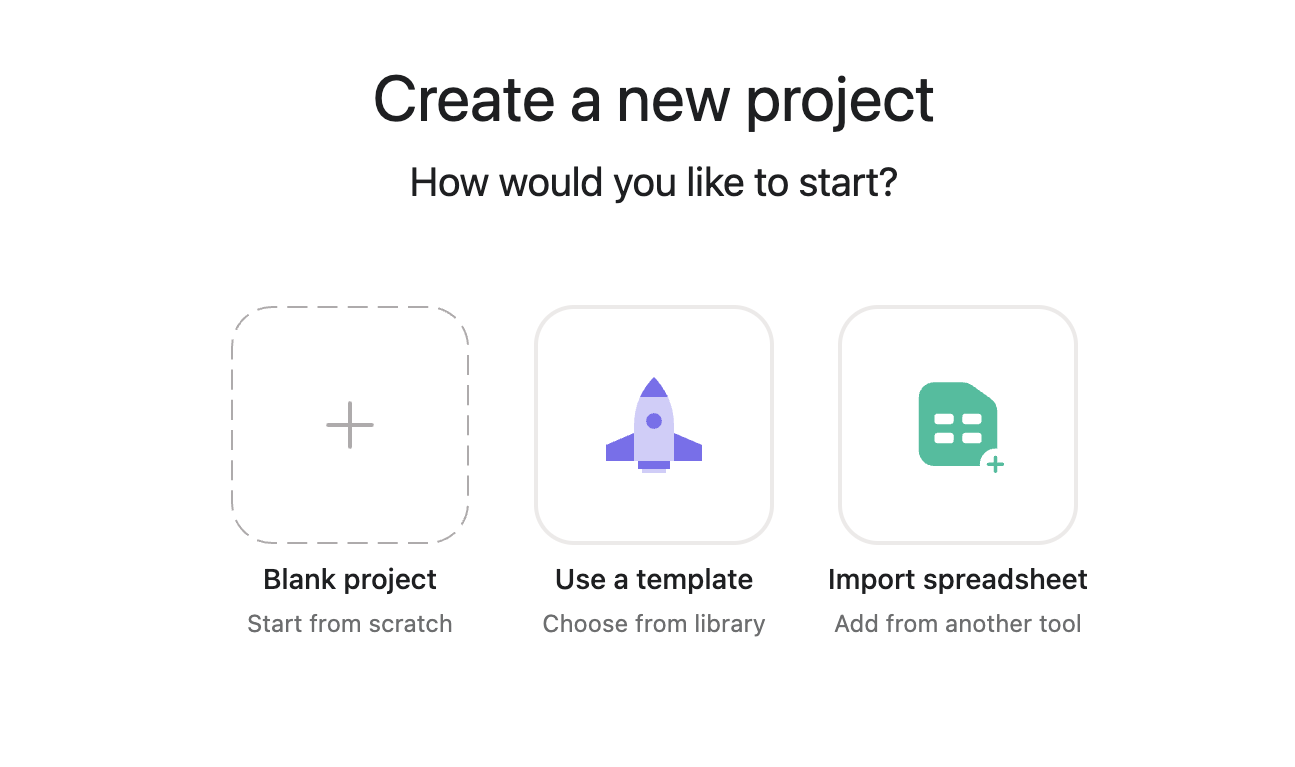
Next, click on any of the 3 options shown in the figure above. In this case, select [Blank Project].
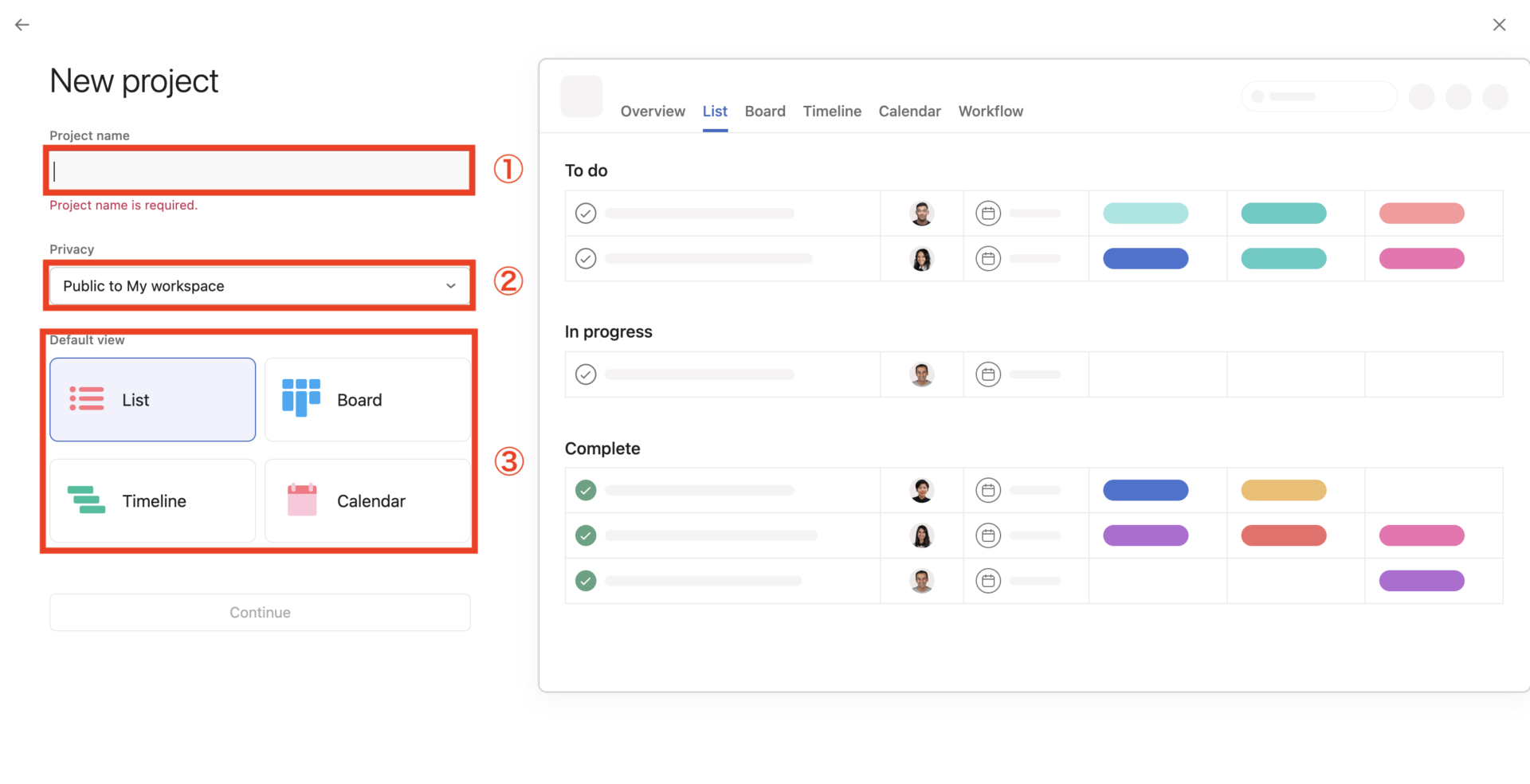
You will then be taken to the New Project Settings page like above image, where you can proceed as follows.
- Enter a [Project Name].
- Set [Privacy] to determine the scope of the project to be shared.
- Select the data display method from [Default View].
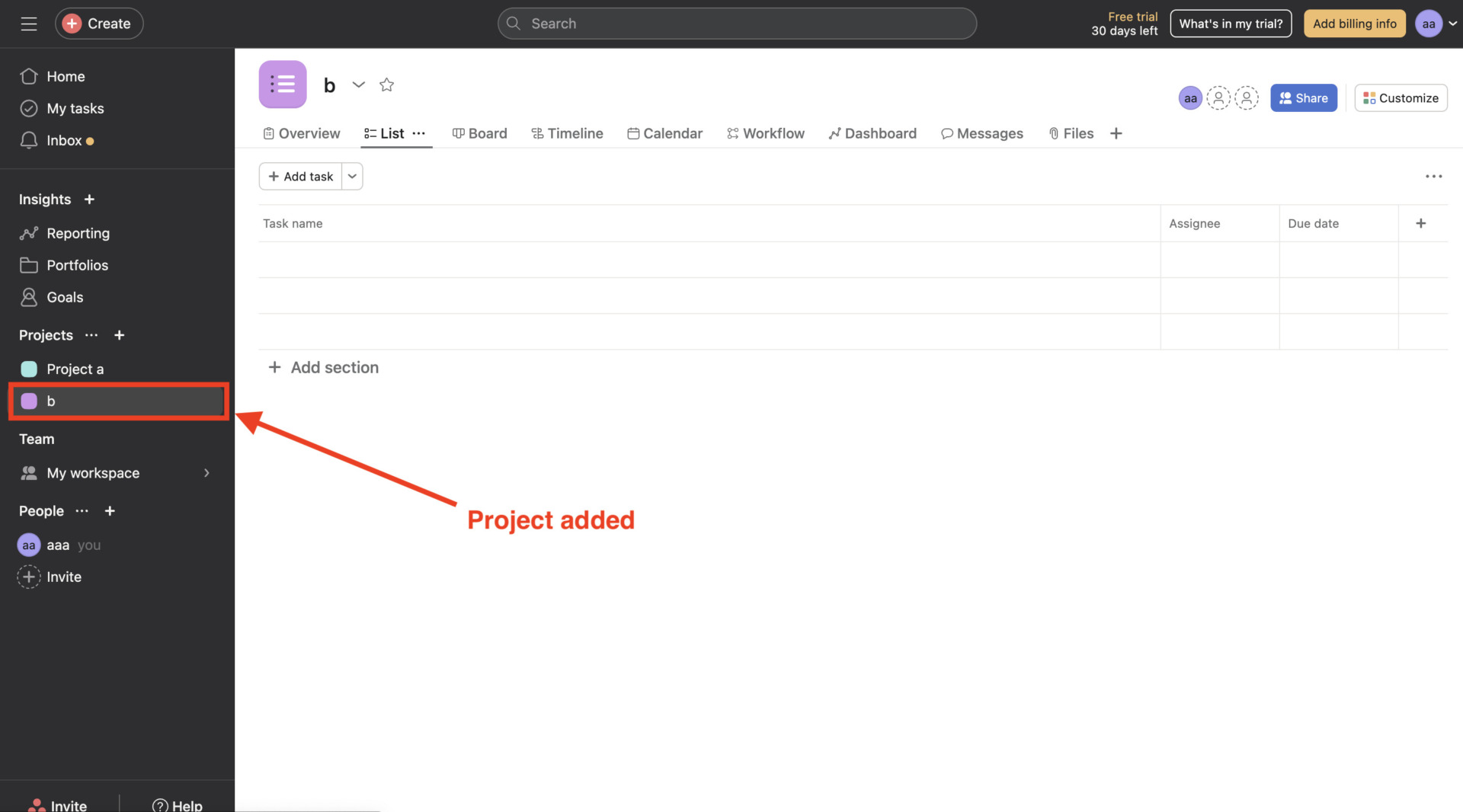
The project will be added to Asana.
Usage 2|Setting up a task
Next, set up a task in the project. To set a task, follow the steps below.
- Click [Add Task] in the upper left corner of the screen.
- An entry field will appear, and enter a task name of your choice.
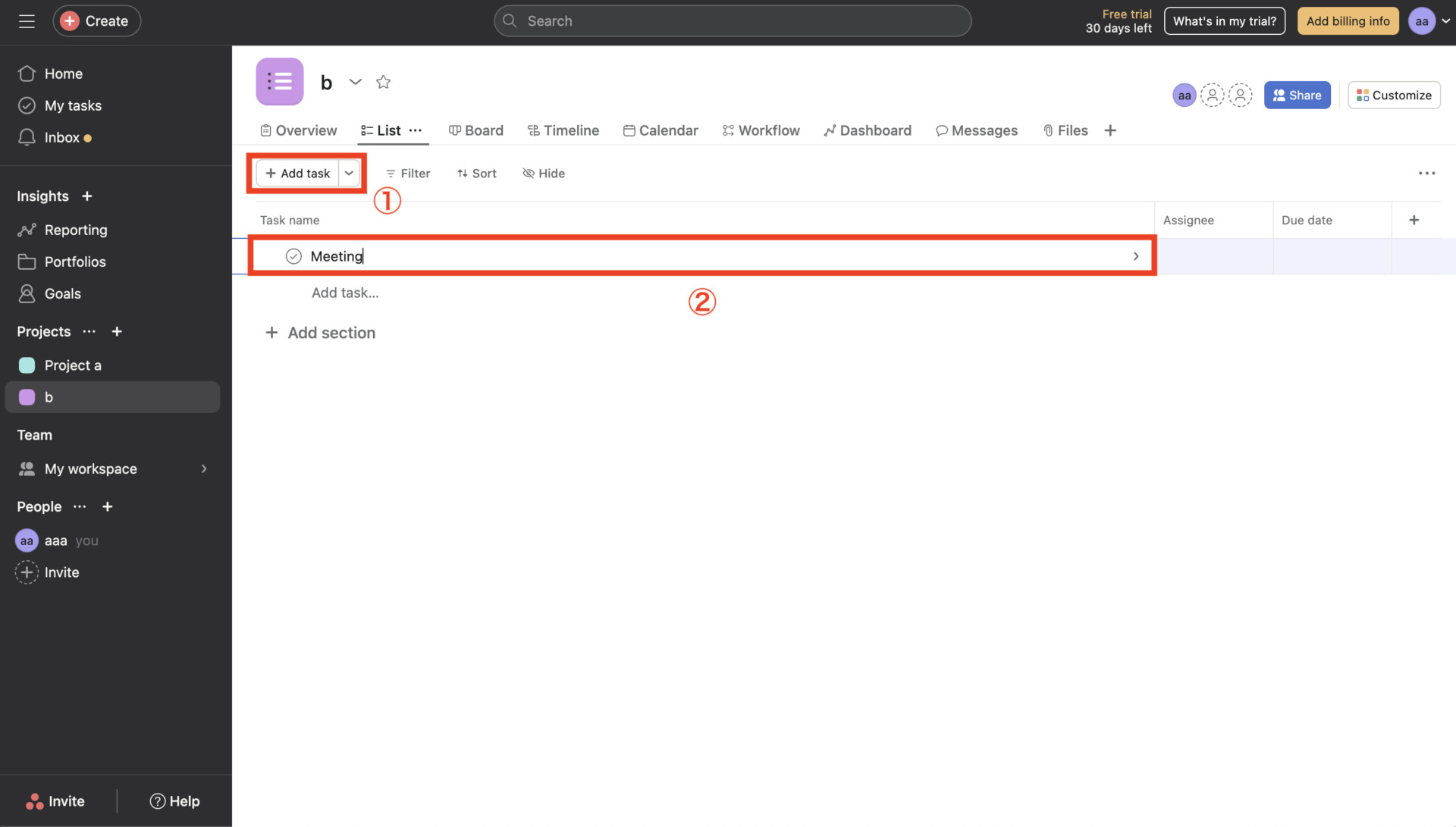
This completes the task setup.
Usage 3|Using sections
Next, add a “section” that allows you to categorize tasks by category.
- Click [Add Section] in the center of the screen.
- An input field will appear, so enter a category name of your choice.
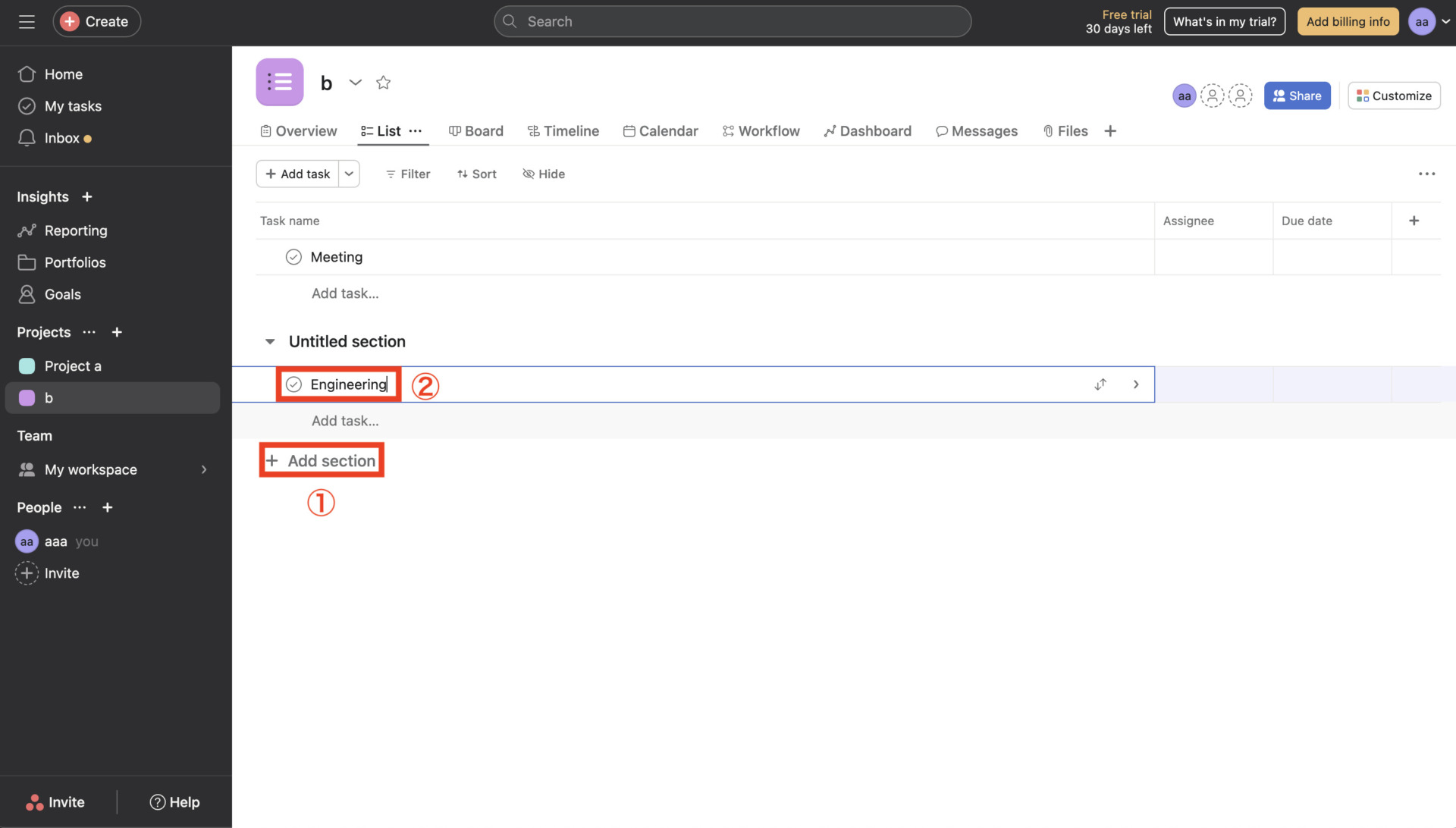
If you are managing a large project in Asana, it is recommended to use sections proactively.
Usage 4|Updating Status
When you have finished a task, set the status to “Completed”. If you leave a task unfinished, it will be indistinguishable from tasks that have not yet been started, making it difficult to manage.
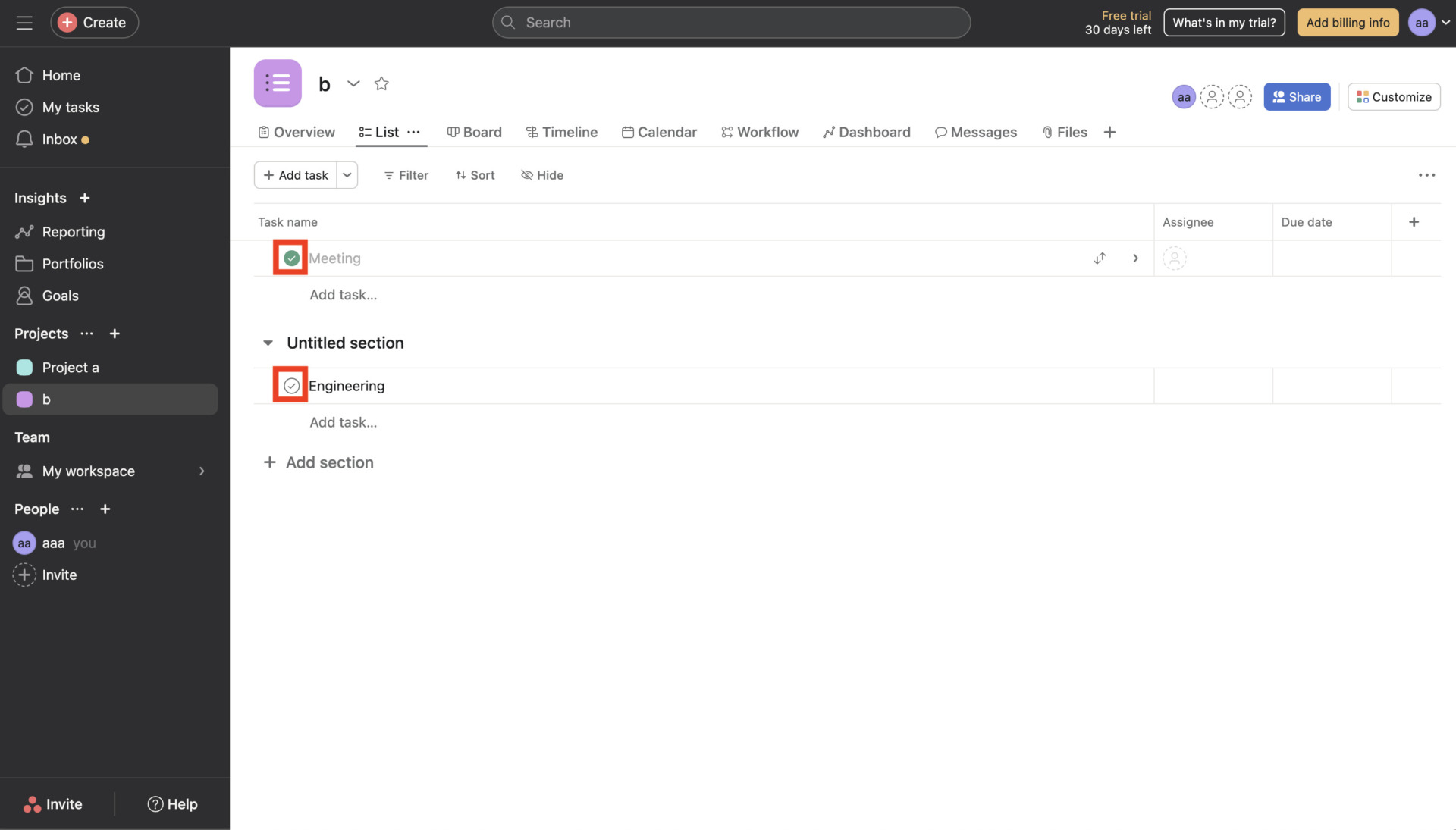
As shown in the above figure, if the task is in the list format, you can mark it as “completed” by simply clicking the check box on the left side of the task. The checkboxes also appear in other formats, but you can also change the status from the task details.
Usage 5|Collaborate with comments
Finally, you can use the comment function to collaborate with other members. The procedure is as follows
- Click on any task
- Send any comments to the chat box displayed in the lower right corner of the screen.
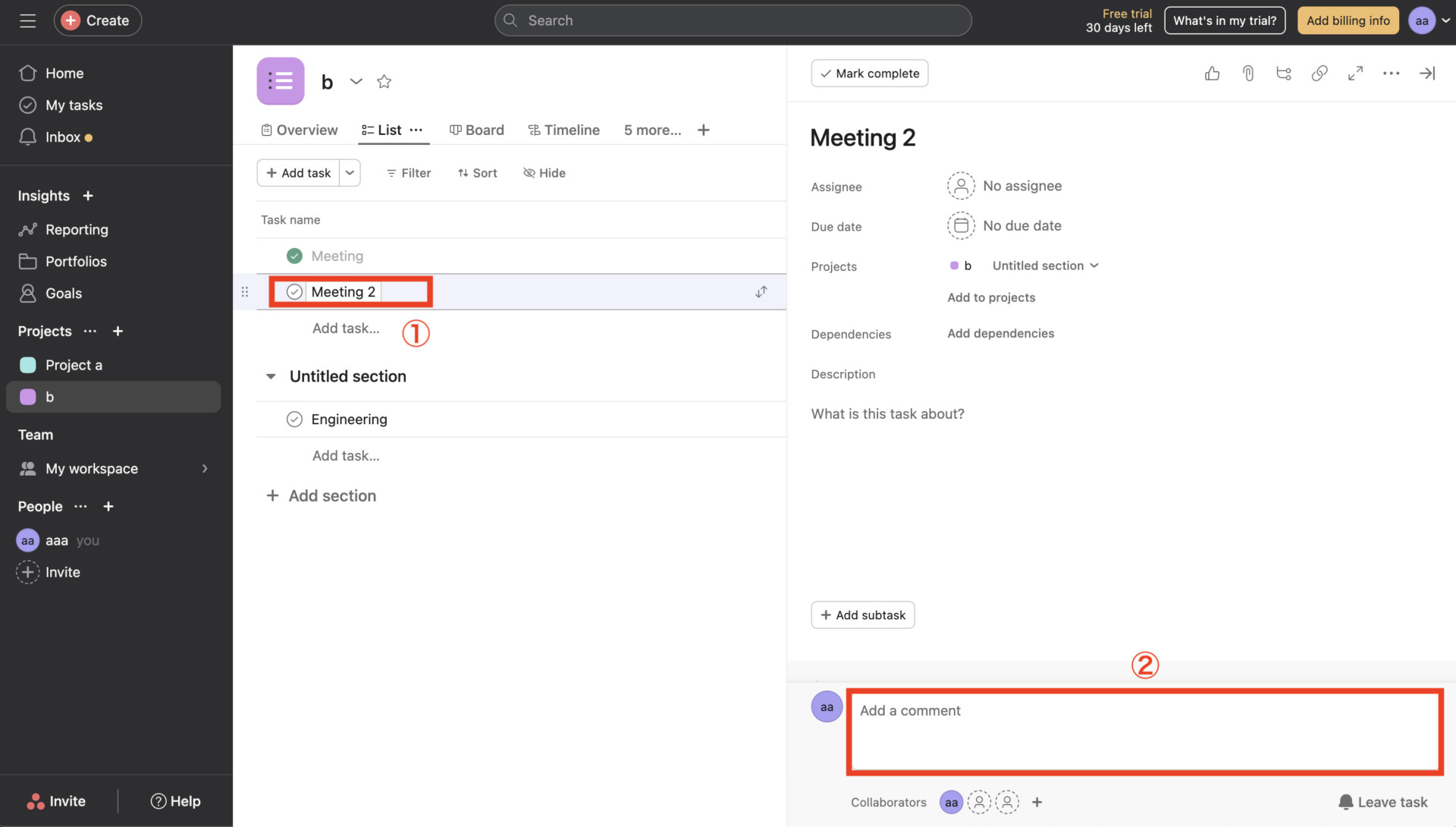
By following the above steps, you can communicate with members involved in the same project. You can also use the Mention function to comment or send a stamp to a specific member.
Difficult to use? Reviews of Asana
Below are the reviews and opinions of actual users of Asana. Before introducing Asana, refer to the user’s voice to choose tool correctly.
*All reviews are quoted from G2>Asana.
Good reviews of Asana
Below are some of Asana’s good reviews. The common point among many users is that “it can be used by management and field members” and “you can keep track of other employees’ progress as well”.
Jannie P. (Posted on: 9/7/2023)Its visuals and ease of use make it exceptionally simple to use; structuring processes around projects also aids in maximizing productivity. I appreciate the openness across the many initiatives in which I am participating, since it allows me to see how my work affects others and vice versa. I also like how we can combine many technologies to provide a single source of status information. It also comes with all of the tools you need for proper project monitoring, including as task cards and checklists.
Brendan Dan P.(Posted on: 8/10/2023)Support is amazing, the functionality is now at a stage that we dont need other apps. We can do it all in asana. We have been using a number of others but the functionality in the business suite is more than enough to enable us to keep out team accountable and reduce wasted time in WIP meetings.
jacky w.(Posted on: 5/31/2023)Great tool for project management to see all tasks in one platform and align with everyone. There are other tools that we can use out there in the market but Asana has the right balance of ease of use and being organize.
Abdellah Y. (Posted on: 8/27/2023)What I love most about Asana is its efficient user interface, which allows for seamless navigation between different projects. The program offers a nice visual structure, making it easier to grasp the overall status of ongoing work in one glance. It’s very brief but good, slip land the clip needed to grab up on propose advance. The really simple construction is specially very useful for hereafter planning, with very typical markers and categorizations that help in prioritizing tasks.
Jose P. (Posted on: 5/20/2023)Asana is a highly collaborative platform, and team members can update the information from the mobile App or from their laptop, regardless of the operating system that we have installed in the company; this allows us to have full visibility, and we are sure that the data associated with the execution of the project are always updated.
Reviews on Asana improvements
Below are some reviews and testimonials regarding Asana’s improvements. Common to many users were that it is difficult to use due to its many functions and that it is difficult to manage as tasks increase.
Sebastian P. (Posted on: 8/22/2023)I have contracted the asana busiess plan in order to be able to count the time applied by my employees to day-to-day tasks as a marketing agency. They offered us 4 hours of consulting and a fast and 24/7 support service. All this has not been fulfilled and they only blame that their business partner 4sana should assist us. Well, we haven’t used the tool for a month now, the support answers an email every 7 days and the experience has been worse than with my previous provider. I have lost my money
Rob G.(Posted on: 7/30/2023)I dislike the fact that Asana only allows one primary assignee per task. This makes it difficult to allocate responsibility and track progress across multiple users in a team. To get around this limitation, when working with large teams, subtasks or task collaborators can be used, or duplicate tasks can be created to share certain activities with other members of the group.
John S. (Posted on: 8/3/2023)The challenge with Asana can be its learning curve, it takes some time for new users to master. Also, I find that the mobile app is not quite as user-friendly as desktop version.
Alexandra D. (Posted on: 6/14/2023)I’ve noticed in several teams and cases it is not so easy for people to learn to use and actually make use of it, although there are many resources offered (amazing that part, also). The learning curve seems to be hard on some people and without an internal push, people disengage. Too many notifications also seem to be accused by many. From a small business / startup perspective, all the cool and needed features that are part of the paid accounts become too expensive.
Private user (Posted on: 9/12/2023)It does take some user education to get onboarded, but otherwise, it’s pretty easy to figure out. One thing I wish Asana had was color-coding different tasks. You can do this if you link it to another board, but I wish it would allow you to color-code anything to keep yourself more organized without having to cross-polinate to other boards that your project may not be relevant to.
The best alternative app to Asana
Below is the best tool that is easier than Asana.
Asana is a tool that offers a wide variety of functions that can be used from the home screen, and it can also manage complex projects. On the other hand, some users have complained that it is difficult to manage when the number of tasks increases, or that it is too multifunctional to use.
It would be a real downfall if a tool that is used to improve team efficiency ends up making work more complicated. Therefore, for those who are not familiar with IT or want to manage projects easily, it is essential to have a tool that “has no excess or deficiency of necessary functions and can be used intuitively by anyone”.
In conclusion, the best alternative to Asana is the project management tool Stock, which even a member in a non-IT company can quickly and easily manage projects and tasks..
“Task” of Stock can have multiple assignees, or you can simply filter all tasks by due date and assignee. In addition, “Note” of Stock can be associated not only with tasks but also with “Message”, so you do not have to worry about the topic getting mixed up like in a chat tool.
Stock|An app even a non-IT employee can quickly manage tasks

The simplest tool to stock information "Stock"
https://www.stock-app.info/en/
Stock is the simplest tool to stock information. Stock solves the problem, "there is no easy way to stock information within the company".
With Stock, anyone can easily store all kinds of information, including text information such as requirements, images, and files, using the Note feature.
In addition, by using the "Task" and "Message" functions, you can communicate with each topic described in the Note, so that information is not dispersed here and there and work can always be carried out in an organized manner.
<Why do we recommend Stock?>
- A tool for companies that are not familiar with ITYou don't need to have any IT expertise to get started.
- Simple and usable by anyoneStock is so simple that anyone can use it without any unnecessary features.
- Amazingly easy information storing and task managementIt is amazingly easy to store information such as shared information within a company, and intuitive task management is also possible.
<Stock's pricing>

- Free plan :Free
- Business plan :$5 / User / Month
- Enterprise plan :$10 / User / Month
*Minimum number of users: 5 users
3 tips for getting the most out of Asana
Here are 3 tips for getting the most out of Asana, a must if you want to manage your projects more smoothly with Asana.
(1) Take advantage of task repetition
To get the most out of Asana, take advantage of the task repetition setting.
Repetitive settings solve the need to set up routine tasks over and over again. For example, if you want to check e-mail from a business partner by 10:00 a.m. every day, you can set the task due date to “10:00 a.m. on weekdays” to manage the task without having to make the same setting over and over again.
Although the repetitive task settings are modest, they are convenient because you do not have to manually set each task one by one.
(2) Utilize templates
Next, templates of Asana can help you save time.
Asana has templates for different job titles, such as HR, sales, and marketing, so you do not have to go through the trouble of creating a project from scratch. Each template is already populated with the necessary information, so you can start managing right away.
There are also custom templates that you can register your own, so you can use them for a variety of purposes.
(3) File attachment to tasks
Finally, you can attach files to tasks to manage information.
If you also put together the documents and other information necessary for task processing, you can solve the need for storage tool that specialize in file management. In addition, Asana’s tasks are also tied to chats, so you can manage “tasks”, “messages”, and “documents”, which are essential for business, in one place.
However, when an original file such as Word or Excel is updated, the changes are not reflected in the attached file. Therefore, it is a hassle to reattach the file each time it is updated.
In order to reflect the updated contents more smoothly, “a tool that can manage information without creating files” is essential. For example, if you use Stock, which allows you to link “Task” and “Message” to “Note,” you can completely solve the hassle of file management.
Summary of Asana’s usage, price, and reviews
We have focused on Asana’s usage, reviews, and price so far.
Asana’s “Lists” and “Boards” allow you to visualize the progress of your projects in an easy-to-understand manner. In addition, Asana is used by teams of all sizes because its functions can be customized to fit the work style of company.
On the other hand, note that due to Asana’s multifunctionality, there are some word-of-mouth that it has “too many functions and is difficult to use” and “management becomes more complicated as tasks increase”. Therefore, “a simple and easy-to-use alternative tool for everyone” is required to prevent this situation.
In conclusion, the best alternative to Asana is “Stock,” which is not overloaded with project management functions and can be used immediately by employees of a non-IT company.
Free registration takes only 1 minute, so using Stock to cover disadvantages of Asana and manage your tasks smoothly.
