

Today, as remote work has become more prevalent, communication has become more important as face-to-face interactions have decreased. In particular, many companies now use “message apps” for casual communication to share information.
One of the most popular chat tools is “Slack,” which originated in the United States. However, many non-IT companies may be concerned about whether they can use Slack even if they introduce it.
In this issue, we will focus on features of Slack, merits, usage, and challenges for below people.
- “Slack is well-known, but I have never used it.”
- “I have an image of Slack being used by IT companies, so I am not sure if I can use it.”
- “I cannot imagine communicating with Slack in the first place.”
If you are not familiar with Slack, this article will give you an overview of Slack and how to use it, as well as the issues that need to be resolved in order to operate it.
Contents
- 1 What is Slack?
- 2 5 merits of introducing Slack
- 3 What is the difference between Slack and Teams?
- 4 3 Things to consider when implementing Slack
- 5 Best tools to solve biggest challenges of Slack
- 6 Basic procedure of Slack to use
- 7 6 Slack features and usages that are applicable to your sales activities
- 8 Summary of features and usage of Slack
What is Slack?
If you have heard of Slack, but do not know what kind of tool it is, so refer to the following to get an overview of Slack.
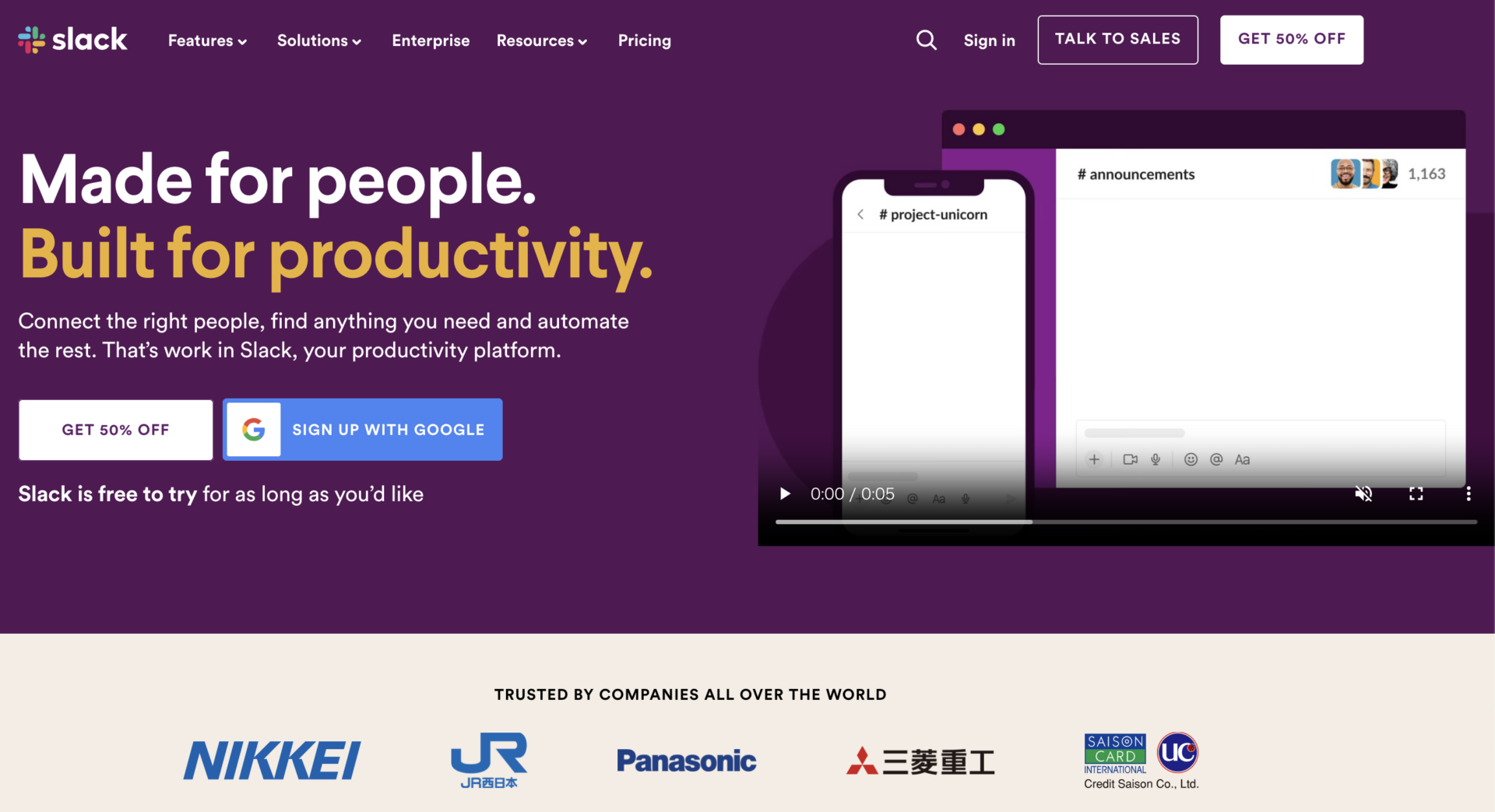
Overview of Slack
Reference: https://slack.com/
Slack is a business chat tool used all over the world.
Unlike e-mail, Slack allows users to communicate in a chat format similar to the private chat tool WhatsApp, and can be used on any device, including PCs and smartphones, and also features support for voice calls.
It also has an extensive search function that allows users to quickly find messages, files, and members. In addition, frequently viewed messages and files can be saved in bookmarks, eliminating the need to search for them over and over again.
Currently, Airbnb, Spotify Advertising, Uber and many other major companies are using it.
Price of Slack
Below is an overview of pricing structure of Slack. The features of each plan are as follows
| Plan Name | Company Size | Monthly Fee |
|---|---|---|
| Free | Small Team | Free of charge |
| Professional | Small and medium scale | $7.25/user/month (annually payment) |
| Business Plus | Large scale business | $12.50/user/month (annually payment) |
| Enterprise Grid | Large and complex organizations | Inquiry required |
If you use free plan of Slack, there is note that it has a 90-day storage period for messages and files.
In addition to the above, there are also differences in security and support, so choose a plan that fits the size of your team, taking upload capacity and security aspects into consideration.
Reference: Price of Slack
5 merits of introducing Slack
Here are 5 merits of implementing Slack. Refer to the following information to help you decide whether to introduce it to your company.
(1) Ability to retain past interactions
First of all, one of the merits of Slack is the ability to keep track of past interactions.
In business chat, it is common to create chat groups for each project. Slack allows users to join a group in the middle of a project and still be able to see all past interactions.
Also, unlike email, you can see the interactions in other chat groups without having to forward messages via Cc or Bcc, which greatly reduces the time and effort of sharing.
(2) Narrowed search
Slack allows you to filter and search messages by the following four criteria.
- Message sender
- Channel
- Posting date
- Keyword
Searching messages using the above criteria will help you find the information you need smoothly. You can also use the command that is “in:# (group name)” to search only for messages in the group chat you entered, so you don’t have to worry even if you have more groups.
(3) Easy file sharing
Next, there is the merit of easy file sharing.
Slack allows you to send files of up to 1 GB from a message. Specifically, files can be any data: audio and video clips, PDFs, documents, images, and screenshots.
In addition, with respect to the files you send, you can view a list of files you have sent in the past or upload directly from Google Drive.
(4) Support for voice and video calls
“Slack Calls” of Slack allow you to make voice and video calls.
For example, voice and video calls allow for direct conversations even when working remotely. However, the free plan limits both individual and group chats to one-on-one only, so you will need to move up to a paid plan to use it with multiple people.
Also note that screen sharing is a paid plan-only feature, but screen sharing is not available from iOS and Android.
(5) Connectivity with other services
Slack can be integrated with various external web services.
For example, if you link up with apps such as Google Drive, the notifications such as “updating file” and “entered comment in file” will be displayed in Slack via a webhook (a system that provides updated information to other web services). In other words, information can be managed together in Slack.
However, due to the nature of Slack as a chat tool, important messages may be lost in the course of repeated exchanges. This makes it time-consuming to go back through chats and search again and again for messages and files that cannot be found later.
On the other hand, if you work with Stock, which makes it easy to stock information like SOP and knowledge, you can create a system that allows for speedy communication in Slack while ensuring that important information is preserved.
What is the difference between Slack and Teams?
Reference: Microsoft Teams
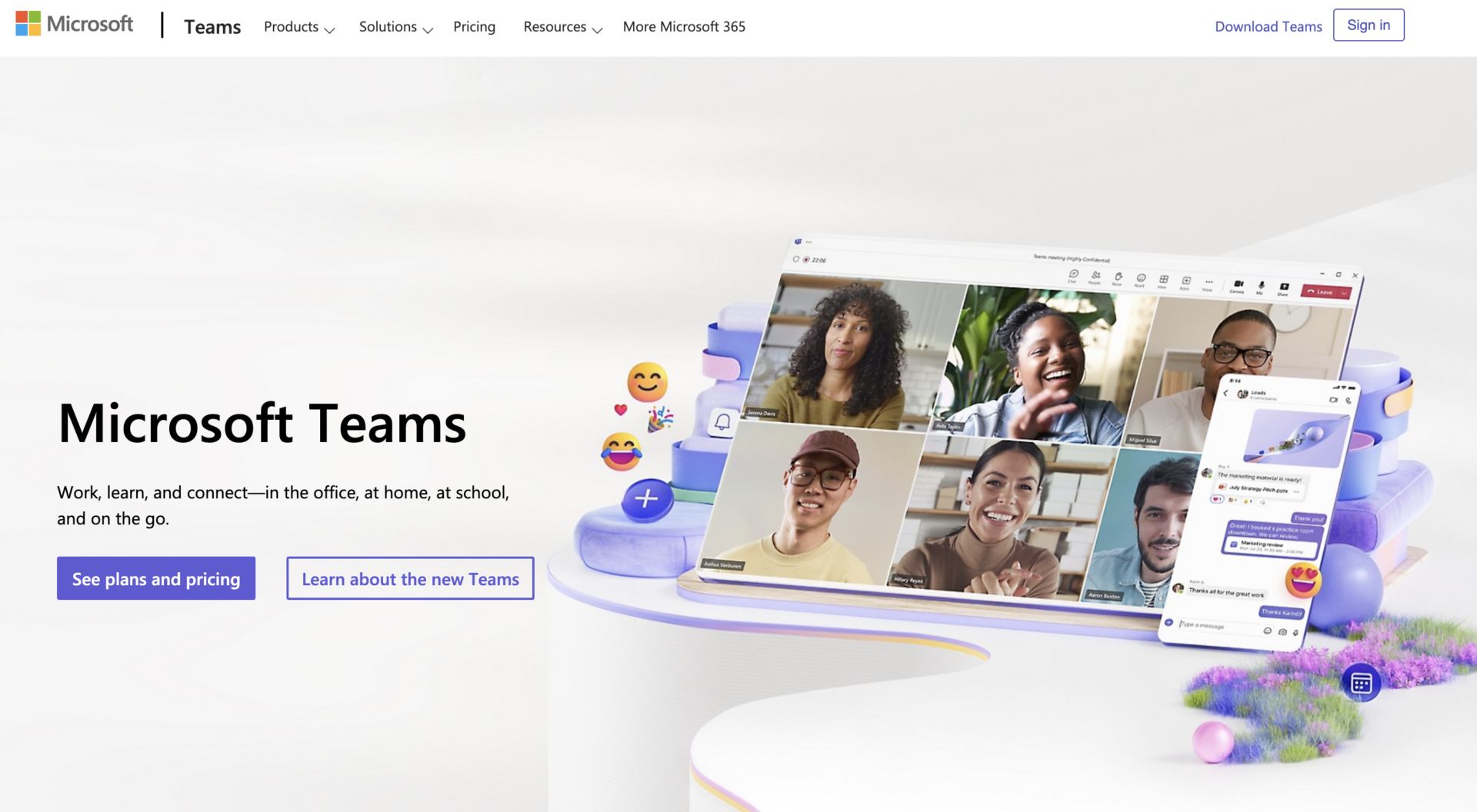
Below are some of the differences between Slack and Teams. Both have similar features, but there are some minor differences, so check them out.
(1) Number of people in a video call
The first difference between Slack and Teams is the number of people on a video call.
Comparing the free plans of the two, Teams allows up to 100 people to participate in a video call at the same time, while Slack only supports one-to-one interaction. Even in the paid version, Teams allows up to 300 participants, while Slack is limited to a maximum of 15.
However, Teams has a 60-minute time limit in the free version, while Slack has the advantage of unlimited time.
(2) Number of tools that can be linked
Slack is ahead of Teams in terms of the number of tools that can be linked.
Slack can be integrated with more than 2,400 tools, including Google Drive, Salesforce, and Zoom, making it easy to use them together. For example, when used with Stock, an information sharing tool, it is easy to leave messages that would otherwise be lost in Slack.
Teams, on the other hand, is unique in that it works well with Office products such as [Word], [Excel], and [PowerPoint].
(3) Availability of scheduling function
The next difference between the two is the scheduling feature.
While Teams has the ability to schedule and reserve videoconferences, Slack does not have any scheduling-related functionality. Therefore, if you want to immediately grasp and reserve schedule of members, we recommend using Teams.
However, if you link Slack with Google Calendar, you can automatically distribute appointments to Slack.
3 Things to consider when implementing Slack
Below are 3 things to keep in mind when implementing Slack.
- There is a time limit on access to information
- It is difficult to master because of its multifunctionality
- Important information flows one after another
With free plan of Slack, you can only view the history of messages for the past 90 days. If you want to accumulate more information, you will need to move to a paid plan or use it in conjunction with other tools.
While Slack is multifunctional and convenient, it tends to be difficult to use. Therefore, for companies that are unfamiliar with IT, such as small and medium-sized enterprises, there is a risk that it will not be adopted onsite.
While chat tools enable speedy communication, it is important to note that important messages flow one after another.
For these reasons, Slack may not be suitable for those who “want to store information” and “are looking for a tool that anyone can use.
Best tools to solve biggest challenges of Slack
Below is the introduction of the best tool that can solve the disadvantage of Slack.
Biggest challenge of Slack is “information flow”. Not only text, but also important files flow, making it time-consuming and troublesome to find the information you need.
In addition, with free plan of Slack, communication history with members becomes unavailable after 90 days, making it even more difficult to manage information. Therefore, a “simple tool that can store all kinds of information” would allow everyone to work without burden.
In conclusion, the best tool that integrating with is “Stock“, having “Note” that accumulates all information of your team, even if the member who is non-IT company can use easily.
By linking Slack and Stock, you can easily leave important information in the “Note” of Stock. In addition, since “Task” and “Message” are linked to the “Note”, communication and task management among members can be facilitated without mixing up the topic.
Stock|The easiest tool to leave and manage information of team

The simplest tool to stock information "Stock"
https://www.stock-app.info/en/
Stock is the simplest tool to stock information. Stock solves the problem, "there is no easy way to stock information within the company".
With Stock, anyone can easily store all kinds of information, including text information such as requirements, images, and files, using the Note feature.
In addition, by using the "Task" and "Message" functions, you can communicate with each topic described in the Note, so that information is not dispersed here and there and work can always be carried out in an organized manner.
<Why do we recommend Stock?>
- A tool for companies that are not familiar with ITYou don't need to have any IT expertise to get started.
- Simple and usable by anyoneStock is so simple that anyone can use it without any unnecessary features.
- Amazingly easy information storing and task managementIt is amazingly easy to store information such as shared information within a company, and intuitive task management is also possible.
<Stock's pricing>

- Free plan :Free
- Business plan :$5 / User / Month
- Enterprise plan :$10 / User / Month
*Minimum number of users: 5 users
Basic procedure of Slack to use
Here are some basic instructions on how to use Slack. The following information will help you register and add teams smoothly.
Usage 1|Register with Slack to create a team
Register your e-mail address on the Slack registration page.

Next, click [Create a workspace] on the page shown below.

Next, enter your company name as the name of the workspace, set up your own profile, and invite other members via email as shown below.


Finally, enter a project name or group name as the [Channel Name] to complete the registration process.

If you want to add members after registration, click [Add colleagues] in the lower left corner of the figure below to open the member invitation screen.
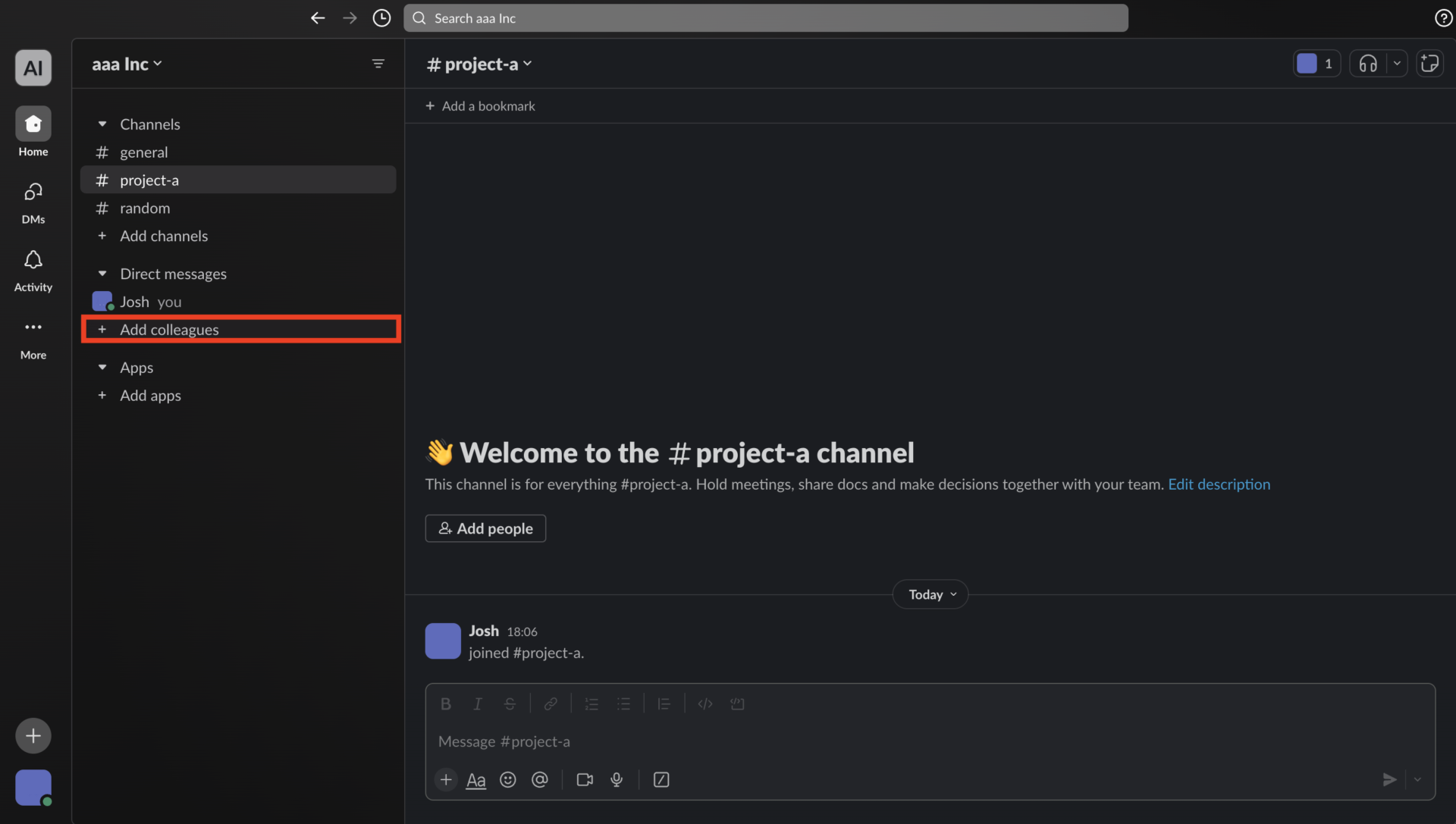
Another way to invite members is via an e-mail URL. Use the invite function to invite employees to Slack and start operating within your team.
Usage 2|Create a channel and add members
The procedure for creating a chat group for each project is as follows.
First, click on [Add channels] as shown in the figure below, and select [Create a new channel] from the tabbed screen that appears.

Next, a registration screen will appear as shown in the figure below, where you will enter a “Channel Name” and “Description”. Then, add the members you wish to invite to the channel, and you are done.
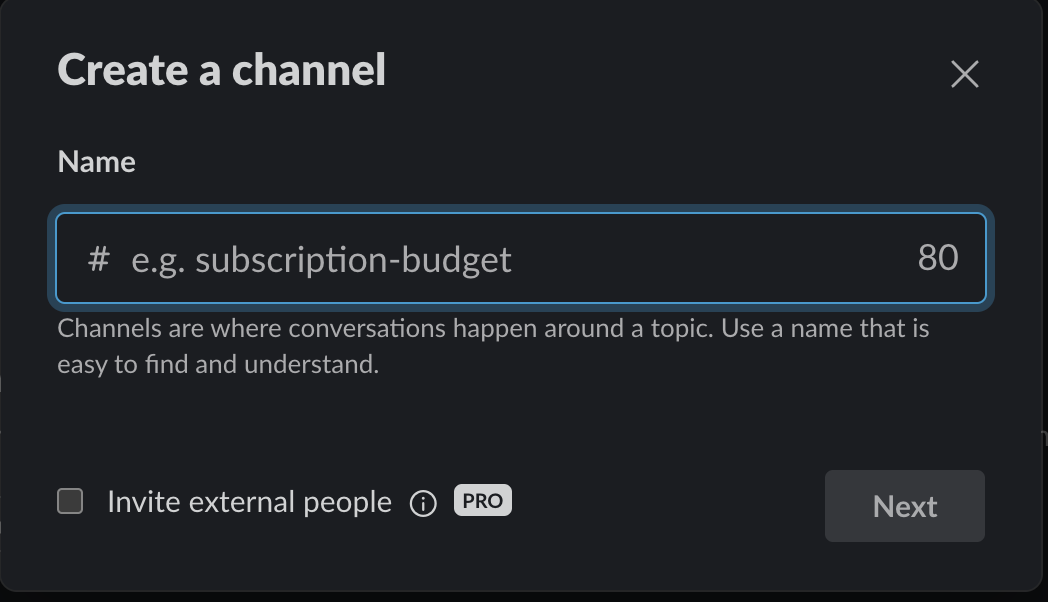
If you create a channel in the above way, you can manage information on multiple projects at once.
Usage 3|Open a direct message
Slack has a “Direct Message” feature that allows you to communicate with individuals in a similar way to WhatsApp.
By selecting the member displayed in the [+] button in the lower left corner of Slack, you can communicate between individuals.
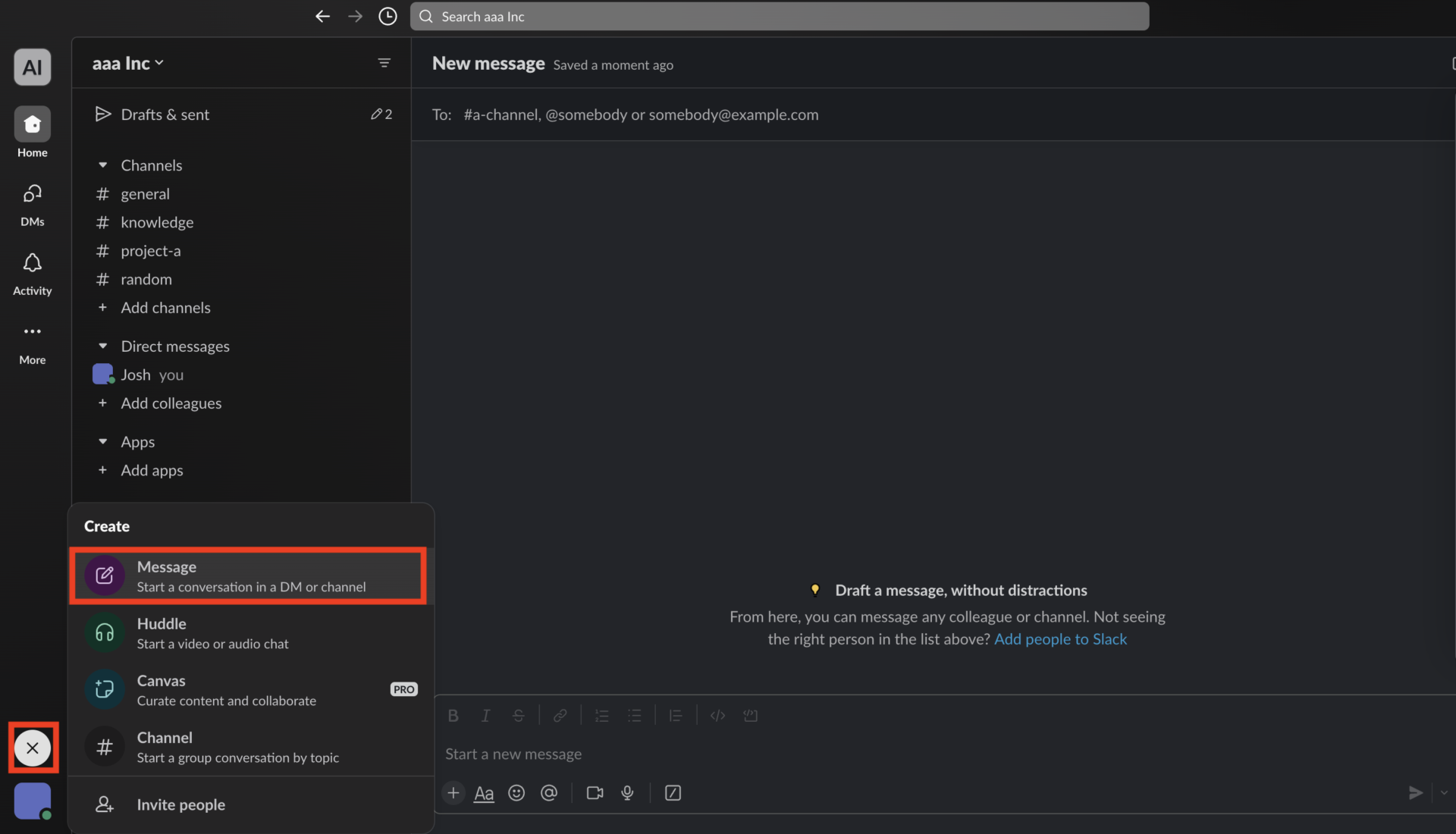
As shown above, you can have “project-related conversations” in the channel and “personal conversations” in direct messages to avoid mixing different topics.
Usage 4|Other basic features available
In addition, Slack also offers the following popular features.
- Huddle Meeting feature
- Detailed channel settings
- Conversation settings
- Activity Log
- Star attachment to messages
The various features listed above are useful for sales activities and should be used effectively.
6 Slack features and usages that are applicable to your sales activities
Below are 6 Slack features and usages that can be used in a variety of ways. If you want to use Slack more flexibly, this is a must-see.
(1) Change your profile and icon image
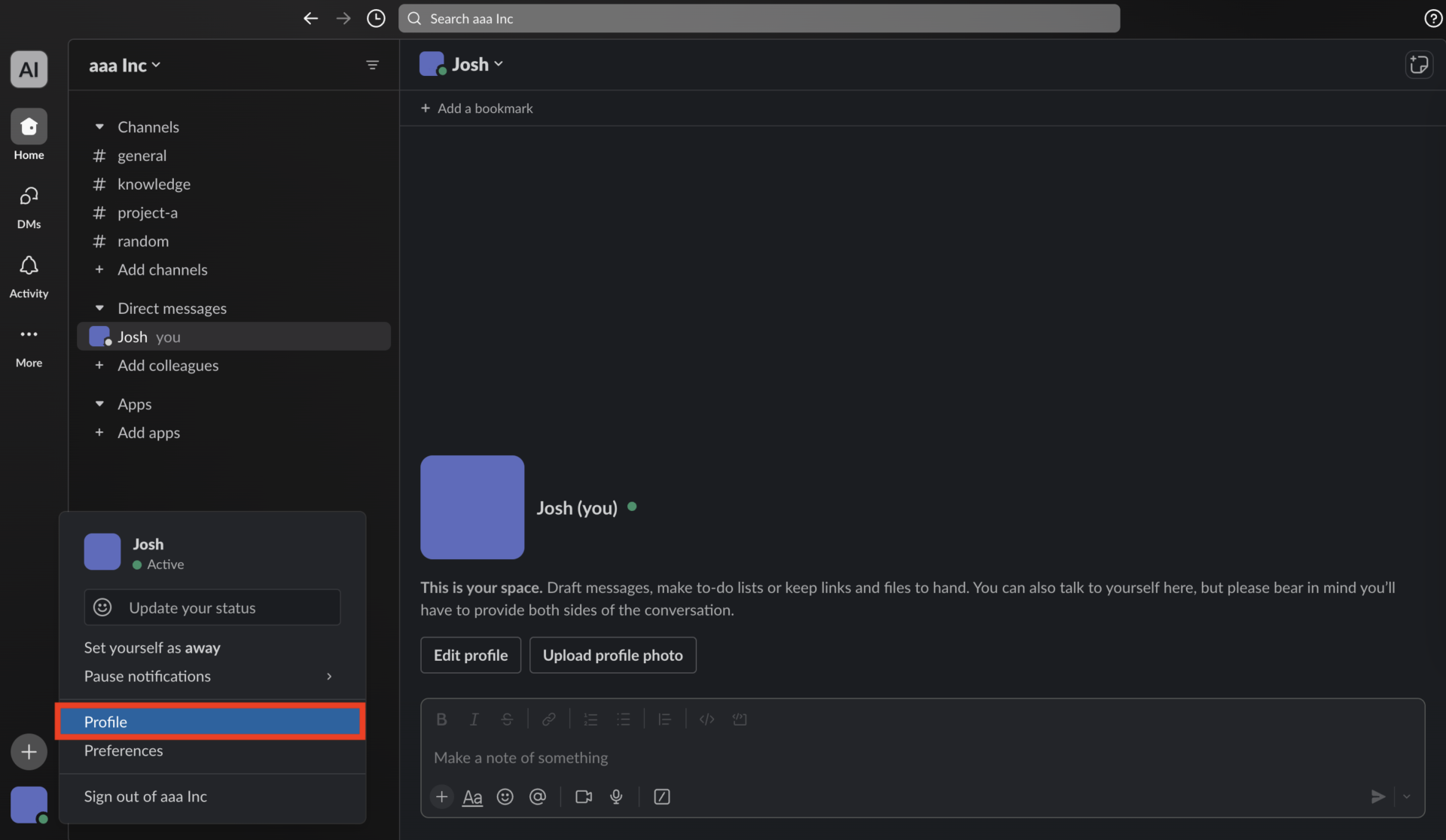
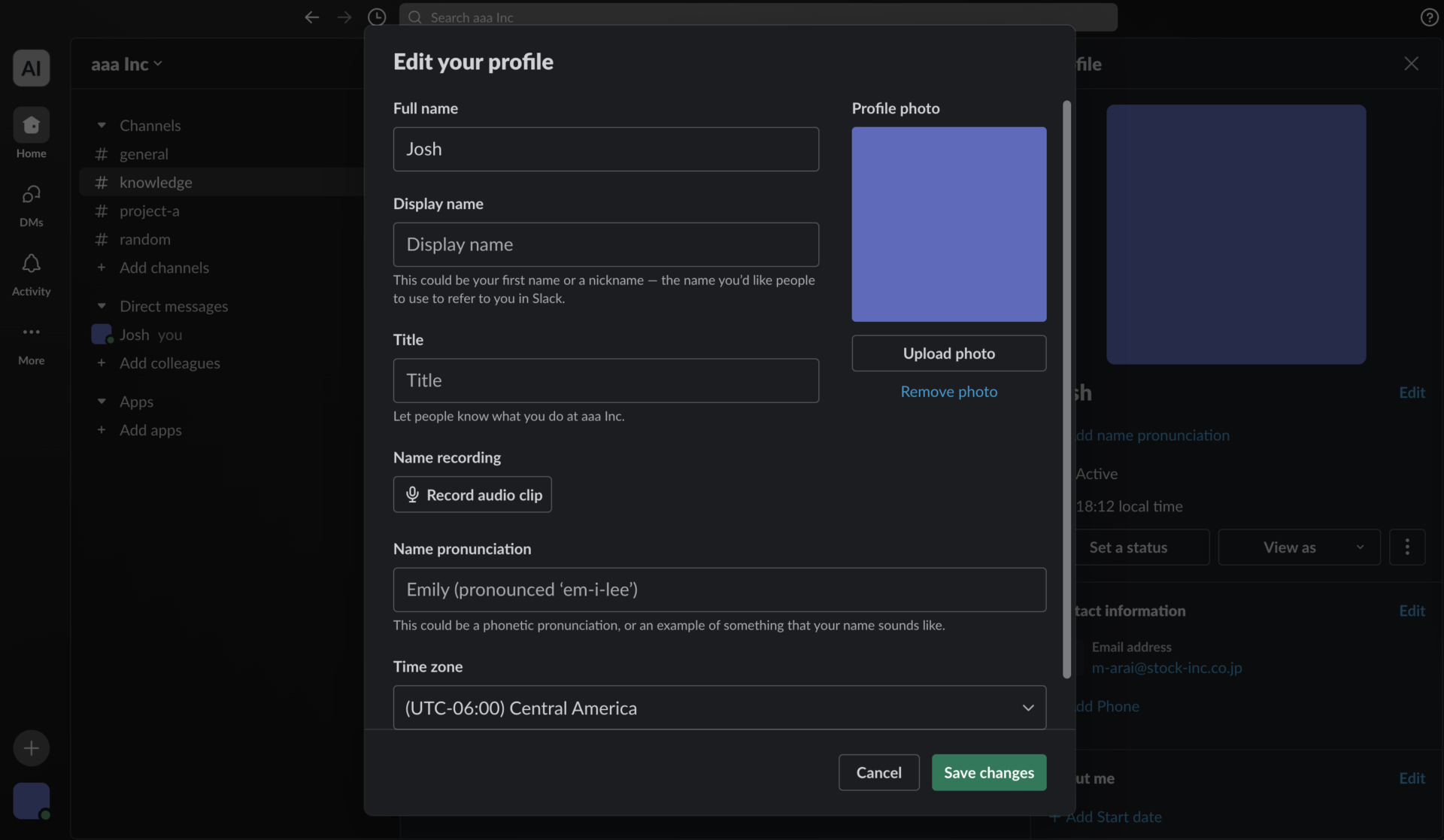
Slack allows you to set up your profile (name, job title, and profile image).
To do this, click on the square icon in the upper right corner of the Slack screen as shown in the figure below, and select “Profile” from the tab that appears.
You will then see a screen where you can edit your profile details as shown in the figure below. Click [Upload photo] if you want to change your icon, and click [Edit your profile] to edit your profile details.
(2) Change your status
Status refers to the status of each member, such as being in a meeting or out sick.
To change the status, click on the “square icon” in the upper right corner of the Slack screen as shown below, and select [Update your status] from the tab that appears.
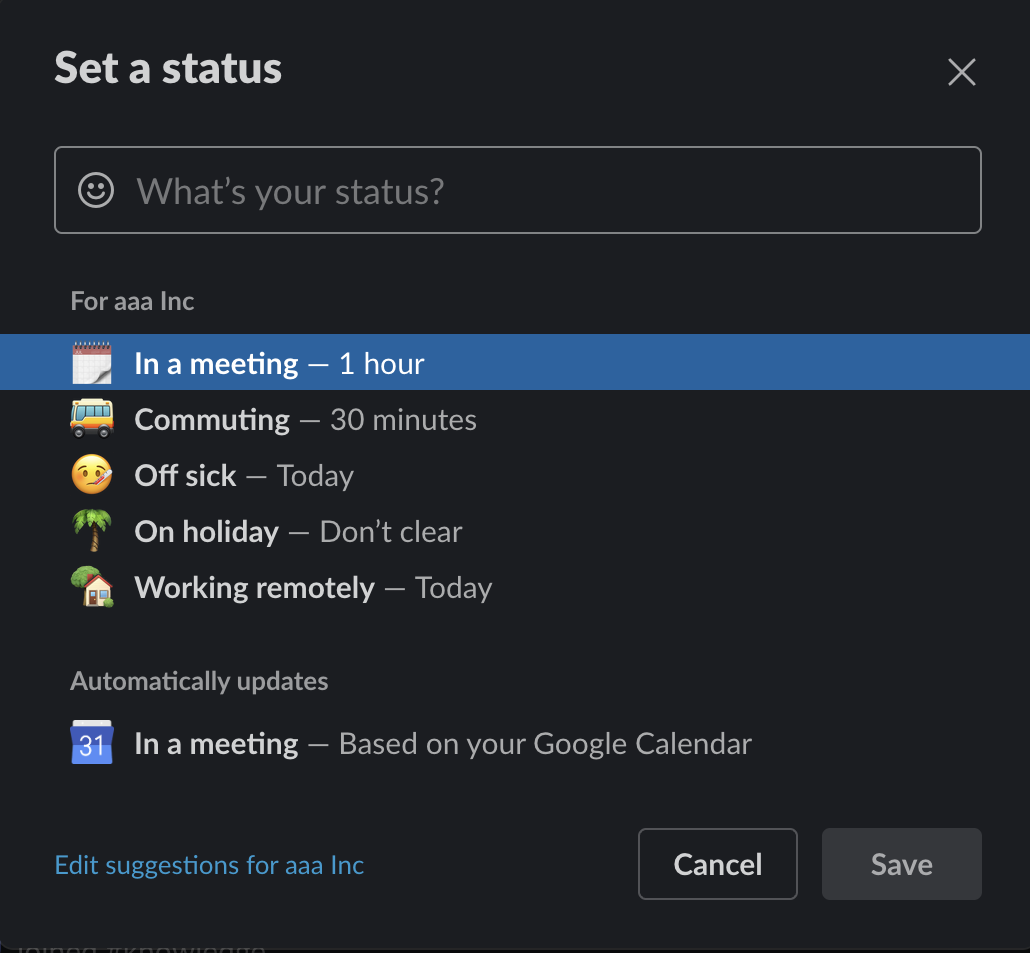
Then you will see options such as “In a meeting” or “Commuting” as shown above, so change the status to match your current situation.
(3) Connect with external services
Slack can integrate with over 2,400 external services.
To begin, click [More] in the left side bar of Slack and click [Automations].
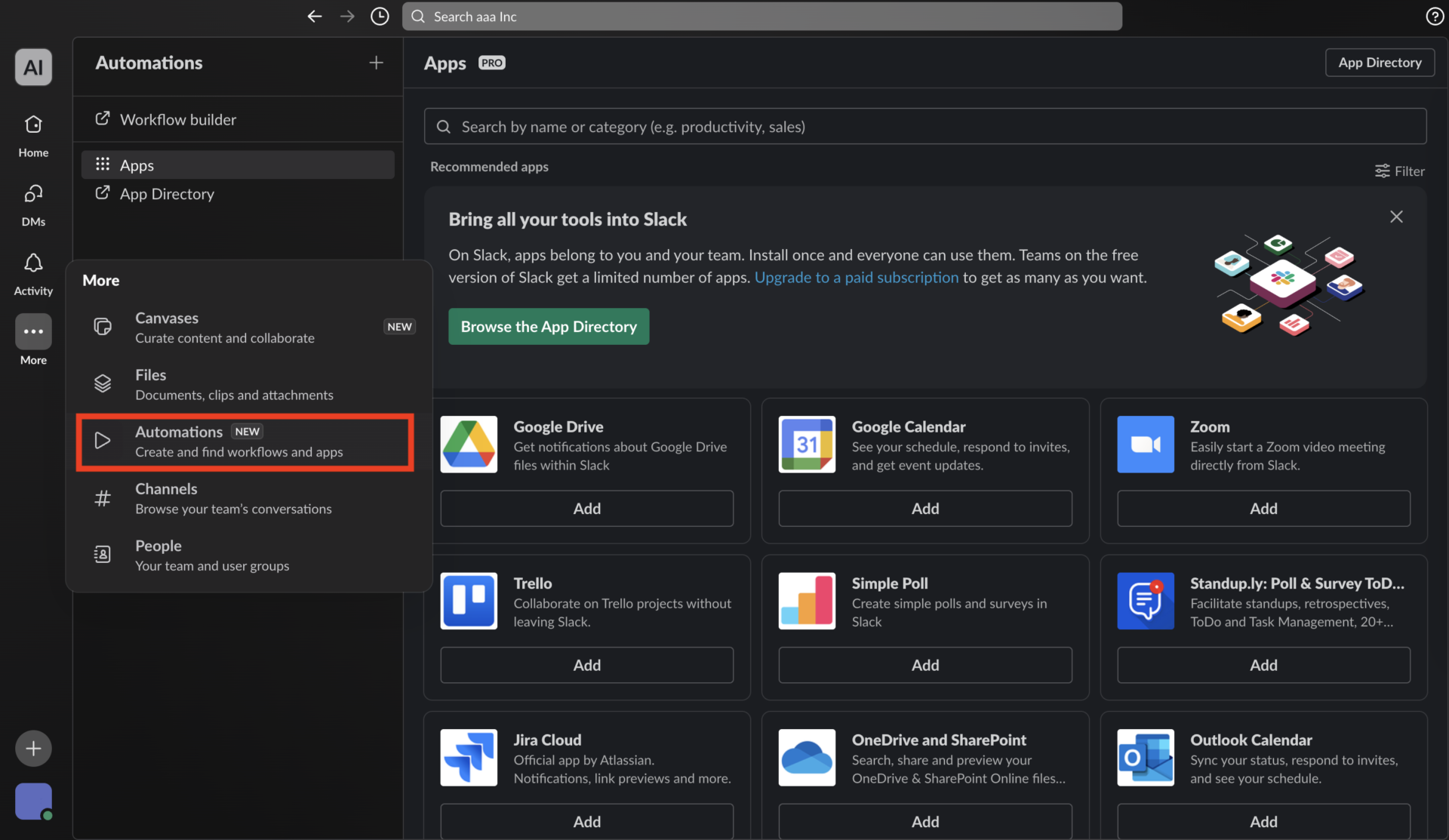
Then, as shown in the figure above, a screen will appear where you can select the tool you wish to link to.
(4) Pinning function
Slack allows you to pin important messages to an entire channel.
To do this, select [More actions](︙) from the right menu of the message you want to pin and click [Pin to this conversation].
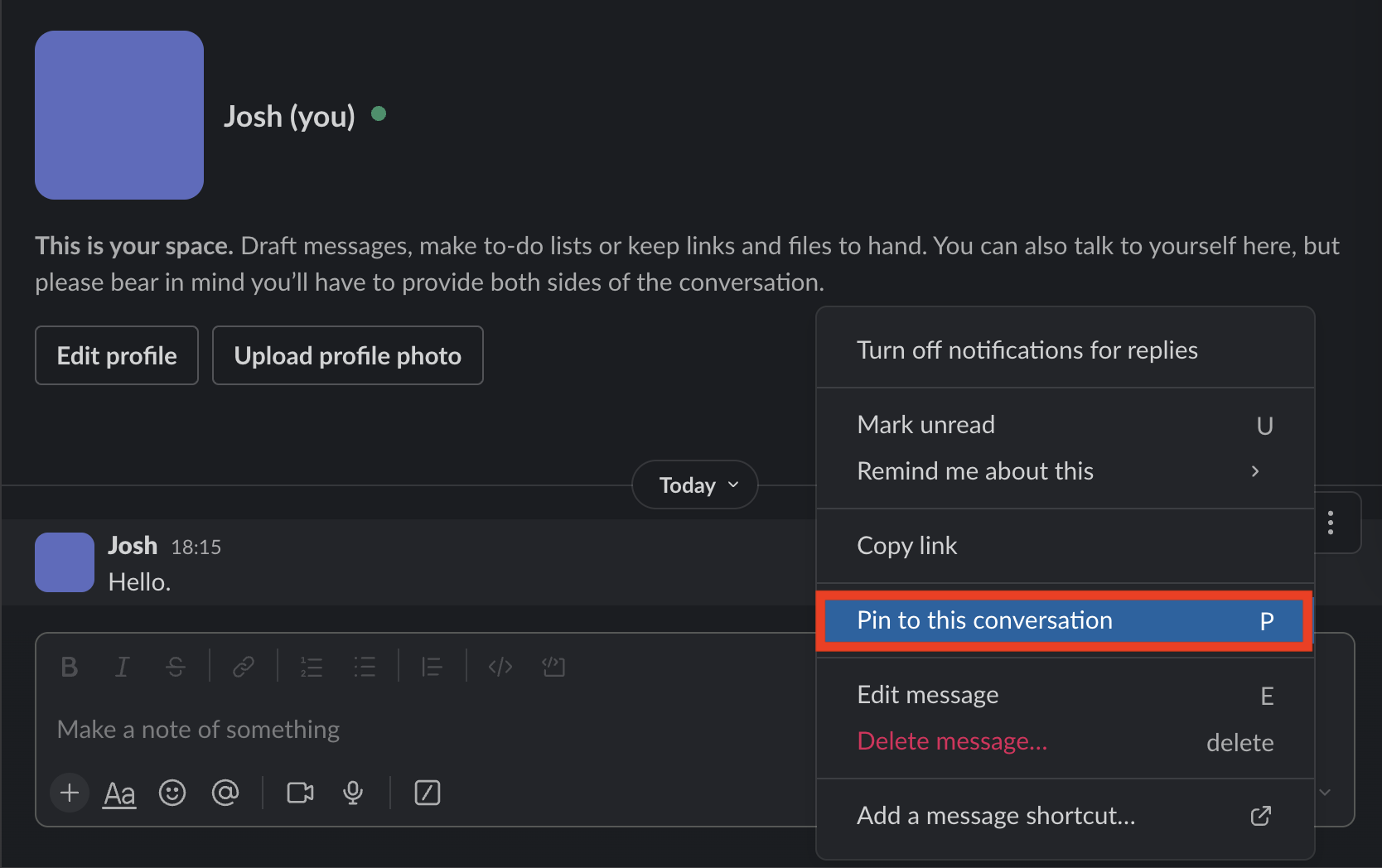
You can then leave it pinned at the top of the conversation at any time.
(5) Bookmark function
Bookmarking is a function for leaving personal messages.
To bookmark a message, click [Save for later].
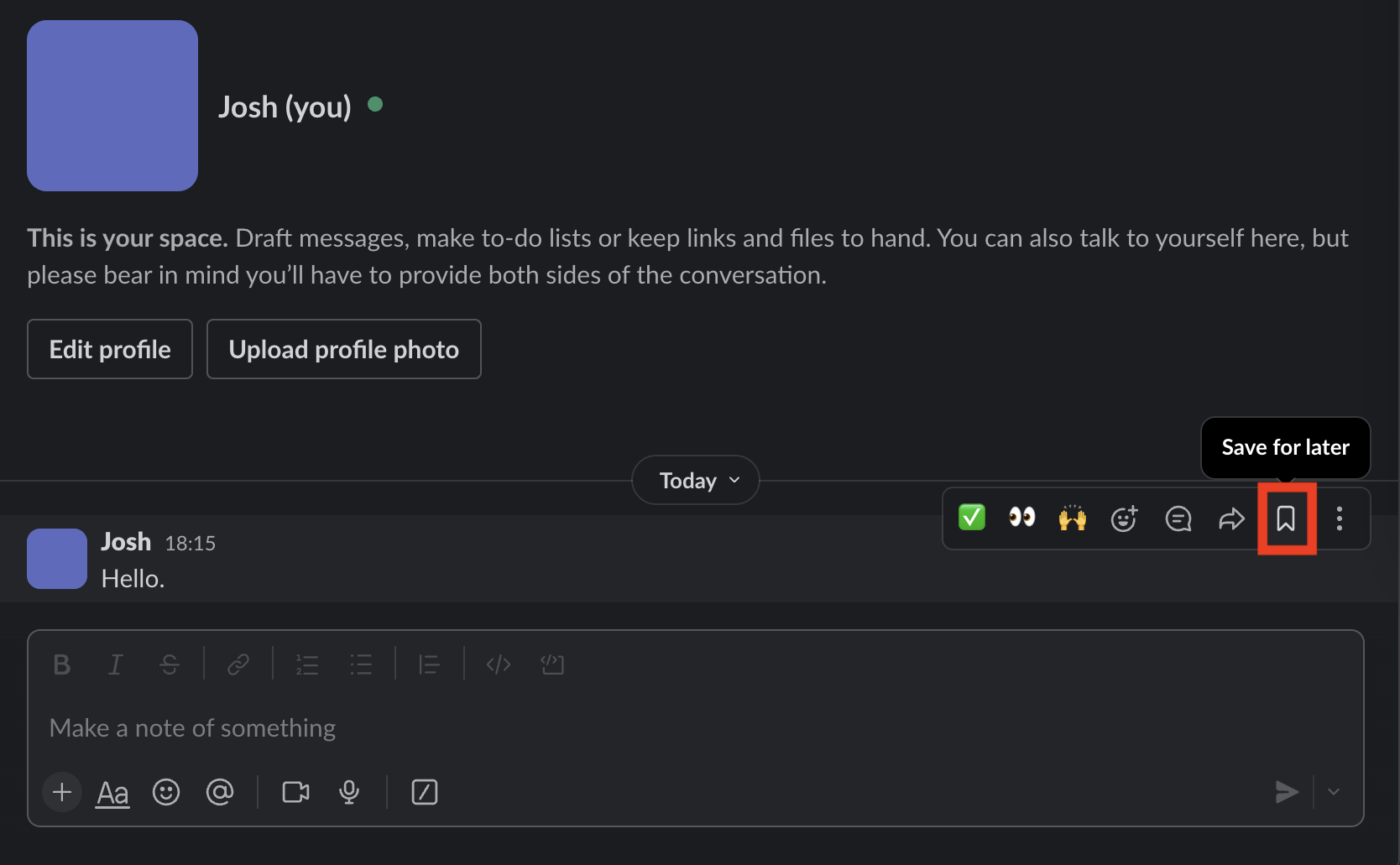
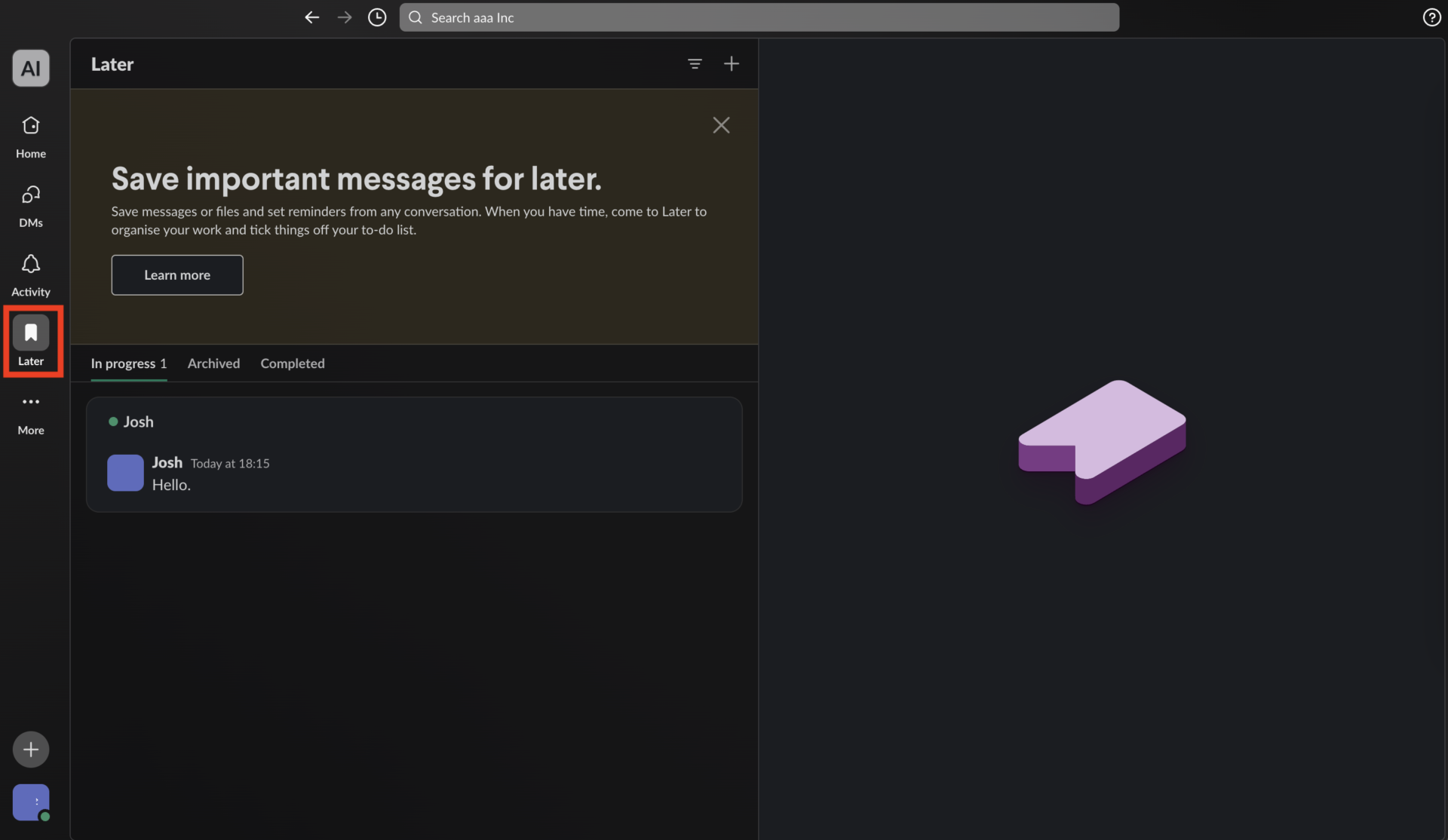
All bookmarked messages are saved in [Later] as shown in the figure below, so you can check them anytime later.
(6) Post (memo) function
Post is a personal memo function. For example, you can use it as a place to jot down meeting minutes like “Word” or “Google Docs”.
To use this function, click the [+] button in the lower left corner of the message box to display the menu, and then click [Create a post] as shown below.

Summary of features and usage of Slack
We have focused on an overview of Slack, its benefits, fees, and usage comprehensively.
If companies that have traditionally communicated only by e-mail utilize Slack, communication within and outside the company will be revitalized, and even remote workers will be able to work more smoothly.
However, there are some concerns with Slack, such as messages flowing one after another and its multiple functions being difficult to operate. To solve above issues of Slack, “a simple tool that can stock all kinds of information” should be linked to it.
In conclusion, “Stock,” which can reliably stock information in “Note” and enable smooth communication, is the most suitable for integration with Slack. In addition, it is so simple that even a member from a non-IT company can use it right away and put it into operation immediately.
It only takes 1 minute to register for free, so be sure to use Stock for both smooth communication and information storage.
