

Today, a wide variety of information management tools exist, and an increasing number of companies are adopting “Notion,” which integrates multiple functions to improve operational efficiency.
However, there are probably many companies that are considering introduction Notion, but are unsure if it is the right tool for their company.
In this issue, we will provide a comprehensive overview of Notion regarding usage, functions, and reviews. And this article is for beolw people.
- “We are considering implementing Notion, but we can not grasp the image of how it will be used in our company.”
- “I am not sure if all of our members can use Notion.”
- “Notion is well-known, but I want to know how it can actually be used.”
This article will help you can determine if Notion is a good fit for your company.
Contents
- 1 What is Notion?
- 2 Main features of Notion
- 3 Typical use case of Notion
- 4 Notion plan comparison chart
- 5 What is the basic structure of Notion?
- 6 How to use Notion in 7 steps!
- 7 Notion reviews and reputation
- 8 The simplest tool to replace Notion for non-IT users
- 9 Main features of Notion and what it can do
- 10 Summary of how to use Notion, functions, and reviews
What is Notion?
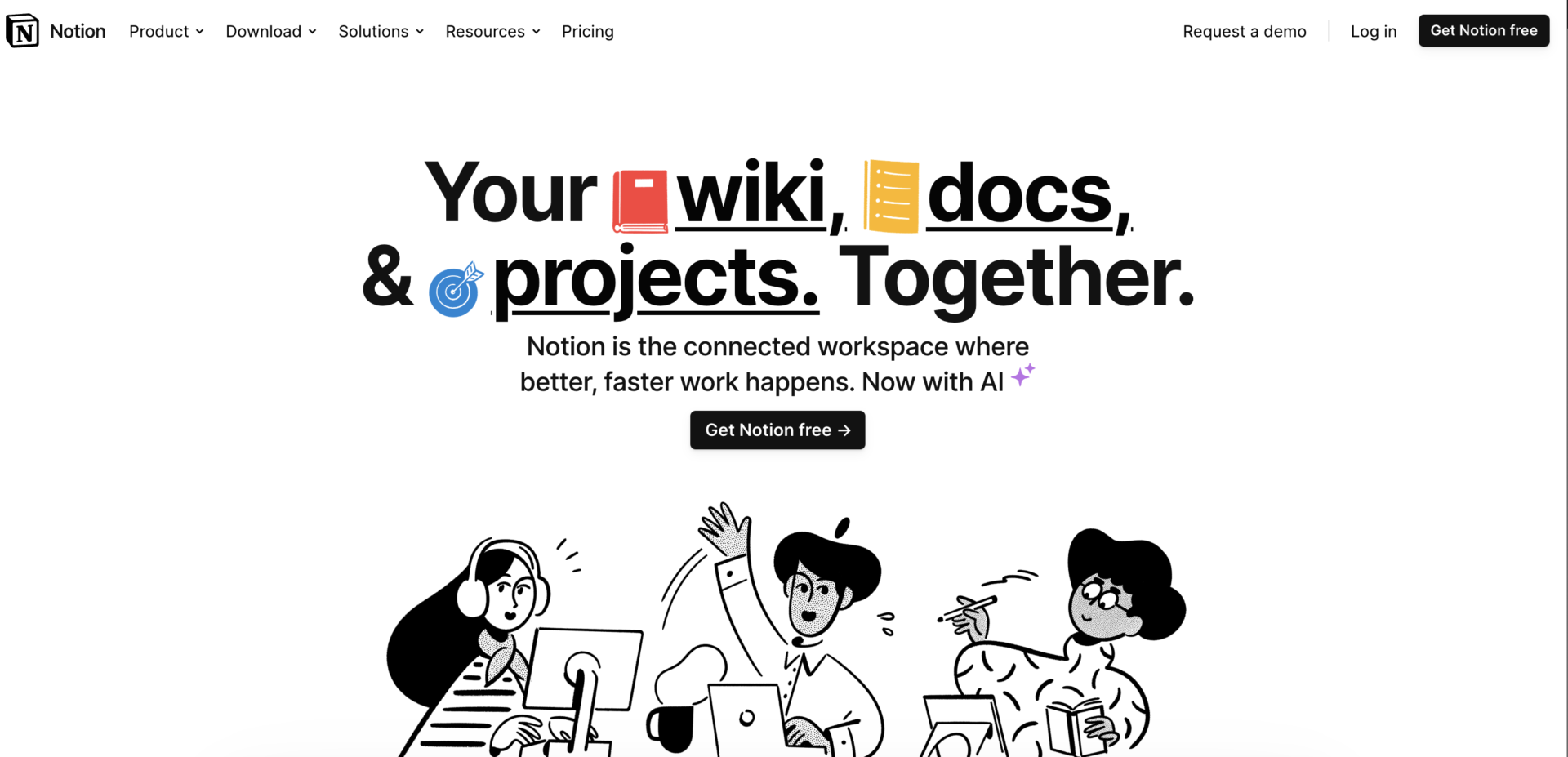
Reference(including the following): https://www.notion.so/
Notion is a multi-functional cloud tool from San Francisco, USA. With a variety of features such as document creation, internal wikis, and task management, Notion has been adopted by a wide range of companies regardless of size or industry.
In addition, Notion is multi-device compatible, so information can be viewed from smartphones, tablets, and PCs. There is no difference between an app and a browser, and the tool can be used with the same operational feel.
Main features of Notion
The main features of Notion are as follows.
- Wiki and document creation to look back to necessary information later
- Easy organization of projects and tasks
- Various functions
Users can create wikis and documents to look back on necessary information quickly, allowing them to accumulate know-how. The “Web Clipper” function allows you to save web pages that you want to refer to later.
For projects, you can manage not only tasks of each member, but also the operation schedule as if it were a Gantt chart. Tasks can also be rearranged according to priority and sorted by category.
Since the functions of several tools are integrated into one, it can be used for a wide range of purposes regardless of the size of the team or the industry.
The above features can help you prevent problems in your business, such as missing tasks, while improving work efficiency if you are proficient in using the tool.
Typical use case of Notion
Below are five examples of how Notion is used. If you would like to know how Notion is being used before you implement it in your own company, this is a must-see.
Documentation

With Notion, you can create documents for your work.
Not only text, but also images and files are stored, making it useful for managing all kinds of information, including manuals and meeting minutes, as well as simple memos. Documents can also be organized by linking them with unique page of Notion links or by using tags.
Furthermore, documents can be operated as websites, as they can be published not only internally but also on the Internet.
In-house wiki
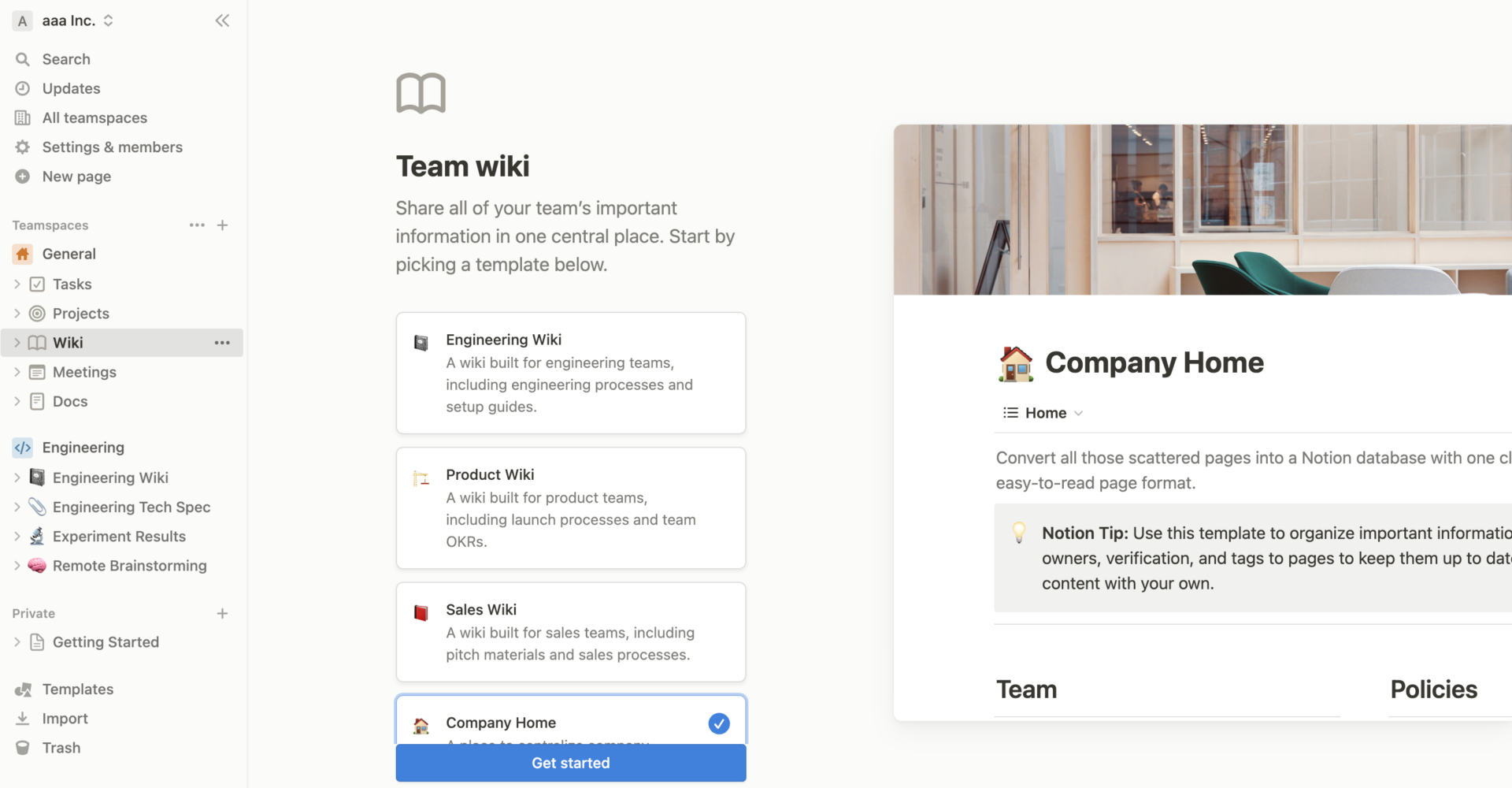
Notion also allows you to create an “in-house wiki,” a place to organize all of information of your company in one place.
While most in-house wikis are hierarchical, with multiple child folders within a parent folder, Notion manages pages by embedding them within a page.
For example, a page called “Internal Manuals List” could contain pages for each task, such as “Phone Manuals” and “Operation Manuals”. However, be aware that too many pages may make it difficult to find the page you need.
On the other hand, if you use Stock, which allows you to keep all kinds of information in “Note” and divide the notes into categories by “Folder,” you can find the information smoothly without confusion even if the number of manuals increases.
Task management (To-Do Management)
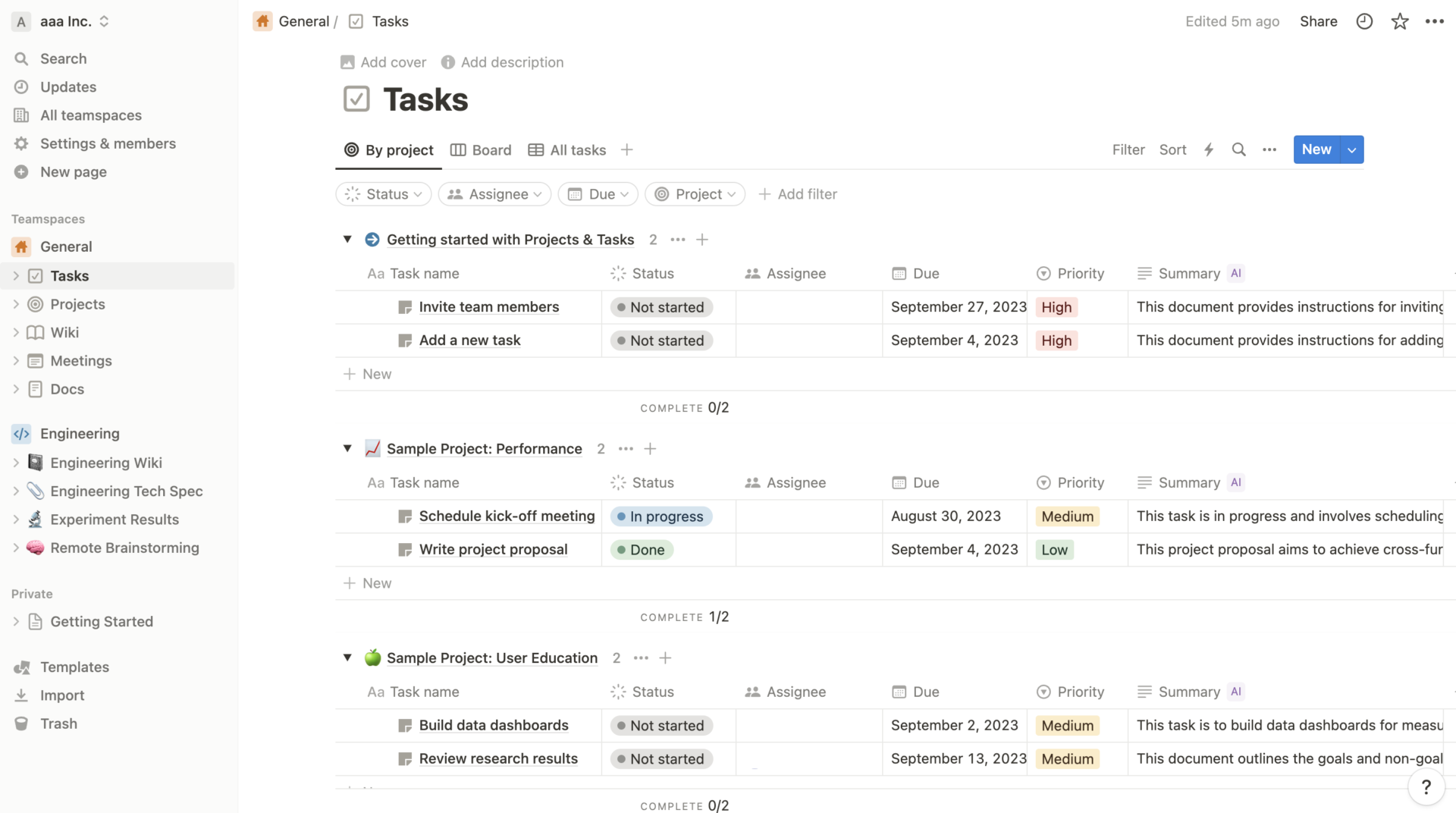
“View” of Notion function is also useful for task management (to-do management), and it allows you to check information easier by changing apperance of screen.
Notion offers 6 different views, including Board, Calendar, and Gallery.
For example, in the Board view, you can drag and drop “cards with tasks on them”. This makes it possible to manage tasks by moving them between “Not Started,” “In Progress,” and “Done,” which represent progress.
Notion AI

Reference(including the following): https://www.notion.so/product/ai
Notion released an alpha version of Notion AI in November 2022 and announced the official release in February 2023.
With Notion AI, users will be able to “create a summary from many notes on a topic,” “automate text proofreading,” “automate the creation of to-do lists,” and more.
On the other hand, Notion AI, when free, has a “limit of 20 uses” per workspace member. Therefore, “10$ per member per month (monthly payment)” is required for unlimited use.
Notion project
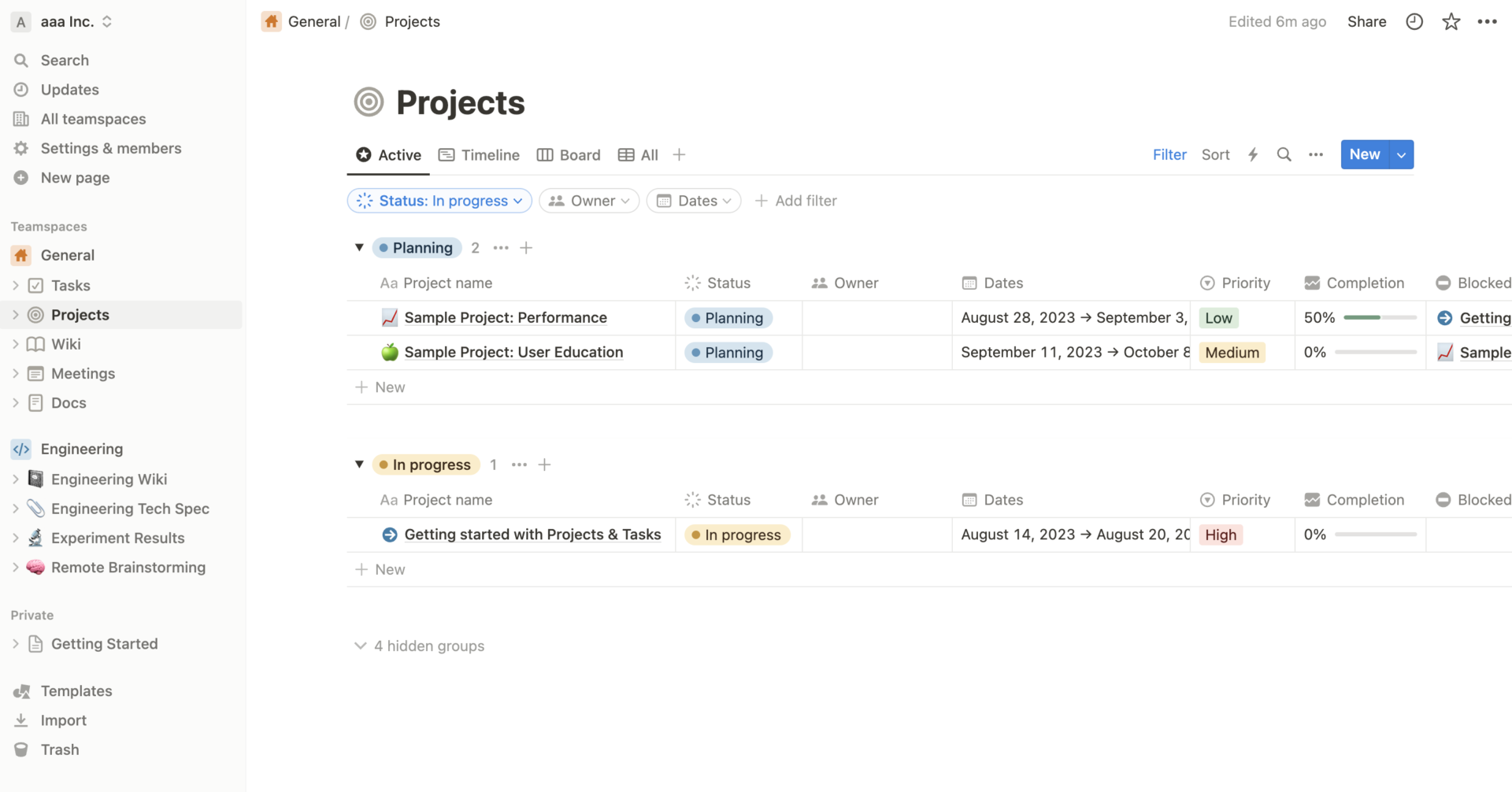
The Notion Project, implemented in June 2023, will allow you to manage your projects efficiently, mainly using the following features.
- AI Automatic Input
- Unique ID
- Notion Sprint
- Asana Importer
- Collaboration with Github
The Notion AI will automatically “summarize, extract, and input” information related to the project. Therefore, you can use AI to automatically summarize the main points of a project and share them with your team members when creating documents.
A function has been added to automatically number the information stored in Notion. The numbering can also be prefixed with a fixed character before the sequential number, making it easy to manage complex tasks by number. (Integration with GitHub is also possible.)
Allows you to set the duration of any task. For example, tasks within a week can be set as sprints, saving the need to generate multiple versions of a single task.
You can now import projects you are currently managing in progress from Asana, a project management tool.
Collaboration with Github (a worldwide code and data management service) is now possible. This makes it possible to synchronize tasks between Github and Notion.
As described above, Notion is still improving and adding new features and functionality, making it possible to manage projects even more efficiently. However, because of its many functions and complex settings, teams with many people unfamiliar with IT often use simple project management tools, such as Stock.
Notion plan comparison chart
Below is a comparison chart of Notion plans. Each plan differs in terms of available features, capacity, and security, be sure to check carefully before actually implementing the plan.
| Free | Plus | Business | Enterprise | |
|---|---|---|---|---|
| Monthly Fee | Free of charge | $10 /user/month | $18 /user/month | Inquiry required |
| Number of Guests | Up to 10 guests | Up to 100 guests | Up to 250 guests | Up to 250 guests |
| Upload limit | 5MB | Unlimited | Unlimited | Unlimited |
| Page History | 7 days | 30 days | 90 days | Unlimited |
| Simultaneous editing | ✔️ | ✔️ | ✔️ | ✔️ |
| Authorization group | ✔️ | ✔️ | ✔️ | ✔️ |
| Single sign-on | – | – | ✔️ | ✔️ |
| PDF batch output | – | – | ✔️ | ✔️ |
| Support | None | Priority support only | Priority support only | Dedicated Success Manager |
Reference(including the following): One tool for your whole company. Free for teams to try.
The above plans, especially those with adequate security measures, can reduce the risk of information leakage for business use. There is no time limit for free plans, although there are some functional restrictions.
What is the basic structure of Notion?
The basic screen of Notion is as follows.
- <The basic screen of Notion (entire screen)>
- Sidebar
- Pages
- <Basic screen of Notion (detail)>
- Team Space
- Private
- Block

The sidebar is where you can switch pages and find the page you are looking for. All settings that are not related to edit the content are basically executed from the sidebar.
The right side of the screen is the “page” where you can actually write information. You can also share information and leave comments from the top right corner of the page.

This function allows you to organize pages for each team, and there are 3 access privileges.
Private pages cannot be viewed by other employees.
A block is a unit of content. For example, a single image or file counts as a block.
How to use Notion in 7 steps!
Below is an 7-step guide on how to use Notion. This is especially important for first-time users of Notion.
How to use 1|Create an account
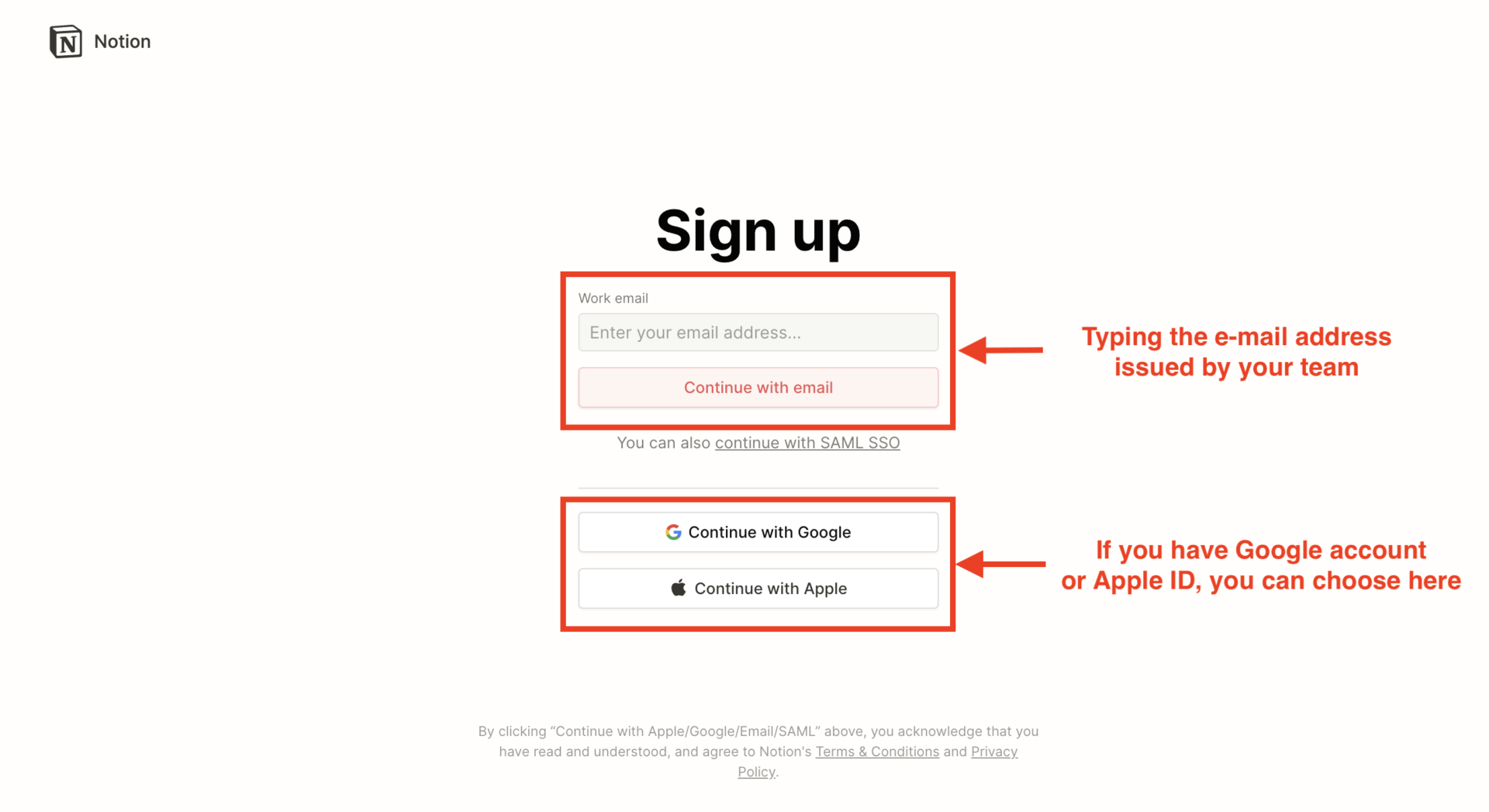
First, create a Notion account from sign-up page.
If you are creating an account with your
email address , you can use the upper box, while you are creating an account with your Google account or Apple account, you can use the lower box.
How to use 2|Log in
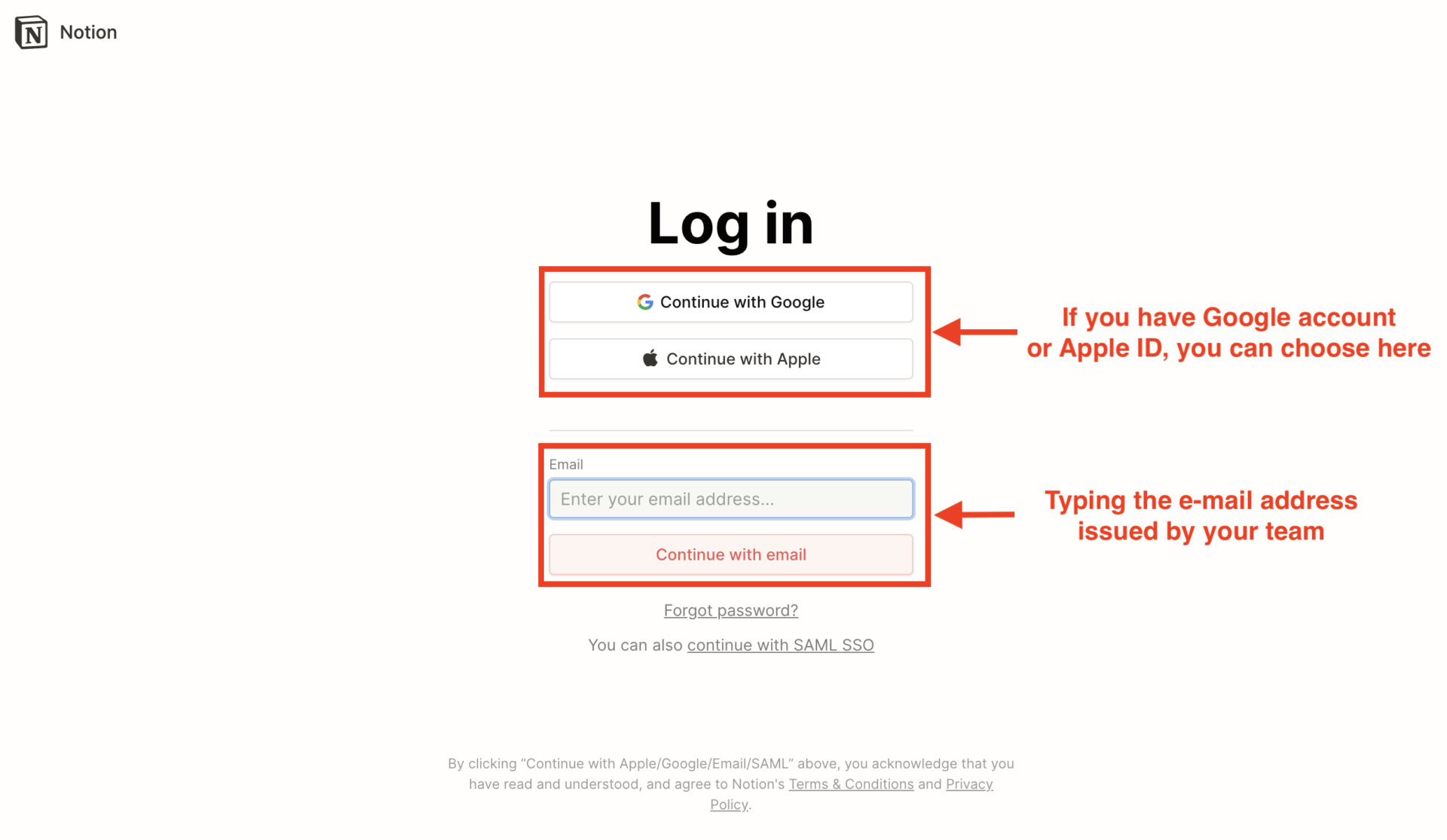
If you already have an account, log in to your Notion account from the login page.
If you are creating an account with a Google or Apple account, log in from the upper side of the screen. If you are creating an account with your company email address, log in from the lower side of the screen. Once you have logged in, the basic Notion screen will appear.
How to use 3|Creating a new page
Next, create a new page in Notion.
To create a new page, click the [+] button in the Team Space (or Private).
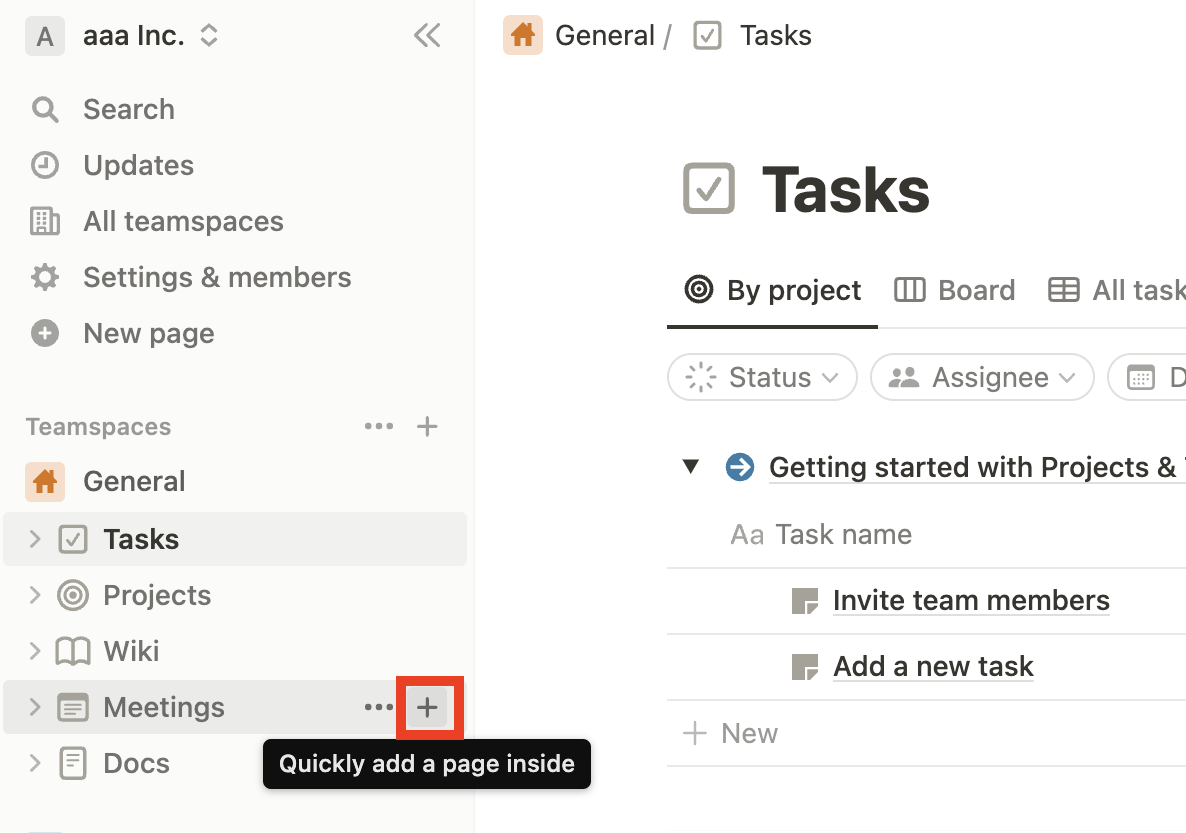
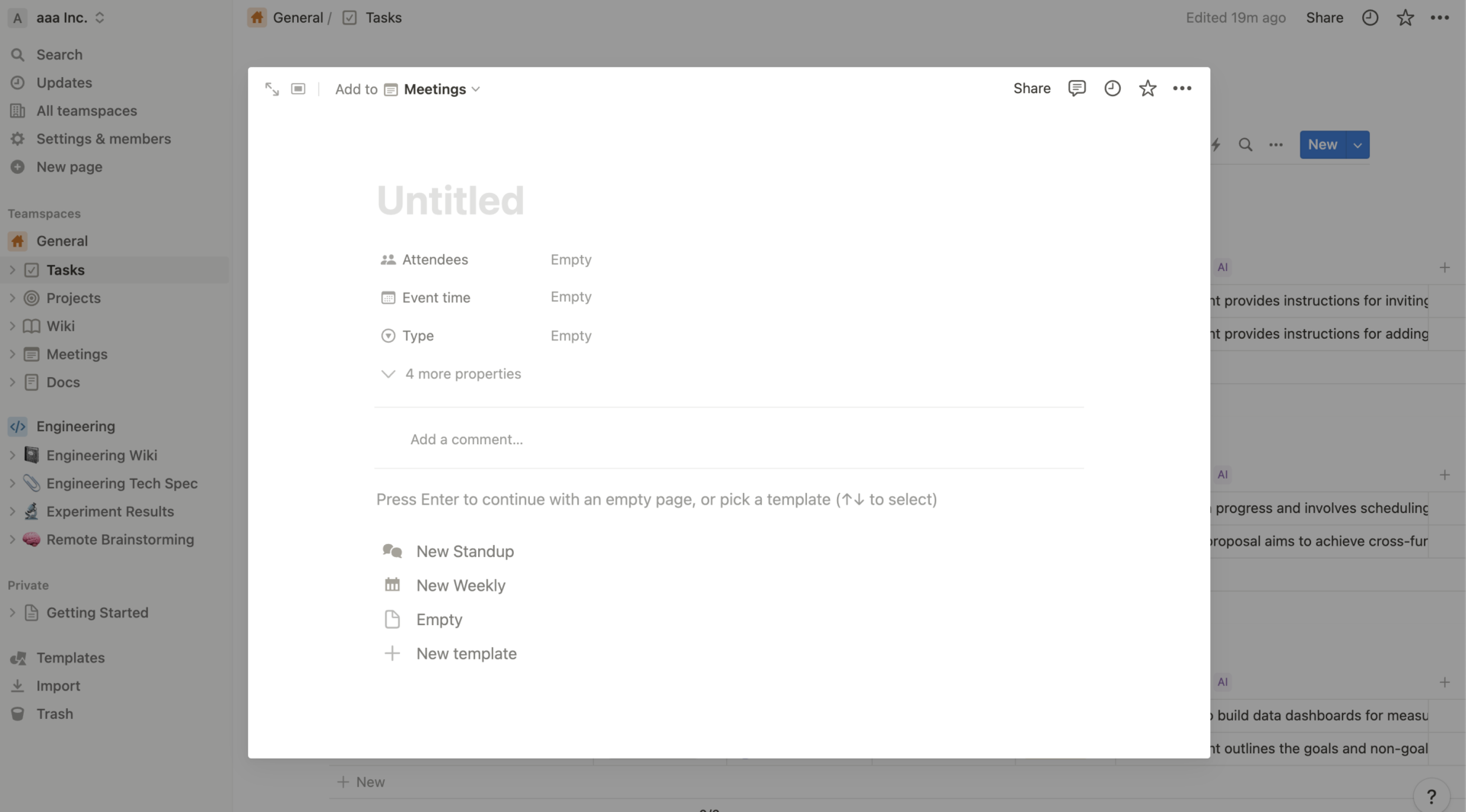
The new page will appear by doing the above.
How to use 4|Setting icons and covers
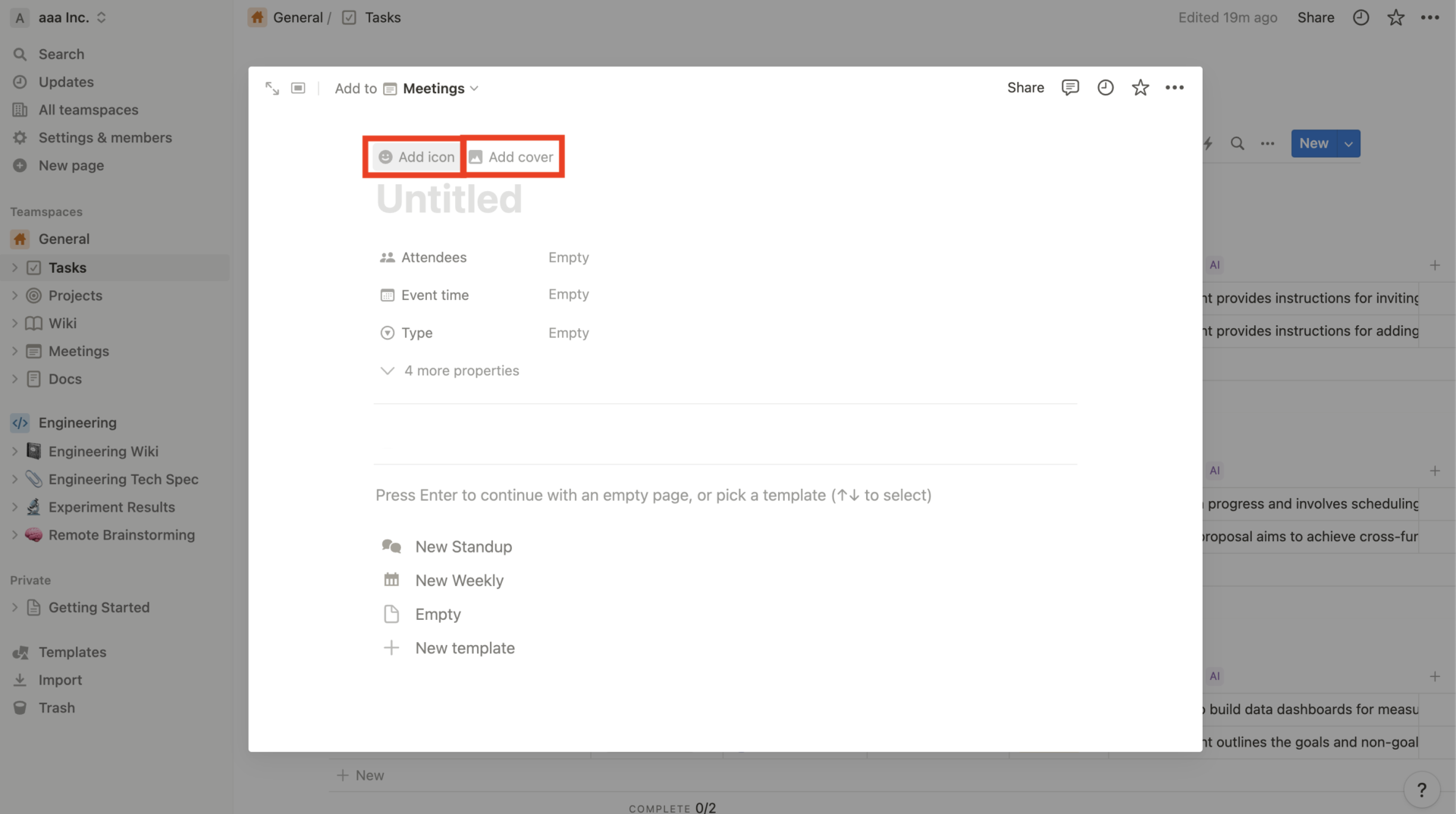
Next, set icons and covers to instantly distinguish what page it is.
Icons can be set from [Add Icon] at the top of the editing screen, and covers can be set from [Add Cover].
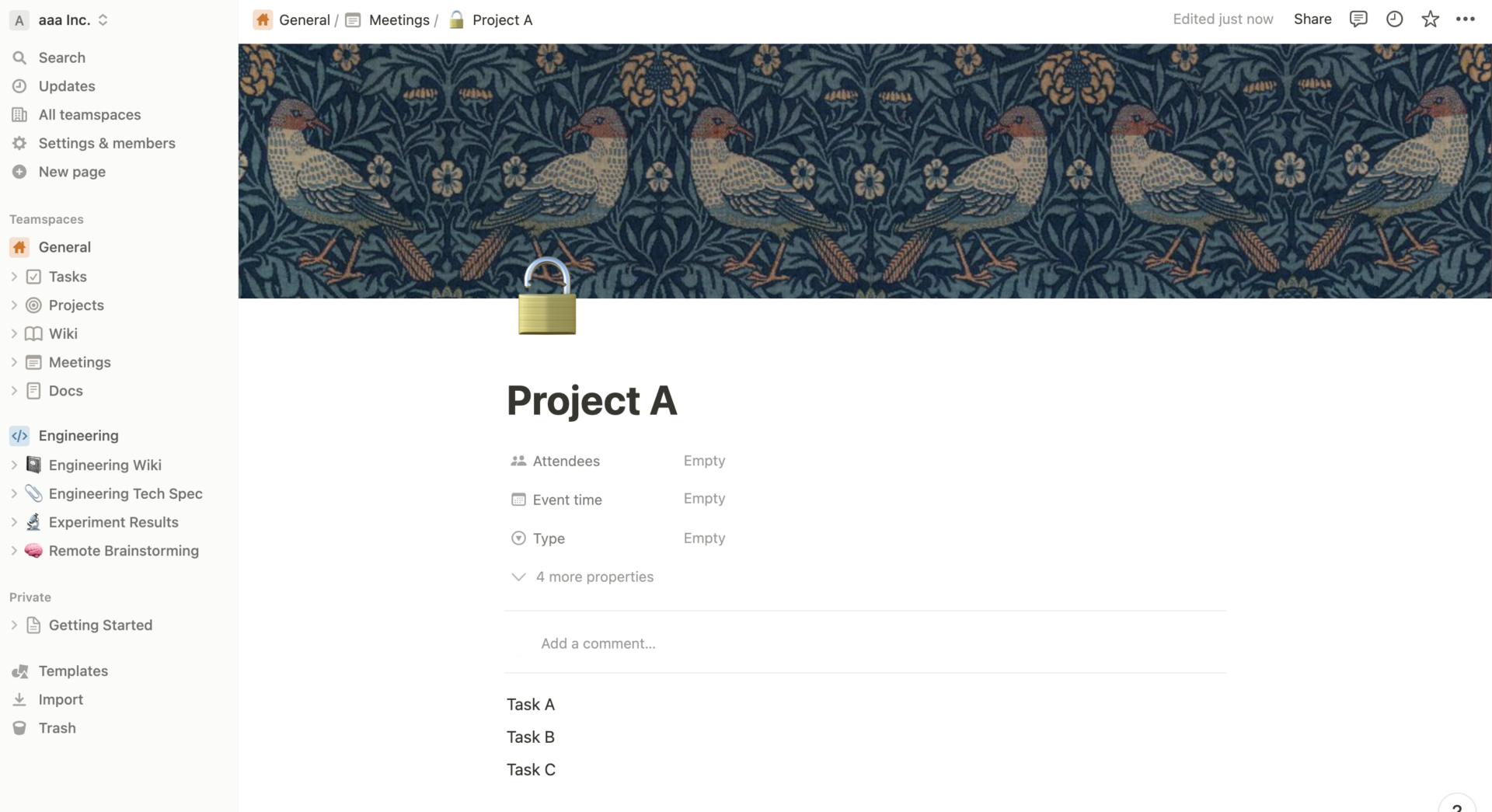
Once the settings are complete, the page will look like the one shown above, and you will instantly know what information is on it.
How to use 5|Editing a page
Next, actually edit the page.
For example, since we are using task list page as below, you can edit contents freely by using functions that have “bullet list”, “embedded link”, “comments” and so on.
How to use 6|Decorate the text
Next, make the page easier to read by decorating the text you have described.
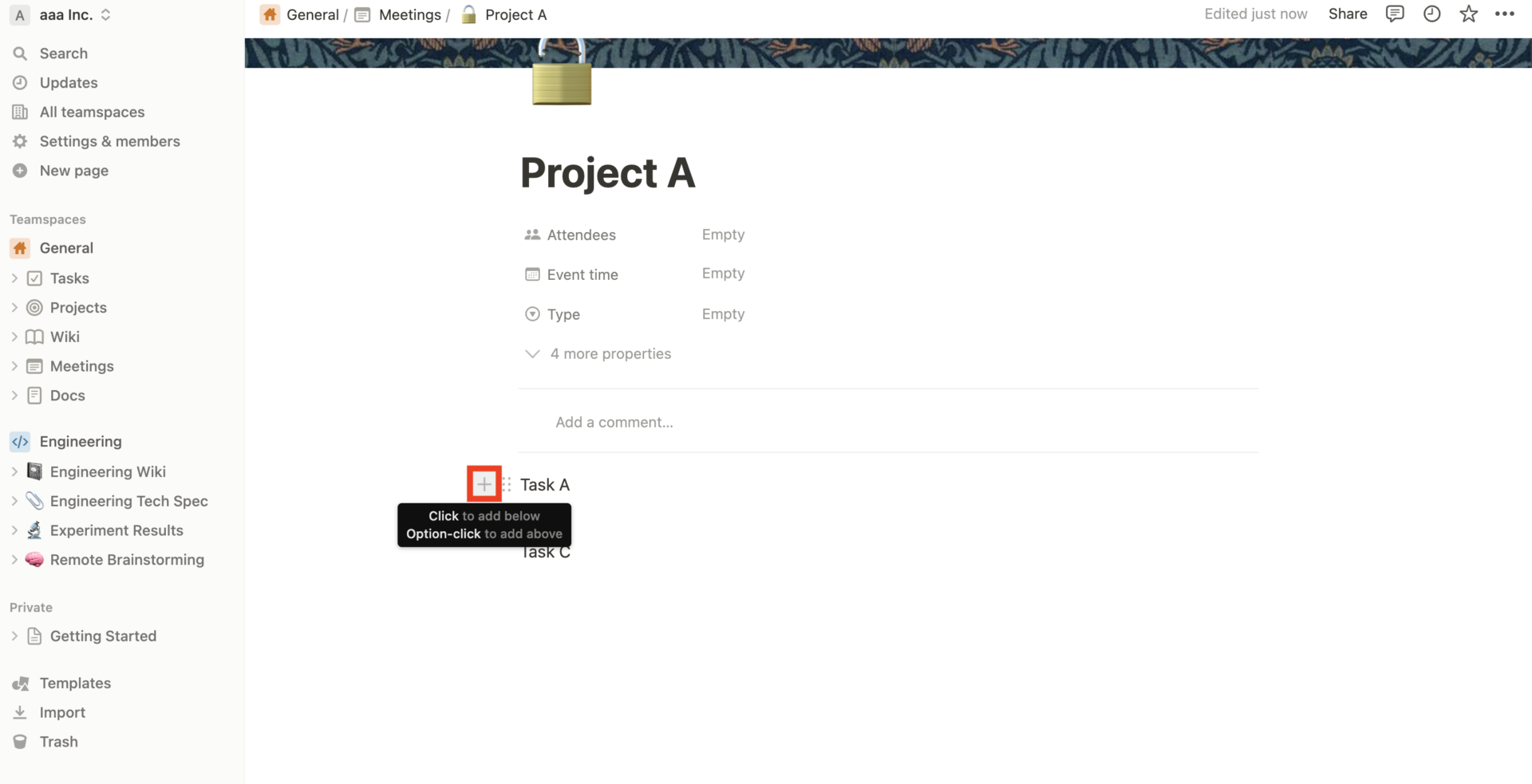
First, click [+] displayed on the block you want to edit to open the menu.
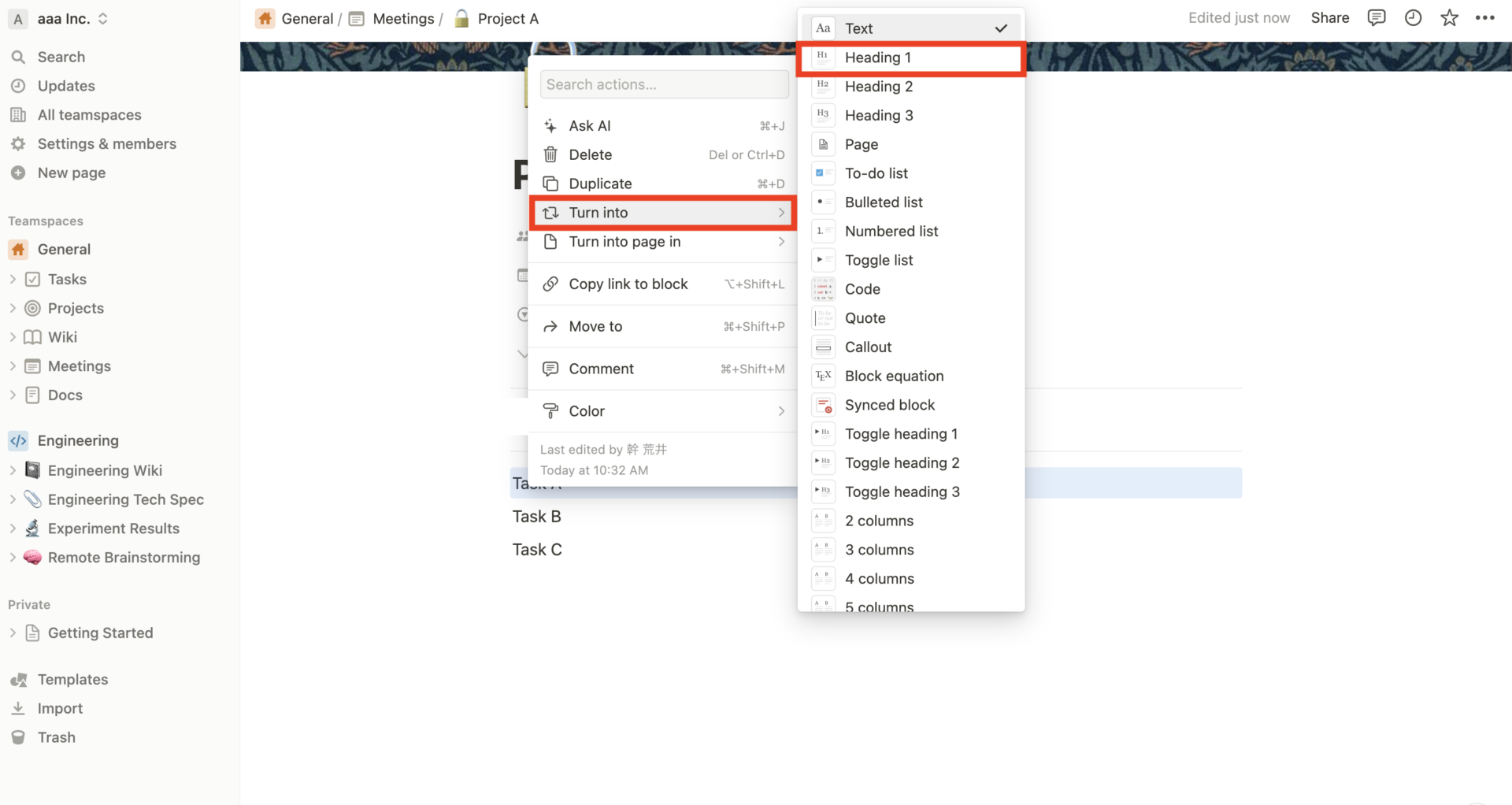
Then click on [Turn into] and you will see the decoration options. In this case, we want to create a large heading, so we select “Heading 1”.
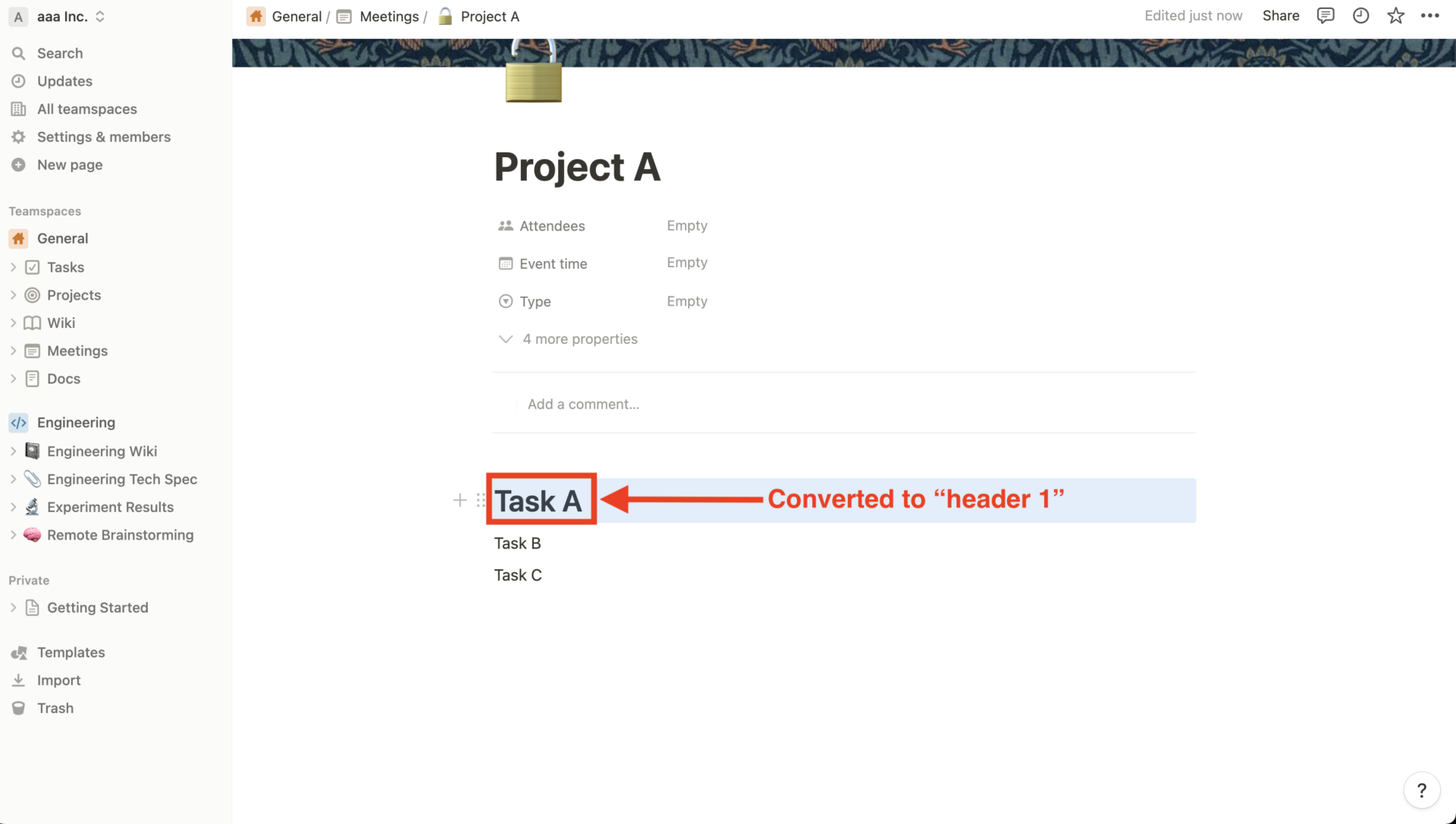
The above will decorate Task A as a large heading as shown above. In addition to headings, you can use various other decorations such as bulleted lists, numbered lists, quotations, etc.
how to use 7|Inserting page links
Finally, showing you how to insert a page link in a page as below. First, click the [+] that appears when you select a new block.
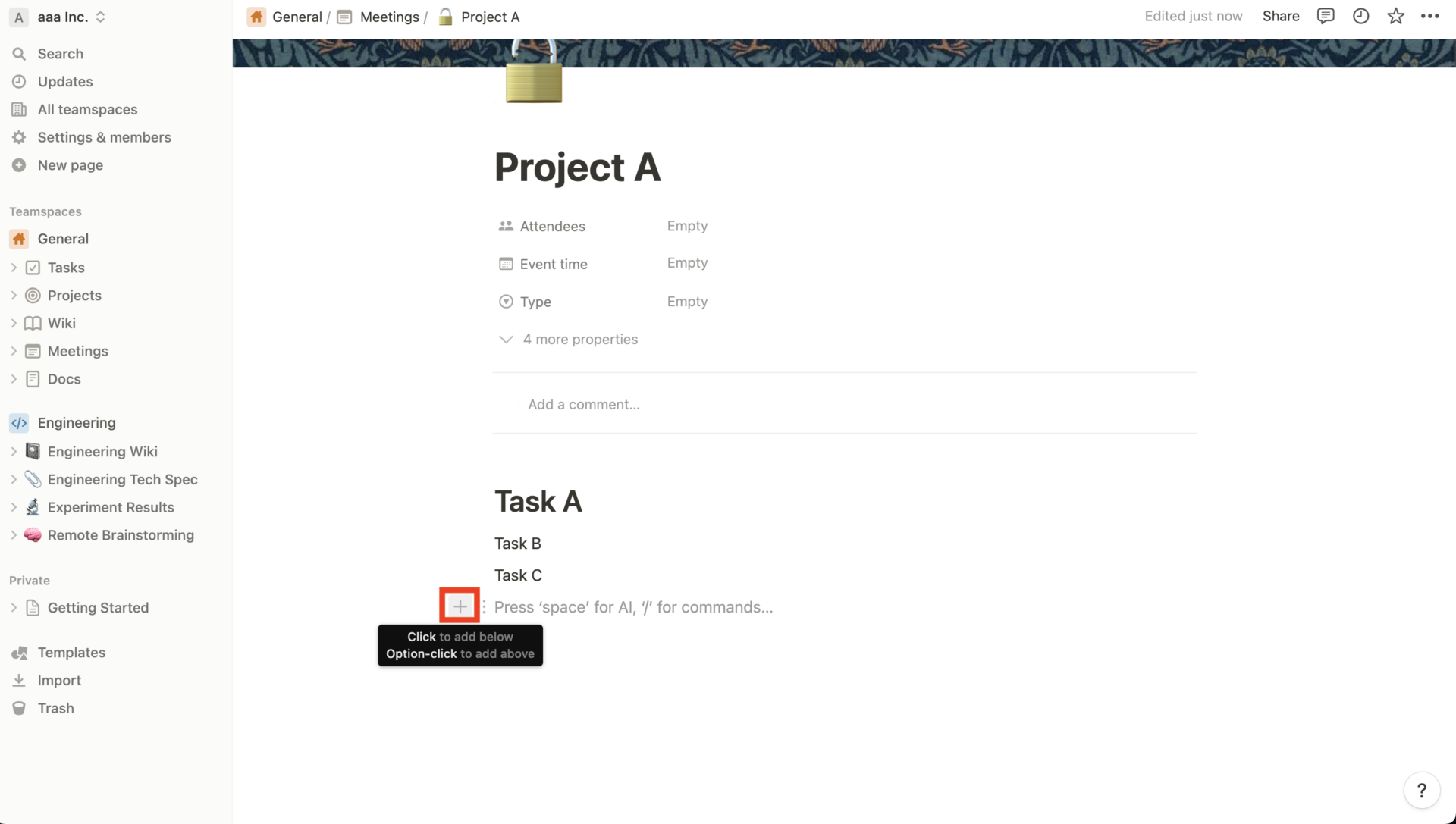
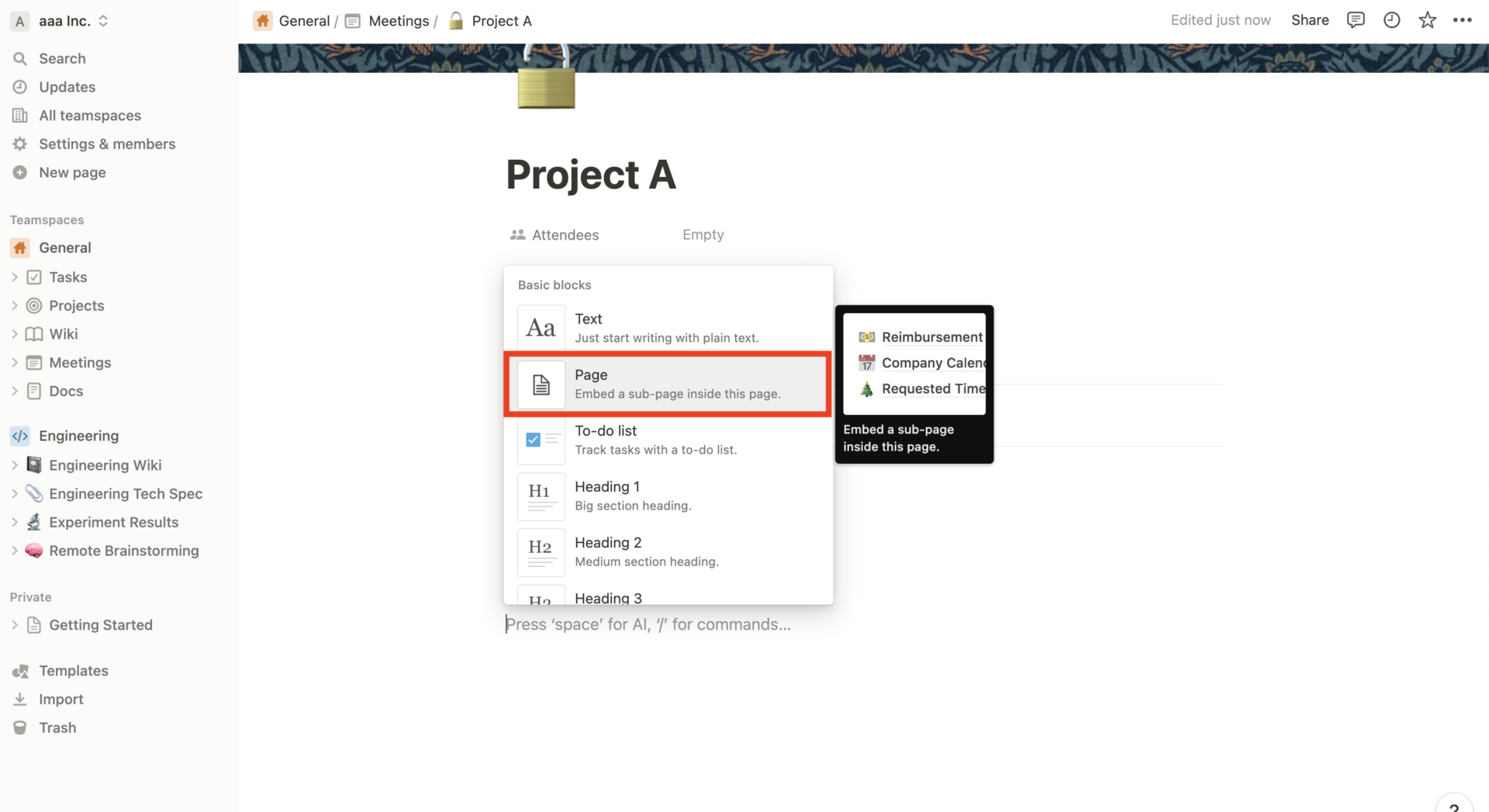
Next, select [Page] as shown in the figure above.
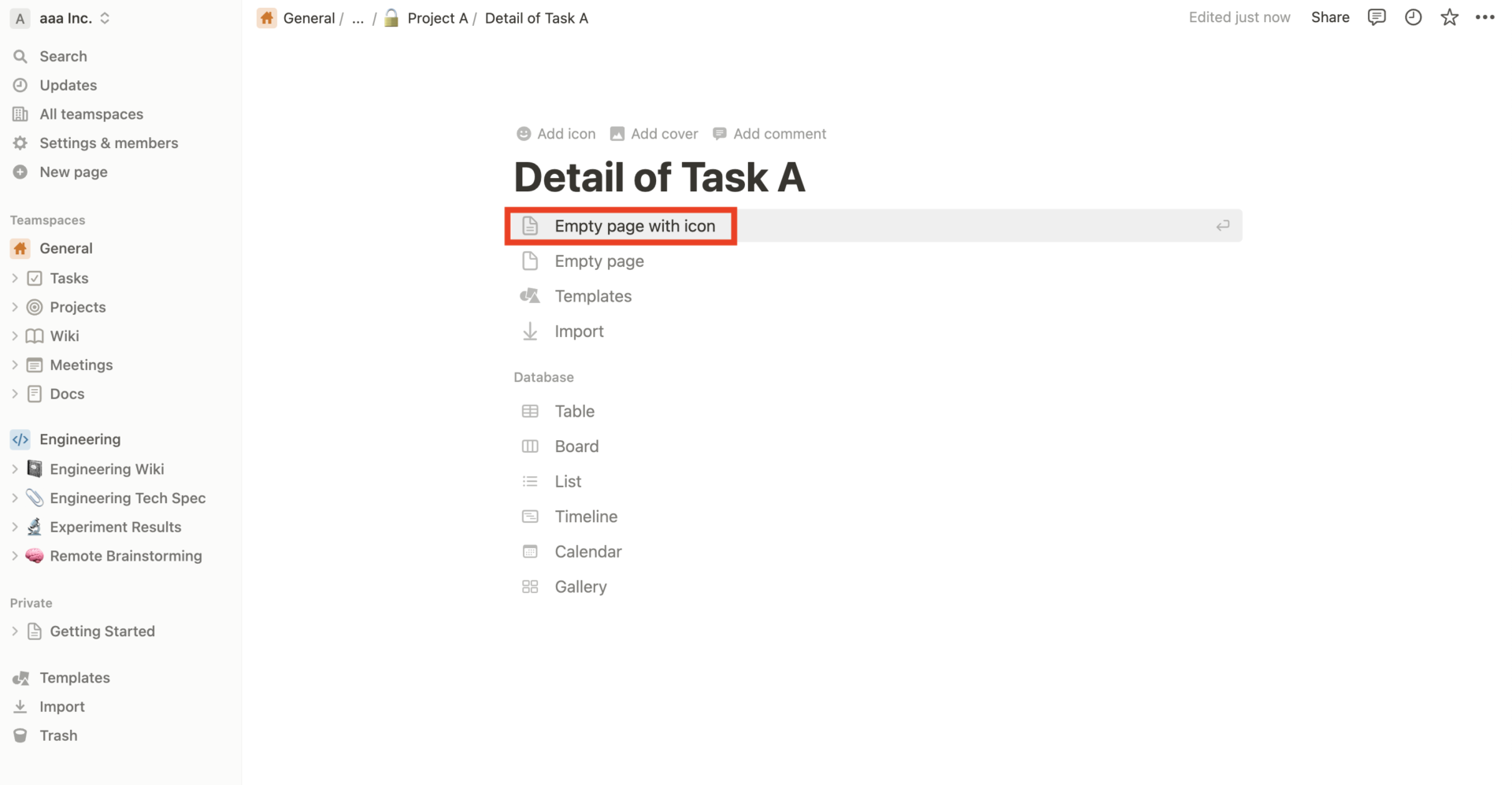
Then, the new page screen will appear, so create a page to embed. In this case, we have created the “Detail of Task A” page.
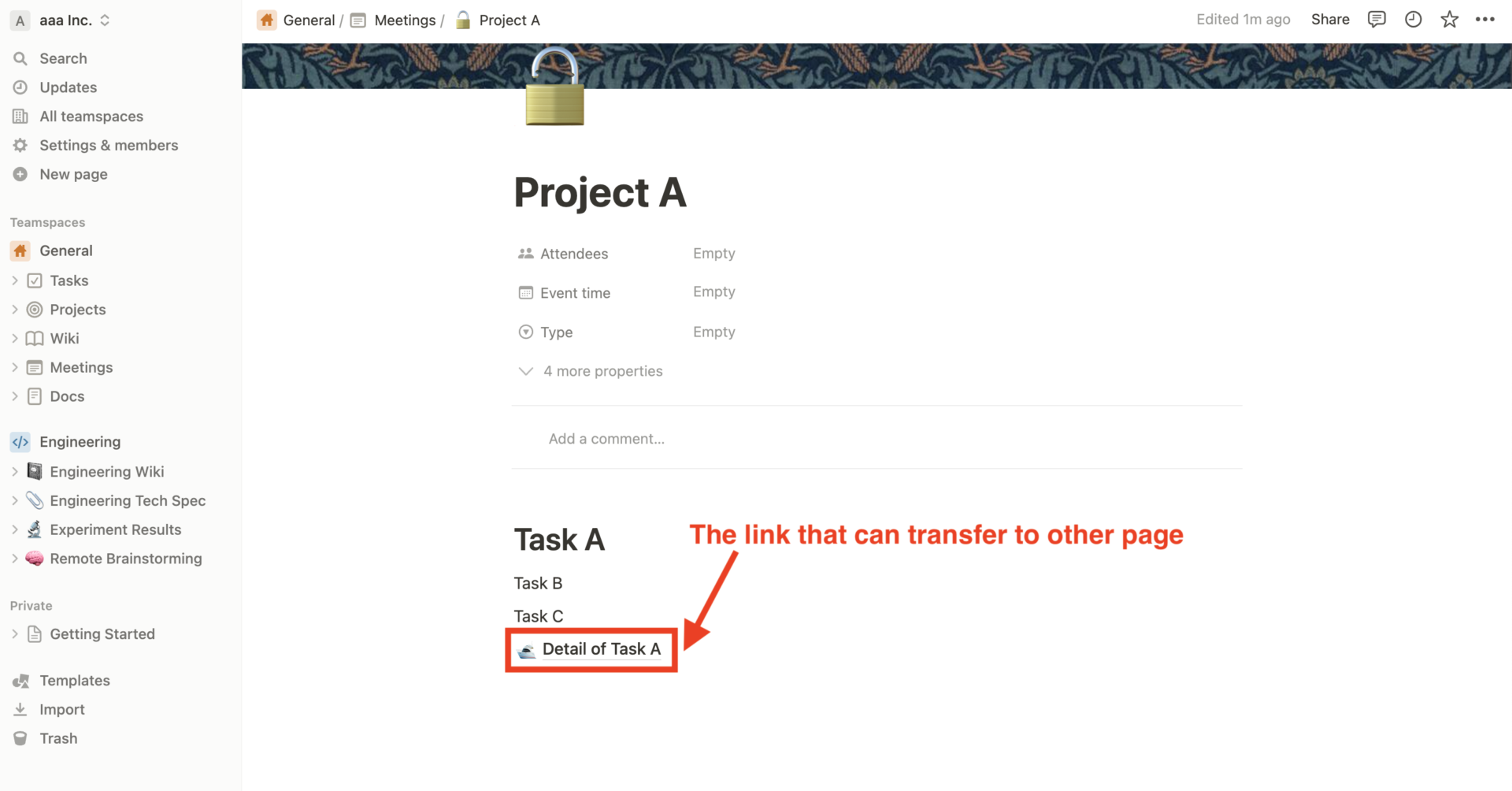
As a result, the “Detail of Task A” page is embedded in the “Project A” page, as shown above, and can be navigated by simply clicking on it.
Notion reviews and reputation
This section shows that some of the “good” and “bad” reviews of Notion. These are answered by users who have actually used Notion, so they will be helpful for your introduction.
*All reviews and opinions are taken from G2>Notion
Good reviews and reputation of Notion
Below are some of good reviews of notion and reputation. Many users appreciate the fact that information is managed in a variety of formats and can be used for all types of work.
Merna S. (Posted on 8/10/2023)It’s the best app so far, it has made my life more organized and helped me manage my time efficiently. I love how it has templates and that can curate one of my own too. Also, it’s feature that helped me was that it has flexibility which allows me to create various types of content, especially to-do lists.
Chris D. (Posted on 8/1/2023)Notion is one of the best note-taking and knowledge-transfer platforms I’ve ever used. They have templates for everything from project management to customer success workflows. I use it as a playbook for my sales team where anyone on my team can come to find information.
Yash A. (Posted on 7/17/2023)The best thing I like about Notion is the Customizability options they provide, Notion is highly customizable so you can create a workspace that fits your specific needs.you can change the look and feel of your workspace, add different types of blocks, and even create your own templates.there are some shortcurts you can learn to make things more easier and interesting.
Jaagrav S. (Posted on 6/8/2023)I love how versatile the product is. I think that’s one of the strongest selling point for the product and with AI it only gets better. Notion is so good I in fact cannot think of a competitor that’s better than Notion because I had a use case that no other products really offered, and when I asked my colleagues Notion was the first thing they suggested.
Verified User in Non-Profit Organization Management (Posted on 8/23/2023)I hold a great deal of admiration for Notion’s remarkable ability to handle a diverse range of tasks with utmost ease and efficiency, all within a single, centralized software. It boasts a wide array of features, ranging from task and project management to the creation of databases and taking notes. Notion is undoubtedly a robust and versatile tool that can aid users in managing everything they require in one convenient location.
Bad reviews and reputation of Notion
Below are some of the bad reviews and bad reputation of Notion. Common among many users were that “information is hard to find and browse,” and “there are too many functions to master”.
Jacob P. (Posted on 8/1/2023)Sometimes, it feels like it’s bit of a learning curve to new users. Another thing, the mobile version could use some improvements, not as functional as the desktop version.
Verified User in Management Consulting (Posted on 6/5/2023)Sometimes, I feel that dealing with a new project on Notion can be quite complex and challenging. It can be overwhelming to navigate through the platform’s features. Moreover, I have observed that the templates I buy can become outdated when the software receives updates. Nevertheless, I still believe that Notion is an excellent productivity tool that covers all aspects.
Mohamed e. (Posted on 5/25/2023)the performance of Notion can sometimes be sluggish, especially when working with large databases or complex pages. Although it doesn’t significantly hinder productivity, faster load times and smoother scrolling would enhance the overall experience.
Thomas B. (Posted on 5/22/2023)Notion is a very broad but powerful tool. However, when you first start out it can be a bit overwhelming because of all the possibilities. It takes some time to figure out all the ways you can use the software. The interface is quite simple but there are many hidden features that you will have to dive into, to ,make the most of Notion.
Martin H. (Posted on 5/28/2023)I haven’t found anything to be honest that annoys me, there is a little (tiny) bit of learning to do, but that small investment of time pays off.
The simplest tool to replace Notion for non-IT users
Below is alternative tool that is easier to use than Notion.
Notion offers a variety of functions such as documents, internal wikis, and task management. However, many users say that its multiple functions make it difficult to use.
In other words, multi-functional tools such as Notion require a high level of IT literacy, so they are not used after their introduction, especially by non-IT companies. Avoid implementing a tool that no one can master, as it not only interferes with business operations, but also wastes money.
In conclusion, the alternative tool that can handle document creation, internal wikis, and even task management is Stock, which is so simple that even a member in a non-IT company can use it immediately.
Stock allows users to easily leave information in a “Note”, solving the need to maintain a separate Word or Excel file. Also, while shared links of Notion are at risk of being leaked to the general public, Stock allows you to set access privileges on the Note itself, giving you peace of mind.
Stock|A simplest tool for managing and sharing information

The simplest tool to stock information "Stock"
https://www.stock-app.info/en/
Stock is the simplest tool to stock information. Stock solves the problem, "there is no easy way to stock information within the company".
With Stock, anyone can easily store all kinds of information, including text information such as requirements, images, and files, using the Note feature.
In addition, by using the "Task" and "Message" functions, you can communicate with each topic described in the Note, so that information is not dispersed here and there and work can always be carried out in an organized manner.
<Why do we recommend Stock?>
- A tool for companies that are not familiar with ITYou don't need to have any IT expertise to get started.
- Simple and usable by anyoneStock is so simple that anyone can use it without any unnecessary features.
- Amazingly easy information storing and task managementIt is amazingly easy to store information such as shared information within a company, and intuitive task management is also possible.
<Stock's pricing>

- Free plan :Free
- Business plan :$5 / User / Month
- Enterprise plan :$10 / User / Month
*Minimum number of users: 5 users
Main features of Notion and what it can do
Below are 10 of main functions of Notion and capabilities. Take a look at the 10 main features and things you can do with Notion.
(1) Tables
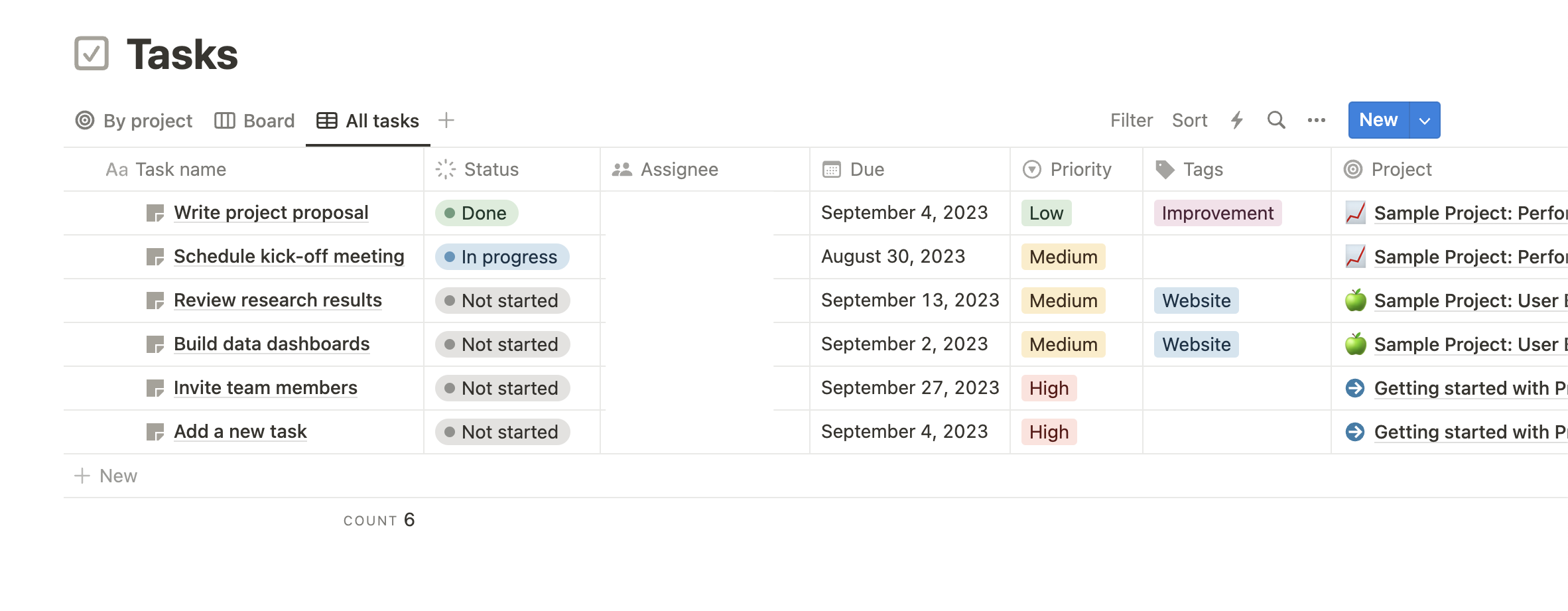
If you change the information on Notion to Table View, it will be displayed as shown above.
The table view summarizes information in rows and columns, and its feel is similar to Excel. It also has the advantage of providing an overall picture of the team at a glance.
(2) Board
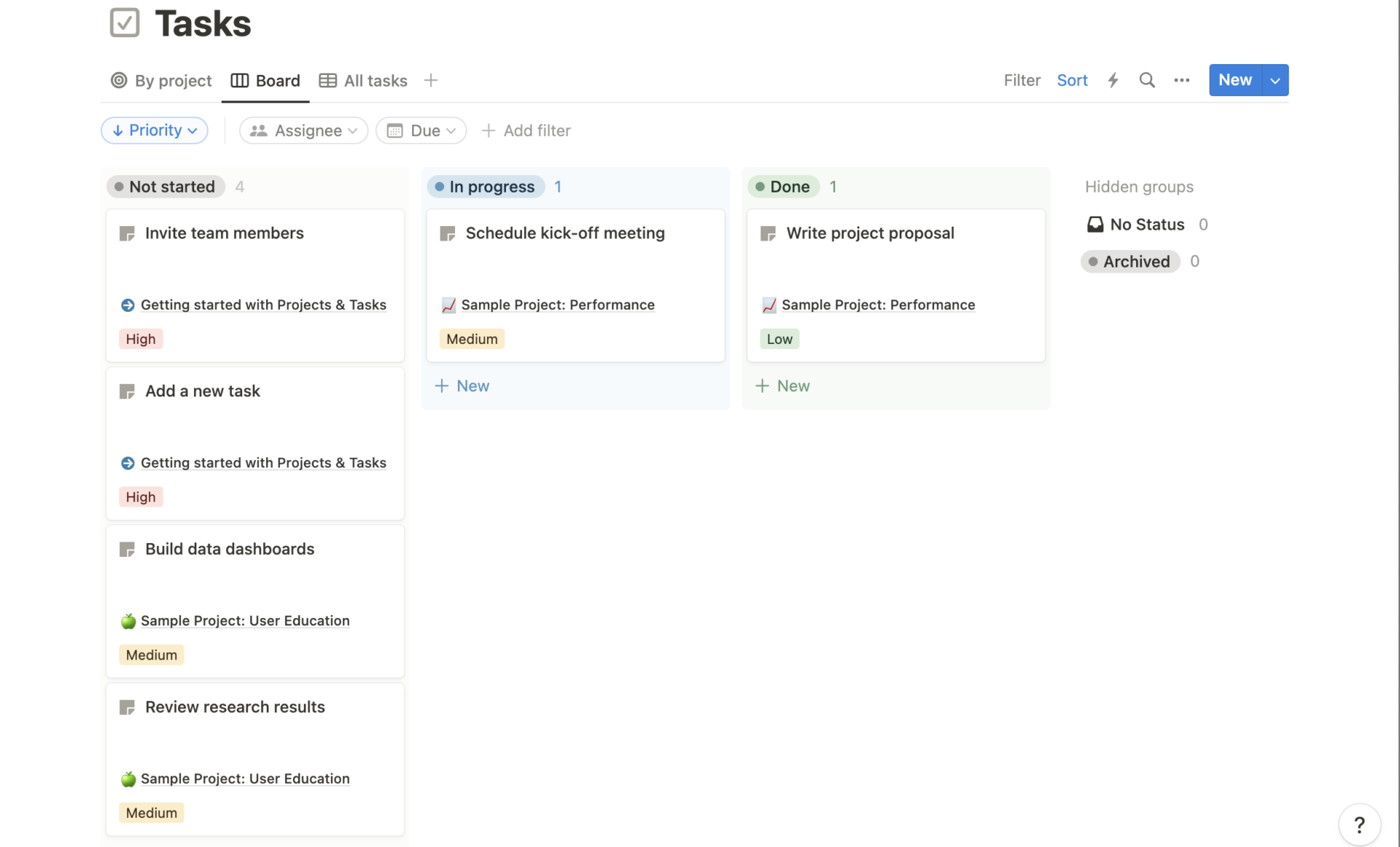
If you change the information on Notion to Board View, it will be displayed as shown above.
The Board View is characterized by the ability to move cards (blocks) by drag and drop. It is useful for managing tasks in a kanban style.
(3) Timeline
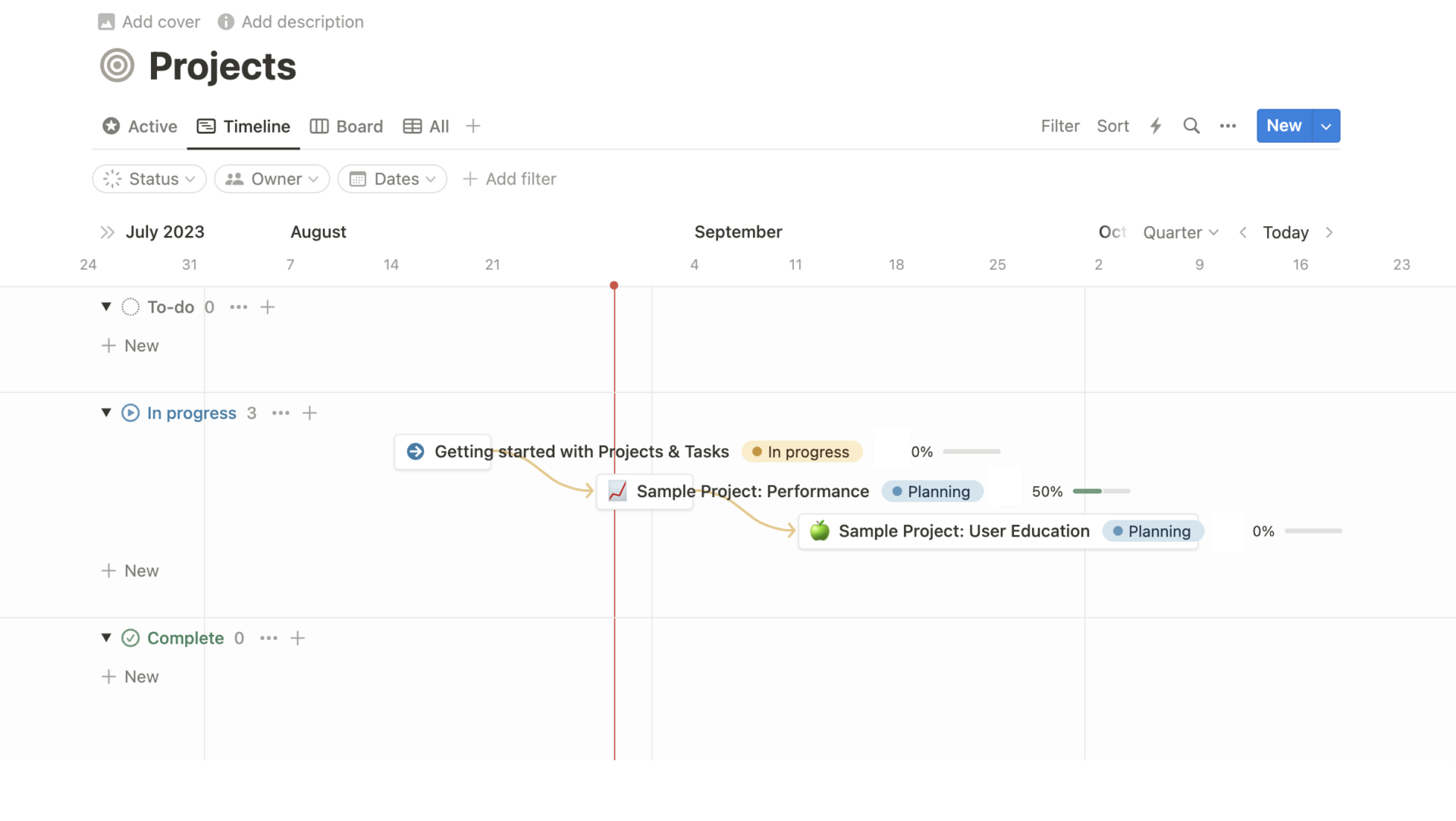
If you change the information on Notion to Timeline View, it will be displayed as shown above.
With the timeline view, you can create a “Gantt chart,” which is used for project progress management. The timeline view itself can also be displayed in various formats, such as daily, weekly, or monthly.
(4) Calendar
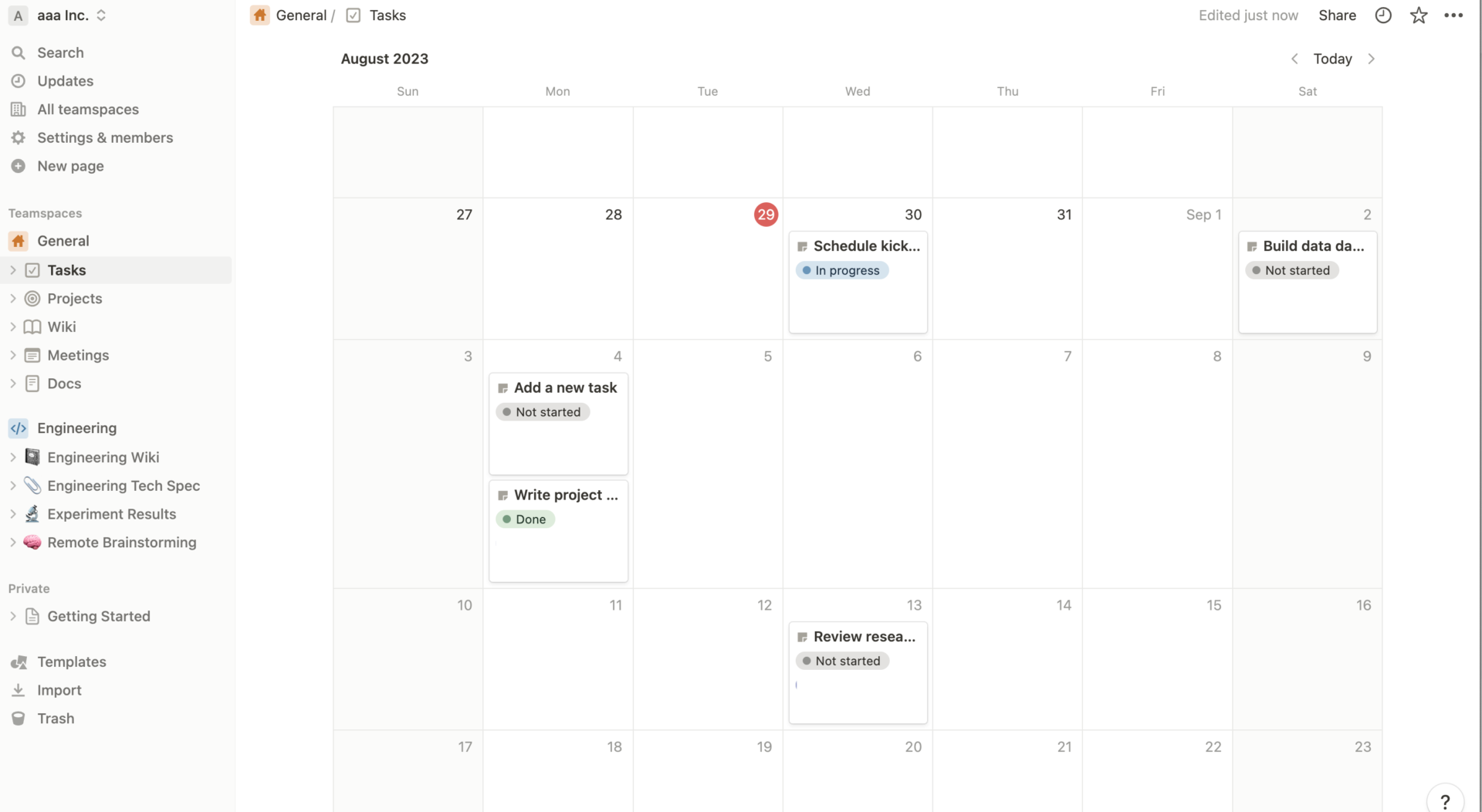
If the information on Notion is changed to a calendar view, it will be displayed as shown above.
By setting a due date, an appointment will be added to the calendar. The design is also simple, allowing you to create appointments intuitively from calendar dates.
(5) List
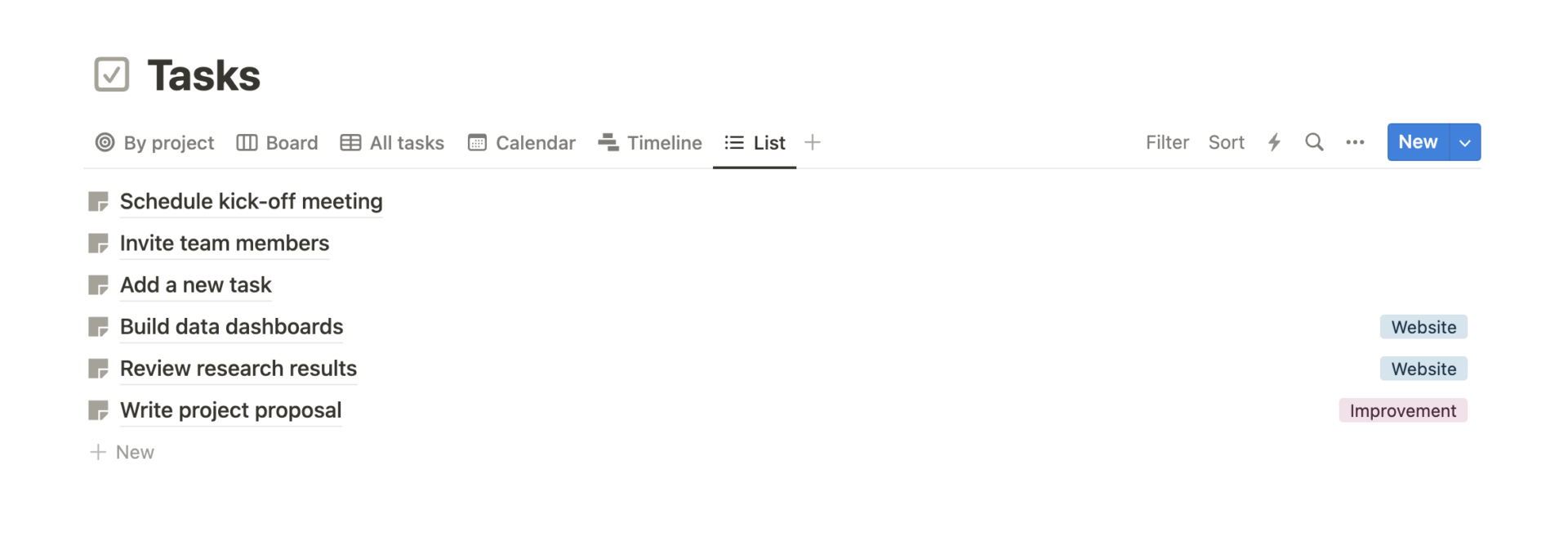
If you change the information on Notion to List View, it will be displayed as shown above.
The list view displays only the minimum necessary information, which is useful if you want to keep the information simple. You can click on each list to see detailed information.
(6) Gallery
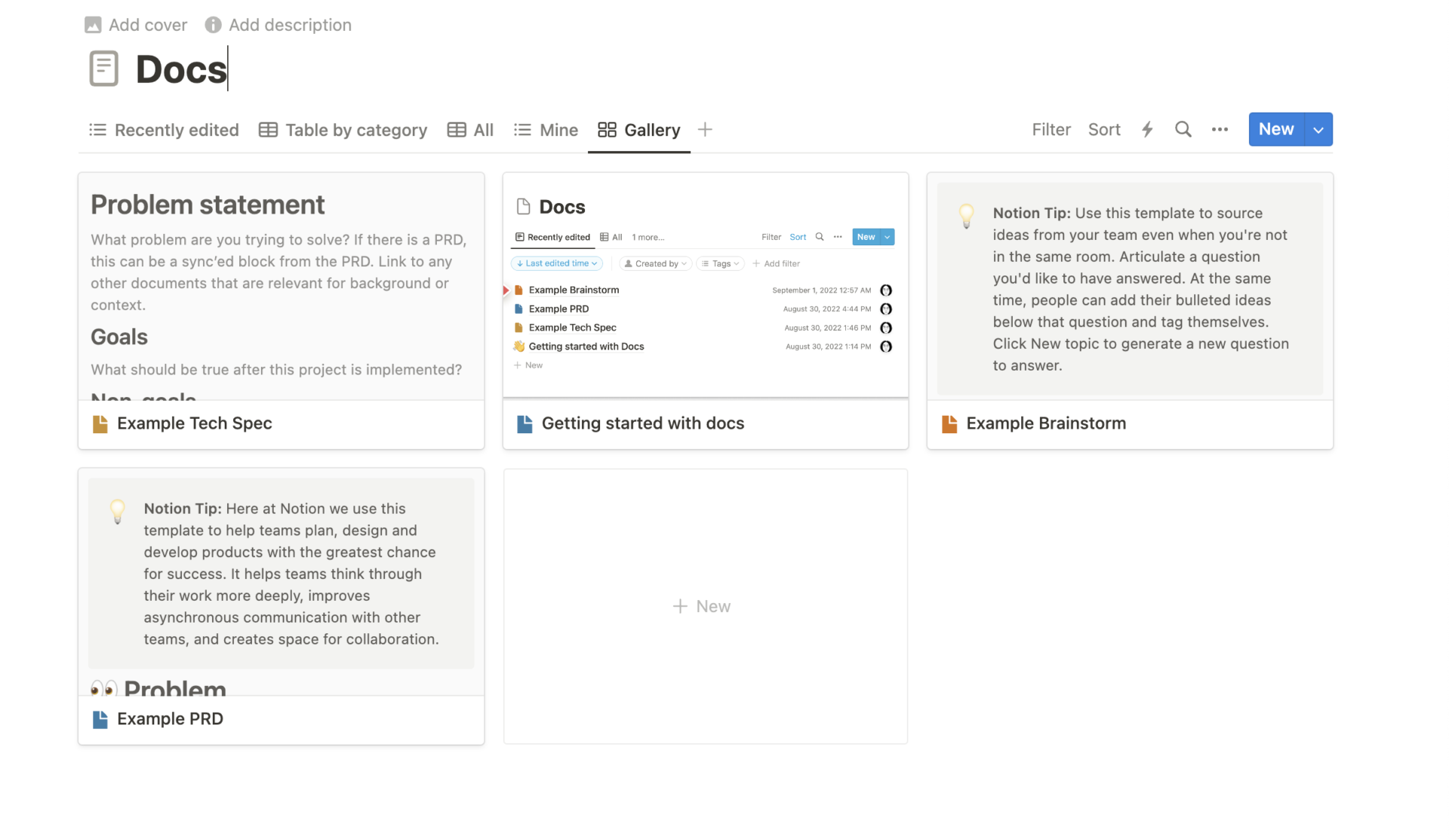
If you change the information on Notion to Gallery View, it will be displayed as shown above.
The gallery view can highlight image files, making it easier to organize information visually and clearly. If you wish to add a new page, simply click [+ New] and enter the required information.
(7) Templates
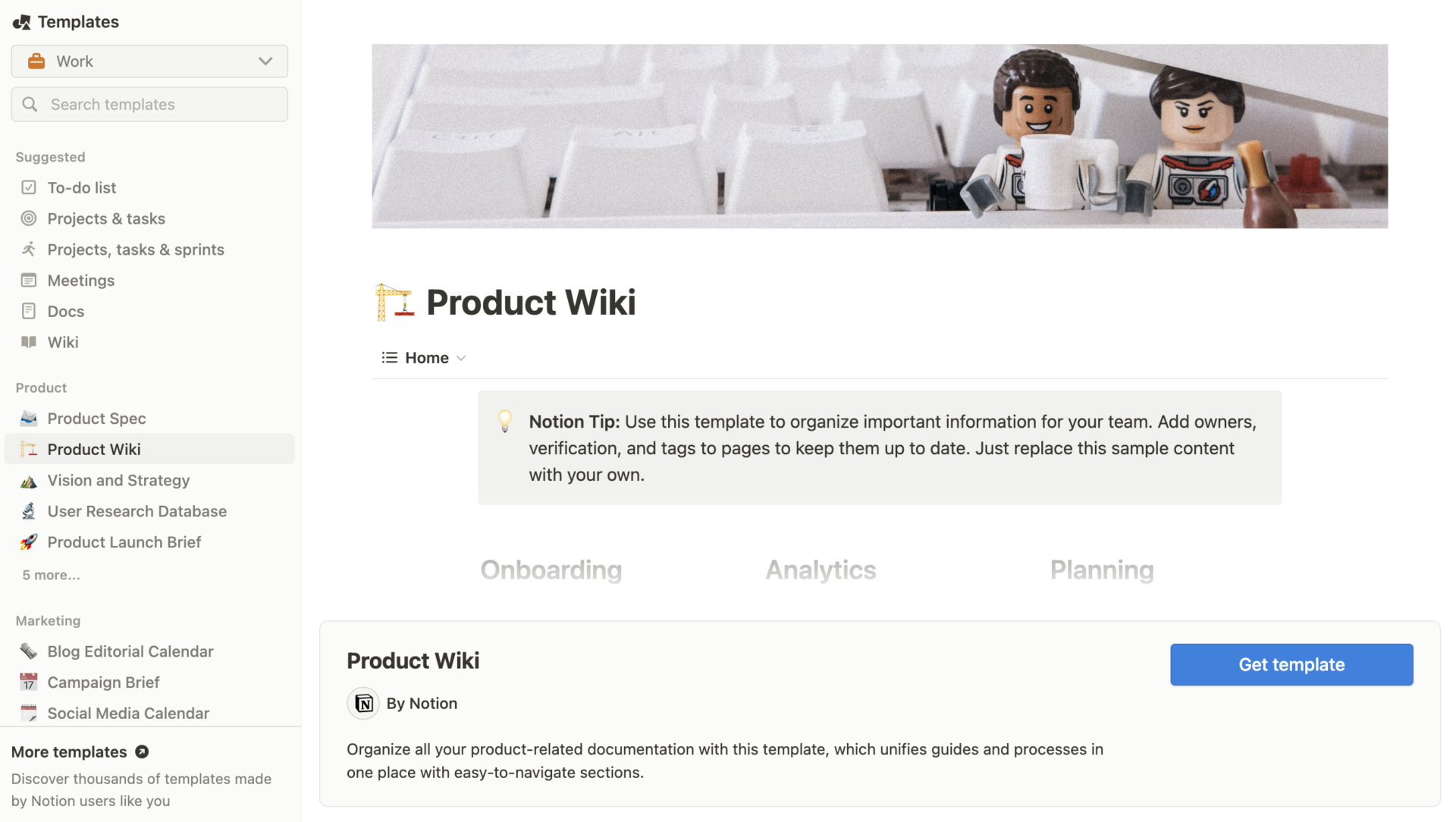
Templates are registered in Notion.
Using a template solves the need to create a page from scratch, solving a lot of tedious work at once. For example, there are templates for different types of jobs, such as design, engineering, and marketing.
(8) Slash command
In Notion, the slash (/) command can be utilized to instantly specify the type of block. Below is a list of the most typical slash commands in Notion.
| Slash Command | Effect |
|---|---|
/text | Allows you to create a block for a new text. |
/page | Can create a new page. |
/bullet | Create bullets. |
/todo | Able to create a to-do list. |
/h1(/#) | Create large headings |
/h2(/##) | Able to create medium-sized headings |
/h3(/###) | Allows you to create small headings |
/link | Can create links to other pages |
/emoji | Displays a screen for selecting pictograms |
/imag | Upload and embed images. |
Reference(including the following): Keyboard shortcuts
The above slash commands can be utilized to speed up your work. however, that they may be difficult to use for those who are not familiar with IT.
(9) Import

The import function allows Notion to combine information managed by external tools.
Asana, Evernote, Trello, and Word are examples of external tools that can be imported. This is useful if information of your company is scattered all over the place by centralizing information.
(10) External sharing

Pages created in Notion can be shared not only with employees, but also with external parties.
Notion allows you to create “public links” that make your pages available on the Internet. Anyone with knowledge of the public link can access the page, and depending on the settings, edit, comment, and duplicate the page.
However, be sure to check the permission settings before sharing, as a wrong setting could lead to an accidental leak of information.
Summary of how to use Notion, functions, and reviews
We have provided a comprehensive overview of functions, usage, and reviews of Notion.
Notion has a wide variety of functions such as document creation, calendar, and task management, so it can be used for a wide range of purposes. On the other hand, many reviewers say that it is difficult to use due to its many functions and laggy, so it is dangerous to select Notion solely because it “looks convenient”.
In particular, non-IT companies may not be able to operate Notion properly due to its complex functions, which may in turn slow down the management and sharing of information. Therefore, the best alternative to Notion is “a tool that is easy for anyone to use, with no excess or deficiency of functions necessary for your company”.
In conclusion, to solve problems of Notion, the only choice is “Stock,” which is so simple that even a employee of a non-IT company can use it on the same day.
Free registration takes only 1 minute, using Stock to centralize your information and accelerate your business more easily than Notion.
