
Today, with the digitization of business operations, more and more companies are adopting notebook apps to manage and share information more efficiently. “Evernote” is one of the most popular notebook app and can be used for a wide variety of purposes.
On the other hand, people who have no experience using notebook apps not sure if Evernote can be used properly in their company.
In this article, we will provide a comprehensive introduction to Evernote for beginners, including its functions, usage, reviews, and reputation for below people.
- “I want to get a concrete image of Evernote operation.”
- “I am introducing a notebook app for the first time, so I am not sure if Evernote is the right choice for me”.
- “I want to consider a wide range of apps other than Evernote to solve our company problems.”
If you are a beginner, this article will not only clarify the image of Evernote operation, but also help you understand the best information management method for your company.
Contents
- 1 What is Evernote?
- 2 Evernote pricing plans
- 3 7 main functions and usage of Evernote for beginners
- 4 3 main functions and uses of Evernote for advanced users
- 5 2 Disadvantages of Evernote
- 6 Evernote Reviews and Ratings
- 7 Best app to solve disadvantages of Evernote
- 8 How to use Evernote and summary of its reviews
What is Evernote?
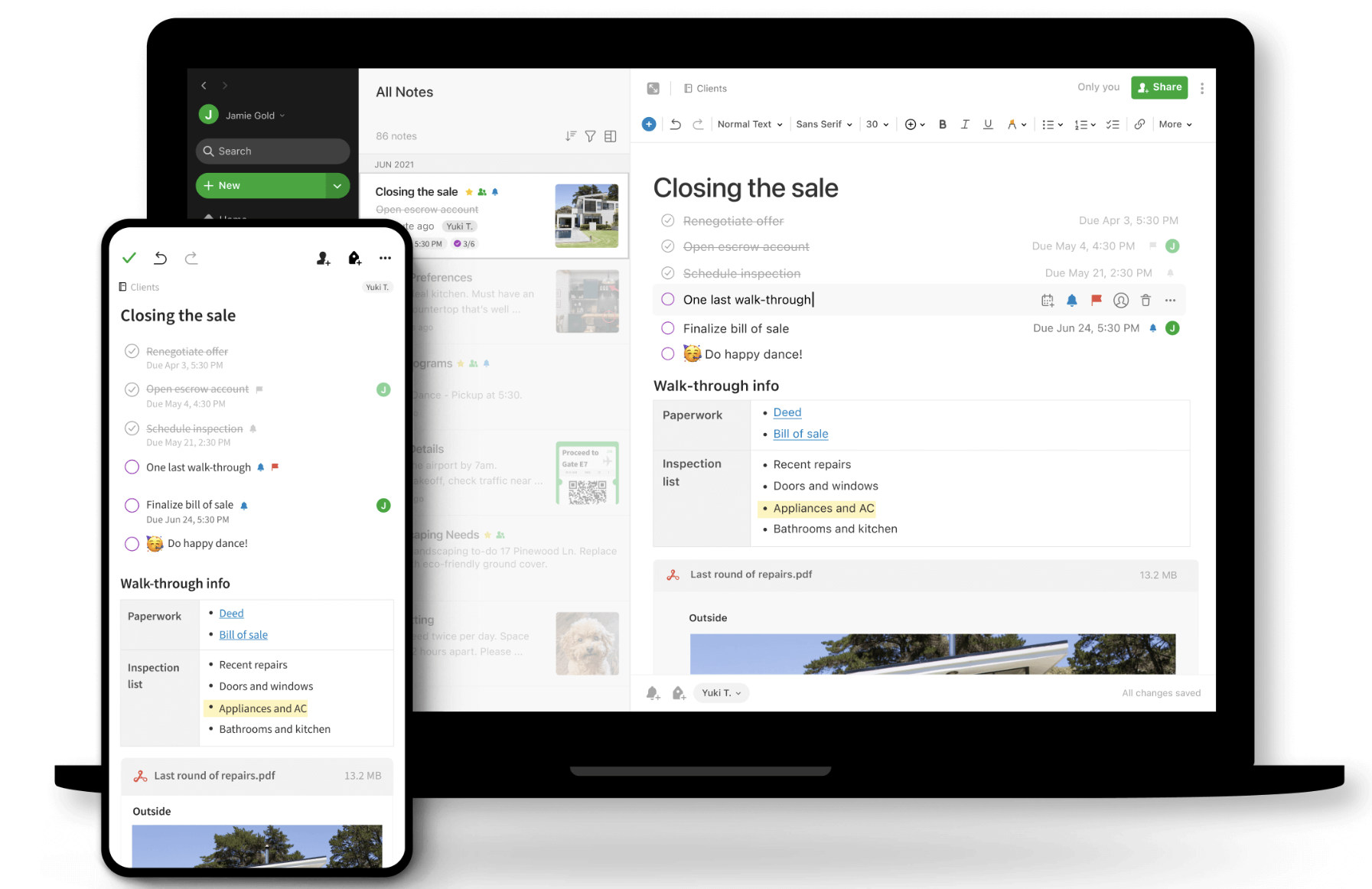
Reference (including the following): Official website of Evernote
Evernote is a note-taking app that allows you to write all kinds of information.
Evernote can store not only text, but also images, videos, and PDF files. In addition, the notes you create can be categorized by folders, so there is no need to worry about information being dispersed.
Furthermore, Evernote is multi-device compatible, so you can use it not only with a web browser, but also with iPhone and Android apps.
Evernote pricing plans
Evernote offers 4 pricing plans. Below is a comparison table of monthly fees and features for each plan.
Note: The fees for “Personal Plan (PERSONAL, PROFESSIONAL)” of Evernote have increased as of May 1, 2023.
| Plan Name | Details (partial excerpt) | Revised fees from May 2023 |
|---|---|---|
| Evernote FREE | Free of charge ・Number of devices that can be synced: Up to 2 devices ・Monthly upload capacity: 60MB ・Maximum note size: 25MB | Free of charge (Fees will remain unchanged) |
| Evernote PERSONAL | $7.99/month ・All features of FREE ・Number of devices that can be synced: unlimited ・Monthly upload capacity: 10GB ・Maximum note size: 200MB | $14.99/month (87% price increase) |
| Evernote PROFESSIONAL | ・$9.99/month ・All features of PERSONAL ・Number of devices that can be synced: Unlimited ・Monthly upload capacity: 20GB | ・$17.99/month ・(80% price increase) |
| Evernote TEAMS | ・(Details unknown) ・All PROFESSIONAL features ・Monthly upload capacity: 10GB + 2GB/user ・Success Manager support for accounts with 25 or more seats | ・$24.99/user/month |
Reference: Which Evernote is right for me?
Of the above, choose from FREE, PERSONAL, and PROFESSIONAL for personal use, or Evernote TEAMS for team use. Free trial period of Evernote is “14 days” and you will not be charged within the trial period.
7 main functions and usage of Evernote for beginners
Below are 7 basic functions and usages of Evernote for beginners who want to get a concrete image of Evernote operation.
(1) Notebook function
First of all, Evernote has a note function to leave information.
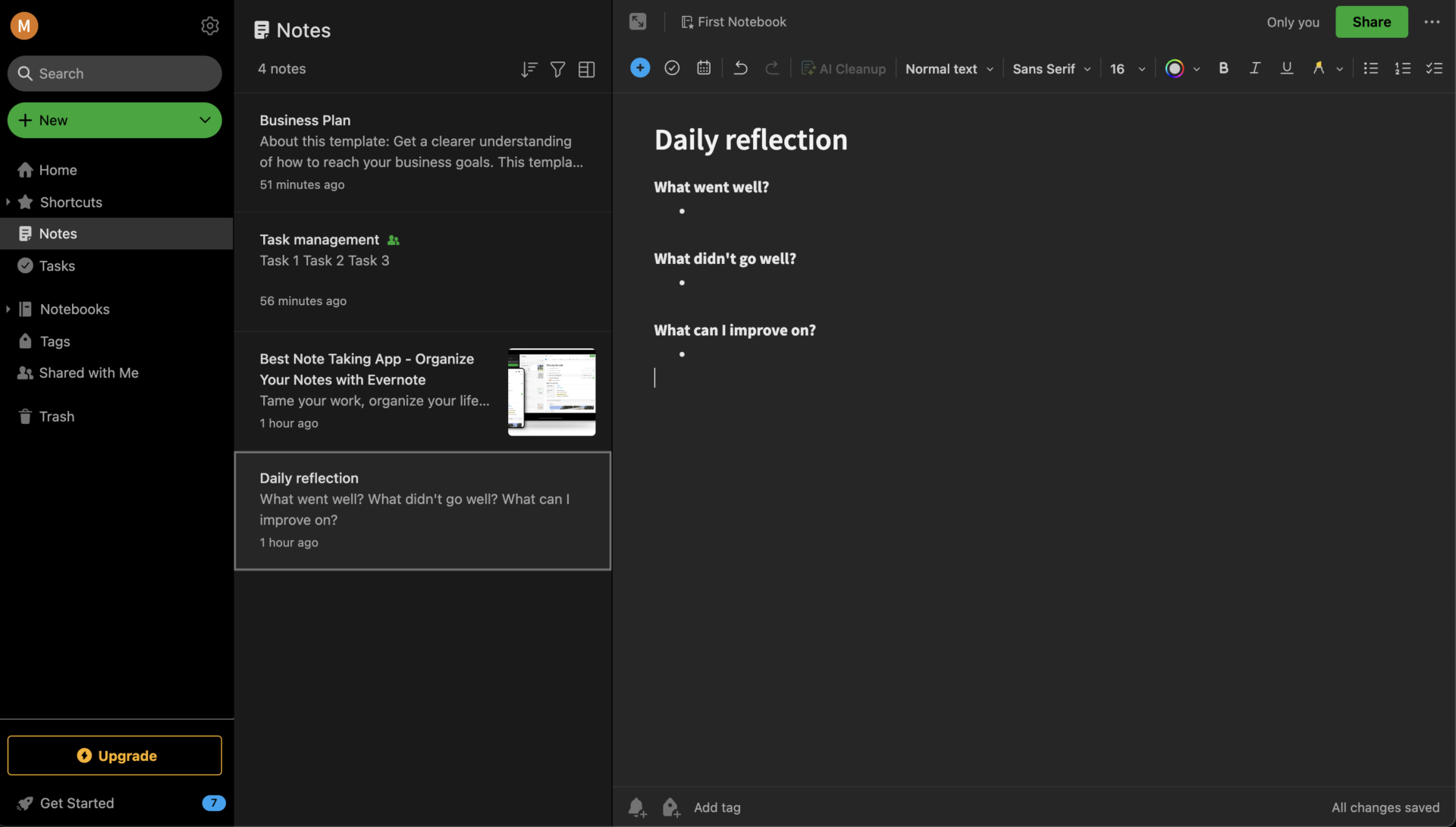
The key point of notebook of Evernote is that it can summarize not only text, but also multiple pieces of information such as images and audio. You can also organize tasks with checklists, and the handwriting feature helps you preserve images that are difficult to express in words.
(2) Web Clipper function
Next, there is the Web Clipper on Evernote, which allows you to save content you find interesting on the Web in your notebook.
The Web Clipper allows discussion in comments through saved Web content. On the other hand, note that the Web Clipper is an extension that can be used from the browser, so it cannot be used without setting.
Below are the specific settings for Web Clipper. First, click [Install Web Clipper] shown on the Evernote Web Clipper explanation page.

Next, confirm the contents and click [Add to Chrome] to use it.
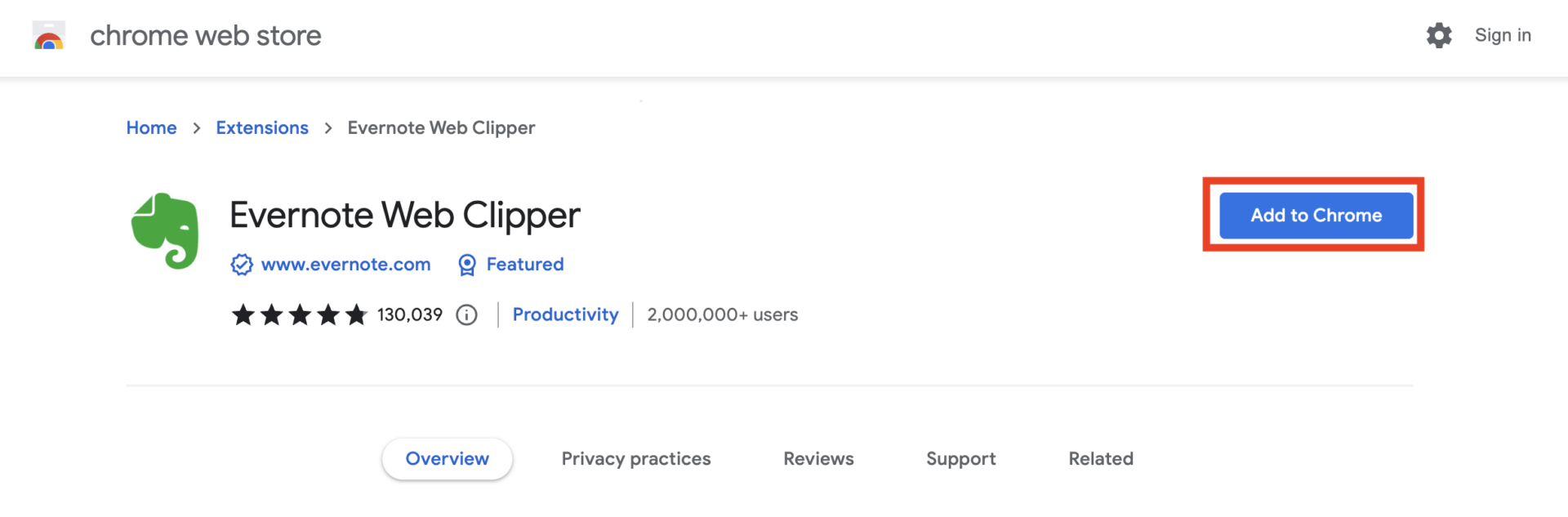
Once the Web Clipper is added, you can also clip articles of interest on the Web from the menu bar.
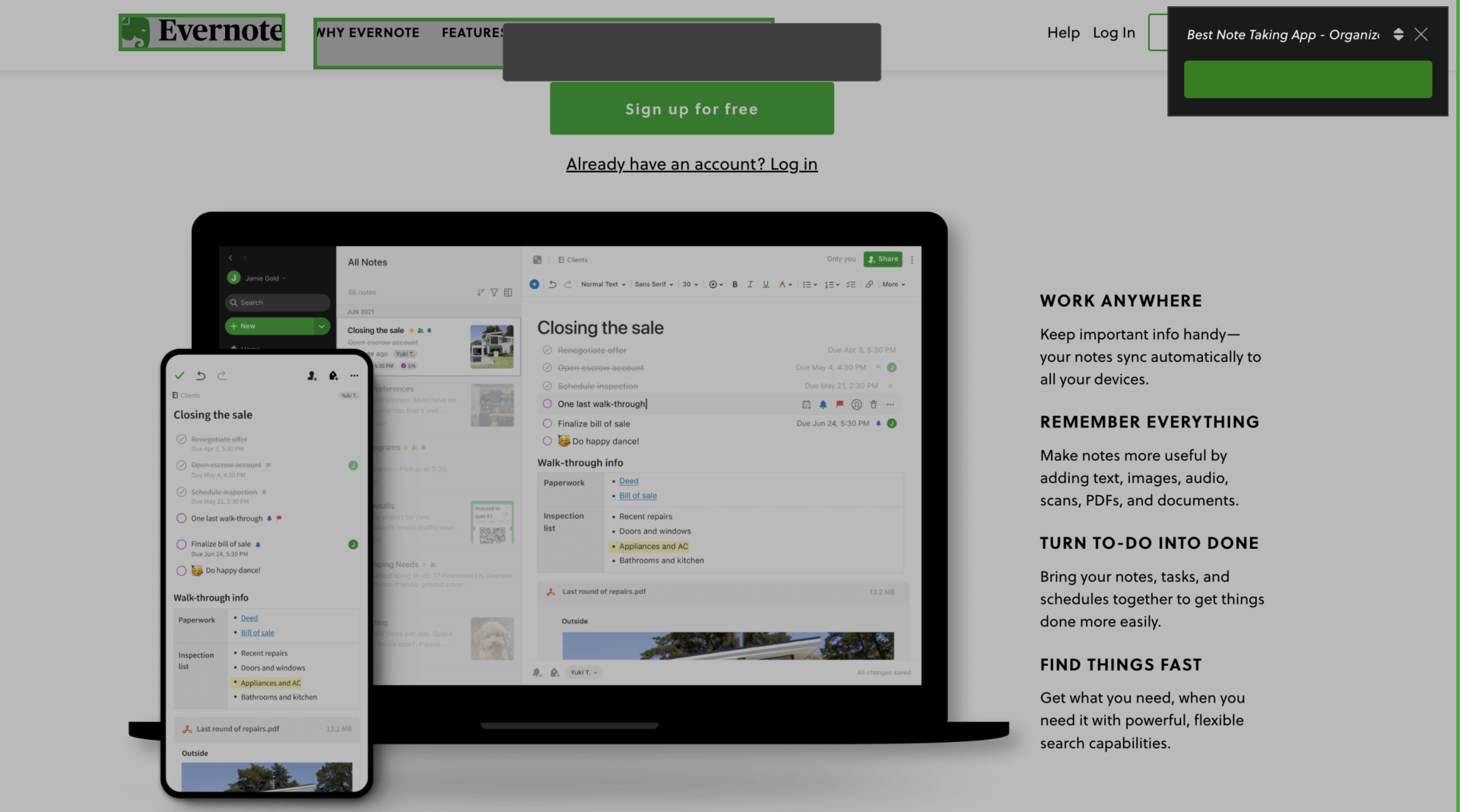
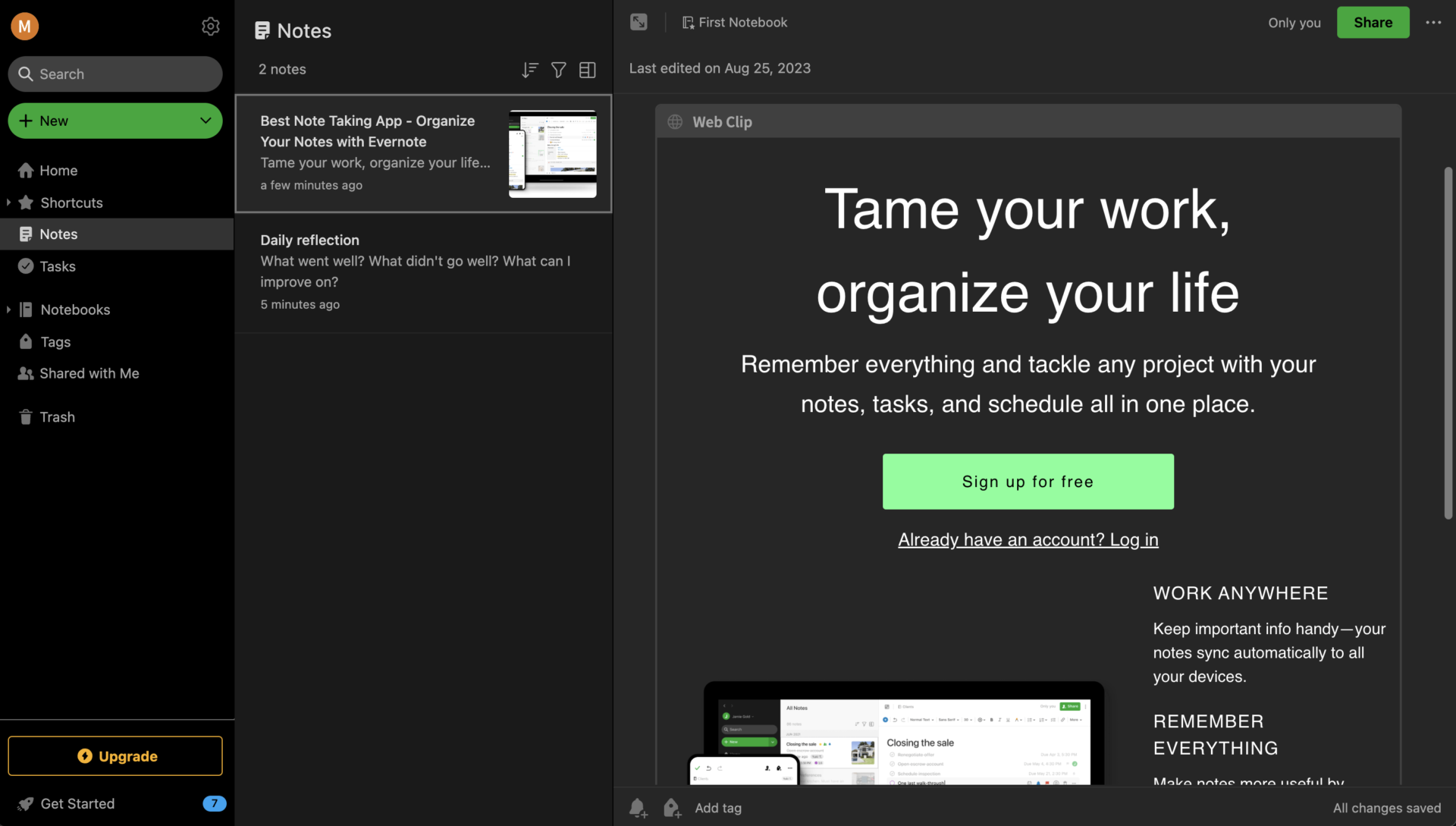
For example, you can use the Web Clipper to clip the official Evernote website and save only the content that you need to Evernote as follows.
(3) Integration with external apps
Evernote can be integrated with Gmail, Slack, and Google Drive.
This integration solves the burden to go through the trouble of crossing apps to access information in external apps.
For example, you can link your appointments to your notes by linking them to Google Calendar. Also, when linked to Slack, it is convenient to search notes directly from Slack or save Slack conversations in a notebook of Evernote.
Other examples include the following linkage with Stock, which allows you to import notes saved in Evernote for simpler and easier-to-understand information management.
How to link Evernote and Stock
After logging into Stock, click on [Settings] > [Personal Settings] > [Evernote import] > [Sign in to Evernote].
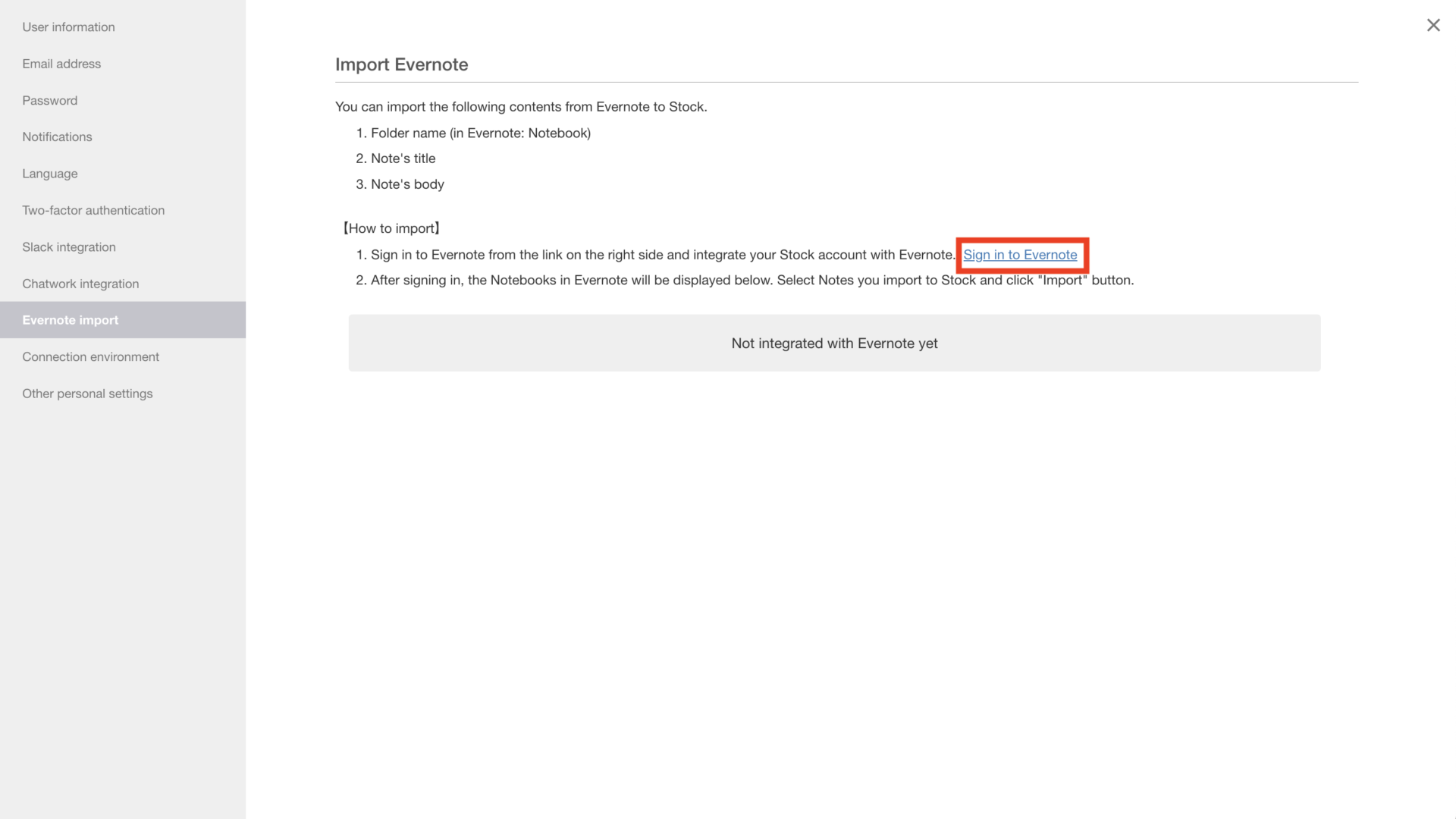
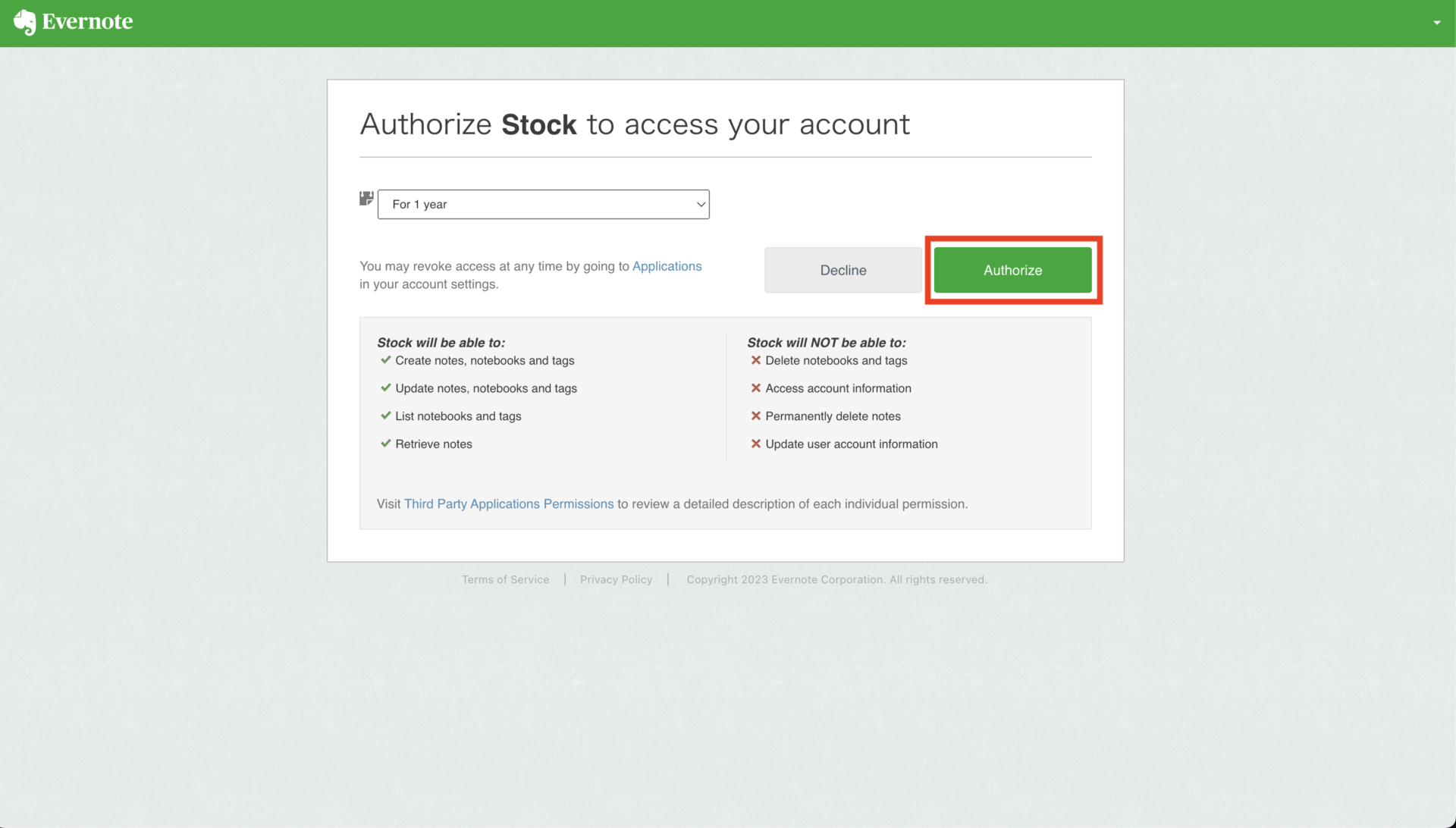
Once you are on the Evernote management screen as described above, simply click [Authorize] to manage your Evernote notes in an easy-to-read manner. In addition, Stock has “Message” and “Task” associated with the “Note”, making it ideal for business use.
(4) Search function
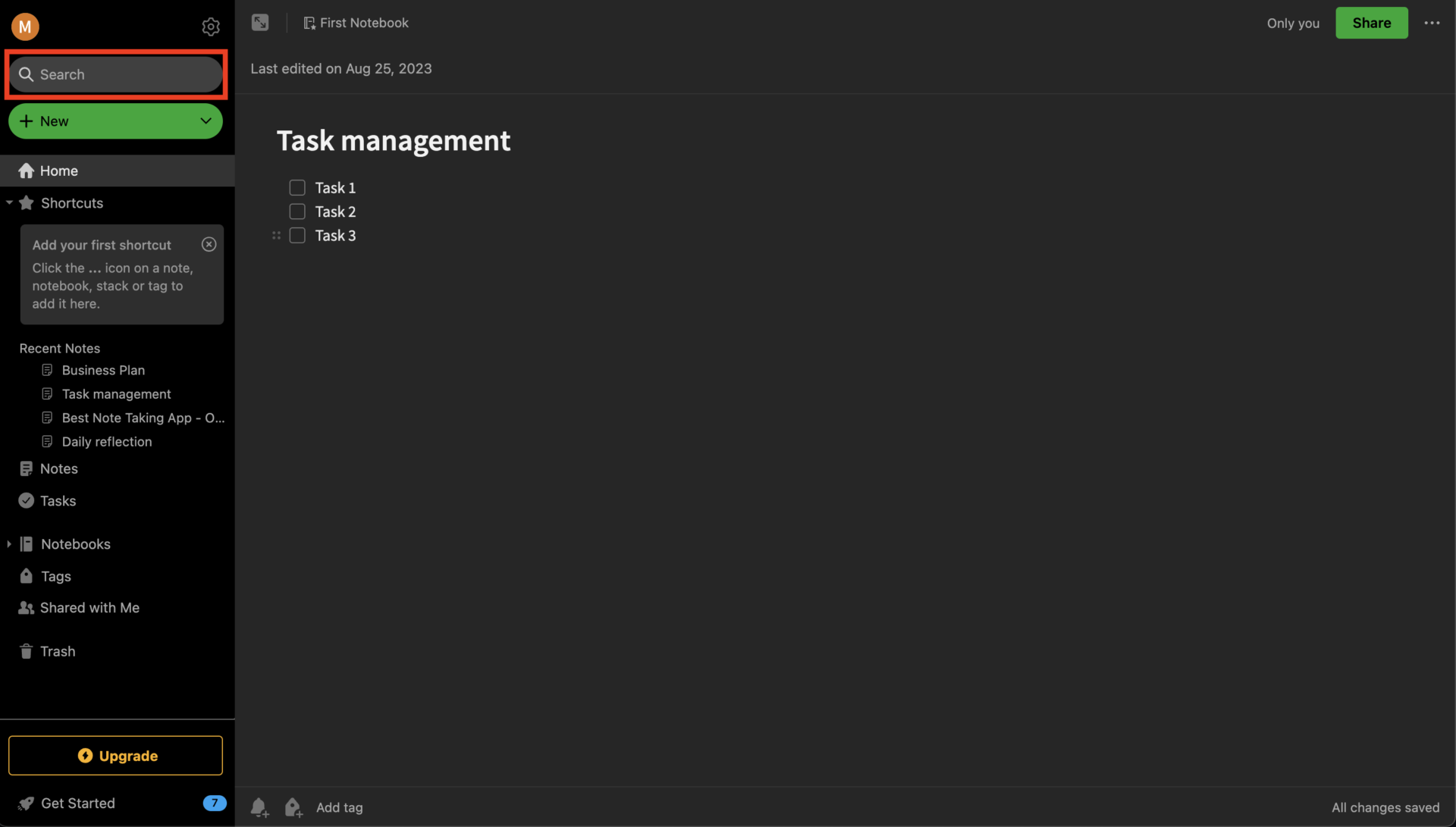
Next, Evernote’s search function makes it easy to access the information you need. It is convenient to search not only by keywords, but also by tags set in the notebook..
As shown in the image below, you can use the “searching box” on the upper left corner of home screen.
(5) Sharing function
Evernote also has a function to share notes to any user.
To share notes, go to [Share] as shown in the figure below. You can also set different ways to invite users one by one, or make it accessible to anyone who knows the link.
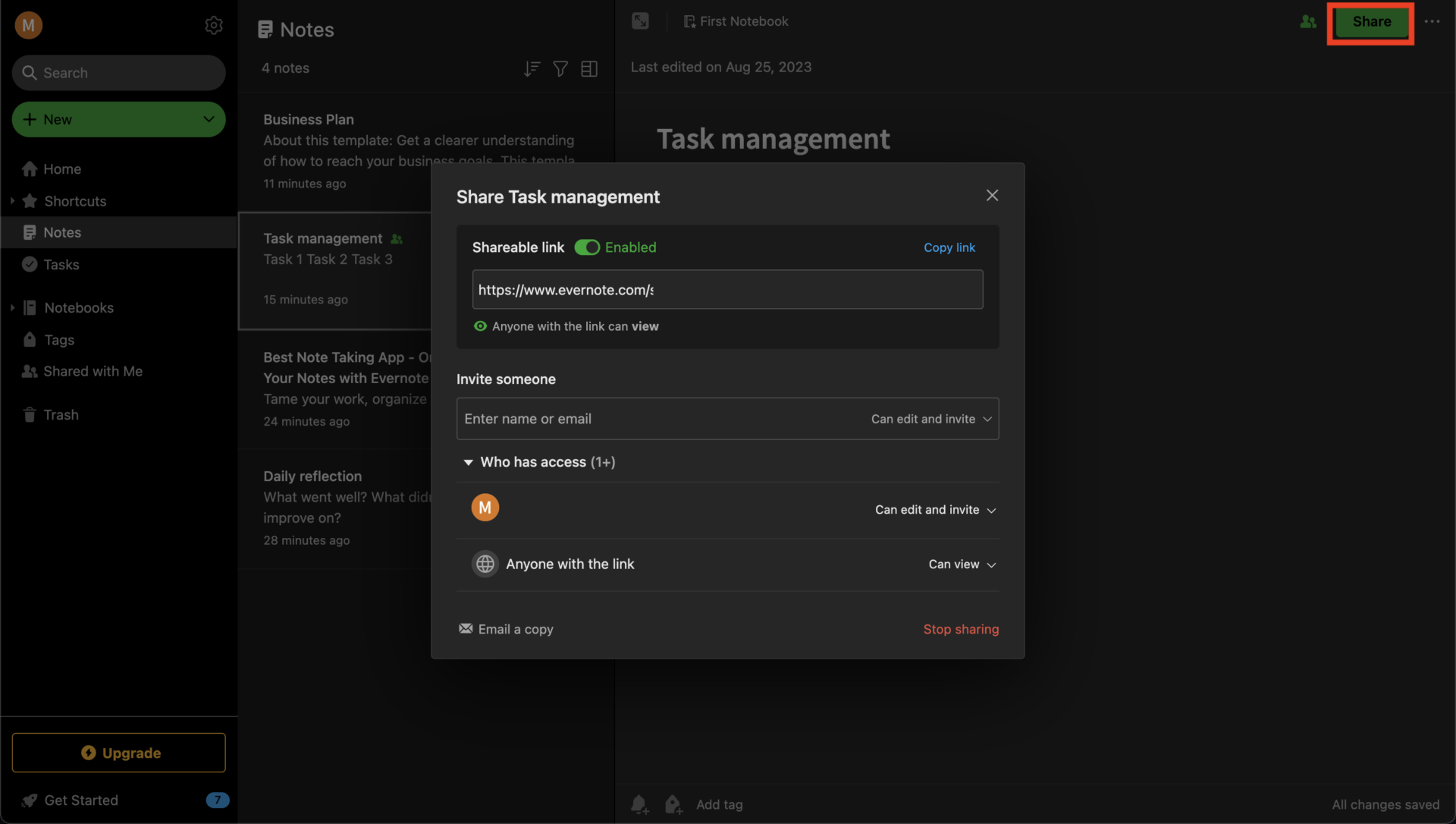
You can share a note on Evernote by sending a link as shown in the figure above. However, public links have the risk of being viewed from the outside, so you need to be very careful in managing them.
(6) Work Chat Function(Retiring on October 2023)
Evernote’s work chat function allows you to chat with users who meet the following criteria.
- Evernote contacts with whom you have chatted in the past
- Members with an Evernote Teams account
- Contacts stored on your PC, smartphone or tablet
- Contacts in Gmail or Outlook (Outlook is Windows only)
However, Evernote will retire this function on October 2023. You have to use other app like Stock to communicate with other members.
(7) Creating lists
Finally, Evernote allows you to keep a list of all your work to-dos and information, which is useful for task management.
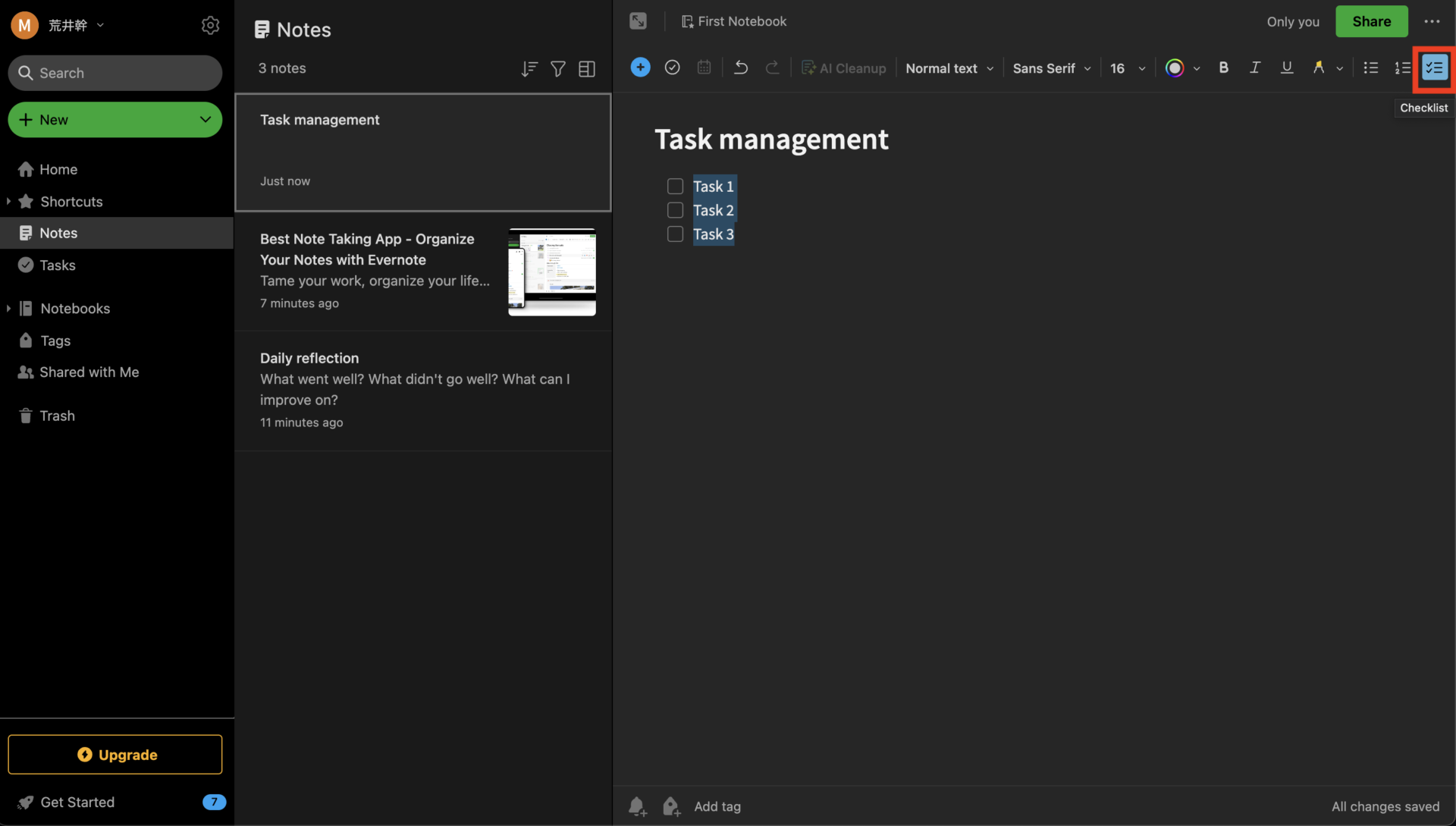
Specifically, it has a standard “checklist” as shown in the figure below, and you can create a list by simply selecting and inserting text.
In addition, you can “narrow down the checklist” by searching with the following command.
- Search for notes with unchecked items: Enter [todo:false]
- Search for notes with checked items: enter [todo:true]
- Search all notes with checked items: enter [todo:*]
Once you have mastered the above usage, you will be able to manage your information without omissions.
3 main functions and uses of Evernote for advanced users
Here we will introduce 3 more advanced features and usages of Evernote, which are a must for business users since paid plans offer more useful features.
(1) Using Templates
First of all, Evernote offers templates to reduce the burden of note creation.
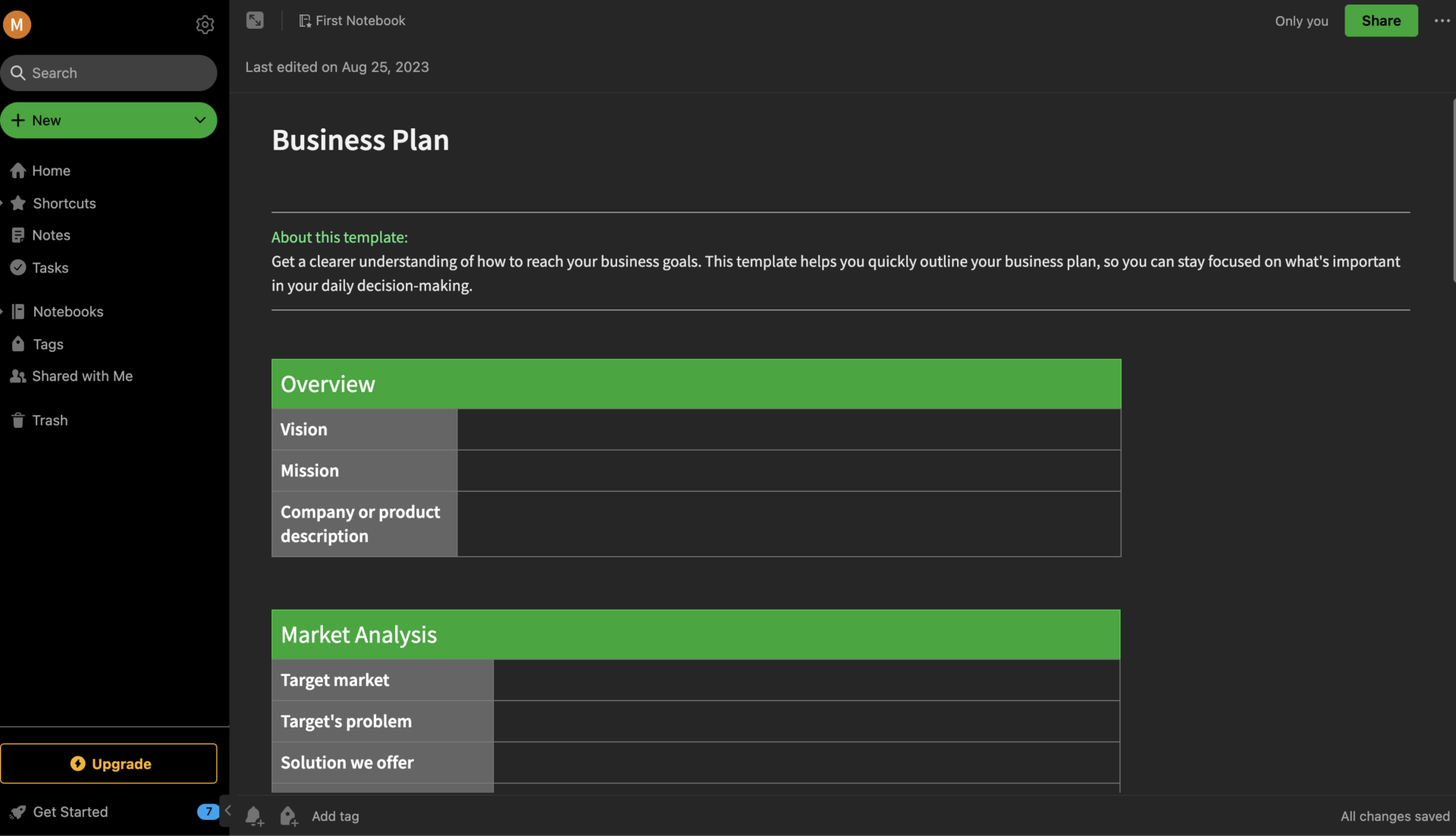
For example, for documents that are created regularly, such as minutes, it is convenient to use the templates on the official Evernote website shown in the figure below, as it saves you the trouble of entering items one by one.
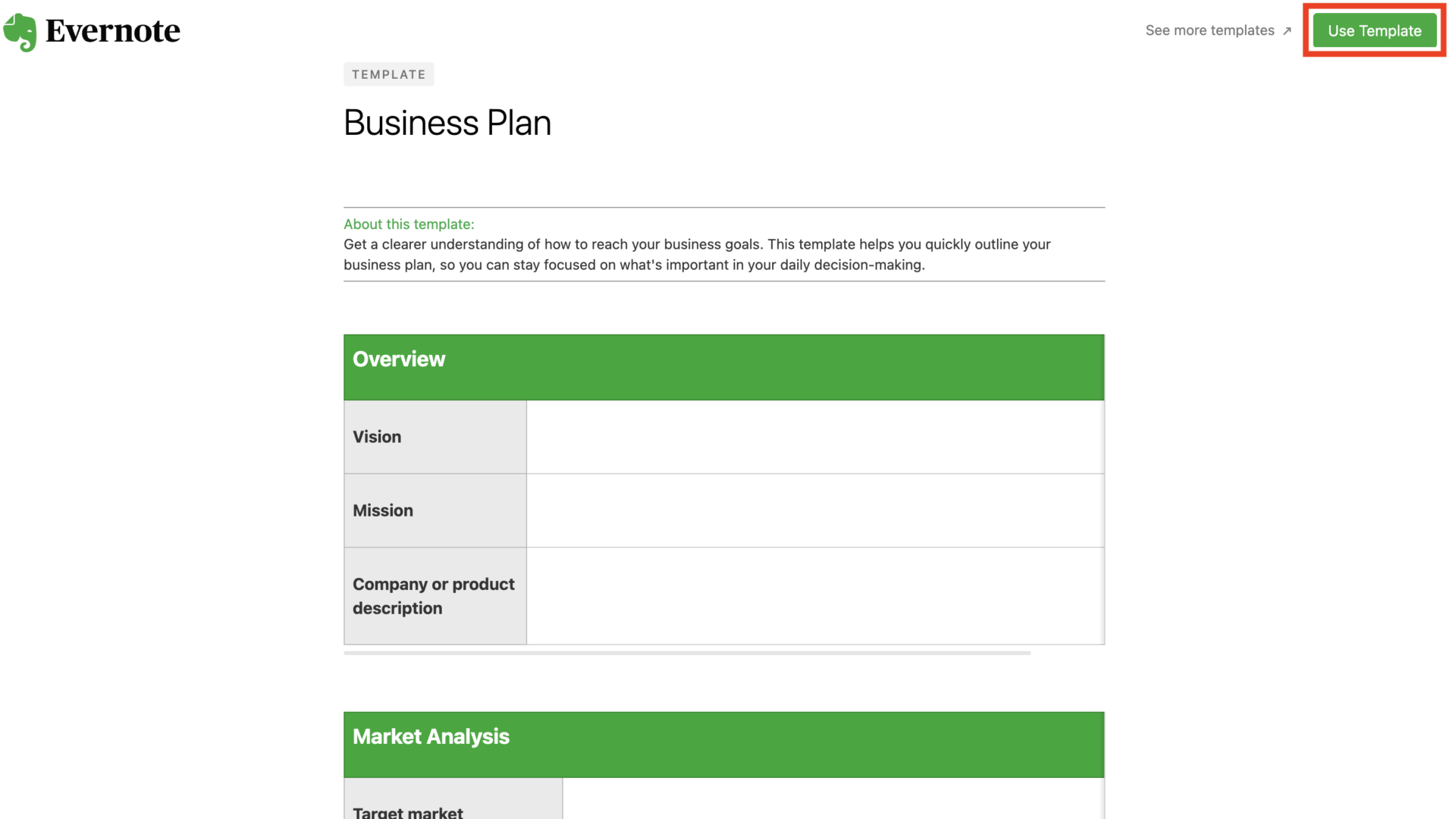
By clicking [Use Template], the template will be automatically reflected in the new note as shown in the figure below.
If you are a PERSONAL or higher paid plan user, you can use “Custom Template” which allows you to create original template.
(2) Managing business card information
Next, if you have a paid Evernote plan, you can scan business cards from the smartphone app and store them as is.
By tagging business card information, you can use the search function to quickly access the business card you need. Business cards that have been converted to data using a scanner can also be imported.
Furthermore, if you manage business cards by linking them to meeting materials, the information will not be scattered, making your work easier.
(3) Save important emails
You can also use Evernote in conjunction with Gmail or Outlook to save important emails.
If it is on Evernote, you can leave it as a note, so you don’t have to worry about important emails getting buried. Specifically, received emails are saved as a new note in Evernote, and the subject line of the email can be reflected in the title of the note.
This service is available on the FREE plan, but the maximum number of emails is limited to 5.
(4) Writing to images and PDFs
Although only available with paid plans, you can write comments and graphics directly on images and PDFs.
This is useful when you want to convey subtle nuances that are difficult to convey in text, as you can leave annotations on images and PDFs left in Evernote in an easy-to-understand visual manner.
This is especially useful when multiple people want to edit an image attached to a note at the same time.
2 Disadvantages of Evernote
Here are two disadvantages of Evernote: Evernote is useful for managing information, but be aware that it is not easy to use, as follows.
(1) Free plan has a limit on the number of devices
First, one of the disadvantages of Evernote is that the free plan limits the number of devices you can sync to two.
Since all plans except the TEAMS plan are “for individuals,” if you want to access your notes from multiple devices or use it with a large team, you will need to sign up for a paid plan.
Other than that, the FREE plan has restrictions on many features, so you must choose a plan based on your objectives and the size of your team.
(2) Difficult to master
The second disadvantage of Evernote is that it is difficult to master.
While Evernote can be used for all kinds of purposes, its multiple functions can be difficult to master if you and your team members are not an IT expert. As a result, the number of unused functions may increase, resulting in poor cost-effectiveness.
However, by using a simple notebook-type information sharing app such as Stock, which is not excess or insufficient functions, anyone can manage information without burden.
Evernote Reviews and Ratings
Below are the “good reviews” and “bad reviews” of Evernote. Since these are the voices of users who actually use Evernote, you can get a clear of its operation.
*All reviews and opinions below are taken from G2>Evernote.
Good reviews and reputation for Evernote
Evernote has the following good reviews. Many users cite “centralized management of all information”.
Vandana K. (Posted on 7/5/2023)It keeps me organised and best thing is it has easy data entry through typing as well as recording of voice notes. Data can be stored, easily accessed and edited.searching documents is very accurate and fast.
Joey W. (Posted on 7/22/2023)I can quickly add notes, photos or audio recordings and organise them using tags to ensure my workflow is efficient. When I need to recall something important, searching through my archive of material is also very helpful.
Josh N. (Posted on 7/11/2023)I like using Evernote because of its organisational features and custom reminders. It helps me stay organised and on top of my various work projects, tasks, notes, ideas – you name it. I can also access my accounts from any electronic device or computer, making it easy to collaborate on any project life throws at me.
Zachary R. (Posted on 6/28/2023)I really like the way Evernote has combined the most useful features in one intuitive design. The handwriting option is incredibly useful for people who may be unfamiliar with certain foreign symbols and writing systems.
Prem K.(Posted on 8/17/2023)Evernote is a wonderful and cheapest app for note-making and task management. I can easily create any task and make a note in just a few simple steps with many templates. I can also do work through sketching.
Bad reviews and reputations for Evernote
The following are bad reviews of Evernote. The common point among many users is that it is difficult to access the notes and that it is slow.
Victor R. (Posted on 6/22/2023)Occasionally, Evernote can be slow and laggy, resulting in data loss or incorrectly saved documents. Furthermore, many find the subscription system cumbersome and expensive for such a service.
Alex S. (Posted on 1/6/2023)I dislike the limited options to import or export content from Evernote, as well as the slow explanation process and the lack of authentication features in case I forget my password.
gilsun y. (Posted on 1/25/2023)One downside is that it’s not easy to find a way to put other notebooks under the notebooks folder.
Aster C.(Posted on 2/21/2023)I dislike we need to pay for some essential features on Evernote, for example, reminders and, due dates, notifications. Also, we cannot sync devices, so I could only use one device, which is inconvenient.
Indrajeet D. (Posted on 1/7/2022)– I’m just tired of the frequent updates for the Windows app. It doesn’t hinder the functionality, but give me a break! It’s insane that the app comes with a new update almost every alternate day!– The app is sort of slow on Windows.– I use the free tier and it restricts the device log in for a maximum of two devices. It’s not a con really as it’s more of a pricing decision but anyone considering to use Evernote should be aware of it.
Best app to solve disadvantages of Evernote
Below are app to solve the disadvantages of Evernote easily.
Many people say that Evernote is so multifunctional that it is difficult to access notebooks unless you are an IT expert, and this can lead to a situation where no one uses it even though they pay a fee. For business use, choose “a simple notebook app that does not have too many or too few necessary functions”.
In particular, from the viewpoint of information sharing, a “message function” that can manage not only stock information such as documents and manuals, but also flow information like chatting is essential. Also, if you have a “task management function”, there is no need to worry about missing work that needs to be done.
Therefore, Stock, which has “Note”, “Message”, “Task” and can be used immediately even those in non-IT companies, is the best solution to solve disadvantages of Evernote.
Information left in “Note” of Stock can be shared in real time, and “Message” and “Task” tied to the Notes allow topics to be exchanged without mixing up. In particular, many users are moving from Evernote that is “slow and laggy” and “burden caused by its many functions” to Stock.

The simplest tool to stock information "Stock"
https://www.stock-app.info/en/
Stock is the simplest tool to stock information. Stock solves the problem, "there is no easy way to stock information within the company".
With Stock, anyone can easily store all kinds of information, including text information such as requirements, images, and files, using the Note feature.
In addition, by using the "Task" and "Message" functions, you can communicate with each topic described in the Note, so that information is not dispersed here and there and work can always be carried out in an organized manner.
<Why do we recommend Stock?>
- A tool for companies that are not familiar with ITYou don't need to have any IT expertise to get started.
- Simple and usable by anyoneStock is so simple that anyone can use it without any unnecessary features.
- Amazingly easy information storing and task managementIt is amazingly easy to store information such as shared information within a company, and intuitive task management is also possible.
<Stock's pricing>

- Free plan :Free
- Business plan :$5 / User / Month
- Enterprise plan :$10 / User / Month
*Minimum number of users: 5 users
How to import Evernote data into Stock
Stock implements the “Import from Evernote” function, so you can import any data created in Evernote into Stock. The specific procedure is as follows
1.click [Settings] > [Personal settings] in the upper right corner of the screen.
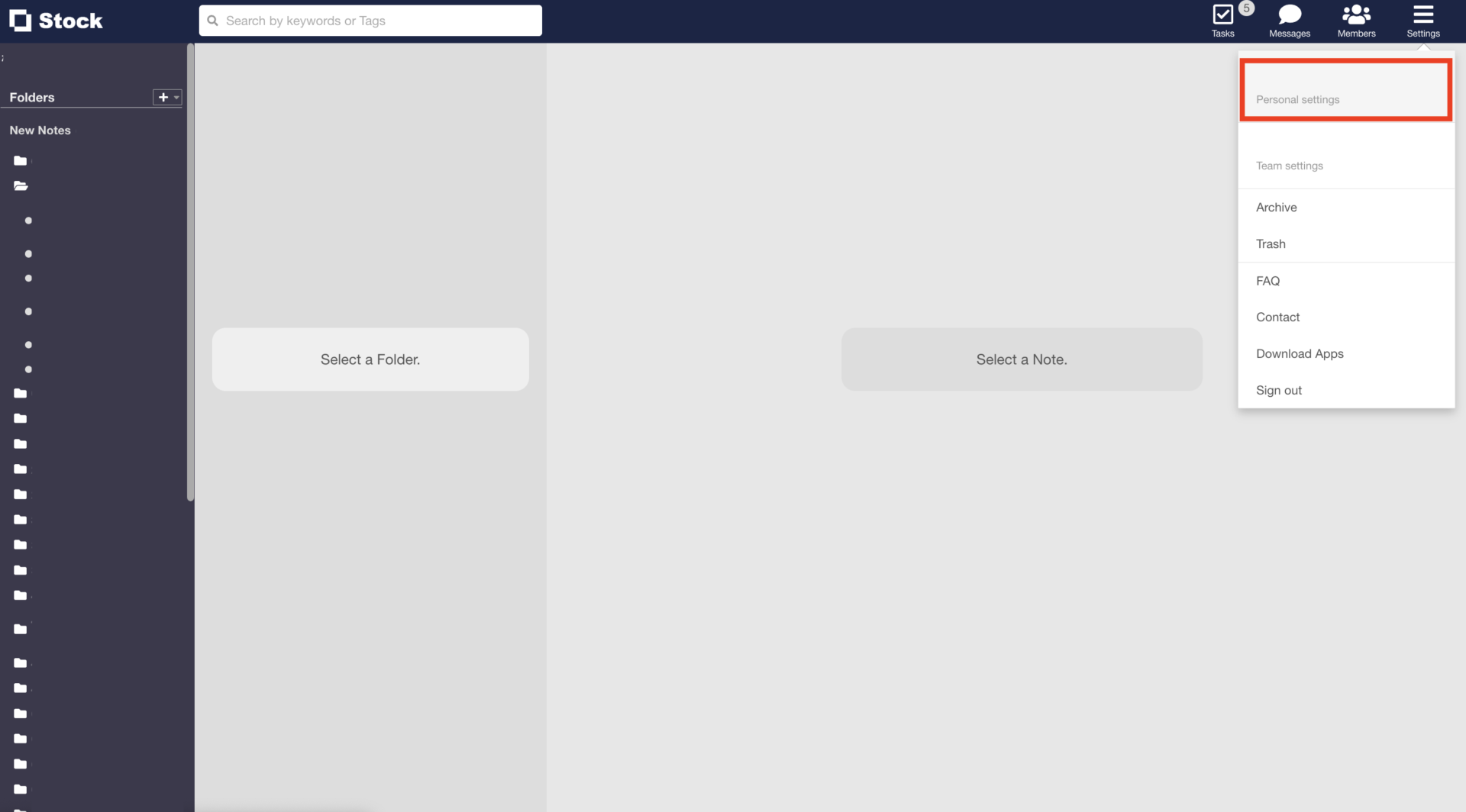
2. Select [Evernote import] from the left menu and click [Sign in to Evernote].
3. If you are not logged in to Evernote, you will be redirected to the login screen, and click [Authorize]
4. When the list of Evernote notebooks is displayed, select the notebook you wish to import into Stock. Be careful that notebooks other than the notebooks created by the collaborator will not be imported.
5. Click the [Import] button.
After that, the installation is complete when you receive a notification e-mail.
On the other hand, if the import exceeds the limit of the usage plan, it will fail. In that case, you will receive a notification e-mail, so follow the instructions in the e-mail to perform the import again.
3 points to note when importing
When importing Evernote data to Stock, It is careful about the following 3 points.
- The Evernote integration function is only available in the browser version of your computer (e.g. Google Chrome).
- Evernote-specific features such as fonts and text size may not import correctly into Stock.
- If you have a large number of notes, images, or files, it may take some time to import them.
While keeping the above in mind, it is also effective to use the import function to separate Evernote and Stock by type of information. For example, Stock has a “Message” that is not available in Evernote, allowing smooth information sharing.
How to use Evernote and summary of its reviews
We have focused on Overview of Evernote, Functions, usage, and alternative app.
Free plan of Evernote is limited to a certain number of users, if you want to use Evernote for business, you need to subscribe to a paid plan. However, Evernote is a multifunctional notebook app that is difficult to master and may not spread within the company, so alternative apps should be considered.
When selecting an alternative app, it is necessary to determine whether “all members can use it” as well as “all information can be managed and shared”. Such a app will solve problems of Evernote while allowing you to look back at the information you need immediately.
Tthe Best notebook app that should be introduced is “Stock,” a simple information sharing app that allows you to easily leave information in “Note” and does not lack in necessary functions.
It only takes 1 minute to register for free, so accumulate notes and memos in Stock and manage information more efficiently than Evernote.
