
![Picture of [For Beginners] Summary of OneDrive Features and Usage](https://www.stock-app.info/en/media/wp-content/uploads/2023/10/ed-hardie-N3TVYJ6Wr1I-unsplash.jpg)
Online storage which stores files on the Internet is useful for managing files created at work. One of the most famous services is “OneDrive” released by Microsoft.
However, there are many people who are already using OneDrive but are not making good use of it aren’t they?
Therefore, in this article, we will focus on the features and usage of OneDrive for beginners. And this article is for below people.
- “I want to manage files created in Word and Excel efficiently.”
- “I don’t know how to use OneDrive well.”
- “I want to easily manage file information that increases day by day.”
This article will help you understand the features and usage of OneDrive and solve the problem of “I can’t handle it”.
Contents
What is OneDrive?
OneDrive is an “online storage service” provided by Microsoft that anyone with a Microsoft account can use.
OneDrive can store a variety of files such as Word, Excel, and PDF. Depending on the type of paid plan, security features such as protection of shared links and file recovery are available.
In addition, a mobile application has been released so that users can access the service from their smartphones regardless of their location.
Reference:OneDrive service page
Features of OneDrive
Below are the features of OneDrive. If you want to know how it differs from other services and from the operation of storing files on a PC, this is a must-see.
(1)Collaborative edit
OneDrive allows collaborative edit with your team.
For example, you cannot co-edit a PowerPoint file if you share it via email or chat. Therefore, if you want to update the file, you need to share it again.
However, if you save the file on OneDrive and then share it, you and another team members can collaboratively edit the file and update the information at the same time.
However, it is important to note that it is difficult to know “who updated where” and the edits may not be reflected immediately.
(2)Up to 5GB for free
OneDrive also features up to 5GB for free.
Specifically, some of the plans for home users are free and offer up to 5GB of space. However, the option to add capacity does not apply to the OneDrive Basic 5GB and OneDrive 100GB subscriptions.
Also note that the free version of OneDrive does not have some applications that are included in the paid version.
(3)You can back up
With OneDrive, you can also back up your data.
Files uploaded to OneDrive are stored in the cloud, so even if your PC breaks down, you can download them at OneDrive from your smartphone or other device.
Also, when a new PC is purchased within the company, there is no need to transfer data from old PC to the new PC.
However, if all data is backed up, the storage capacity will soon be reached. Therefore, it is important to determine whether or not data should be backed up before settings.
(4)Compatible for multiple devices
OneDrive is one of the features of multi-device.
Since OneDrive can also be used from a smartphone, you can view and edit files while on the move or in places where you cannot bring a PC.
For example, you can upload photos and files stored on your smartphone, share files, and perform various other operations.
As described above, you can access information regardless of time and place.
Three Demerits of OneDrive
Below are three demerits of using OneDrive. To avoid the situation of “It was not easy to use and did not handle within the company anyone.” after its introduction, so let’s take a look at them here.
- Creating files is a cumbersome
- Checking files is a hassle
- Managing files is troublesome
OneDrive saves all information in file format, so even text such as memos must be converted to files.
Since you can only see the title of the file when it is lined up, you need to open each file one by one to check its contents.
If the created files are not properly categorized, they will end up in a mess. However, if they are too general or too detailed, you end up not being able to access information quickly, which can be stressful.
Creating and managing files in OneDrive has the above demerits.
For this reason, more and more companies today are using information sharing tools such as Stock, which allows users to write information directly in “notes” and categorize them into “files” for management simply.
Recommended Tool to solve the demerits of OneDrive
Below are tool that solve the demerits of OneDrive.
The three demerits of managing information in OneDrive are that “Troublesome to file all data”, “Time-consuming to check the contents of files”, and “Files can easily get mixed up”.
OneDrive’s characteristic of “information must be converted file” is behind the above demerits. In other words, using a tool that does not need to convert files to manage internal information will solve the above-mentioned troublesome issues.
Therefore, to manage internal information without stress, Stock is the best choice, a tool that allows anyone to easily leave information without cumbersome file management.
With Stock, any information can be shared with your team in real time by simply writing directly in a “Note”. You can reduce the time to file and share like OneDrive, or make effort to open a file to check its contents.
[Stock]A tool that takes the stress out of tedious file management.

The simplest tool to stock information "Stock"
https://www.stock-app.info/en/
Stock is the simplest tool to stock information. Stock solves the problem, "there is no easy way to stock information within the company".
With Stock, anyone can easily store all kinds of information, including text information such as requirements, images, and files, using the Note feature.
In addition, by using the "Task" and "Message" functions, you can communicate with each topic described in the Note, so that information is not dispersed here and there and work can always be carried out in an organized manner.
<Why do we recommend Stock?>
- A tool for companies that are not familiar with ITYou don't need to have any IT expertise to get started.
- Simple and usable by anyoneStock is so simple that anyone can use it without any unnecessary features.
- Amazingly easy information storing and task managementIt is amazingly easy to store information such as shared information within a company, and intuitive task management is also possible.
<Stock's pricing>

- Free plan :Free
- Business plan :$5 / User / Month
- Enterprise plan :$10 / User / Month
*Minimum number of users: 5 users
OneDrive plan comparison chart
Here is a table to explain the comparison of “OneDrive” prices and features. (*For smartphone users, they can scroll left and right.)
| Rate Plans Capacity | Monthly Fee | Capacity | Features | |
|---|---|---|---|---|
For Home | OneDrive (free version) | Free of charge | 5GB | ・Scanning of multiple pages ・Personal Vault for storing important files |
Microsoft 365 Basic | $6/user | 100GB | ・All features of the free plan | |
Microsoft 365 Personal | $6.99 | 1TB | ・Microsoft apps ・File recovery ・Advanced security | |
Microsoft 365 Family | $9.99 *Up to 6 people | Total 6TB ※1TB/user | ・Microsoft apps ・File recovery ・Advanced security | |
| For general corporate users | OneDrive for Business(Plan1) | $5.00/user(annual subscription) | 1TB/user | ・Restrictions on file sharing ・24/7 phone/online support |
OneDrive for Business(Plan2) | $10.00/user(annual subscription) | Unlimited personal storage | ・All Plan1 features ・Advanced security | |
Microsoft 365 Business Basic | $6.00/user(annual subscription) | 1TB/user | ・Word, Excel, and PowerPoint in web and mobile versions ・Advanced security ・Email hosting and 50GB mailboxes | |
Microsoft 365 Business Standard | $12.50/user (annual subscription) | 1TB/user | ・All features of Business Standard ・Microsoft Apps on up to 5 mobile devices and 5 tablets |
Reference:Compare cloud storage pricing and plans
As you can see, OneDrive offers a variety of plans, so you need to consider the number of users and features before choosing a plan.
How to use OneDrive
This section introduces “How to register” and “How to operate OneDrive in browser, Explorer, and mobile apps” with images for those who are introducing OneDrive for the first time.
(1)Registration and Installation
If you do not have an account, register first from the official website.
(1)Click [Create Free Account].

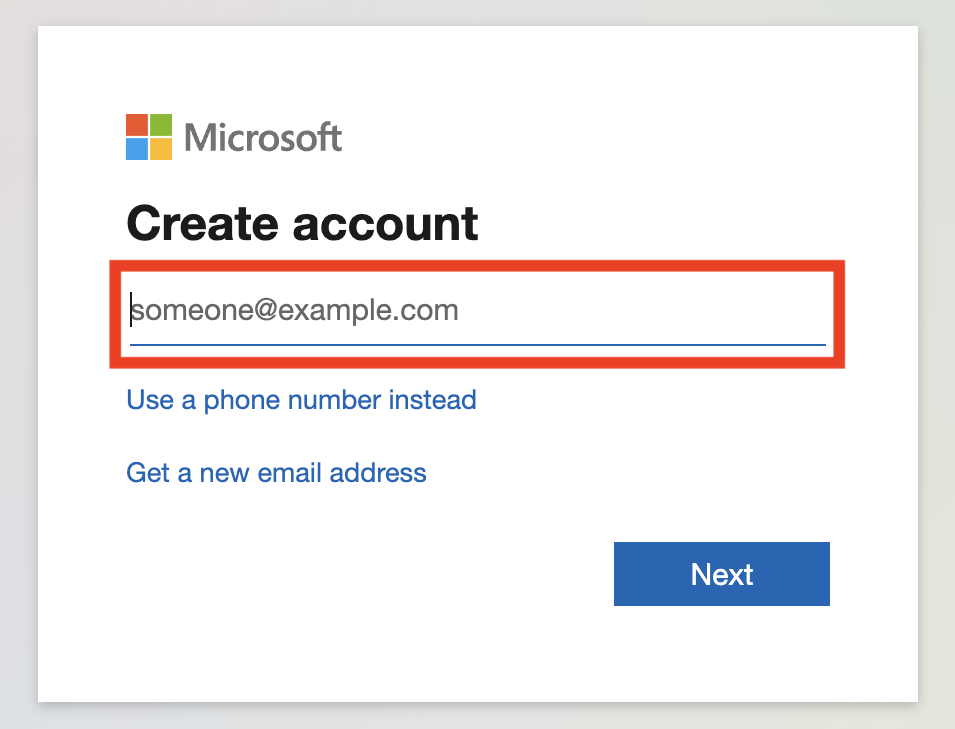
(2)Enter the e-mail address you wish to link to your account.
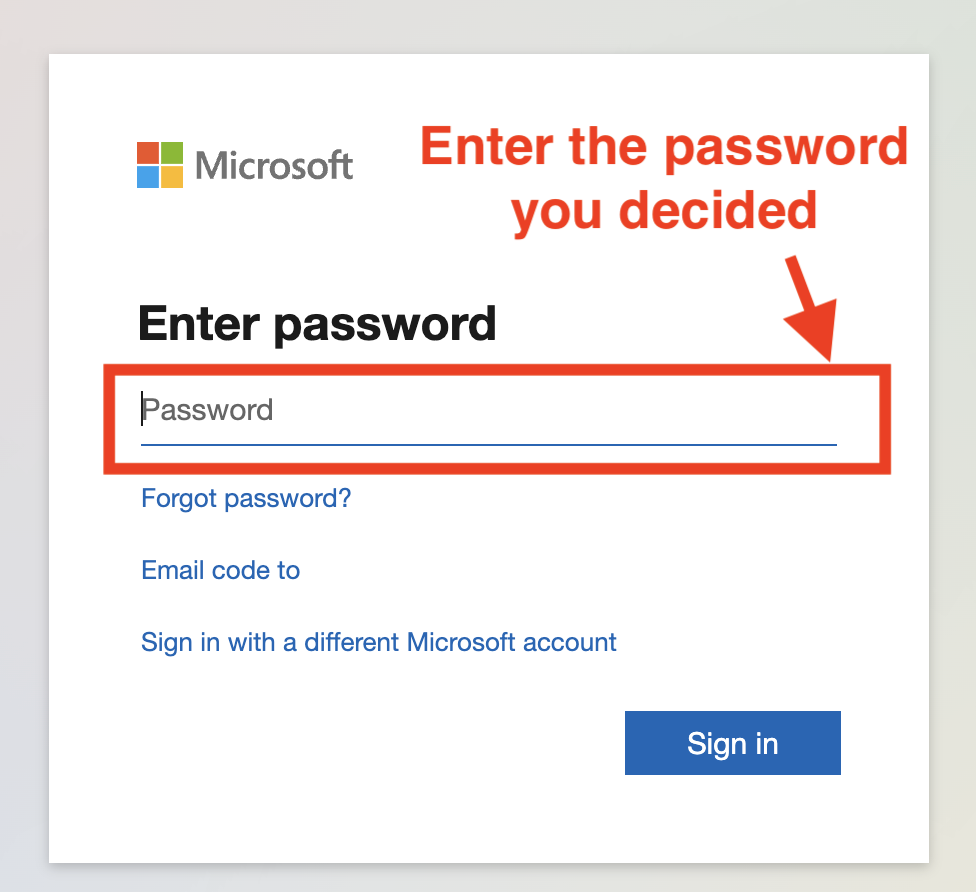
(3)Create and enter a password of your choice.
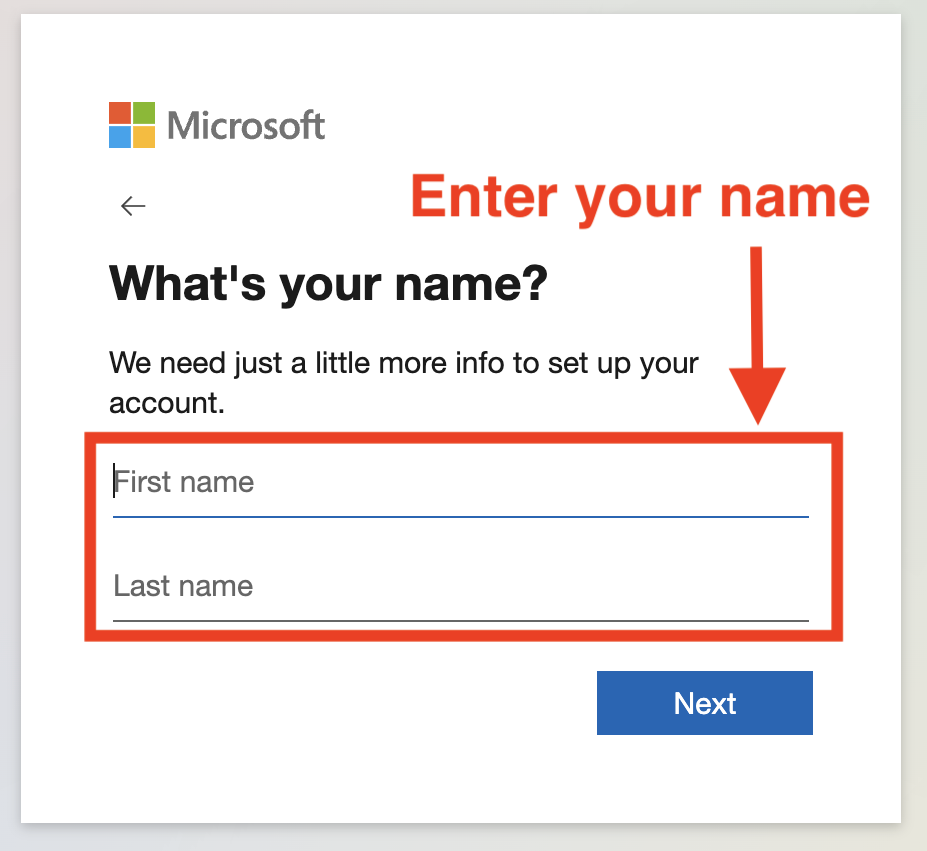
(4)Enter your name.
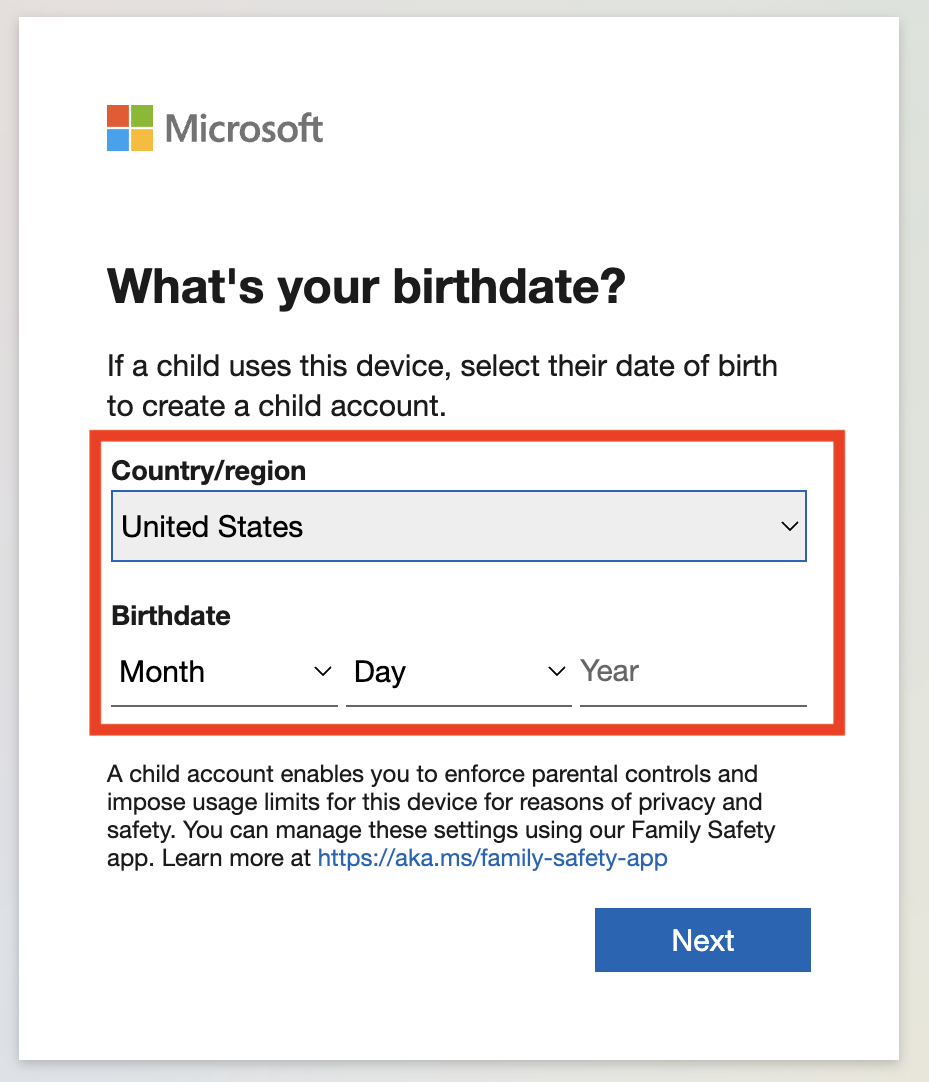
(5)Enter your date of birth. This completes the information entry.
(6)You will be asked to enter a confirmation code as shown below.
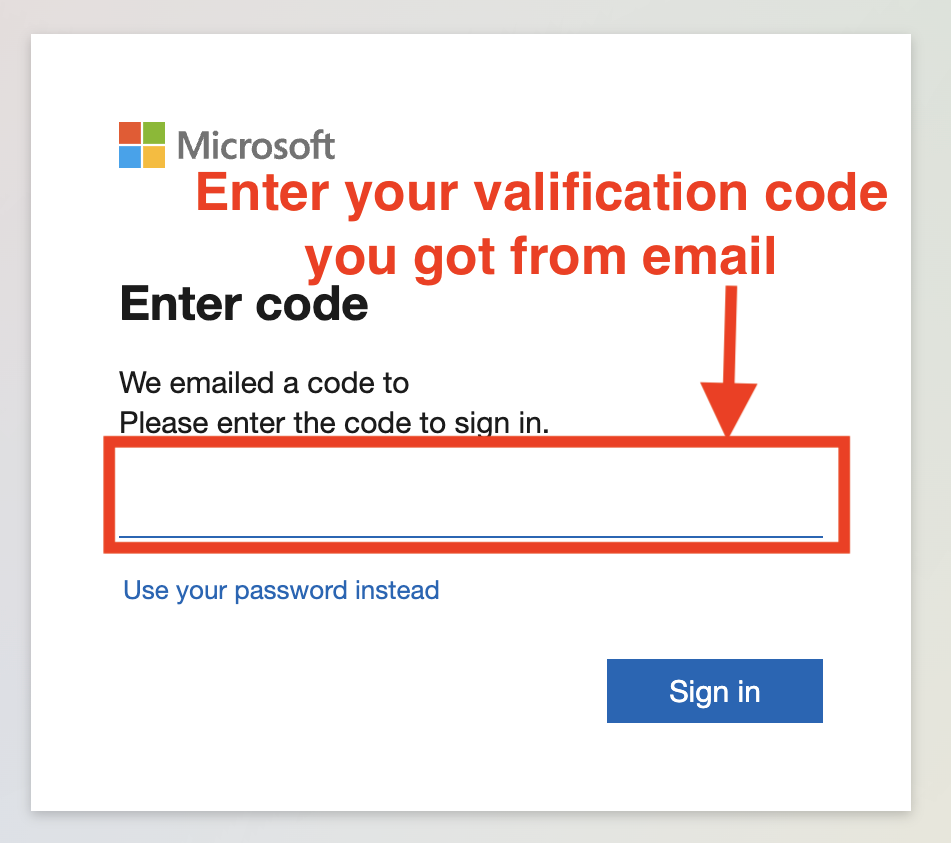
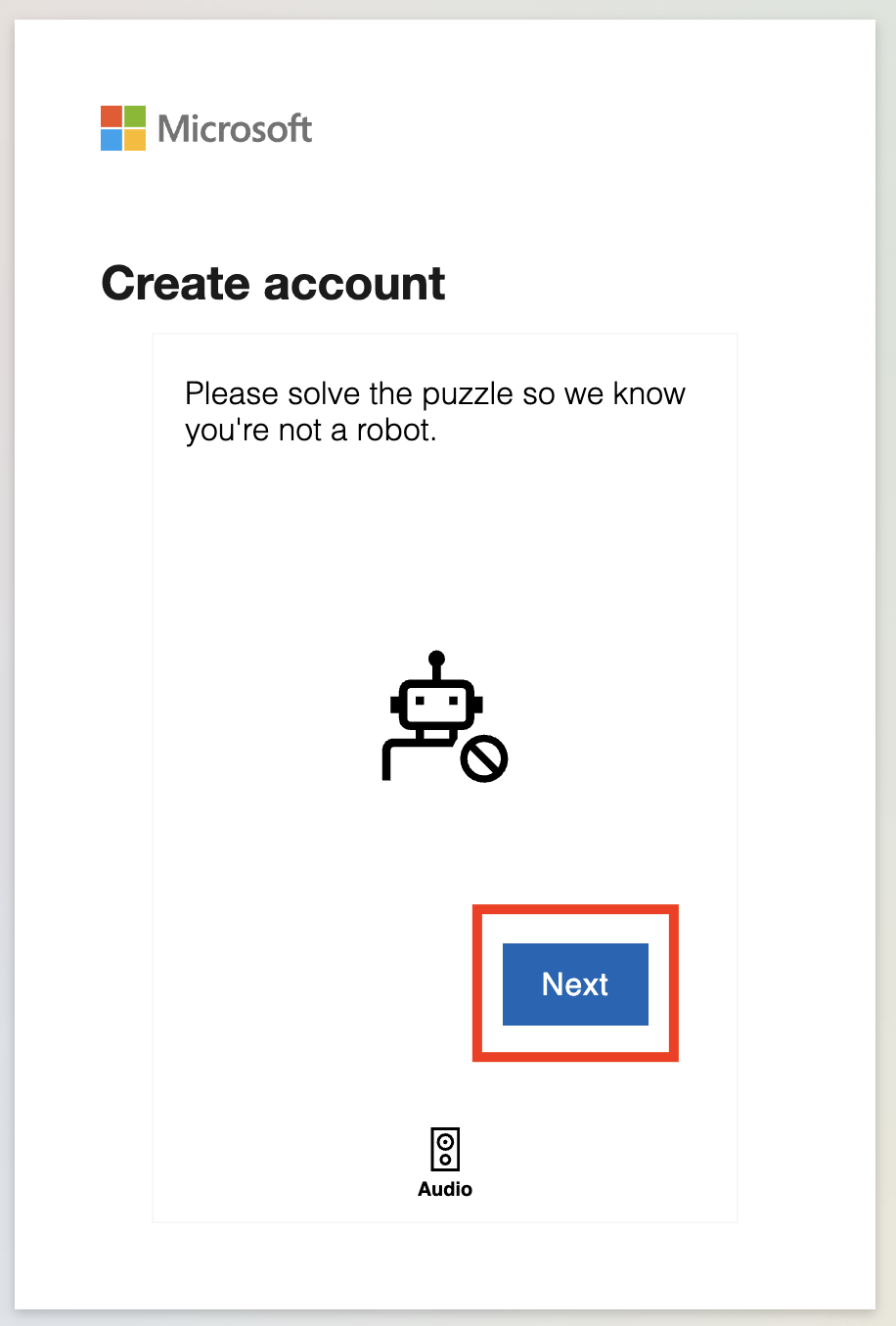
(7)After entering the code, you will be asked you are not bot by reCAPTCHA, and if you want to keep signing in. Click [Yes].

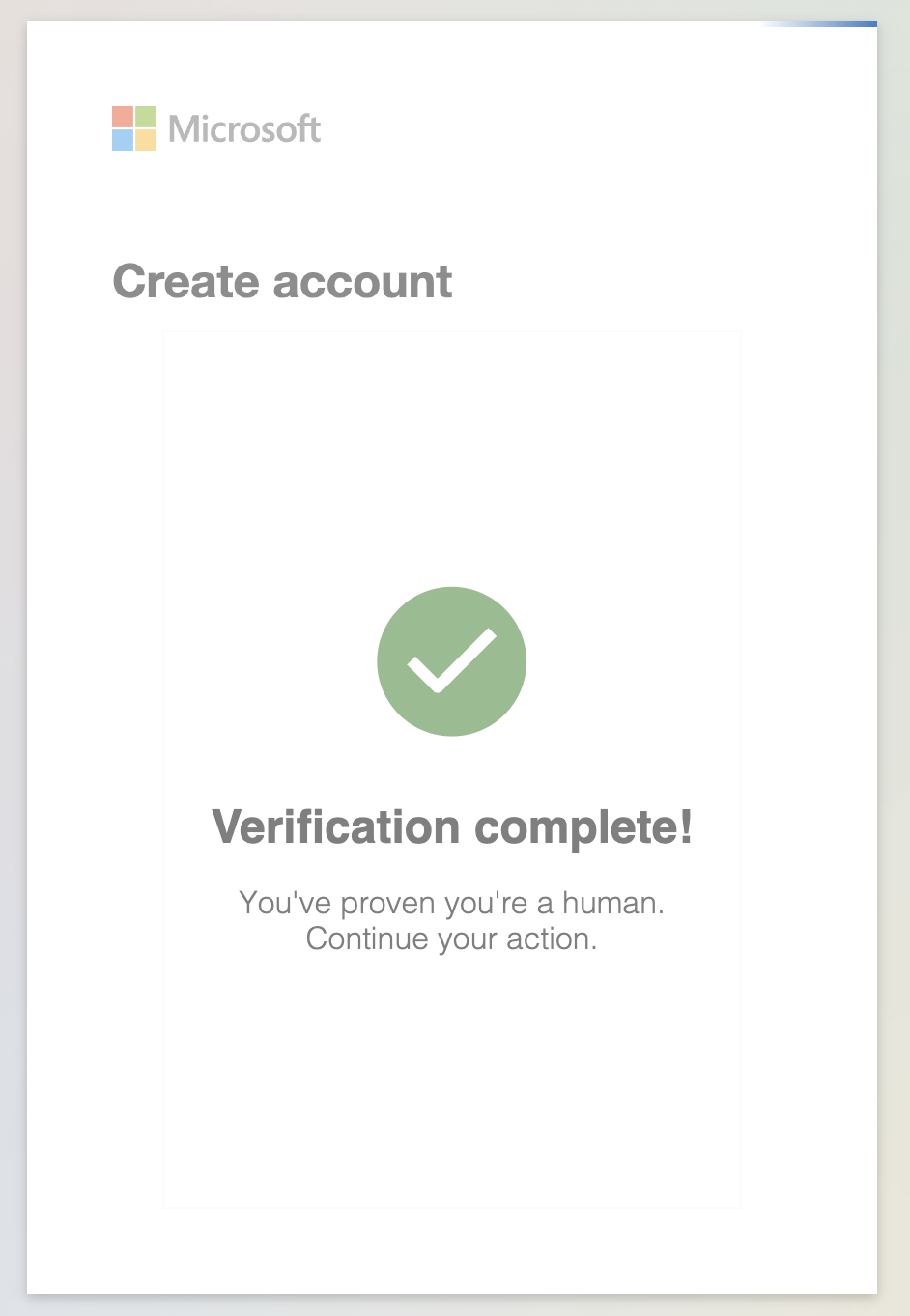
(8)Finally, it is complete registration process when you see the “Verification complete!” like below.
(2)Operating with a Web browser
The following explains “How to upload files,” “How to share files,” and “How to operate Microsoft applications” in the browser version of OneDrive.
<How to Upload Files in the Browser Version>
The way to upload a file is to click “Upload” in OneDrive and select the file you want to attach from your PC.
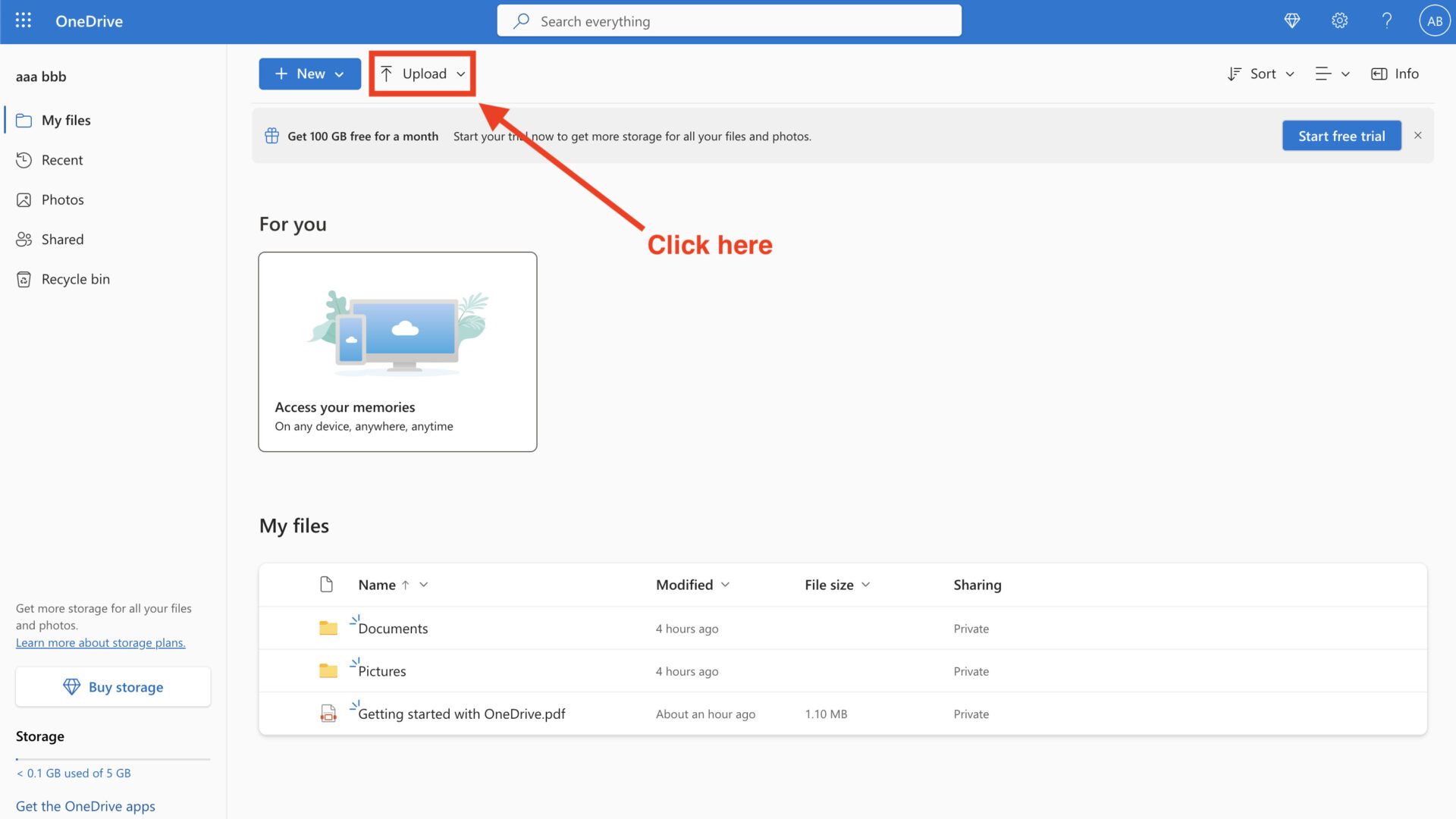
You can see the uploaded file on the lower of screen like below screenshot, uploading file is completed.
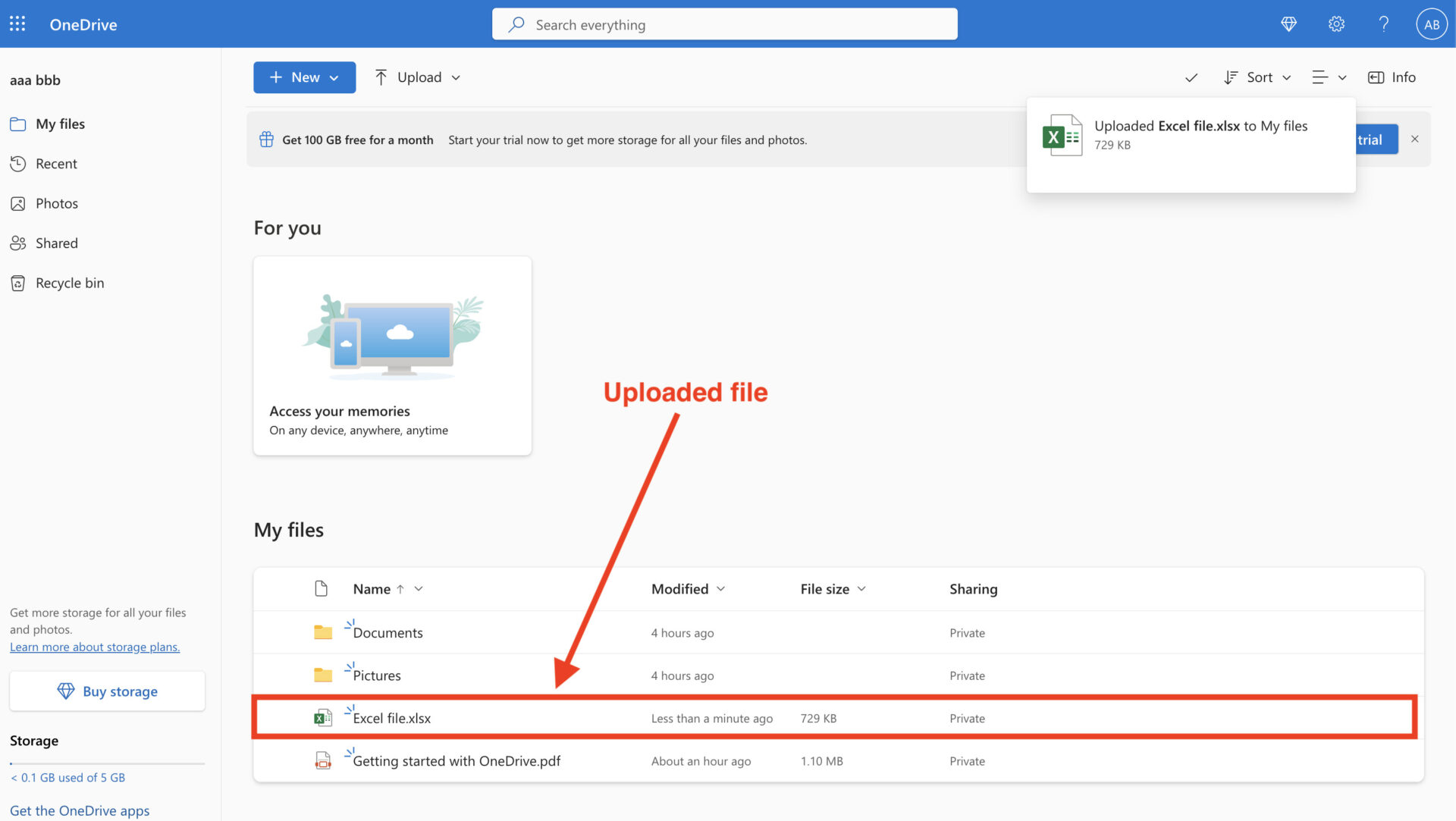
If the file appears in the same way as the first method, you are done.
<How to share a file in the browser version>
(1)First, place the cursor over the file you wish to share and a “…” will appear.
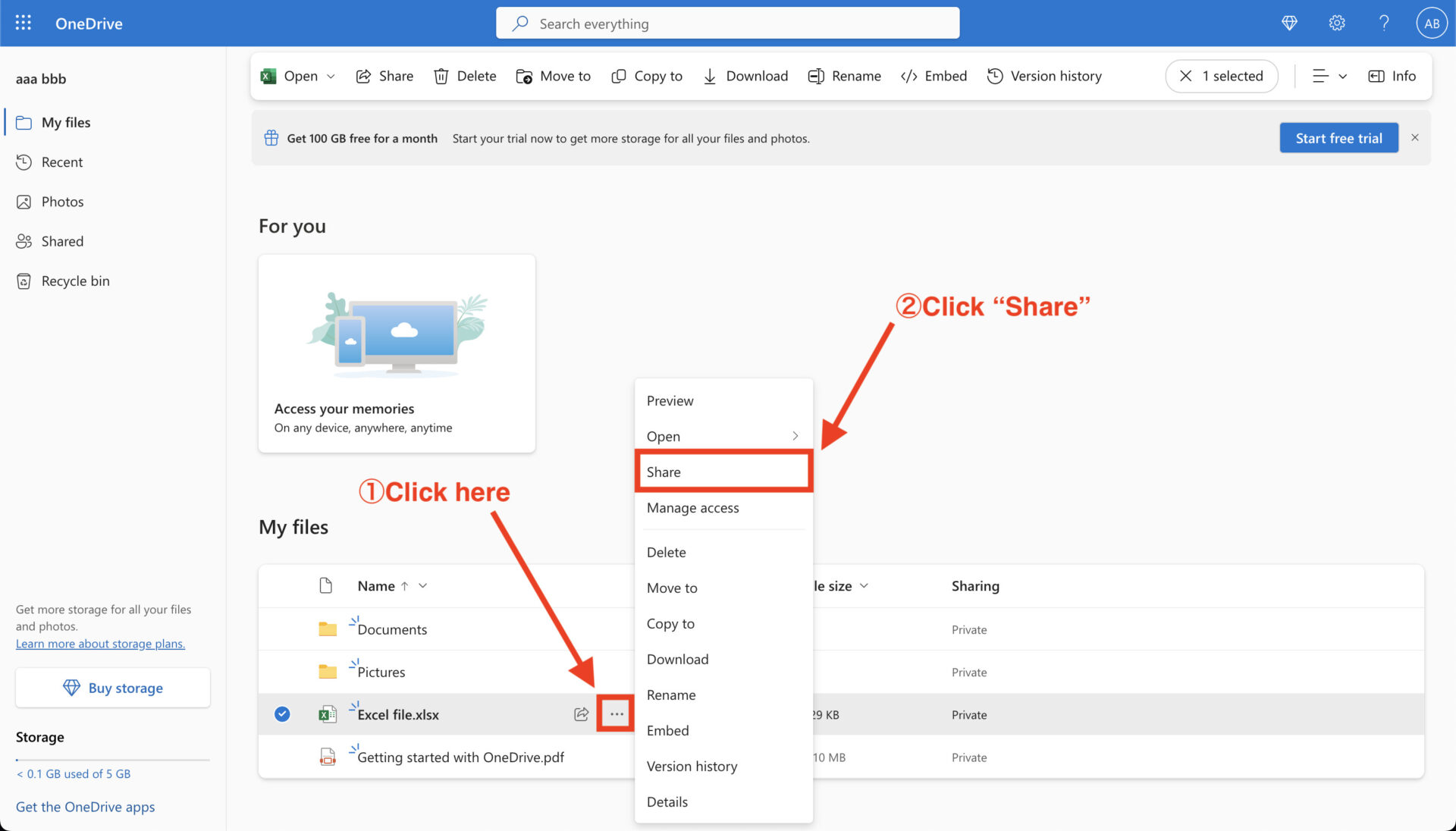
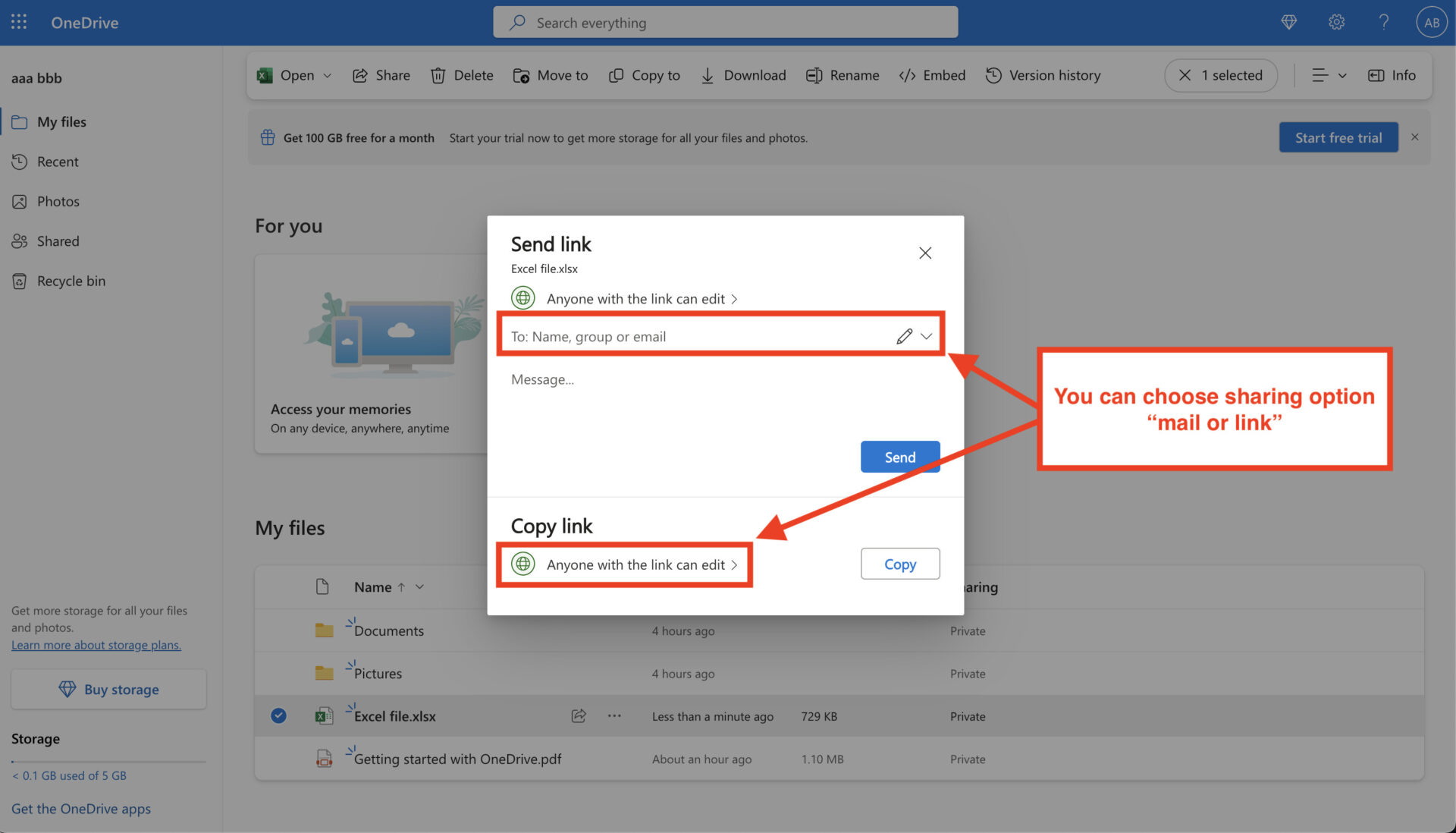
(2)Next, share the file with an email address or link.
If you enter an email address, the recipient will receive an email with a link to the file. If you send a link, the recipient can open the file directly from the link.
<How to use the Microsoft365 apps in the browser version>
You can operate Microsoft365 applications in your browser by clicking in the upper left corner of the screen and selecting the application you wish to use.
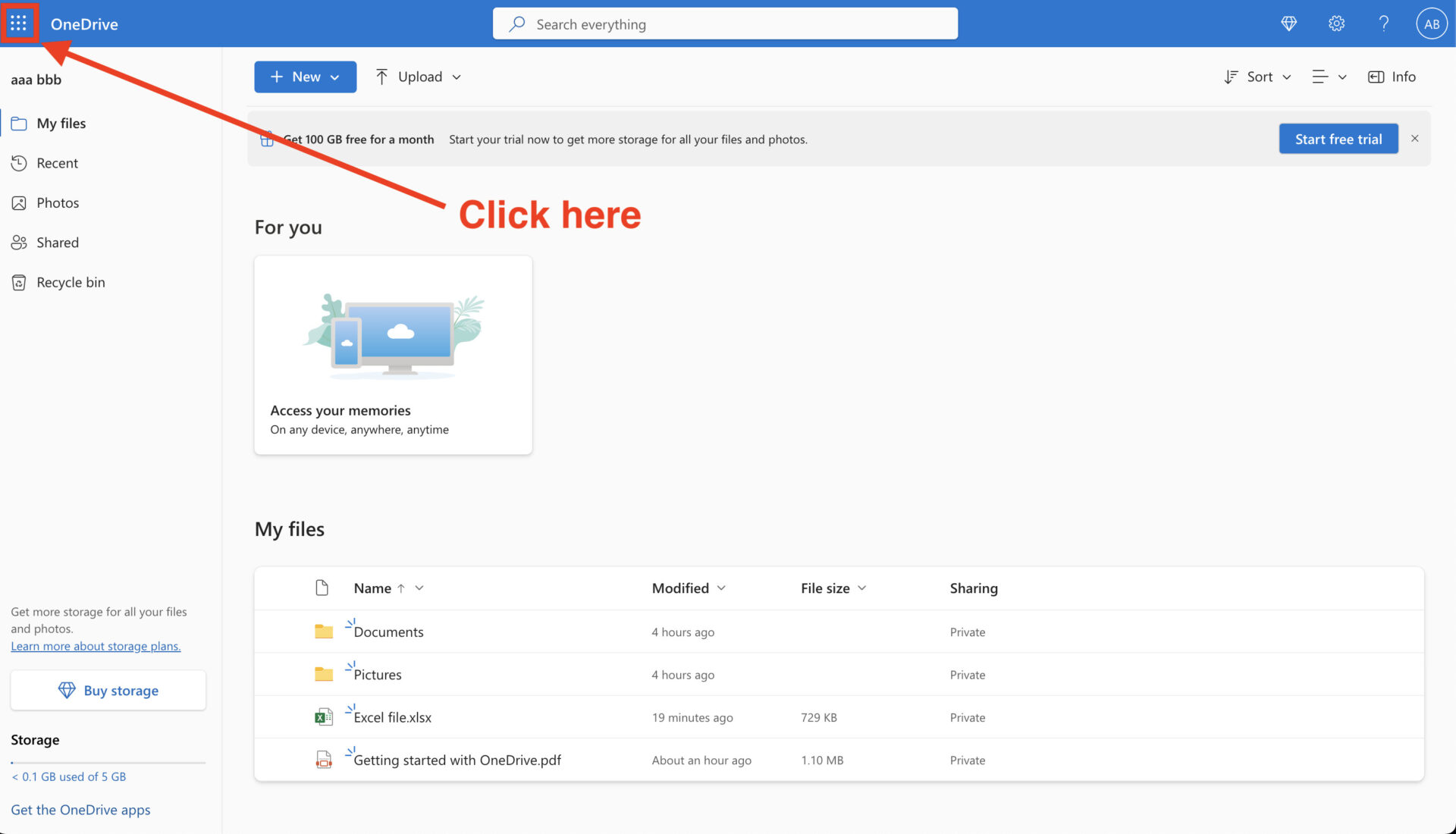
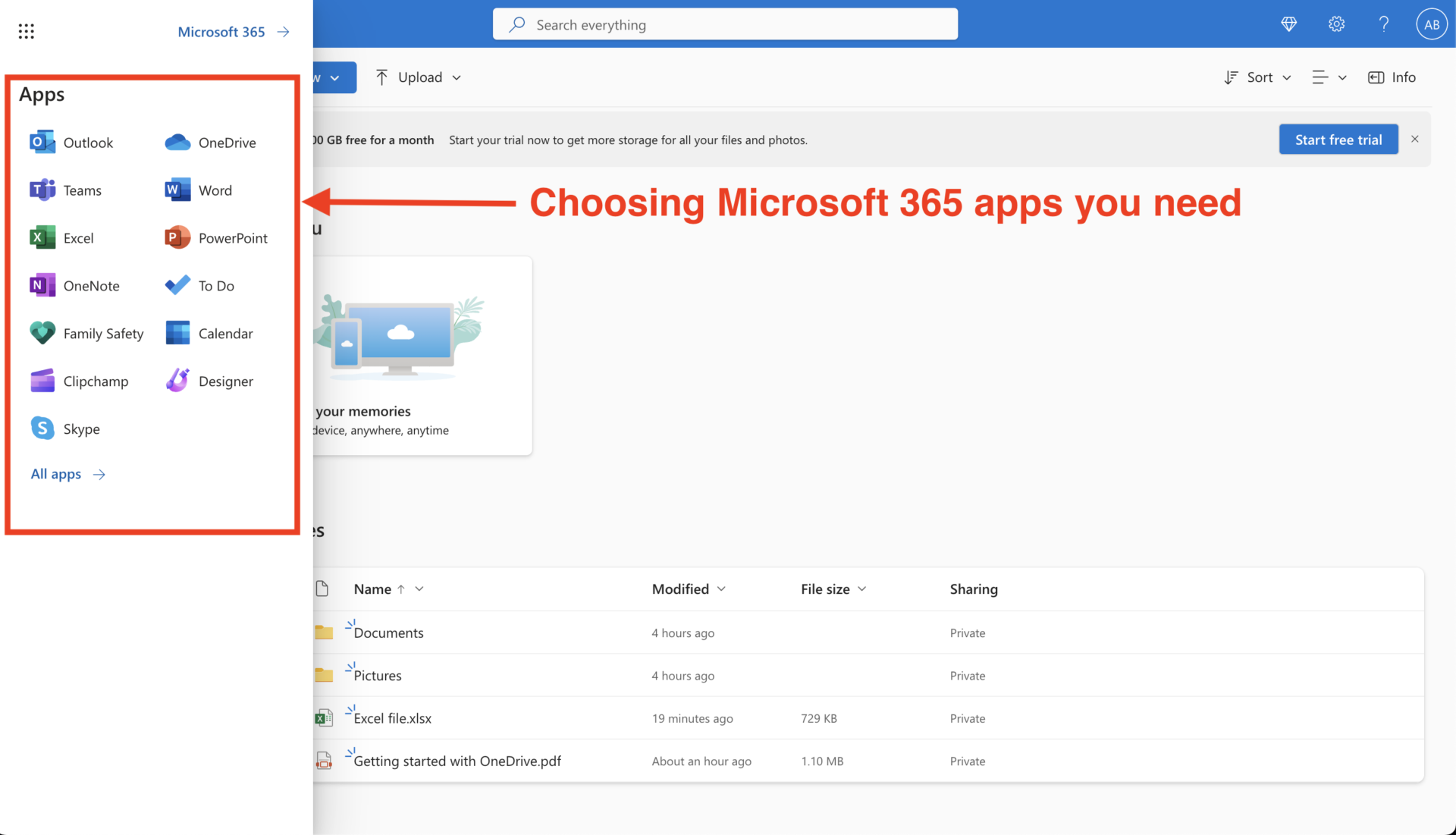
As you can see, you can control Microsoft365 apps on your browser via OneDrive, but be careful that there are some situations where the usability differs from the desktop version of the apps.
(3)Operation in Explorer
In the following, we will explain how to handle in Explorer.
Basically, the OneDrive application is installed by default in Windows 10/11. Therefore, you can easily access OneDrive folders and files from Explorer.
When working with OneDrive files in Explorer, referring to the below.
*What is available online only?
Files marked with a blue cloud symbol are stored only on the Internet and cannot be opened without an Internet connection.
*What does “available locally” mean?
Files with a green check mark are stored both on the Internet and on your PC and can be opened even if you do not connect an Internet connection.
(4)Operation with a smartphone
Files saved in OneDrive can also be operated from mobile apps. To operate with a smartphone, install “Microsoft OneDrive” beforehand.
You can upload a photo taken with your phone or upload a file by tapping the upper right corner. If you also have the Microsoft mobile version of the app installed, you can operate Word and Excel on your smartphone.
Furthermore, you can share, delete, or move files from your smartphone by clicking the symbol on the right side of the file.
As mentioned above, installing the OneDrive mobile app allows you to upload and edit files from your smartphone. This makes it possible to access the files even if you are on the move, or anywhere else.
How to set up OneDrive regarding synchronization
OneDrive is an online storage system that allows file sharing (synchronization) regardless of whether you are using a smartphone or PC, and the synchronization settings can be changed after setting.
However, there are some cases where “the files are not synchronized properly” or “any PC wants to cancel the synchronization settings”, so the following explains how to do this.
What to do if the files are not synchronized
If files shared on OneDrive are not syncing, check to see if any of the following conditions apply.
- Check your Internet environment
- Check that the version of OneDrive is up-to-date.
- Check the capacity of OneDrive
- Reinstall OneDrive
- If the OneDrive app on your “smartphone” is not syncing
Not only OneDrive, but there are many cases where “cloud tools are not connected to the Internet and cannot be used,” so check the network status of your company.
Basically, OneDrive is updated automatically on a daily basis, but you can also update it manually at any time, so if the version is out of date, make sure to update it.
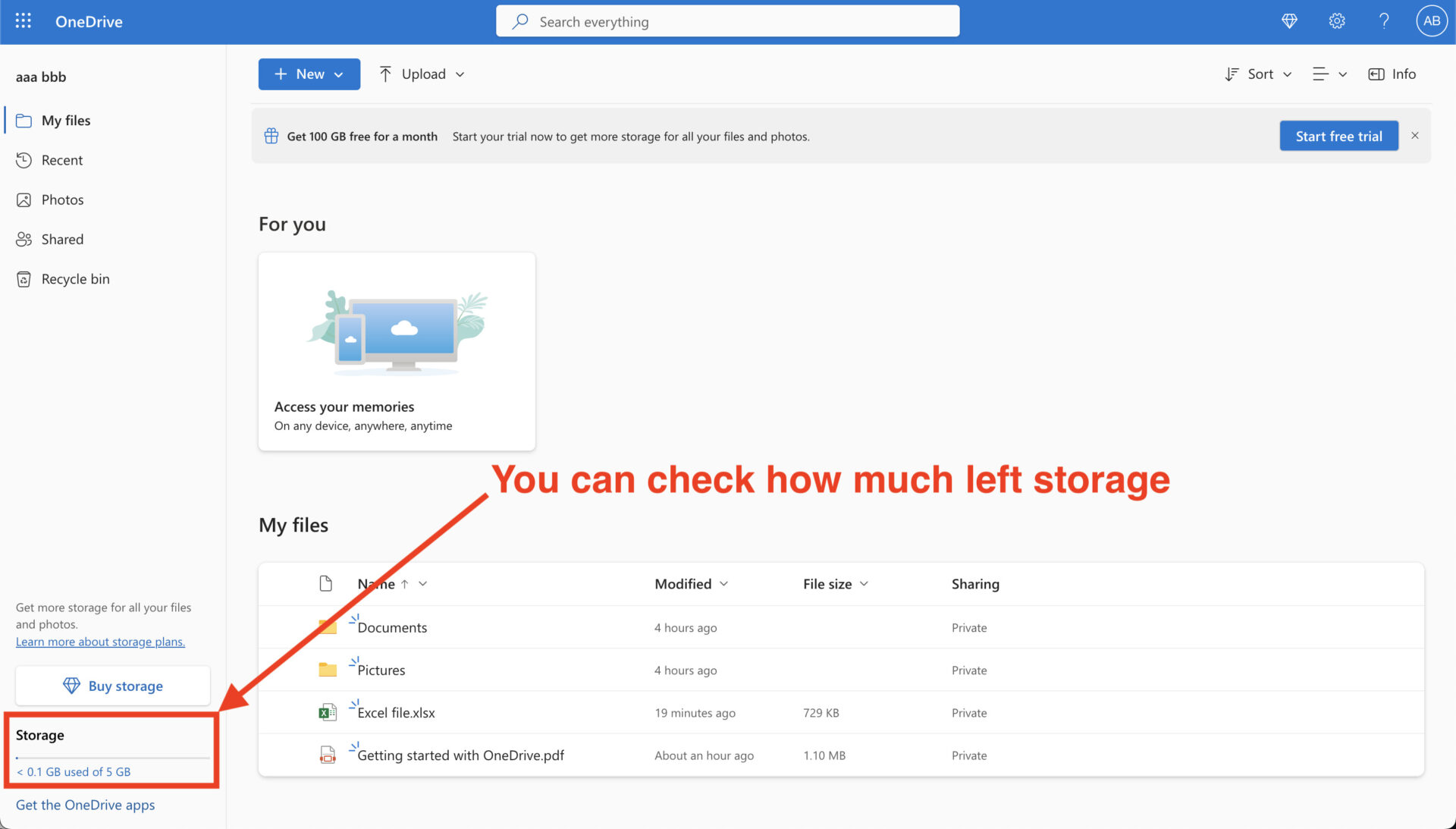
If you exceed the capacity of the plan you have subscribed to at your company, you will also not be able to synchronize. Check the current capacity from the lower left corner of the screen as shown in the figure below.
If the cause cannot be determined, try reinstalling the application. Even if the old application is uninstalled, you can use the same Microsoft account to enter.
If the files are not syncing in the smartphone app, check if the files stored in OneDrive on the web are displayed correctly. If they are displayed without problems, reinstall the OneDrive app on your phone.
As you can see, there are multiple approaches to the problem of not syncing on OneDrive, so it is recommended to check them one by one. If this does not resolve the issue, you will need to contact Microsoft 365 support.
How to get out of sync
To desynchronize in Windows, follow the steps shown in the figure below.
- (1)First, click on the cloud symbol at the bottom of the PC.
- (2)Next, click on the Settings symbol.
- (3)Finally, select “Pause Synchronization.
The synchronization can be paused by following the above procedure. The period of suspension can be selected from “2 hours, 8 hours, or 24 hours.
Summary of OneDrive features and usage
So far, we have totally introduced OneDrive, focusing on its features, basic usage, and fees.
Online storage, including OneDrive, allows you to share files with your team and is useful for business. However, they also have the demerits of being cumbersome to create, manage, and share files.
To resolve the above demerits while achieving stress-free information management, “tools that do not require complicated file management” are required. In addition, since beginners will have a hard time learning if there are many operating procedures to follow, so be careful for choosing a online strage.
In conclusion, your company should use Stock, this is a tool that allows you to easily share and share information to your team members by simply writing information directly in a “Note”.
It only takes a minute to register for free, so be sure to install Stock and get rid of the stress of file management.
